• Skip to primary navigation
  • Skip to main content
  • Skip to primary sidebar
  • Skip to footer
TechEngage

TechEngage®

Hands-on reviews, research-backed buying guides and technology news.

  • News
    • Internet & Social
    • Gadgets
    • Car Tech
    • Business
    • Science & Health
  • Reviews
  • Buying Guides
  • How-to
  • AI
  • Computing
    • Apps
    • Security
    • Gaming
  • More
    • Tools
    • Puzzles
    • Mobile
  • Launchpad
  • Sign in
TechEngage » Apps & Software

How to Use Multiple Desktops in Windows 10 and Windows 11

Avatar for Sheharyar Ahmad Saeed Sheharyar Ahmad Saeed Connect with Sheharyar Ahmad Saeed on LinkedIn Published: Jun 8, 2021 · 8:13 AM ET Updated: Oct 2, 2026 · 12:27 AM ET

multiple desktops featured image
FacebookTweetPinLinkedInPrint

Windows lets you run more than one desktop so work apps, personal tabs, and a meeting deck do not all fight for the same screen. The feature works on Windows 10 and Windows 11. Steps below follow Microsoft’s current Task View guidance and the keyboard shortcuts that still work on both versions.

Official overview: Configure multiple desktops in Windows (Microsoft Support).

Open Task View

Task View is the control center for virtual desktops.

  • Press Windows key + Tab, or
  • Select the Task View icon on the taskbar (two overlapping rectangles).

If you do not see the icon:

  • Windows 11: right-click the taskbar → Taskbar settings → turn Task view on.
  • Windows 10: right-click the taskbar → check Show Task View button.
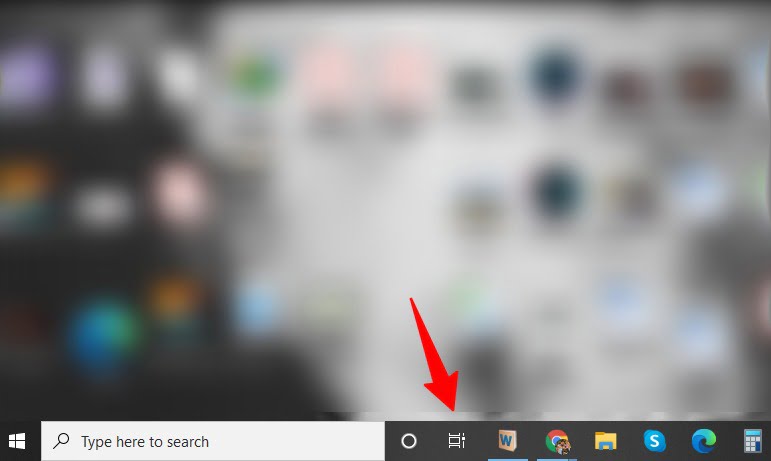
Task View Button On The Windows Taskbar
Task View on the taskbar (Windows 10 layout; Windows 11 uses the same icon style near the search box).

Create a new desktop

  1. Open Task View (Windows key + Tab).
  2. Select New desktop (plus control at the top of Task View on Windows 11, or the new-desktop control shown for your build).
  3. Optional shortcut: press Windows key + Ctrl + D to create a desktop without opening Task View first.

Click the desktop name in Task View to rename it (Work, Personal, Meeting, and so on). On Windows 11 you can also right-click a desktop thumbnail → Choose background and set a picture wallpaper per desktop so they are easier to tell apart.
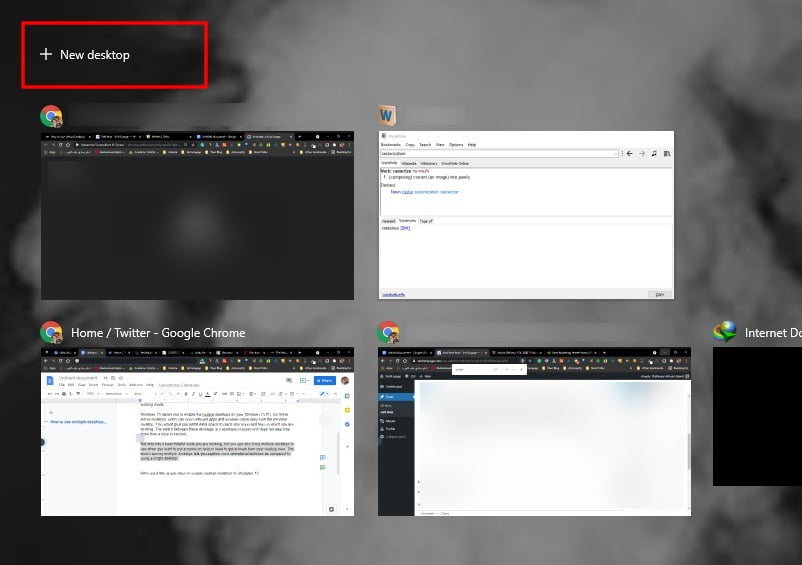
Adding A New Virtual Desktop In Task View
Creating another desktop from Task View.

Switch between desktops

  • Keyboard: Windows key + Ctrl + Left arrow or Windows key + Ctrl + Right arrow.
  • Mouse: open Task View and select the desktop thumbnail you want, or hover the Task View icon and pick a desktop.

Windows key + Tab opens Task View. It does not by itself flip to the next desktop. Use the Ctrl combinations above for quick switches.

Move apps between desktops

  1. Open Task View.
  2. Drag a window thumbnail onto another desktop, or right-click the window → Move to → pick the desktop.
  3. To keep a window on every desktop, right-click it in Task View and choose Show this window on all desktops (wording can vary slightly by build).

Close a desktop

  • In Task View, hover a desktop thumbnail and select X, or
  • Press Windows key + Ctrl + F4 to close the desktop you are on.

Closing a desktop does not force-quit its apps. Windows moves those windows to another desktop.

Closing A Virtual Desktop In Task View
Remove a desktop from Task View when you are done with that workspace.

Taskbar and Alt+Tab behavior

Control whether windows from every desktop clutter the taskbar:

  1. Open Settings → System → Multitasking.
  2. Expand Desktops.
  3. Choose whether the taskbar and Alt+Tab show windows from only the desktop you are using or all desktops.

Keyboard shortcut cheat sheet

  • Windows + Tab: open Task View
  • Windows + Ctrl + D: new desktop
  • Windows + Ctrl + Left / Right: switch desktops
  • Windows + Ctrl + F4: close current desktop

Related TechEngage guides

  • How to take screenshots on Windows 10 and 11
  • How to use Phone Link for SMS on your PC
  • How to disable notifications in Windows 10
  • How to multitask in Windows (Microsoft Support)

Need a hand or spotted a UI change on your build? Email team@techengage.com or WhatsApp +1 307 463 4505.

Something incorrect? Report an error in this article. Include a source if you have one; your name and email are optional.

Filed Under: Apps & Software Tagged With: How-To, Microsoft Windows, Windows 10

Related Stories

  • How To Open The Classic System Control Panel Screen On Windows 11 And 10

    How to open the classic System Control Panel screen on Windows 11 and 10

    Apps & SoftwareJun 30, 2021

  • How To Enable Dark Mode In Windows 10

    How to enable dark mode in Windows 10

    Apps & SoftwareJul 9, 2019

  • How To Change Default Apps In Windows 11 And 10

    How to Change Default Apps in Windows 11 and 10

    Apps & SoftwareMay 26, 2019

Stay on top of technology

Get TechEngage reviews, buying guides and news in your feed.

Follow on Google News
FacebookTweetPinLinkedInPrint
Avatar for Sheharyar Ahmad Saeed

Sheharyar Ahmad Saeed

Mobile & Events Reporter

Sheharyar Ahmad Saeed is a Mobile and Events Reporter at TechEngage who covers smartphone launches, apps, technology conferences, and social media. His reporting makes complex product announcements easy to follow for everyday readers.

Reader Interactions

Share Your Thoughts Cancel reply

Please read our comment policy before submitting your comment. Your email address will not be used or published anywhere. You will only receive comment notifications if you opt to subscribe below.

Primary Sidebar

Google News

Get TechEngage in your feed

Reviews, news, and buying guides as they publish.

Follow on Google News

Recent Stories

  • United Spotify Seatback Illustration |
    Tech News & AnalysisUnited Adds Personal Spotify Accounts to Starlink Seatback ScreensNov 5, 2026
  • Zinstall Featured |
    Reviews & Buying GuidesZinstall WinWin Review: Move Apps and Files to a New PCNov 3, 2026
  • Coveron Review Light V3 |
    Reviews & Buying GuidesCoveron Review: Is Its Identity Protection Worth It?Oct 31, 2026
  • Nordvpn Review Light V3 |
    Reviews & Buying GuidesNordVPN Review: Features, Privacy and ValueOct 31, 2026
  • Keeper Business Review Light V2 |
    Reviews & Buying GuidesKeeper Business review: sharing, plans and admin toolsOct 31, 2026

More in Apps & Software

  • Russia Government Transition Open Source Linux Featured |
    Russia’s Linux Transition: Policies, Sanctions and LimitsOct 11, 2026
  • Windows Screen Recording Guide |
    How to Screen Record on Windows 11 With AudioOct 10, 2026
  • Chrome Tabs Reloading Techengage |
    How to Stop Chrome Tabs From ReloadingOct 10, 2026
  • 136181 7Effec8402C5Ea64 |
    Microsoft’s October 7 Surface Launch: Hardware and AISep 16, 2026
More Apps & Software stories →

Footer

Discover

  • About TechEngage
  • Company News & Updates
  • Our Team
  • Advertise
  • Send us a tip
  • Submit your company to TechEngage Launchpad Hot
  • TechEngage Brand Kit
  • Contact us
  • Tools & Calculators

Legal pages

  • Editorial Standards
  • Reviews Policy
  • Our Ethics
  • Corrections Policy
  • Affiliate Disclosure
  • Privacy Policy
  • Cookies Policy
  • Terms & Conditions
  • GDPR Compliance
  • Copyright & DMCA

Must reads

  • Best Mechanical Keyboards Under $100
  • Best USB-C Hubs
  • Best Portable SSDs
  • Best Gaming Graphics Cards (GPUs)
  • Best Long-Range Outdoor WiFi Extenders
  • Best Wireless CarPlay Adapters
  • Best Slack Alternatives
  • Best Long-Range Walkie-Talkies

Download our apps

TechEngage app coming soon on the App Store Available onChrome

© 2026 TechEngage®. All Rights Reserved. TechEngage® is a project of TechAbout LLC.

TechEngage® is a registered trademark in the United States under Trademark Number 6823709 and in the United Kingdom under Trademark Number UK00003417167. The publication is identified by ISSN 2690-3776 and OCLC Number 1139335774.

Contact team@techengage.com · WhatsApp +1 307 463 4505

Your analytics choice
Allow Google Analytics to help us understand readership? You can use the site without it and change this choice anytime.

Privacy details