

In this guide
Zinstall WinWin is worth considering when you want your familiar Windows programs, profiles and settings on a new PC, along with your files. Its appeal is avoiding the work of rebuilding a computer application by application. Choose WinWin for a transfer between two working PCs; look at Migration Kit Pro when you need an external-drive transfer or a more involved migration.
A new laptop can be fast and still feel unfinished without the applications, email accounts and preferences you use every day. Zinstall is designed to copy that working environment across different PC brands and Windows versions. It is a practical option for people who value keeping their setup familiar, especially when reinstalling older software would take time.
Review basis: This review assesses Zinstall’s documented features, workflow and buying options. The product screenshots are supplied by Zinstall. Transfer speed and application compatibility depend on the computers and software involved.
What Zinstall WinWin transfers
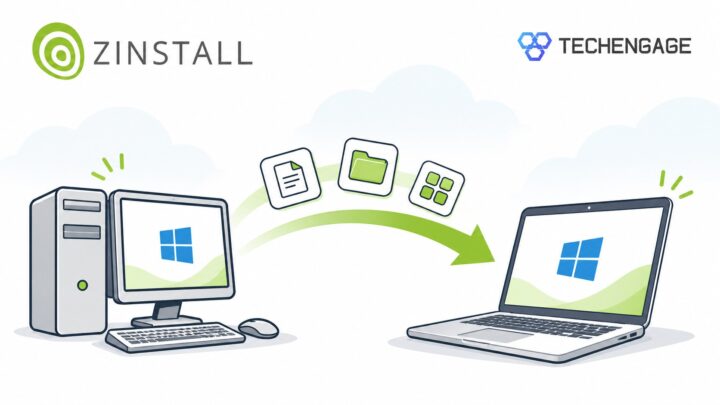
Zinstall describes WinWin as a full PC migration tool: it transfers programs, user profiles, settings, accounts, emails, passwords and files. That is a broader job than copying a Documents folder to a USB drive. The goal is to have the new computer feel familiar, with the applications and personal environment that made the old one useful.
The company lists Windows 11 to Windows 11 transfers, as well as moves from Windows 10 or Windows 7 to Windows 11. Different hardware and manufacturers are supported, so the old PC could be an HP desktop and the replacement a Dell laptop. You do not need to buy the same brand again to use this workflow.
The important distinction is between copying an application and the terms of its license. Keep your installers, account details and activation information available for the programs you rely on. Moving an existing installation does not itself grant a new software license.
How the transfer works
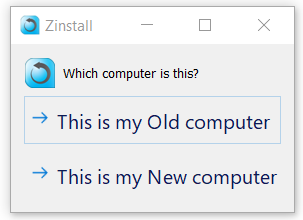
The standard WinWin workflow is straightforward: download and run Zinstall on the old and new computers, identify which computer is which, and start the transfer. Zinstall presents it as a process that does not require technical skills, special network configuration or preparatory Windows updates simply to begin.
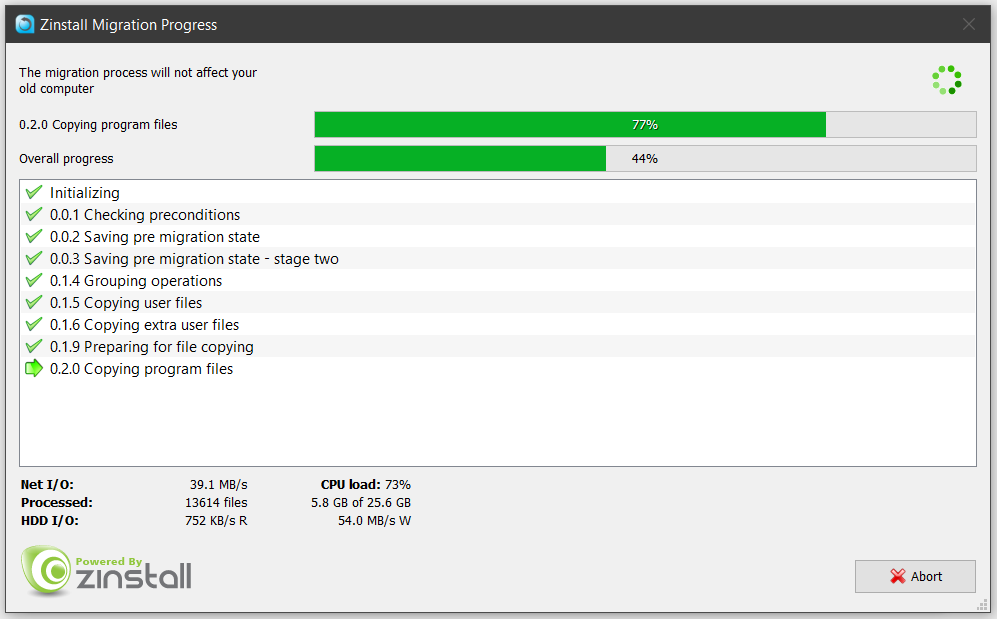
No special data-transfer cable is required. WinWin can use the existing Wi-Fi connection or a wired network. For a large collection of applications and files, choose a connection you can keep stable, plug both computers into power and allow time for the migration to finish. Zinstall says a transfer commonly takes several hours, depending on the amount of data and connection speed.
Before starting, make a separate backup of important documents. Our Windows 11 external-drive backup guide explains that precaution. A migration should give you another usable computer while you retain a fallback copy of irreplaceable files.
WinWin or Migration Kit Pro?
| Your situation | Which option to consider |
|---|---|
| Both PCs work and share Wi-Fi or a wired network | Zinstall WinWin |
| You want to transfer using a USB external drive | Zinstall Migration Kit Pro |
| The old PC will not start, but its drive can still be read | Ask Zinstall about the appropriate Migration Kit Pro or recovery workflow |
| The destination SSD cannot hold the full old setup | Discuss selective transfer and Migration Kit Pro with support |
Migration Kit Pro is the advanced version for jobs beyond a normal network transfer. Zinstall’s brief highlights the ability to work from an old computer’s hard drive even when the computer itself will not turn on: connect the drive to the replacement PC, then use the appropriate migration workflow to recover the programs, profiles and files from the readable drive.
A computer that will not boot and a physically failed drive are different problems. The drive still needs to be accessible. If the files themselves have been lost or damaged, investigate recovery before migration; our EaseUS Data Recovery Wizard review covers that separate category.
Where Zinstall can save the most effort
The strongest reason to pay for Zinstall is the setup work it can replace. Copying photos is usually simple; reconstructing application settings, email arrangements and user profiles can be much more involved. A migration tool becomes more useful as that accumulated setup grows.
Zinstall emphasizes support for complex software and complete profiles. Its product pages also cite recommendations in Microsoft-related books and industry publications, alongside customer testimonials spanning more than 15 years. That history is useful background, while your own essential programs remain the purchase decision that matters most. Ask support about unusual or business-critical applications before you commit.
For someone with only a few documents and browser-based services, a manual move may be enough. For someone with an established desktop setup, keeping existing programs working can save hours of reinstalling and reduce the chance of leaving a setting or local file behind. It may also avoid unnecessary replacement purchases for software whose existing license permits the move.
Price, human support and the Migration Guarantee
Zinstall’s WinWin page lists $129 for a license covering the old and new PCs. Check the current checkout for taxes, currency and the exact edition. The right comparison is the purchase price against the time and disruption involved in rebuilding your particular setup.
Zinstall offers support through phone, email and chat, with people available to help when a transfer needs attention. Remote full-service migration is a separate option, so check what is included in the product you are buying rather than assuming someone will perform the entire job for you.
The company also offers its Migration Guarantee. Its stated terms say that if you do not like the transfer results, you can reset the new computer to its original out-of-the-box state and receive a refund. Read those terms before buying and contact support before resetting anything, particularly if you have created new files on the destination computer.
What to check after the transfer
Keep the old PC available until the new one is ready for everyday work. Open your important applications, check email folders and attachments, confirm account access, and inspect the documents and preferences you use regularly. Zinstall says the source computer is left unchanged, so you can use it as a reference while checking the replacement.
System drivers are a separate consideration. Zinstall’s FAQ says drivers do not transfer and identifies antivirus software and printers as items that may need reinstalling. Check those essentials before retiring the old machine. A successful progress screen should lead to a working setup you have checked yourself.
Verdict
Zinstall WinWin makes the most sense for a move between two working Windows PCs when preserving applications and personal setup matters more than starting fresh. Its simple workflow, support across different PC brands, live human help and Migration Guarantee make it an appealing paid option for that job. Migration Kit Pro is the better starting point when an external drive or a more complex migration is involved.
Get Zinstall here and transfer everything to your new computer




Share Your Thoughts