


In this guide
Disclosure: TechEngage is a participant in the Amazon Services LLC Associates Program, an affiliate advertising program designed to provide a means for sites to earn fees by linking to Amazon.com and affiliated sites. We may earn a commission when you buy through links on this page, at no extra cost to you. Our editorial picks are made independently of these partnerships.
A USB-C hub is only as capable as the laptop port it plugs into, and the specs that separate a good hub from a frustrating one are easy to miss on a product listing: whether HDMI runs 4K at 60Hz or a choppy 30Hz, whether the data ports are 5Gbps or 10Gbps, and how many watts reach your laptop after the hub takes its share. Mac owners have one more question, because the number of external monitors depends on the Apple chip, not on how many HDMI ports the hub has.
The eight picks below are current models sold on Amazon US, each with a clear job: a best overall hub, a MacBook-shaped hub, a DisplayLink dock for two monitors, a USB-C-heavy adapter, a value pick, a budget pick, a travel hub that also suits iPad and iPhone, and a Thunderbolt 5 hub for power users. If you are building out a MacBook setup, the guide to MacBook accessories covers stands, chargers and more.
TechEngage did not lab-test these hubs. The choices are based on manufacturer specifications, official Apple and Plugable documentation, published reviews and Amazon rating volume, and each write-up flags who should skip the product.
Quick Comparison: Best USB-C Hubs
| Hub | Best For | Video | Fastest Data | Laptop Charging |
|---|---|---|---|---|
| Plugable 9-in-1 USB-C Hub | Best overall | 1x HDMI, 4K 60Hz | 10Gbps USB-C and USB-A | Up to 125W |
| Satechi Pro Hub Slim | MacBook Air and Pro | USB4 up to 6K 60Hz plus HDMI 4K 60Hz | 40Gbps USB4, 10Gbps USB-C and USB-A | Up to 100W |
| Plugable 7-in-1 DisplayLink Dock | Two monitors on any Mac | 2x HDMI, 4K 60Hz (DisplayLink) | 10Gbps USB-C and USB-A | Up to 82W |
| Satechi USB-C Multiport Adapter V3 | Fast USB-C accessories | 1x HDMI, up to 8K 30Hz or 4K 144Hz | 3x 10Gbps USB-C, 1x 5Gbps USB-C | Up to 85W |
| Anker 555 USB-C Hub 8-in-1 | Value all-rounder | 1x HDMI 2.0, 4K 60Hz | 10Gbps USB-C and USB-A | Up to 85W |
| Anker 332 USB-C Hub 5-in-1 | Budget and basics | 1x HDMI 1.4, 4K 30Hz | 5Gbps USB-C and USB-A | Up to 85W |
| $.... (Product detail is unavailable temporarily) | Travel, iPad, iPhone | 1x HDMI 2.0, 4K 60Hz | 5Gbps USB-A | Up to 80W |
| CalDigit Thunderbolt 5 Element 5 Hub | Thunderbolt 5 power users | Via 3x Thunderbolt 5 ports | 80Gbps Thunderbolt 5, 10Gbps USB | Up to 90W |
1. Plugable 9-in-1 USB-C Hub (USBC-9IN1E): Best Overall
| Plugable 9-in-1 USB-C Hub | |
|---|---|
| Price | $49.95 |
| Brand | Plugable |
| Check availability on Amazon | |
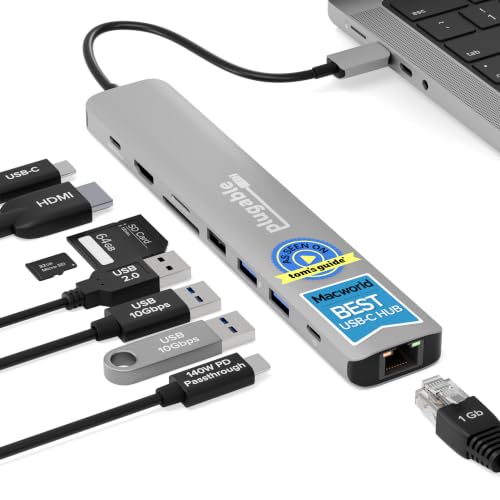
The Plugable 9-in-1 covers the ports most laptop owners reach for, and it does not skimp on speed. Plugable’s spec sheet lists one 10Gbps USB-C data port, two 10Gbps USB-A ports, a USB 2.0 port for a mouse or keyboard receiver, Gigabit Ethernet, SD and microSD readers rated UHS-II, and an HDMI output for one display at 4K 60Hz. It is also one of the few compact hubs with USB PD 3.1 EPR support: with a 140W EPR charger and a laptop that accepts it, up to 125W reaches the laptop. On standard PD 3.0 laptops, a 100W charger gives 85W, because the hub keeps 15W to run its own ports.
The attached cable is short (about 7.5 inches), so the hub sits right next to the laptop rather than under a monitor. HDMI only works if your laptop’s USB-C port supports DisplayPort Alt Mode, and like every single-plug hub here it drives one external screen. The 125W ceiling matters mainly for 16-inch MacBook Pro and high-power Windows laptops; everyone else gets the same 85W as cheaper hubs. Its Amazon rating count is also smaller than Anker’s long-running 555.
Why it stands out: It pairs 10Gbps data ports, UHS-II card readers and the highest pass-through charging in this list in a hub small enough for a laptop sleeve.
Check availability on Amazon2. Satechi Pro Hub Slim: Best for MacBook

| Satechi Pro Hub Slim | |
|---|---|
| Price | $79.99 |
| Rating on Amazon | 4.4 out of 5 stars |
| Brand | Satechi |
| Check availability on Amazon | |
Satechi’s Pro Hub Slim is shaped for the side of a MacBook: it plugs into two neighboring USB-C ports and sits flush against the case instead of dangling on a cable. One of those connections comes back out as a full USB4 port with 40Gbps data, up to 6K 60Hz video and 100W charging, according to Satechi’s product page. Around it you get HDMI at 4K 60Hz, two 10Gbps USB-A ports, a 10Gbps USB-C data port, and SD and microSD readers limited to UHS-I speeds (104MB/s). Because it uses two host ports, it can carry two separate display signals, which is why it works for a two-monitor desk on newer MacBooks.
Display support depends on the chip, not the hub. Satechi says extended dual displays do not work on M1 and M2 Macs, and M3 models only run two external screens with the lid closed. On a MacBook Air, the hub occupies both Thunderbolt ports, so charging moves to MagSafe or the hub’s USB4 pass-through. Thick or rugged cases can block the dual-plug fit, and photographers who dump large cards will notice the slower UHS-I readers. Windows laptops with ports spaced differently should skip it.
Why it stands out: It keeps a full 40Gbps USB4 port while adding HDMI and fast USB, giving newer MacBooks a native two-display setup without DisplayLink software.
Check availability on Amazon3. Plugable 7-in-1 DisplayLink Dock (USBC-6950PDZ): Best for Dual Monitors

| Plugable 7-in-1 DisplayLink Dock | |
|---|---|
| Price | $145.99 |
| Brand | Plugable |
| Check availability on Amazon | |
The Plugable USBC-6950PDZ uses DisplayLink to send two extended 4K 60Hz HDMI displays over one USB-C connection, even on computers that only support one external display on their own. That includes base M1 and M2 MacBook Air models. Per Plugable’s product page, it also has 10Gbps USB-A and USB-C data ports, Gigabit Ethernet, an SD slot and up to 82W of pass-through charging from a 100W charger. On a Mac you install the DisplayLink Manager app before the second screen appears; Windows installs the driver automatically.
Why not a cheaper hub with two HDMI ports? Most of those rely on MST, and Plugable’s MST explainer notes macOS does not support MST for extended displays, so both screens mirror. Anker’s Nano 8-in-1 Dual Display hub warns about exactly that: on macOS, both monitors show identical content. DisplayLink has its own trade-offs. Plugable says the dock does not support HDCP, so some streaming apps will not play protected video on those screens, and it is not meant for gaming or 3D work. For spreadsheets, email and browser windows across two of the best monitors for office work, it is the reliable route.
Why it stands out: It is the most dependable way to run two extended monitors from a MacBook that officially supports only one.
Check availability on Amazon4. Satechi USB-C Multiport Adapter 8K with Ethernet V3: Best for 10Gbps USB-C Ports

| Satechi USB-C Multiport Adapter V3 | |
|---|---|
| Price | $99.99 |
| Brand | Satechi |
| Check availability on Amazon | |
If your drives, card readers and phone cables are already USB-C, the Satechi V3 is built around them. Satechi lists three 10Gbps USB-C data ports and one 5Gbps USB-C port, a UHS-II SD reader rated up to 312MB/s, Gigabit Ethernet, an HDMI port that reaches 4K at 60, 120 or 144Hz or 8K at 30Hz on supported hosts, and 85W of pass-through charging from a 100W charger. Three 10Gbps ports mean a USB-C SSD, a camera and a card reader can all sit on fast lanes at once, which matters if you move footage onto one of the best portable SSDs.
There is no USB-A port, so an older mouse dongle or flash drive needs an adapter. The high refresh rates also come with a Mac caveat: Satechi says higher refresh rates at 4K are reserved for Windows, and Mac users must lower the resolution to get them. The USB-C PD port only handles power, not data or video. The data ports also share the hub’s single connection to the laptop, so running three fast drives at the same moment will not triple throughput.
Why it stands out: Three 10Gbps USB-C ports plus a UHS-II reader make it the best fit for a USB-C-only accessory kit.
Check availability on Amazon5. Anker 555 USB-C Hub (8-in-1): Value candidate (price-dependent) 8-in-1
| Anker 555 USB-C Hub 8-in-1 | |
|---|---|
| Price | $38.99 |
| Discount | 22% |
| Rating on Amazon | 4.3 out of 5 stars |
| Brand | Anker |
| Check availability on Amazon | |
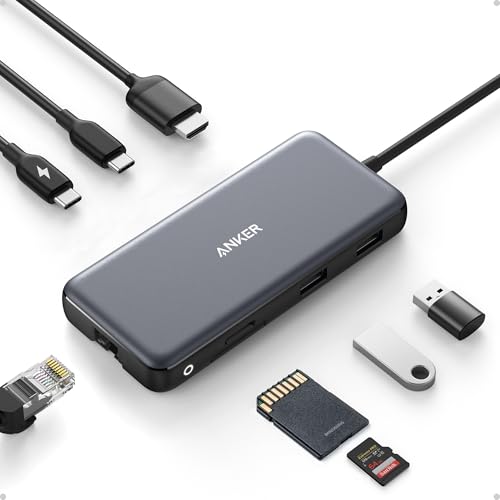
The Anker 555 has been around for years and still covers most needs. Anker’s spec sheet lists two 10Gbps USB-A ports, one 10Gbps USB-C data port, HDMI 2.0 at 4K 60Hz with HDR and HDCP 2.2, Gigabit Ethernet, SD and microSD readers (UHS-I), and a 100W PD input that sends up to 85W to the laptop. It is a close match for the Plugable layout, minus the extra USB 2.0 port and EPR charging, and it carries one of the largest Amazon rating counts in the category.
Macworld points out that the 555 can get warm during use and that its card readers are UHS-I, so large photo imports take longer than on UHS-II hubs. The 85W ceiling is fine for a MacBook Air or a 14-inch MacBook Pro but slows charging on a 16-inch model under heavy load. The USB-C data port does not carry video, so the HDMI port is your only display option.
Why it stands out: It delivers 10Gbps data, 4K 60Hz HDMI and Ethernet with a long track record, which makes it the safe value pick.
Check availability on Amazon6. Anker 332 USB-C Hub (5-in-1): Budget candidate (price-dependent)

| Anker 332 USB-C Hub 5-in-1 | |
|---|---|
| Price | $18.99 |
| Discount | 24% |
| Brand | Anker |
| Check availability on Amazon | |
For a student laptop or occasional presentations, the Anker 332 handles the basics without extras you may never use. Anker’s product page lists HDMI 1.4 up to 4K at 30Hz, one 5Gbps USB-C data port, two 5Gbps USB-A ports and a 100W PD input with 85W going to the laptop. That covers a flash drive, a wired mouse, a keyboard and a TV or projector, which is all many people need.
The 30Hz limit at 4K is the compromise. It is fine for slides and video, but cursor movement and scrolling look choppy on a 4K monitor you work on all day, so desk users should step up to a 60Hz hub like the Anker 555. There is no Ethernet or card reader, and the USB-C data port cannot drive a display. Skip it if you edit photos, need wired internet, or plan to run a 4K monitor as your main screen.
Why it stands out: It is the cheapest reliable way to add HDMI, USB-A and pass-through charging to a USB-C laptop.
Check availability on Amazon7. Satechi OntheGo 7-in-1 Multiport Adapter: Best for Travel, iPad and iPhone
| $.... (Product detail is unavailable temporarily) | |
|---|---|
| Brand | Satechi |
| $.... (Product detail is unavailable temporarily) | |
The OntheGo is a round aluminum puck that measures 2.55 by 2.55 by 1.05 inches and weighs 2.4 ounces, with a 13cm braided cable that wraps around its body for storage. Satechi’s spec sheet lists HDMI 2.0 at 4K 60Hz, Gigabit Ethernet, two 5Gbps USB-A ports, SD and microSD readers (UHS-I) and a USB-C PD port that takes 100W in and passes up to 80W on. It sticks magnetically to MagSafe iPhones, and an included adhesive metal ring lets it attach to a laptop, so it does not hang from the port on a tray table.
It makes a neat phone and tablet hub too, with limits. Apple says iPhone 15, 16 and 17 models (except the e models) can drive an external display at up to 4K 60Hz over USB-C, but only the Pro models support 10Gbps USB 3 data; the others run at USB 2 speeds, so a drive plugged into the hub will be slow on them. Plug a charger into the hub when you connect Ethernet or a drive to a phone or tablet. It has no USB-C data port, so USB-C accessories need an adapter, and anyone who wants 10Gbps ports should look at the Plugable or Anker 555 instead. For more ideas, see the best iPhone accessories.
Why it stands out: It packs Ethernet, 4K 60Hz HDMI and card readers into the most pocketable, magnet-mounted design here.
$.... (Product detail is unavailable temporarily)8. CalDigit Thunderbolt 5 Element 5 Hub: Best Thunderbolt Hub for Power Users
| CalDigit Thunderbolt 5 Element 5 Hub | |
|---|---|
| Rating on Amazon | 4.5 out of 5 stars |
| Brand | CalDigit |
| Check availability on Amazon | |
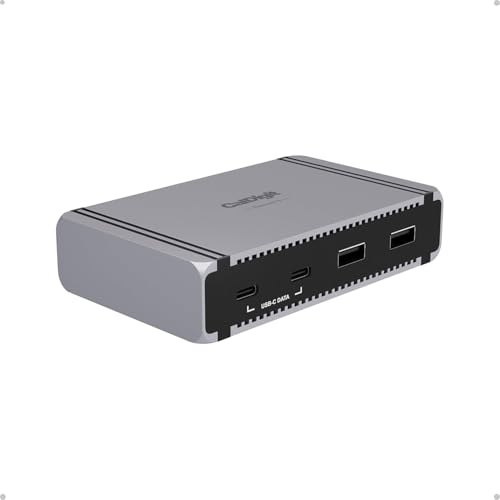
The CalDigit Element 5 Hub is for people whose accessories have outgrown USB-C hubs. CalDigit’s product page lists one Thunderbolt 5 host port, three downstream Thunderbolt 5 ports at 80Gbps, three USB-A and two USB-C ports at 10Gbps, up to 90W of laptop charging and a 180W external power supply, with a 0.8m cable in the box. Intel’s Thunderbolt 5 announcement describes 80Gbps of bidirectional bandwidth, doubling Thunderbolt 4, with Bandwidth Boost up to 120Gbps for display-heavy setups. In practice, the downstream ports can run Thunderbolt or USB-C monitors and fast NVMe enclosures at the same time.
It is not a travel hub and not a drop-in HDMI solution. There are no HDMI, Ethernet or card reader ports, so older monitors need USB-C to HDMI or DisplayPort cables, and it needs wall power. Mac display limits still apply: Apple’s MacBook Pro display guide notes that a hub or daisy chain can carry multiple displays over one Thunderbolt port but does not raise the maximum your chip supports. CalDigit also says Thunderbolt 3 Windows PCs are not supported, and older Thunderbolt 4 or USB4 hosts will not reach Thunderbolt 5 speeds. If you only need HDMI, Ethernet and a few USB ports, the Plugable 9-in-1 is a simpler and far more portable choice.
Why it stands out: Three 80Gbps Thunderbolt 5 ports turn one cable into a high-speed desk for fast storage and high-resolution monitors.
Check availability on AmazonHow to Choose the Best USB-C Hub
Most hub problems come from a mismatch between the hub, the cable and the laptop port. Check these points before you buy.
USB-C vs USB4 vs Thunderbolt 4 and 5
USB-C describes the connector shape, not the speed. A USB-C port can be a 5Gbps or 10Gbps USB 3.2 port, a 40Gbps USB4 or Thunderbolt 4 port, or an 80Gbps Thunderbolt 5 port. The USB-IF’s USB4 overview describes up to 80Gbps operation over certified cables, while Thunderbolt 5 sets 80Gbps as its baseline, as noted in the CalDigit section above. Most USB-C hubs share a single 5Gbps or 10Gbps USB connection back to the laptop across all their data ports, even when plugged into a faster port. Thunderbolt hubs, and USB4 pass-through ports like the one on the Satechi Pro Hub Slim, keep far more bandwidth available. The TechEngage USB-C explainer breaks down the naming in more detail.
5Gbps vs 10Gbps data ports
A 5Gbps port (USB 3.2 Gen 1) is plenty for a keyboard, mouse, webcam or flash drive. A 10Gbps port (USB 3.2 Gen 2) doubles the ceiling, which matters for portable SSDs, camera offloads and backups. Check the port labels on the spec sheet, since many hubs mix fast and slow ports, and some USB-C ports on hubs only handle charging.
HDMI at 4K 30Hz vs 4K 60Hz
Budget hubs with HDMI 1.4 stop at 4K 30Hz, which feels sluggish for everyday desktop work. Hubs with HDMI 2.0 can reach 4K 60Hz, but only if the laptop sends a fast enough signal: UGREEN’s hub notes say the host must support DisplayPort 1.4 for 4K 60Hz. The laptop’s USB-C port also has to support DisplayPort Alt Mode, or the HDMI port will not work at all.
Multiple monitors on a MacBook
A standard single-plug USB-C hub gives a Mac one external display, even if it has two HDMI ports. Apple’s MacBook Air display guide lists up to two external displays for M4 and M5 models, and notes that a supported hub or daisy chain can put two displays on one Thunderbolt port without raising that limit. Older base M1 and M2 models support one external display, so a DisplayLink dock like the Plugable USBC-6950PDZ is the practical workaround. On Windows laptops, MST hubs can extend two screens from one port, which is why many dual-HDMI hubs are sold mainly for Windows.
Power delivery pass-through
Hubs reserve part of the incoming power for their own ports, commonly around 15W. A 100W charger plugged into the Plugable 9-in-1 or Anker 555 delivers about 85W to the laptop, and less if you also power bus-powered drives. Use a charger at least as strong as the one that came with your laptop, and expect slower charging on 16-inch workstation laptops unless the hub supports 125W or more.
Ethernet, SD readers and heat
Gigabit Ethernet is standard on mid-range hubs and is worth having for video calls and large uploads on unreliable Wi-Fi. For card readers, the SD Association’s bus speed chart puts UHS-I at up to 104MB/s and UHS-II at up to 312MB/s, and both the card and the reader need to support UHS-II to get the higher speed. Hubs also get warm when they charge a laptop, drive 4K video and run fast storage at once; Engadget found one premium hub ran very hot during extended use. Give an aluminum hub some air rather than burying it under the laptop, and if your laptop has only one or two ports and you need a dock every day, compare the port layouts in the best laptops guide before your next upgrade.
How These Picks Were Chosen
Each hub was selected from current models sold on Amazon US by comparing manufacturer specifications (port speeds, HDMI version, pass-through wattage and card reader standard), official compatibility documents from Apple, Plugable, Satechi, Anker and CalDigit, and published reviews from outlets such as Macworld and Engadget. Amazon rating volume served as a check on long-term reliability. No hands-on testing by TechEngage is claimed.
Best USB-C Hub FAQs
Can a USB-C hub run two monitors on a MacBook?
Only in some cases. Apple lists up to two external displays for M4 and M5 MacBook Air models, while base M1 and M2 models support one. A regular single-plug hub with two HDMI ports mirrors the same image on macOS because Macs do not support MST for extended displays. For two extended screens, use a hub that plugs into two ports on a newer MacBook, a Thunderbolt dock, or a DisplayLink dock with the DisplayLink Manager app.
Why does a USB-C hub only show 4K at 30Hz?
The hub may use HDMI 1.4, which tops out at 4K 30Hz, or your laptop may not send a DisplayPort 1.4 signal over USB-C. Check that the hub lists 4K 60Hz, that the HDMI cable is rated for 4K 60Hz, and that the laptop port supports DisplayPort Alt Mode.
How much charging power does a USB-C hub pass through to a laptop?
Most hubs reserve about 15W for themselves, so a 100W charger usually gives around 85W to the laptop. The Plugable 9-in-1 can pass up to 125W when used with a PD 3.1 EPR charger and a compatible laptop. Always use a USB-C charger plugged into the hub’s PD input port.
What is the difference between a USB-C hub and a Thunderbolt dock?
A USB-C hub shares one USB link back to the laptop, usually 5Gbps or 10Gbps, and is typically bus powered and portable. A Thunderbolt 4 or 5 dock or hub uses 40Gbps or 80Gbps of bandwidth, often has its own power supply, and can run fast NVMe storage and high-resolution monitors from one cable.
Do USB-C hubs work with iPhone and iPad?
Yes, with limits. Apple says iPhone 15, 16 and 17 models, except the e models, can output video at up to 4K 60Hz over USB-C, and only Pro models support 10Gbps USB 3 data. USB-C iPads also work with most hubs. Connect a charger to the hub when using Ethernet, drives or displays so the phone or tablet does not run low.
Are 10Gbps ports on a USB-C hub worth it?
They are worth it if you use a portable SSD, offload camera footage or run backups, because a 10Gbps port doubles the speed ceiling of a 5Gbps port. For a keyboard, mouse, webcam or printer, 5Gbps ports are more than enough.
TechEngage may earn a commission from qualifying Amazon purchases made through links on this page. Prices and availability are pulled from Amazon and can change.





Share Your Thoughts