

In this guide
The best SSD enclosure is the one that fits both your spare drive and your computer. Choose the Sabrent EC-SNVE for M.2 SATA or NVMe compatibility, the Plugable USBC-NVME for a simple NVMe setup with USB-A and USB-C cables, or the OWC Express 1M2 when a USB4 connection makes faster transfers worthwhile.
An enclosure turns a compatible internal SSD into an external drive. That can be a useful way to reuse storage after a laptop upgrade, copy files from a removed drive, or build portable storage with a capacity you choose. These are empty enclosures: you need to supply the SSD. If you want a finished drive you can plug in immediately, compare our portable SSD picks instead.
Disclosure: As an Amazon Associate, TechEngage earns from qualifying purchases.
Compare the SSD enclosures
| Enclosure | Best for | Drive type | Connection ceiling | Amazon price |
|---|---|---|---|---|
| Sabrent EC-SNVE | Reusing SATA or NVMe M.2 storage | M.2 SATA and NVMe | 10Gbps USB | $29.95 |
| Plugable USBC-NVME | An NVMe drive shared between USB-A and USB-C computers | M.2 NVMe only | 10Gbps USB | $22.95 |
| OWC Express 1M2 | Faster storage on a compatible USB4 computer | M.2 NVMe only | 40Gbps USB4 | $99.99 |
Connection rates are interface limits, not measured file-copy speeds. The SSD, computer port, cable and files being copied all affect performance. None of these enclosures takes a 2.5-inch SATA drive.
1. Sabrent EC-SNVE: for reusing an older M.2 SSD
| Price & Details | |
|---|---|
| Price | $29.95 |
| Rating on Amazon | 4.5 out of 5 stars |
| Brand | Sabrent |
| Check availability on Amazon | |
Product data updated: 30 October 2026 - 21:35
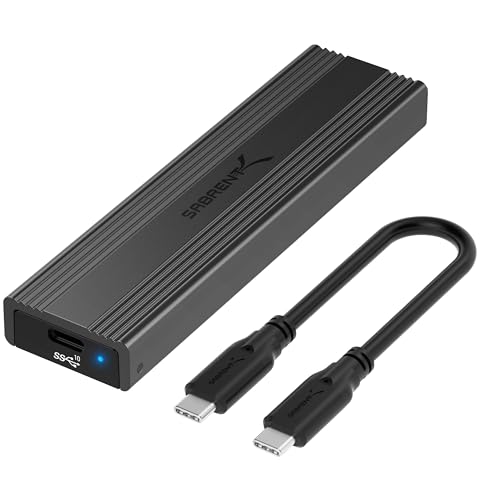
The EC-SNVE is the most flexible starting point if you are moving a drive out of an older laptop. It supports both M.2 SATA and NVMe, so you have more room to reuse it after another upgrade. Installation is tool-free, and the aluminum case connects through USB-C at up to 10Gbps.
Its advantage is compatibility rather than chasing the largest speed figure. For documents, photo libraries and occasional large transfers, a 10Gbps connection is a sensible match for many computers. The supplied USB-C cable is short, so consider where the enclosure will sit if the port is on the back of a desktop.
Check your SSD’s dimensions before ordering. Common 2242, 2260 and 2280 drives are listed as compatible. For a short 2230 drive, confirm the supplied retention arrangement before buying.
2. Plugable USBC-NVME: for USB-A and USB-C computers
| Price & Details | |
|---|---|
| Price | $22.95 |
| Brand | Plugable |
| Check availability on Amazon | |
Product data updated: 30 October 2026 - 21:35
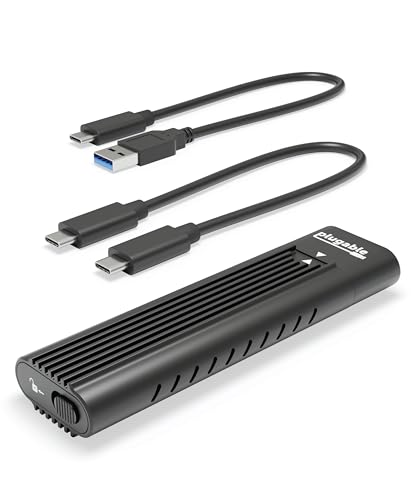
The Plugable earns its place through the cables in the box. It includes USB-C-to-USB-C and USB-C-to-USB-A cables, which is helpful if your newer laptop and older desktop have different ports. Its tool-free enclosure accepts NVMe drives in 2230, 2242, 2260 and 2280 sizes.
Thermal pads transfer heat to the aluminum cover. Install them as directed so the drive can make proper thermal contact; leaving a protective film in place defeats their purpose. The enclosure is a straightforward option for moving files between machines without buying a separate adapter.
Choose it when the included cables and NVMe fit solve your problem. Choose the EC-SNVE instead if you need SATA compatibility, or a USB4 model if faster transfers are the priority and your computer supports them.
3. OWC Express 1M2: for a USB4 storage setup

| Price & Details | |
|---|---|
| Price | $99.99 |
| Discount | 17% |
| Rating on Amazon | 4.6 out of 5 stars |
| Brand | OWC |
| Check availability on Amazon | |
Product data updated: 30 October 2026 - 21:35
The Express 1M2 moves up to a 40Gbps USB4 interface and uses a substantial aluminum heatsink. It accepts M.2 NVMe drives in 2230, 2242 and 2280 sizes. Its passive cooling design avoids a small enclosure fan, making it an appealing option for a quiet workspace.
Installation requires screws rather than a tool-free latch. OWC includes the screwdriver and a 40Gbps USB-C cable. That is a reasonable tradeoff for a drive you plan to install once and keep, but less convenient if you frequently swap SSDs.
Buy it for a compatible USB4 setup, not simply because your computer has a USB-C port. On a 10Gbps USB connection, its extra bandwidth goes unused. It also needs an NVMe drive: an M.2 SATA SSD is not compatible. Compare the empty enclosure with preconfigured versions carefully so you order the option you actually need.
Check these four things before you buy
1. Read the SSD model number. M.2 describes the shape, not whether the drive uses SATA or NVMe. Look up the exact drive before choosing an enclosure. A connector that looks close is not enough to establish compatibility.
2. Match the drive length and thickness. A 2280 drive is 22mm wide and 80mm long; a 2230 drive is shorter. The enclosure needs a retention point for that length and enough space for the drive and thermal pad. Do not force a drive with a bulky desktop heatsink into a slim enclosure.
3. Read the computer’s USB specification. Our USB-C guide explains why connector shape and transfer speed are different. A faster enclosure cannot raise the speed limit of the port it is attached to. If you connect through a USB-C hub, its upstream connection and other attached devices also matter.
4. Add up the whole purchase. If you already own a suitable SSD, an enclosure can make good sense. If you need to buy both parts, compare their combined price with a complete portable SSD. Also weigh installation effort and whether you want separate warranties for the drive and enclosure.
Moving an existing drive without losing its files
An enclosure changes how the computer connects to the drive. It does not remove encryption, repair a failed SSD or make every file system readable on every operating system. Keep the recovery key for an encrypted drive before removing it from the original computer.
If the drive contains files you need, do not initialize or format it just because a new computer asks you to. First check the connection, file-system support and encryption status. A new, empty SSD may need setup; a previously used drive deserves a different approach. Our data recovery software review explains a separate category of tools, but an enclosure itself is not recovery software.
After copying important files, open a few of them and retain another copy before erasing the original. A drive carried in your laptop bag can be convenient storage without being your only backup.
Frequently asked questions
Is an SSD included with these enclosures?
No. These are empty enclosures. Buy a compatible SSD separately or use one you already own.
Can I put a SATA SSD in an NVMe enclosure?
Only if the enclosure explicitly supports that drive type. The Sabrent EC-SNVE supports M.2 SATA and NVMe. The Plugable USBC-NVME and OWC Express 1M2 are NVMe-only. None of these fits a 2.5-inch SATA drive.
Will a USB4 enclosure make any SSD faster?
No. Performance depends on the drive, cable and computer connection. USB4 provides more available bandwidth, but it cannot make a slow drive or an older USB port exceed its limits.
Do I need to format my SSD after installing it?
A new empty SSD may need partitioning and formatting. Do not format an existing drive containing files you want to keep. Check file-system compatibility and encryption first.


Share Your Thoughts