

In this guide
A damaged Outlook PST can put years of mail out of reach. Before paying for a repair tool, make a copy of the Outlook data file (.pst) and try Microsoft’s free Inbox Repair tool. If it cannot recover what you need, Stellar offers two different paths: a Windows app that works on a local file and a browser service that uploads the PST for processing.
The practical choice is about file size, privacy and how many mailboxes you need to recover. The online service is attractive for one small file; the desktop edition may make more sense for a large archive or repeated repairs. Neither route can promise that every damaged item will come back.
Disclosure: Stellar supplied review access and a sample PST for this commissioned article. TechEngage retains editorial control. We used its online repair service with a 17.7 MB PST and opened the resulting file in classic Outlook. Our assessment of the Windows desktop edition is based on its published features, not a hands-on desktop test.
Start with Microsoft’s free PST repair tool
Microsoft includes Inbox Repair Tool (SCANPST.EXE) with classic Outlook. Close Outlook, copy the damaged PST to a safe location, and run the tool against the copy. If you need a broader copy of your files first, see our Windows 11 external-drive backup guide. Microsoft says you may need more than one pass and that some items cannot be recovered if they were deleted or damaged beyond repair.
A PST is a local Outlook data file. If your account uses an OST, Microsoft says Outlook can usually recreate that offline cache from the server. Check which file you actually have before buying a PST repair product; our Stellar Converter for OST review covers a different recovery problem. Do not test an unfamiliar repair utility on your only copy of a mailbox.
Stellar desktop versus online: the important differences
| Question | Stellar Repair for Outlook (Windows) | Stellar Online PST Repair |
|---|---|---|
| Where does the file go? | Stellar says the repair runs locally on the computer. | The PST is uploaded to Stellar’s service for processing. |
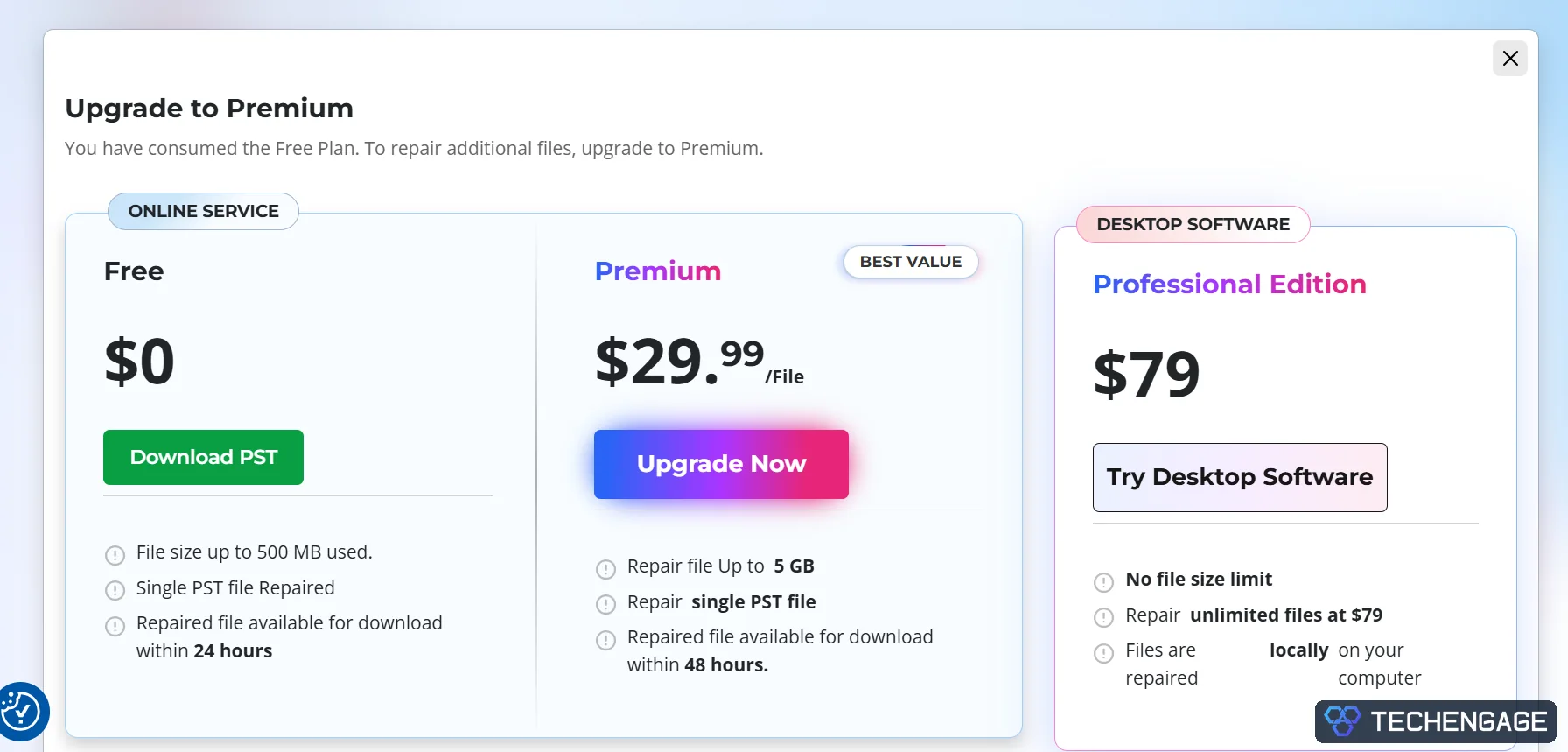
| File limit | Stellar advertises no PST size limit. Available disk space and processing time still matter. | Free: up to 500 MB. Premium: up to 5 GB per file. |
| Cost model | Free scan and preview; a paid license is needed to save recovered content. Price varies by region and edition. | Free for one eligible PST; Premium is listed at $29.99 per file on the US pricing page. |
| Best fit | Large files, multiple PSTs, or a mailbox that should stay on a controlled Windows machine. | One eligible PST when you are comfortable uploading mailbox data. |
| Extra export options | Professional saves PST and individual-item formats. Microsoft 365 and Live Exchange export belong to Technician. | Download a repaired PST; no desktop installation is required. |
The table describes Stellar’s current desktop product and its online plan terms. Check the live checkout for your currency, license period and renewal conditions.
What using the online service looks like
On Stellar’s online repair page, the large Repair PST Online button opened an account sign-in dialog before a file picker appeared. You can choose Google sign-in or enter an email address. The need to create or use an account is worth knowing before you set aside time for a repair.
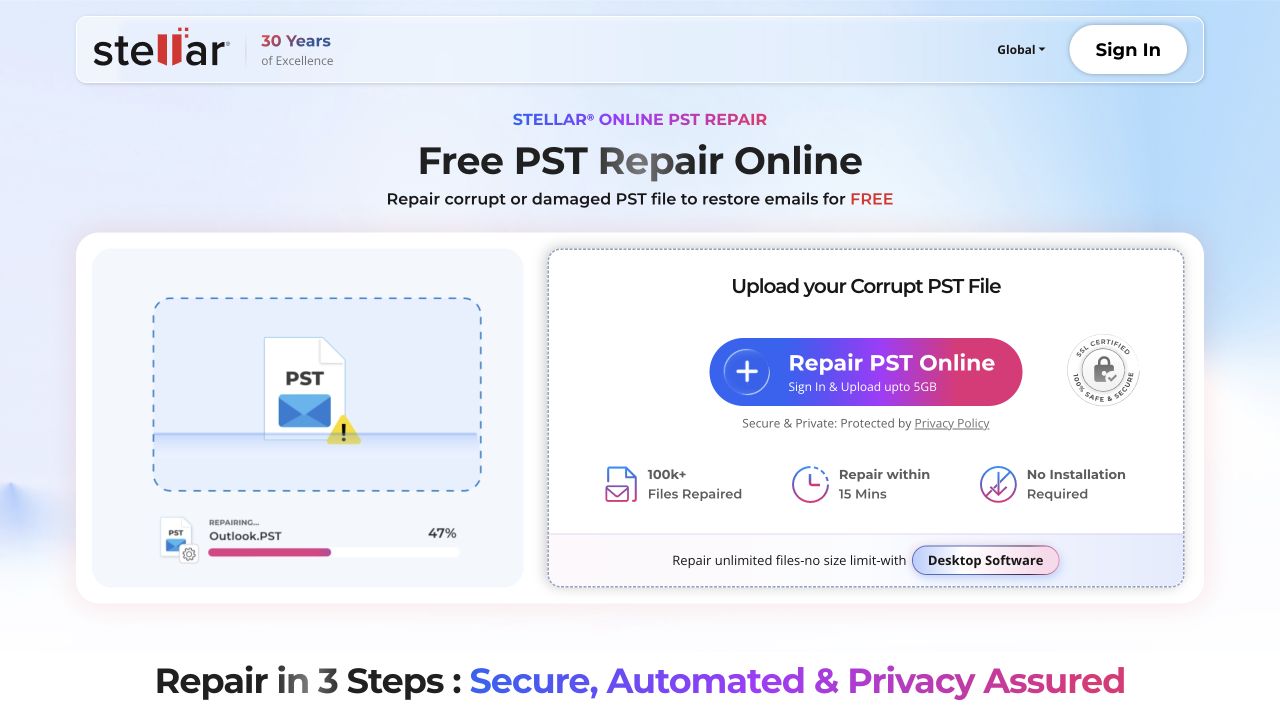

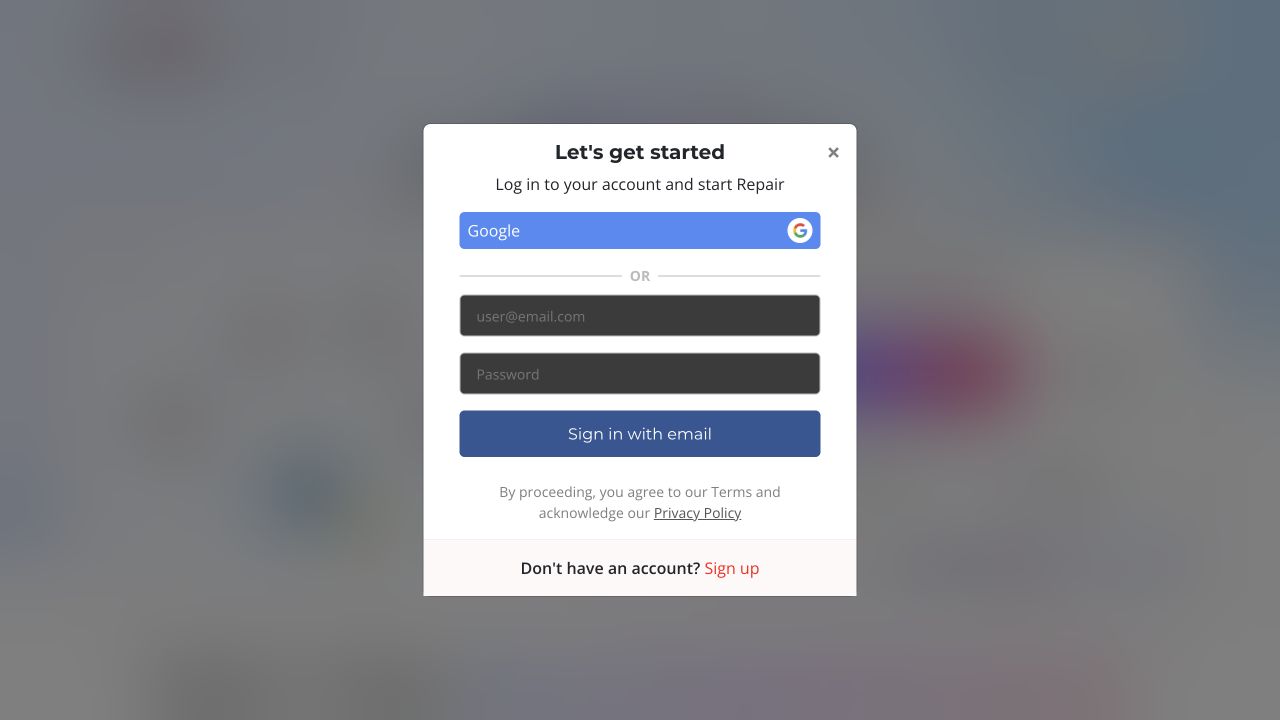
The interface is in a browser, but the repair is not a local, browser-only operation: Stellar’s workflow uploads the PST to its servers. A PST may contain entire conversations, contacts, attachments and calendar entries. Check your organization’s data-handling rules before uploading a work mailbox, and remove sensitive content from screenshots you share for support.
Stellar says the Free plan keeps the repaired file available for 24 hours and Premium for 48 hours, then deletes the files. That deletion policy is a vendor statement; it does not independently establish who can access a file during processing. The site also says the online service processes one PST at a time. We did not verify its internal access controls or file-deletion process.
Stellar says it uses uploaded PSTs only for repair and deletes the files after the plan’s download window. That is Stellar’s policy, not a security guarantee established by our repair test. If the mailbox contains work or sensitive personal information, check your data-handling rules and Stellar’s privacy policy before uploading it.
How we repaired a PST online
In our test, the PST file was 17.7 MB. The online process required an account before upload. These are the steps we followed:
- Open Stellar Online PST Repair and select Repair PST Online.
- Sign in with Google or an email account.
- Choose a copy of the damaged PST from your computer and wait for the upload to finish.
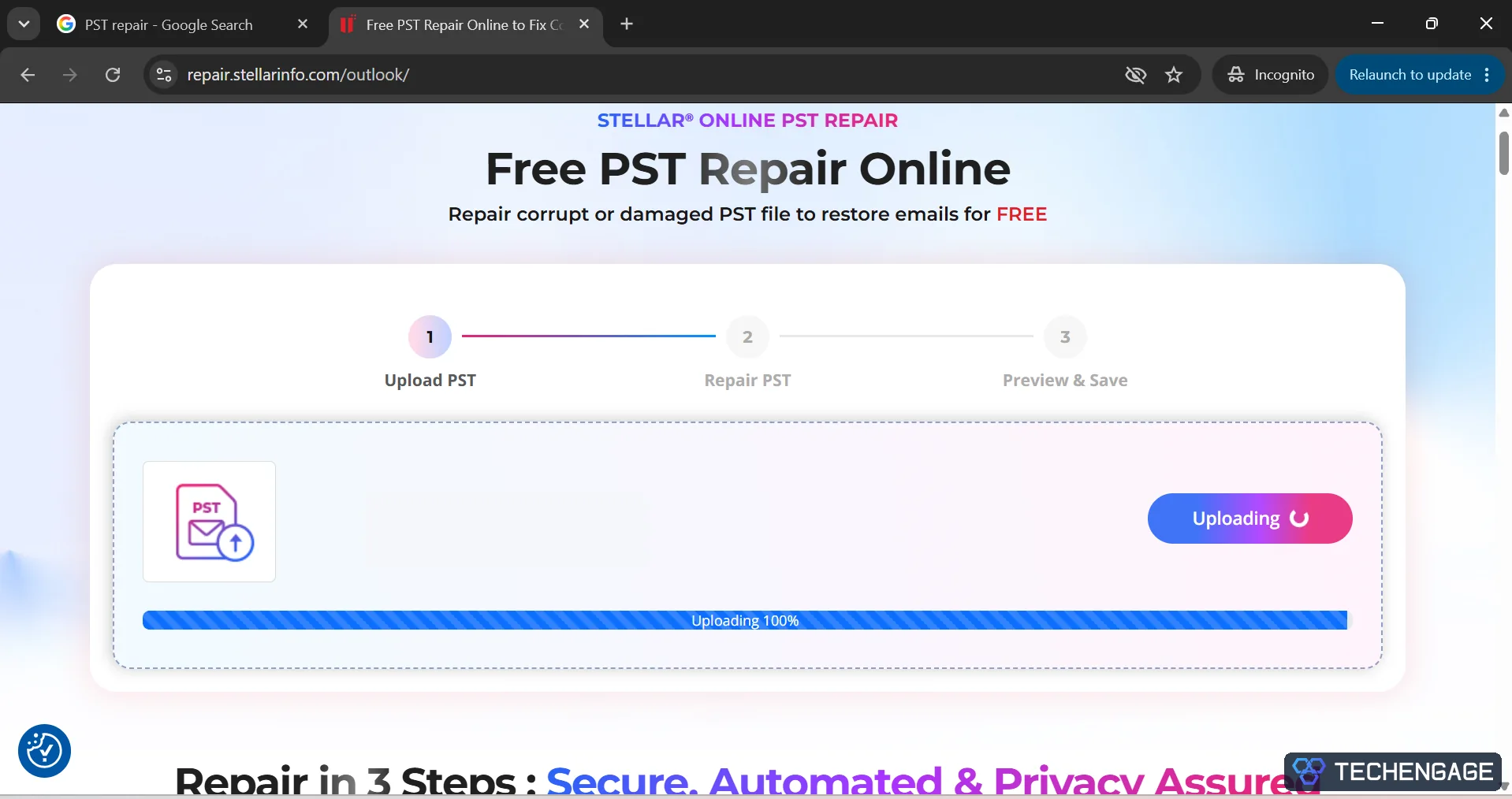
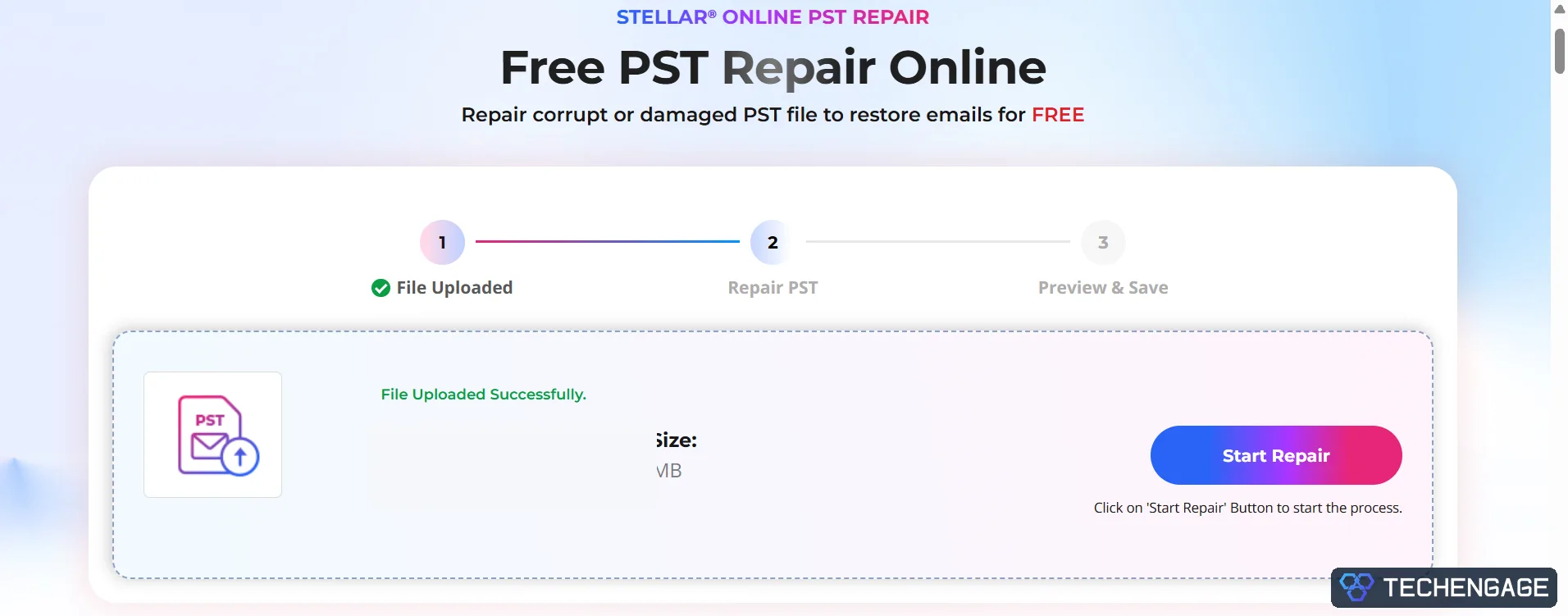
- Select Start Repair and wait for the service to analyze the file.
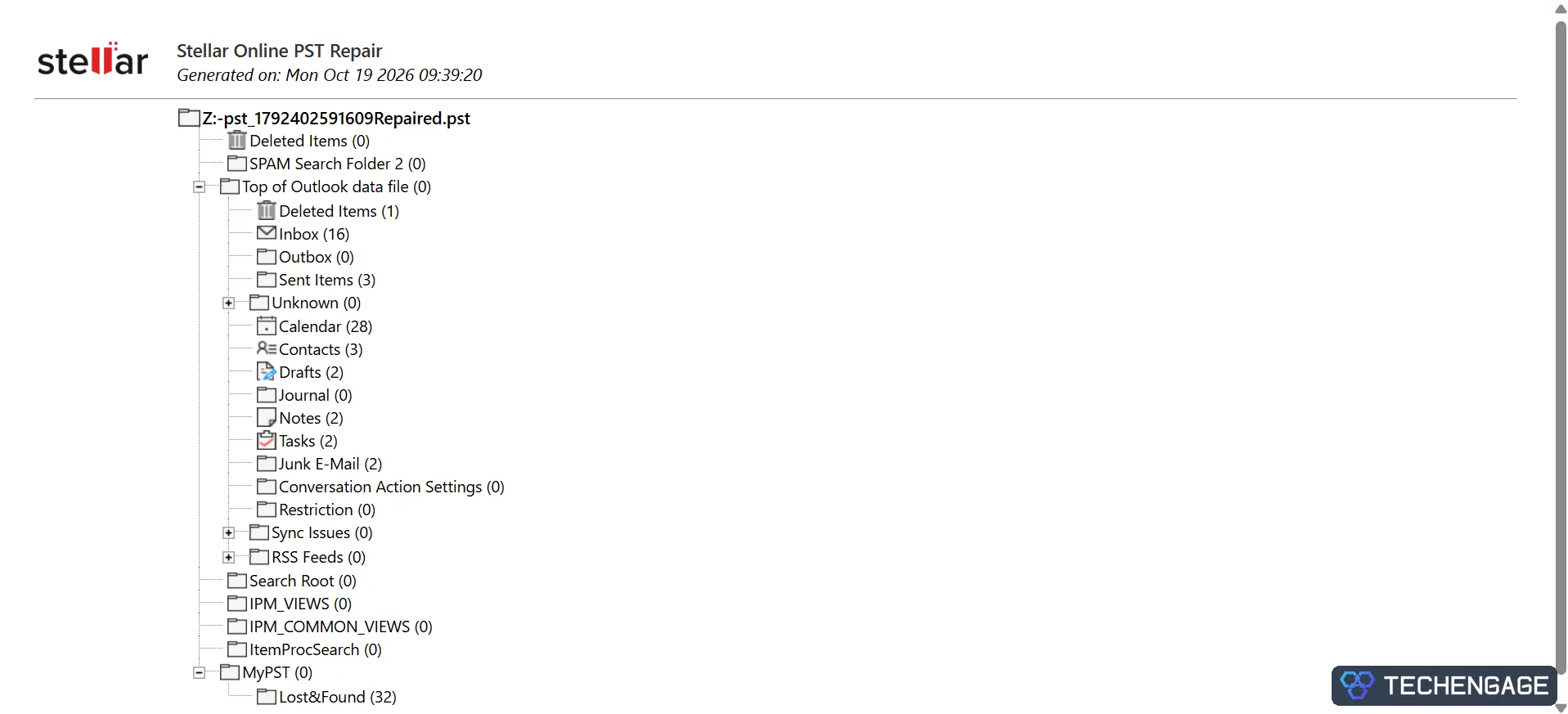
- Review the folder structure and item counts in the repair preview.
- Choose Save PST File and the applicable Free or Premium plan.
- Download the repaired PST and open it in classic Outlook to inspect the folders and messages you need.
What happened when we opened the repaired PST
We opened the downloaded PST in classic Outlook rather than relying on the browser preview alone. In this sample, the preview listed 32 items in a Lost & Found folder; Outlook also displayed 32 items in that folder. Those items had not returned to their original folders. We could open messages in the repaired file, but one successful sample does not establish how completely the service will recover another PST.
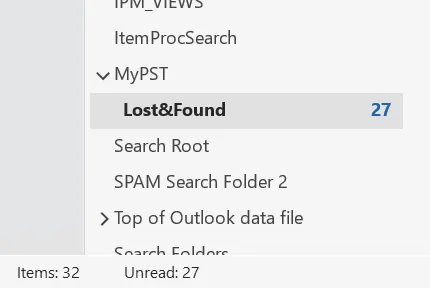
Keep the original damaged file until you have checked the repaired copy. Compare the folders, dates and attachments that matter to you; a finished download is not proof that every item came back.
What the Windows edition offers
Stellar Repair for Outlook is a Windows program for scanning a PST, browsing a folder tree and previewing items before saving. Its free download is a scan-and-preview trial. If the preview shows the mail you need, the paid edition can save a new PST or selected items in formats such as EML, MSG, RTF, HTML and PDF. This is a more useful purchase checkpoint than paying before you see whether the file can be read.
There are meaningful edition differences. The Professional tier covers core PST repair and those local output formats. Stellar lists direct export to Microsoft 365 and Live Exchange, plus PST splitting and compacting, under the Technician edition. Do not buy Professional expecting those Technician tools. The vendor also advertises recovery of deleted items and retention of the original folder structure; success will depend on the condition of the source file.
The local workflow avoids transmitting the mailbox to the online repair service, but it still needs space for the source and repaired copies. Keep the original untouched, make sure the destination drive has ample free space, and open the saved PST in Outlook to check the messages and attachments that matter. A preview alone is not proof that an exported PST is complete.
Which option is right for you?
- One PST under 500 MB: Try Microsoft’s tool first. If it fails and the mailbox is suitable for cloud upload, the online Free plan offers an economical next attempt.
- One PST from 500 MB to 5 GB: The online Premium plan is a simpler one-file purchase, but compare its per-file price with a desktop license if you expect more repairs.
- More than 5 GB, several PSTs, or sensitive work mail: Choose the Windows route after confirming that the edition includes the export method you need. Keep the file on a controlled machine.
- Direct Microsoft 365 or Exchange export: Look specifically at Technician, not the Professional tier or online service.
- An OST rather than a PST: First check whether Outlook can recreate it from the account’s server. If the source mailbox no longer exists, verify that the product you choose explicitly supports that recovery scenario.
Pricing, limits and the cost of a failed repair
At the time we checked the US online page, Stellar listed one free repair up to 500 MB, Premium at $29.99 per file up to 5 GB, and a reference price of $79 for the desktop Professional edition. The desktop page displayed a euro price in our region. Prices, taxes, license terms and promotions can change, so compare the final checkout in your country rather than treating these figures as universal.
The free desktop scan can help you decide whether the app sees your mailbox before you pay. For the online option, check when payment is requested and what happens if the repaired file is incomplete. Preserve the original PST and any free-tool backup until you have verified the restored mail yourself. A file that downloads successfully is not necessarily a complete recovery.
Strengths and trade-offs
What looks useful
- A clear split between a local Windows workflow and a no-install browser workflow.
- A desktop scan-and-preview trial before purchasing the export function.
- A free online path for one PST within the 500 MB limit.
- Professional export choices beyond a single PST; Technician adds direct Microsoft 365 and Exchange routes.
- A published size and download-window limit for each online tier.
What to consider before choosing
- The online flow requires an account before upload and sends mailbox data to Stellar’s service.
- The free online tier covers only one file and caps it at 500 MB.
- The $29.99 online charge is per file, so several repairs can cost more than a desktop license.
- A successful scan or preview does not prove that all messages and attachments will export to their original folders.
- Some prominent desktop capabilities belong to Technician rather than Professional.
- The result from one 17.7 MB sample cannot predict recovery completeness or speed for a larger, more damaged PST.
How to check a repaired PST before trusting it
Open the saved file in classic Outlook and compare a few folders, date ranges and attachment-heavy messages against what you know should be there. Check that calendar events and contacts appear if those are important to you. Search for a distinctive message that was previously inaccessible, then open its attachment. Keep the old file until you have done these checks.
If the PST is for a workplace account, involve the mailbox owner or administrator before uploading it or exporting it into another Microsoft 365 tenant. A password-protected PST and a business retention policy are not things to work around casually.
Frequently asked questions
Can I repair a PST without paying?
Yes. Start with Microsoft’s free Inbox Repair tool. Stellar also offers a free online tier for one PST up to 500 MB and a free desktop scan-and-preview trial. Saving recovered items from the desktop trial requires a paid license.
Does the online version keep the PST on my computer?
No. You start in a browser, but the file is uploaded to Stellar’s service for processing. If that conflicts with your privacy or workplace requirements, use a local repair path instead.
Do I need Outlook installed?
Stellar says its online repair can process a PST without Outlook installed. You still need a compatible application to inspect the resulting PST; classic Outlook is the natural choice. Check the desktop edition’s requirements before installing it.
Will either product recover every email?
No repair result is guaranteed. The condition of the file matters, and even Microsoft warns that some damaged or permanently deleted items may not be recoverable with its tool. Preview the items you need and verify the exported file.
Is the online plan better than the desktop license?
For one eligible file, the free or per-file online plan may be simpler. For repeated repairs, files over 5 GB or a need to keep mailbox data local, the Windows edition is the stronger fit. Compare actual checkout terms before buying.
Verdict
Try the free Microsoft repair tool first. If it cannot get your PST open, Stellar’s online service is a reasonable next path for one small, non-sensitive file, provided you accept the upload and account requirements. The Windows application is the more flexible option for large or repeated jobs and for keeping the mailbox on your own machine. Choose the right edition for your export target, and judge the result by the mail you can actually open, not by a progress bar or a preview count.




Share Your Thoughts