• Skip to primary navigation
  • Skip to main content
  • Skip to primary sidebar
  • Skip to footer
TechEngage

TechEngage®

Hands-on reviews, research-backed buying guides and technology news.

  • News
    • Internet & Social
    • Gadgets
    • Car Tech
    • Business
    • Science & Health
  • Reviews
  • Buying Guides
  • How-to
  • AI
  • Computing
    • Apps
    • Security
    • Gaming
  • More
    • Tools
    • Puzzles
    • Mobile
  • Launchpad
  • Sign in
TechEngage » Apps & Software

How to Send and Receive Texts on a Laptop or PC (2026)

How-To

Avatar for Muhammad Abdullah Muhammad Abdullah Follow Muhammad Abdullah on X Published: May 24, 2021 · 9:58 AM ET Updated: Sep 30, 2026 · 12:23 AM ET

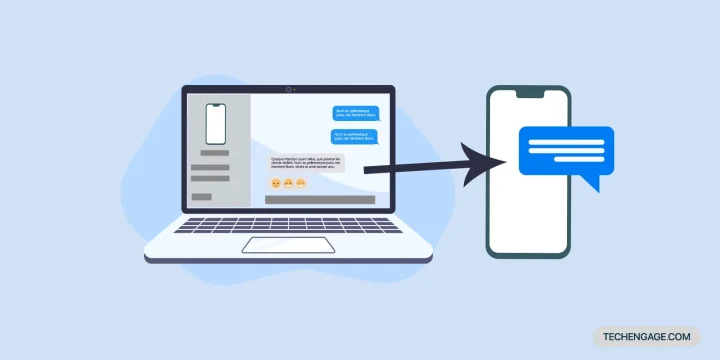
sending messages from pc
Send Messages from PC / Design by Muntaha | TechEngage
Shares51FacebookTweetPinLinkedInPrint

Working on a laptop and still jumping up for every SMS is a drag. Windows can mirror texts (and more) from your phone; Mac users can do the same with Messages and Text Message Forwarding. Here is the current setup for 2026, with Microsoft Phone Link for Android and iPhone, plus the usual web/desktop chat apps.

Official Phone Link requirements and pairing steps come from Microsoft Support. Apple Text Message Forwarding steps match current Messages settings on iPhone and Mac.

What you need

  • Windows + Android: Windows 10 (October 2022 update or later) or Windows 11, Android 10 or later, both devices on the same Wi‑Fi for the best experience.
  • Windows + iPhone: Windows 10 or 11 with Bluetooth Low Energy, iPhone on iOS 16 or later, Bluetooth on for both.
  • Mac + iPhone: Same Apple ID on both, Messages enabled, Text Message Forwarding for green-bubble SMS.

Method 1: Phone Link on Windows (Android)

Microsoft renamed the PC app to Phone Link. On Android you still use the Link to Windows app (preinstalled on many Samsung/HONOR/OPPO devices, or download from Google Play / aka.ms/yourpc).

Set up from your PC

  1. On the PC, open Start, search for Phone Link, and open it. Sign in with your Microsoft account if asked.
  2. Choose Android. On your phone, install or open Link to Windows (use the link shown on the PC, often aka.ms/yourpc).
  3. Sign into the phone app with the same Microsoft account as the PC.
  4. Back on the PC, check I have the Link to Windows app ready, then select Pair with QR code (or Pair manually if you prefer a code).
  5. In Link to Windows on the phone, choose Link your phone and PC, allow camera access, and scan the QR code on the PC.
  6. Grant the Android permissions for messages, calls, notifications, and photos as prompted, then select Done.

Send a text from Phone Link

  1. Open Phone Link on the PC and select Messages (enable Messages under Settings → Features if it is off).
  2. Select New message, pick a contact or enter a number, type your text, and send.

If Phone Link is missing on Windows 11, open Settings, search for Phone Link, turn it on, and install when prompted.

Method 2: Phone Link on Windows (iPhone)

  1. Turn on Bluetooth on the PC and iPhone. Keep both nearby.
  2. Open Phone Link, choose iPhone, and follow the pairing prompts.
  3. Scan the QR code with the iPhone Camera app to start Bluetooth pairing.
  4. On the iPhone, allow sharing for notifications, messages, and contacts when asked so texts and calls can sync.

iPhone pairing needs Bluetooth Low Energy on the PC. Work or school Microsoft accounts are not supported for Phone Link.

Method 3: Web and desktop chat apps

If you only need WhatsApp, Telegram, Signal, or Google Messages, skip Phone Link and use the official desktop or web clients:

  • WhatsApp: WhatsApp Desktop or web.whatsapp.com (scan the QR code in the phone app).
  • Google Messages: messages.google.com/web from a phone using Google Messages.
  • Telegram / Signal: official desktop apps from their sites.

For a broader roundup of private messengers, see our best private messaging apps guide and the best messaging apps roundup.

Method 4: Messages on Mac with an iPhone

iMessage between Apple devices

  1. On the Mac, open Messages from the Dock or Spotlight (Command + Space, then type Messages).
  2. Sign in with the same Apple ID you use for Messages on the iPhone.
  3. Click the compose button, enter a contact, and send. Blue bubbles are iMessage.

Forward green-bubble SMS/MMS through your iPhone

  1. Sign both Mac and iPhone into the same Apple ID (System Settings → Apple ID / iCloud on Mac; Settings → [Your Name] on iPhone).
  2. On the iPhone go to Settings → Messages and turn on iMessage.
  3. Tap Text Message Forwarding and enable your Mac. Enter the verification code that appears on the Mac if prompted.
  4. Green-bubble SMS now routes through your iPhone number when you use Messages on the Mac.

Carrier SMS limits and rates still apply to green-bubble texts because they go through your phone line.

Troubleshooting quick hits

  • Phone Link will not pair (Android): Same Wi‑Fi, same Microsoft account, update Windows and Link to Windows, then try Pair manually instead of QR.
  • iPhone Phone Link stuck: Forget the PC under iPhone Bluetooth settings, remove the device in Phone Link Settings → My devices, toggle Bluetooth off/on, pair again.
  • No SMS on Mac: Confirm Text Message Forwarding is on and both devices use the same Apple ID for Messages.

Related TechEngage reads: best private messaging apps, how to use AirDrop, and things to do after buying a new smartphone.

Is Phone Link the same as Link to Windows?

Phone Link is the Windows PC app. Link to Windows is the companion app on Android (and related phone settings). You need both for the Android experience.

Can I text from Windows without Android or iPhone nearby?

Phone Link needs your phone paired and usually nearby or reachable. For chat apps, WhatsApp and Telegram desktop can keep working while the phone stays online on mobile data.

Does Phone Link work with work or school Microsoft accounts?

Microsoft says Phone Link does not support work or school accounts. Use a personal Microsoft account for pairing.

How do I get SMS on a Mac if the contact is not on iMessage?

Turn on Text Message Forwarding on the iPhone for your Mac. Green-bubble SMS then sends through your iPhone number.


Something incorrect? Report an error in this article. Include a source if you have one; your name and email are optional.

Filed Under: Apps & Software Tagged With: How-To, Laptop, Text Messages

Related Stories

  • Microsoft Confirms October 7 Windows And Surface Event For Local Ai Pcs

    Microsoft Confirms October 7 Windows and Surface Event for Local AI PCs

    Tech News & AnalysisSep 16, 2026

  • Apple Releases Ios 27 And Macos Golden Gate With Siri Ai

    Apple Releases iOS 27 and macOS Golden Gate With Siri AI

    Tech News & AnalysisSep 15, 2026

  • Google Launches Gemini Desktop App For Windows With Alt+Space Shortcut

    Google Launches Gemini Desktop App for Windows With Alt+Space Shortcut

    Tech News & AnalysisSep 11, 2026

Stay on top of technology

Get TechEngage reviews, buying guides and news in your feed.

Follow on Google News
Shares51FacebookTweetPinLinkedInPrint
Avatar for Muhammad Abdullah

Muhammad Abdullah

Senior Tech Correspondent

Muhammad Abdullah is a Senior Tech Correspondent at TechEngage and its most prolific author, with more than 320 published articles. A computer scientist by training and a certified Growth Hacker, he covers mobile devices, apps, operating systems, social media, and gaming, turning complex digital trends into practical insights.

Joined TechEngage October 2018First article on TechEngage October 2018

Reader Interactions

Share Your Thoughts Cancel reply

Please read our comment policy before submitting your comment. Your email address will not be used or published anywhere. You will only receive comment notifications if you opt to subscribe below.

Primary Sidebar

Google News

Get TechEngage in your feed

Reviews, news, and buying guides as they publish.

Follow on Google News

Recent Stories

  • Usb C Power Meters Techengage |
    Computing & HardwareBest USB-C Power Meters for Chargers and CablesSep 28, 2026
  • Akamai Anthropic Cloud Techengage |
    Tech News & AnalysisAkamai’s $11.6 billion Anthropic cloud deal: costs, timeline and CPU strategySep 27, 2026
  • Openai Agent Dns Incident Techengage |
    Tech News & AnalysisOpenAI pauses advanced-model research after agent bypasses network restrictionsSep 27, 2026
  • Ai Markets Feat |
    AIThree CEOs Asked to Slow Down. The President Said No and the Market Fell 3 Percent. Hassan Taher on What Actually Happened.Sep 21, 2026
  • Iphone 18 Pro Availability Sept 18 |
    Tech News & AnalysisiPhone 18 Pro and Pro Max Available Today in 65+ CountriesSep 18, 2026

More in Apps & Software

  • Microsoft Windows Surface Event Oct 7 2026 |
    Microsoft Confirms October 7 Windows and Surface Event for Local AI PCsSep 16, 2026
  • Apple Ios 27 Siri Ai Featured |
    Apple Releases iOS 27 and macOS Golden Gate With Siri AISep 15, 2026
  • Feat |
    Google Launches Gemini Desktop App for Windows With Alt+Space ShortcutSep 11, 2026
  • Ost To Pst Og En |
    Stellar Converter for OST review: online and desktop testedAug 21, 2026
More Apps & Software stories →

Footer

Discover

  • About TechEngage
  • Company News & Updates
  • Our Team
  • Advertise
  • Send us a tip
  • Submit your company to TechEngage Launchpad Hot
  • TechEngage Brand Kit
  • Contact us
  • Tools & Calculators

Legal pages

  • Editorial Standards
  • Reviews Policy
  • Our Ethics
  • Corrections Policy
  • Affiliate Disclosure
  • Privacy Policy
  • Cookies Policy
  • Terms & Conditions
  • GDPR Compliance
  • Copyright & DMCA

Must reads

  • Best Mechanical Keyboards Under $100
  • Best USB-C Hubs
  • Best Portable SSDs
  • Best Gaming Graphics Cards (GPUs)
  • Best Long-Range Outdoor WiFi Extenders
  • Best Wireless CarPlay Adapters
  • Best Slack Alternatives
  • Best Long-Range Walkie-Talkies

About TechEngage

TechEngage® is an independent technology publication covering tech news, reviews and buying guides.

Founded
2003
Publisher
TechAbout LLC
ISSN
2690-3776
Google NewsRSS feed

© 2026 TechEngage®. All Rights Reserved. TechEngage® is a project of TechAbout LLC.

TechEngage® is a registered trademark in the United States under Trademark Number 6823709 and in the United Kingdom under Trademark Number UK00003417167. It is also ISSN protected under ISSN 2690-3776 and has OCLC Number 1139335774.

Contact team@techengage.com · WhatsApp +1-307-381-8801

Your analytics choice
Allow Google Analytics to help us understand readership? You can use the site without it and change this choice anytime.

Privacy details