


Most PC security advice falls into two buckets: scary stories about what could go wrong, or a single-product pitch that promises to fix all of it. Neither is particularly useful when you’re trying to decide what to actually run on your machine. This article walks through the five categories of threat that account for nearly all real-world Windows infections — malware, spyware, phishing, drive-by web attacks, and webcam/microphone hijacking — and the tools that handle each, including how Outbyte AVarmor positions itself in the lineup.
Contents
What you actually have to defend against
According to Microsoft’s 2026 Digital Defense Report, the vast majority of Windows compromises trace back to one of five attack categories: opportunistic malware, spyware and stalkerware (often installed by someone with physical access), phishing, drive-by infections from compromised websites, and webcam or microphone hijacking via vulnerable apps. Each has a different defence — and you generally want layered tools, not a single all-in-one product, because no one piece of software catches everything.
The good news in 2026 is that Windows ships with strong defaults: Windows Security (the rebranded Defender) is among the top-scoring engines in independent tests, SmartScreen filters most known-bad websites, and the Windows app sandbox isolates risky processes. The case for a third-party security suite is narrower than it was five years ago, but it still exists for several categories.
Malware and viruses
“Malware” covers worms, viruses, Trojans, ransomware, and rootkits — anything that infiltrates a PC and disrupts how it functions, usually for the attacker’s benefit. The category that has grown most in recent years is ransomware aimed at consumers and small businesses, where attackers encrypt local files and demand payment.
Defenses that work in 2026:
- Windows Security with Tamper Protection on — free, included with Windows 10 and 11. Scores in the top tier of AV-TEST and AV-Comparatives benchmarks. The default is enough for most users if Tamper Protection (Settings > Privacy & security > Windows Security > Virus & threat protection) is enabled.
- Malwarebytes Free — on-demand scanner that catches potentially unwanted programs (PUPs) and adware that Windows Security tends to leave alone. Runs alongside Defender.
- A second-opinion full suite — Bitdefender Total Security or ESET Smart Security if you want a single dashboard for malware, web, and webcam protection. Outbyte AVarmor sits in this category as one of the lower-cost all-in-one options.
- Controlled Folder Access — built into Windows; whitelists which apps can write to your Documents, Pictures, and Desktop folders. This is the single most effective ransomware mitigation available, and it costs nothing.
Spyware and stalkerware
Spyware quietly collects information about your activity — keystrokes, browser history, screenshots, microphone audio — and sends it elsewhere. Stalkerware is the consumer-grade version, usually installed by someone with physical access (an abusive partner, an over-controlling parent) to monitor a victim’s device.
Detection is harder than for malware because the software is often signed and uses legitimate APIs. The defences that actually work:
- A scan with a dedicated anti-stalkerware tool (Malwarebytes, ESET, or Outbyte AVarmor’s Spyware Shield) — these maintain databases of known stalkerware app signatures
- Reviewing the Startup tab in Task Manager for unfamiliar entries — most spyware needs persistence
- Reviewing installed apps in Settings > Apps for anything you don’t remember installing
- If you suspect physical-access stalkerware, a full factory reset is the only reliable cleanup
Phishing
Phishing is the practice of impersonating a trusted brand (your bank, a delivery service, Microsoft, a courier) to trick you into typing your password into a fake login page. In 2026 the most common vectors are email, SMS (“smishing”), and increasingly convincing voice deepfakes (“vishing”).
Software defences cover only part of the surface. The rest is account hygiene:
- Browser-level filters — Microsoft SmartScreen (Edge), Google Safe Browsing (Chrome, Firefox), and similar tools in Brave / Arc block known-bad URLs at click time. They catch most mass-scale phishing.
- A dedicated phishing shield from a security suite (Outbyte AVarmor, Bitdefender, ESET) adds heuristic detection for newer URLs not yet in the public block lists.
- Passkeys or hardware 2FA — even if you do enter your password into a fake page, an attacker cannot complete a passkey or YubiKey login. This is the single most impactful change you can make. See our password security guide for the setup steps.
- Inbox-level reporting — Outlook and Gmail both have “report phishing” buttons. Reporting feeds the shared block lists and protects everyone else.
Unsafe websites and drive-by attacks
Compromised websites can attempt drive-by infections through vulnerable browser plugins, malicious advertising (malvertising), or exploit kits that target unpatched software. The 2018–2020 wave of cryptojacking attacks — websites secretly running cryptocurrency miners in your browser — has subsided as browsers cracked down, but the broader risk has not gone away.
Layered defence in 2026:
- An ad blocker — uBlock Origin in Chromium-based browsers or Firefox, or Brave’s built-in Shields. Blocking ads is the most effective single move you can make against malvertising.
- Keep the browser auto-updated — most drive-by exploits target unpatched browsers. Don’t disable updates.
- SmartScreen / Safe Browsing — leave these on. They block known malicious URLs in real time.
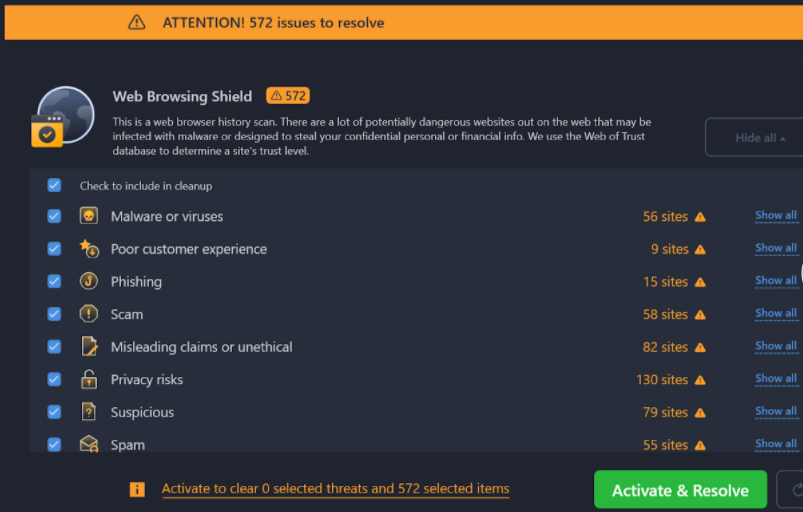
- A web-browsing shield from a security suite — Outbyte AVarmor’s Web Browsing Shield uses real-time URL reputation lookups; Bitdefender, ESET, and Norton have equivalents. These layer on top of browser-level filtering.
Camera and microphone hijacking
Webcam and microphone access requests are a privacy concern when malicious or over-reaching apps activate them without user awareness. Windows 11 added a hardware-level activity indicator in the system tray, but it’s still worth controlling access proactively.
What works:
- Windows Settings > Privacy & security > Camera (and Microphone) — review which apps have access and revoke anything you don’t actively use
- The Windows 11 status indicator — a small orange dot or icon appears in the system tray whenever the camera or microphone is in use
- A physical camera shutter — every business laptop in 2026 ships with one. The slider is the only foolproof defence.
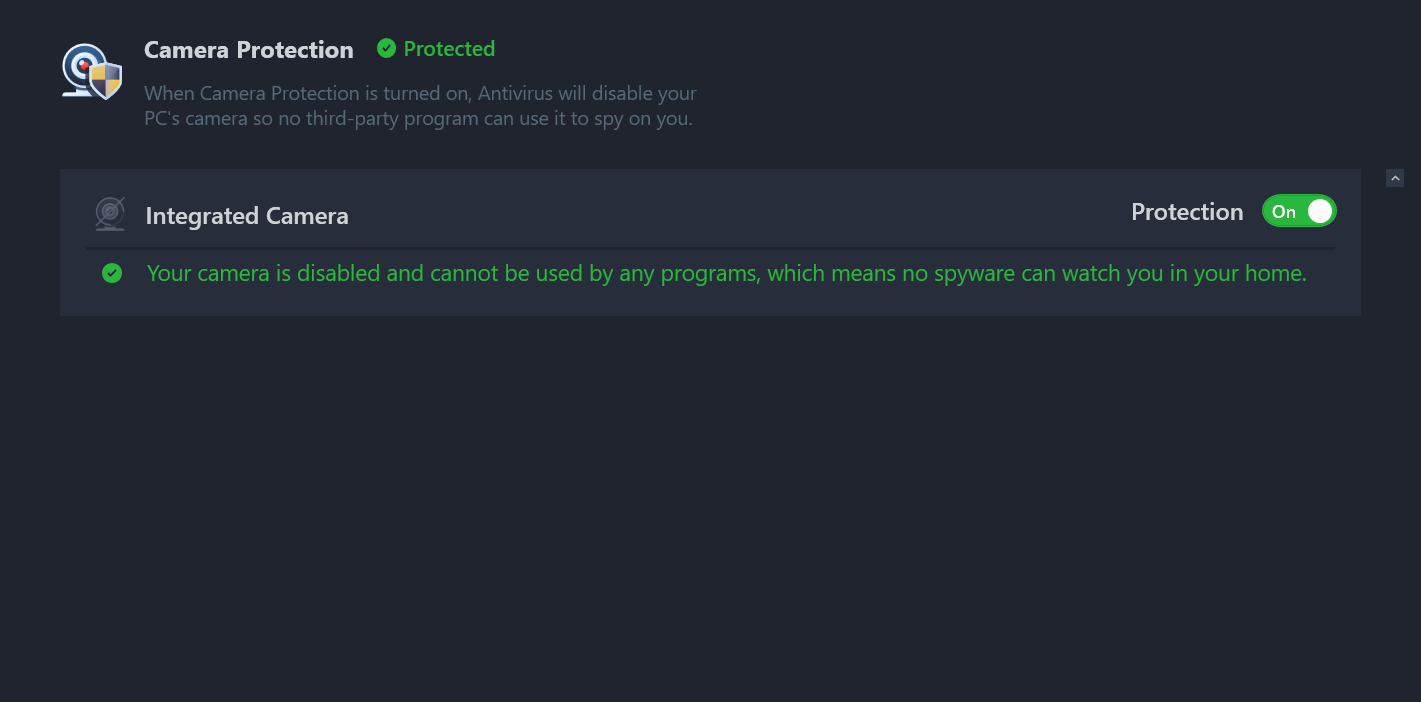
- Camera/microphone shields from a security suite (Outbyte AVarmor, Kaspersky, Bitdefender) provide per-process control and a notification on access. Useful as a second layer.
Where Outbyte AVarmor fits
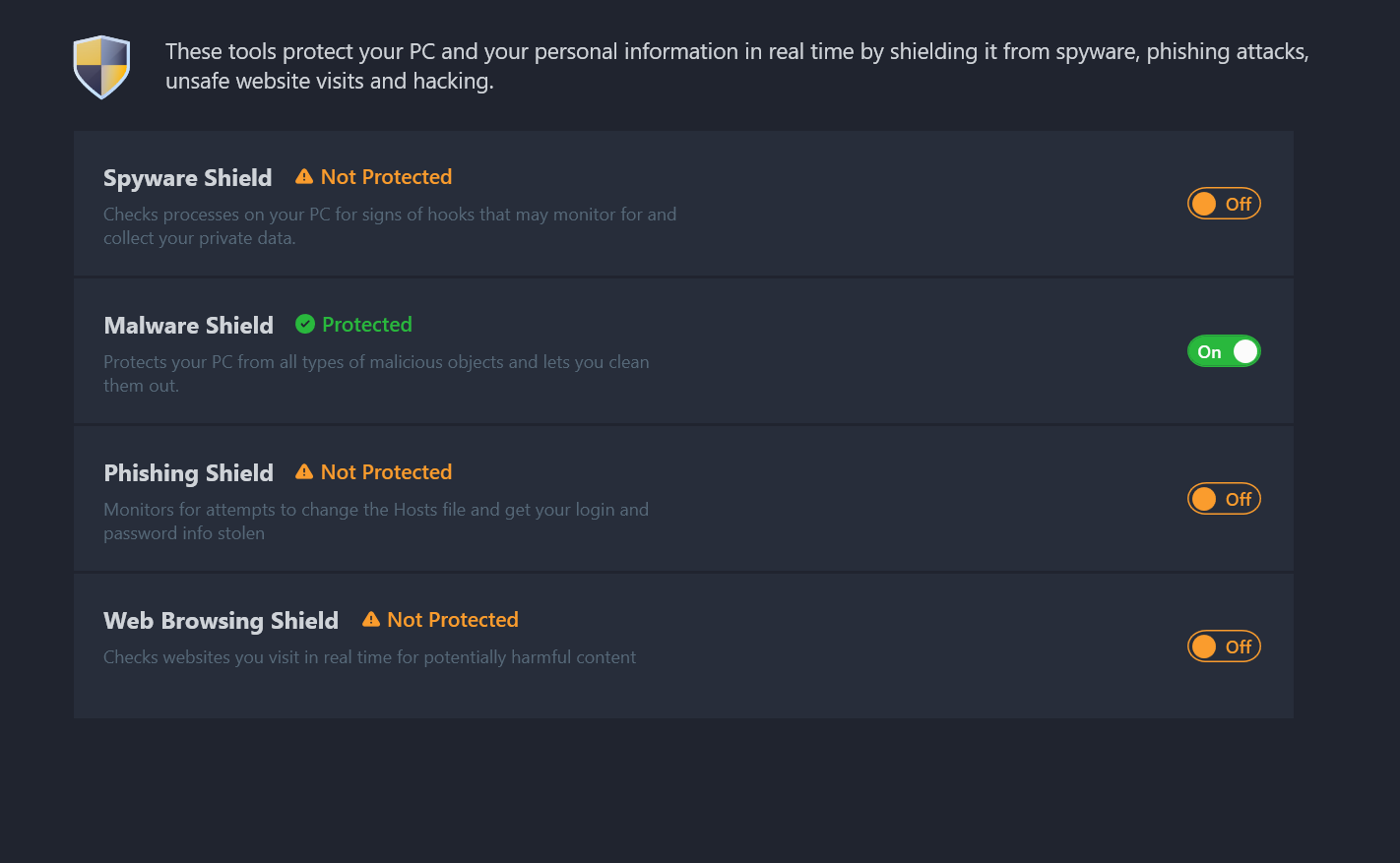
Outbyte AVarmor is one option in the all-in-one security-suite category — it bundles a malware shield, spyware shield, phishing shield, web browsing shield, and per-app camera/microphone controls under one dashboard. The pitch is the same as Bitdefender, ESET, Norton, and other suites: pay once for a single tool that covers most categories so you don’t have to coordinate three free tools yourself. The program can be downloaded from the publisher’s site.
Pick a suite when you want a single dashboard and don’t mind a subscription. Pick the free combination (Windows Security + Malwarebytes Free + uBlock Origin + passkeys) when you’d rather not pay and you’re comfortable with three apps. Either choice is defensible — what is not defensible in 2026 is running Windows with nothing at all, because the default attack surface for an unprotected machine is still wide enough to matter.
FAQ
Is Windows Security (Defender) enough on its own in 2026?
For most users, yes. Windows Security scores in the top tier of independent malware-protection tests, and Microsoft has narrowed the gap to dedicated suites over the last several years. The categories where it can still be supplemented are PUP / adware detection (where Malwarebytes Free does well) and dedicated webcam / microphone controls (where Bitdefender, Outbyte AVarmor, or Kaspersky add a per-app layer).
Can I run more than one antivirus at the same time?
You can run one real-time scanner (Defender OR Bitdefender OR Outbyte AVarmor — not multiple) plus one on-demand scanner like Malwarebytes Free. Two real-time scanners will fight each other for file-system hooks and slow the machine without adding protection.
Do I need an antivirus on a Mac?
macOS includes XProtect (signature-based malware blocking), Gatekeeper (signed-app enforcement), and notarization checks. For typical use, those are sufficient. The exception is Macs that share files with Windows machines — running an on-demand scanner avoids being a carrier for Windows-targeting malware. Our earlier piece on whether you need antivirus for your Macbook covers this in depth.
What is the single best defence against ransomware?
Backups you can restore from, plus Controlled Folder Access turned on. Controlled Folder Access is built into Windows Security and whitelists which apps can write to your Documents, Pictures, and Desktop folders, blocking unknown encryption attempts. Pair that with a versioned cloud backup (OneDrive, Backblaze, Arq) and the worst-case outcome of a ransomware infection becomes a reformat and restore.
What’s the difference between a PUP and malware?
A potentially unwanted program (PUP) is software you technically agreed to install — usually bundled with another free app you wanted, often a toolbar, scanner, or ‘optimizer.’ Malware is software that installed without consent or under false pretences. Most antivirus products treat them differently in their defaults; Malwarebytes is more aggressive about flagging PUPs than Windows Security is.



Share Your Thoughts