

How to create a strong password
You might think “Ali1” or “Yasmeen29” is a secure password. It’s not. Contrary to popular opinion, adding special characters like *$&@!_ will not help you either. Here are some essential tips for creating a strong, unguessable password:- Include letters (lower and upper case), numbers, and symbols. Turn Ali1 into @L1th3gr8st_!@#$ instead.
- Make it 12 characters, minimum.
- STOP USING YOUR LOVED ONES OR PET’S NAMES.
- It’s easy to find your partner’s, child’s, or pet’s name. Hackers will try those passwords first.
- If you do use a name, make it unique and add extra characters. (Ex. R!ZW@//_!@#)
1. Use a password manager
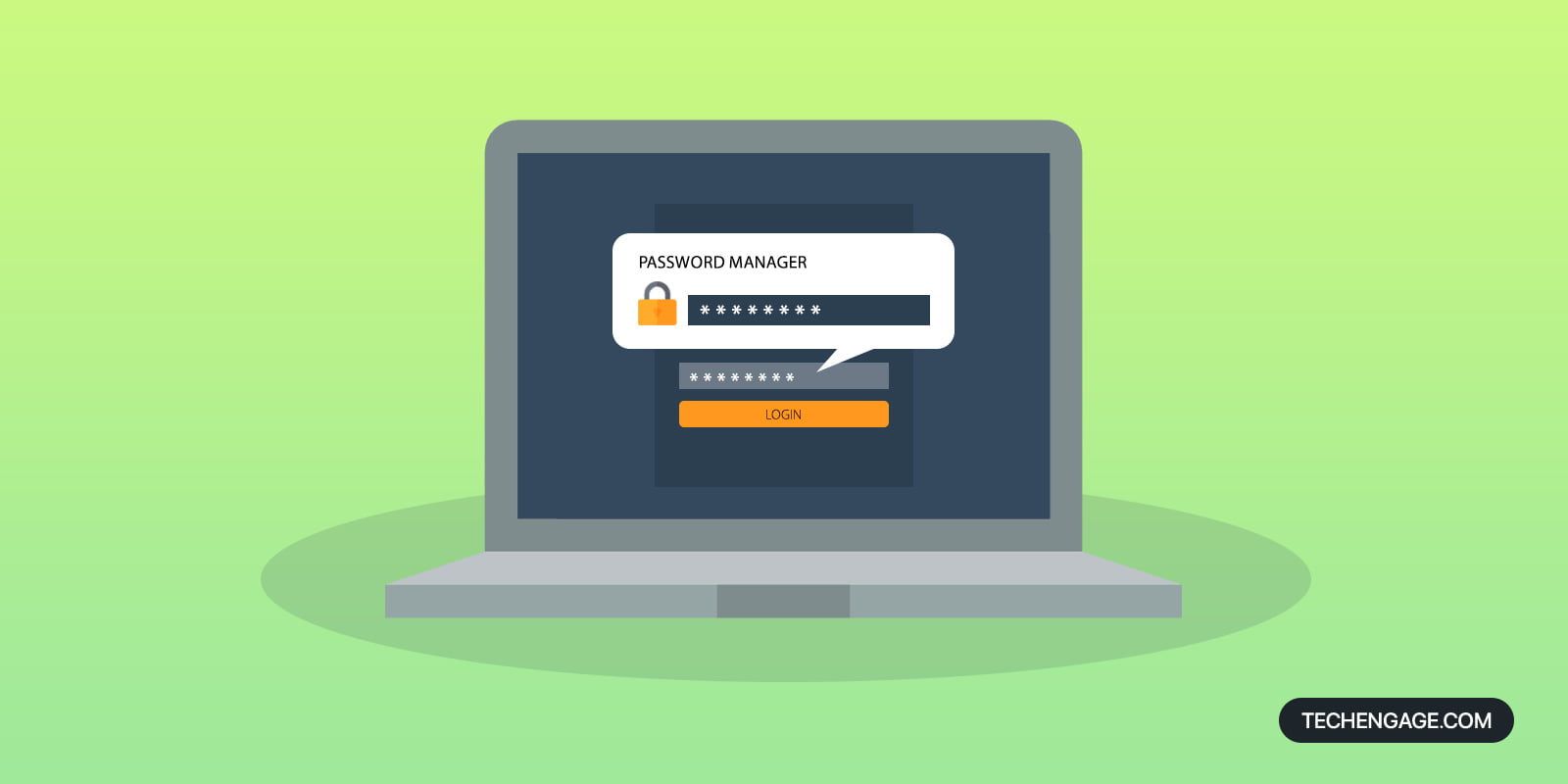 Do you have more online identities than you have contacts on your phone? A password manager can help you in several ways:
- It will auto-fill your passwords instantly.
- It will tell you if your current password is weak and offer a replacement password to use and remember for you.
- It will work on your phone and helps sign into apps and websites for you (depending on your smartphone and OS version).
- It remembers all your passwords, so you never have to worry about forgetting a complicated set of letters, numbers, and characters.
- LastPass
- 1Password
- DashLane
- 1GB encrypted file storage
- Priority customer support
- Extra security with Premium two-factor authentication (YubiKey and Sesame)
- Desktop application logins (with LastPass for Applications)
- Desktop fingerprint identification
- An ad-free vault
2. Writing your passwords on paper
 Before you go to the comments, hear me out. If you are especially paranoid about online security and want an extra safeguard, a paper will always be the best route.
Buy a simple diary for $5 off Amazon. The best way to remember your password is to write it by hand.
Even if you don’t trust a password manager, make a strong password, and write it in that journal. Hide it in a safe place you have constant access to and can supervise, like your bedroom.
Call it old-fashioned, but if you really want to make sure you can remember all your passwords, a journal is the best way to do so at the lowest cost.
Before you go to the comments, hear me out. If you are especially paranoid about online security and want an extra safeguard, a paper will always be the best route.
Buy a simple diary for $5 off Amazon. The best way to remember your password is to write it by hand.
Even if you don’t trust a password manager, make a strong password, and write it in that journal. Hide it in a safe place you have constant access to and can supervise, like your bedroom.
Call it old-fashioned, but if you really want to make sure you can remember all your passwords, a journal is the best way to do so at the lowest cost.
3. Protect your devices
 Whether it’s your desktop, laptop, phone, or anything that has your login credentials saved (like the abovementioned notebook), NEVER LEAVE IT UNSECURED.
Fun fact: On Google Chrome, all you need to do is open chrome://settings/passwords in the address bar. It will literally take anyone moments to see your precious account info if you leave them with your personal device for more than 5 minutes.
You can take the following measures to protect your devices:
Whether it’s your desktop, laptop, phone, or anything that has your login credentials saved (like the abovementioned notebook), NEVER LEAVE IT UNSECURED.
Fun fact: On Google Chrome, all you need to do is open chrome://settings/passwords in the address bar. It will literally take anyone moments to see your precious account info if you leave them with your personal device for more than 5 minutes.
You can take the following measures to protect your devices:



Share Your Thoughts