

It’s important to demonstrate steady growth in your video production quality when you launch your YouTube channel. You can do a great promoting campaign, attract new viewers by using social platforms and instagram reels templates, and advertise your videos. But for a great YouTube product, more than simply aesthetics are required. In fact, one might make a compelling argument that the audio in YouTube videos is more essential than the visuals. And that point has the right to exist as many people may just listen to your video while doing some household chores or while driving. And in that case, audio is the first thing they will pay attention to.
Unfortunately, many cameras don’t include good microphones. Here, we’ll go through several different ways you may enhance the sound in your YouTube videos.
Table of Contents
A microphone is a worthwhile investment
Investing in a microphone is the simplest approach to enhance the sound quality of your video content. If you want to start a video blog, it is highly recommended that you invest in a microphone that can be attached to your camera in the form of an extension. You may get a device that connects to your own computer if you are more interested in seeing talking-head videos.
Voice Modification
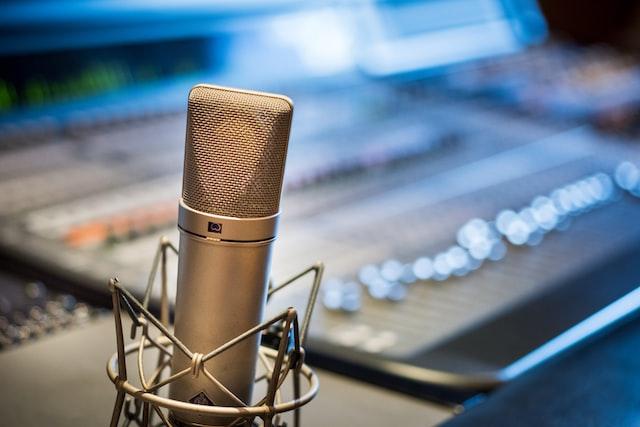
Investing in a high-quality microphone is a great way to make your YouTube videos sound far better than they would with only the built-in mic. However, this is only a jumping-off point; when you actually record your audio, you’ll likely want to make a few further adjustments. Editing software may be used to improve the clarity and loudness of your audio.
If you want to be seen seriously as a speaker, refrain from tapping things as you talk
It’s important to keep in mind that the microphone you choose to capture audio for your YouTube videos is likely to pick up the background noise. If you make a habit of touching things or tapping surfaces as you chat in your YouTube videos, your viewers will become quite annoyed. Even though you’ll want to make hand movements in your films, it’s best to avoid hitting them against anything too solid. Learning to do so will need some time and effort since you will be changing your basic behavioral patterns.
During post-production, eliminate ambient noise
There may be situations when you are unable to eliminate ambient noise when shooting your YouTube videos. In case you are trying to make a vlog in a loud area, your post-record sound editing task will become even more complicated because of the background noise. In addition, most viewers think that ambient noise is distracting. Post-production software allows for the minimization or elimination of unwanted ambient noise.
Build a script
While it’s not necessary to script every word of a video’s audio in advance, it is recommended that you have at least a rough plan before beginning to record. As a result, you and your statements will speak more loudly and confidently.
People normally lower their voices and bury their heads when they are at a loss for words, which degrades the quality of the recording. An outline may help someone stay on course while leaving room for improvisation.
Be deliberate and articulate in your speech
If one day you decide to review the first videos you have made, you’ll undoubtedly wonder why you talked so quickly. Typical beginner mistake. Speaking quickly on the videos not only causes you to come across as anxious, nervous, and inexperienced, but it also makes it more difficult to adjust and edit the audio afterward.
To improve the quality of your audio recording, try speaking more slowly and clearly; awkward silences may be edited out afterward. Although, as we have already mentioned, it’s helpful to have some notes to refer to, writing down a whole script might cause you to come off as artificial. Do your best to sound natural and easy.
Put your computer in silent mode
When you are using your own computer to record audio for YouTube videos, you need to ensure that the microphone does not pick up any background noise in addition to the sound that you are producing with your voice. It goes without saying that the noise produced by your computer and incoming notifications or system alerts might result in an echo that makes it very difficult, if not impossible, to listen to the video sound. Make sure that your computer is muted before you begin recording the video or just reposition the microphone so that it is not close to the speakers.
Use headphones while editing
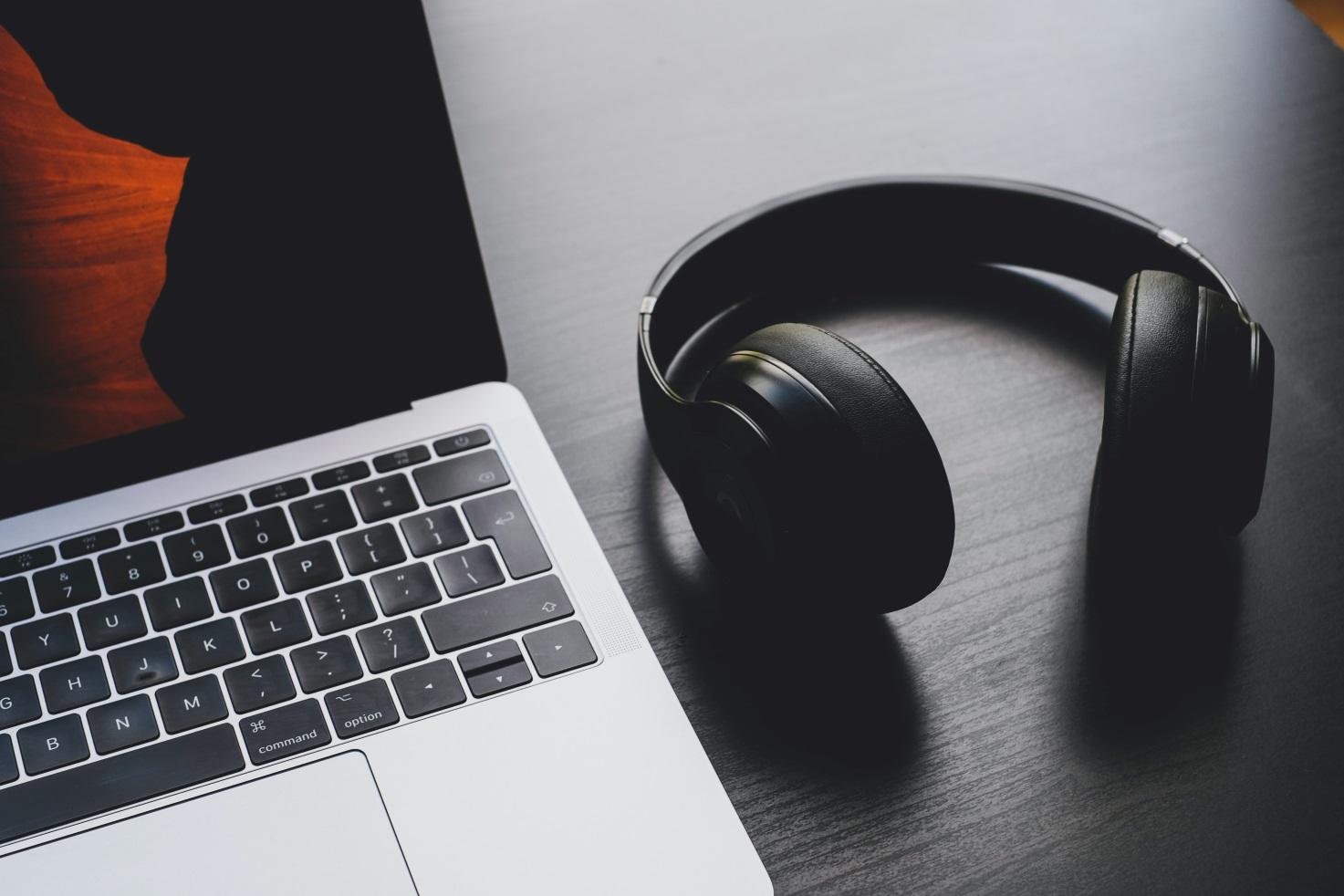
A high-quality set of headphones will block out ambient noise while simultaneously revealing every aspect of your original or post-production audio.
Conclusion
Even if your YouTube videos don’t have the best sound quality, you should make sure that the audio is clear and understandable. Eliminating basic mistakes will have a significant impact in this regard, and this manual has provided you with useful advice for doing just that.
We advise purchasing a microphone if you plan on maintaining a consistent YouTube presence over time. If you want to sound even better, you may use voice-editing software.



Share Your Thoughts