• Skip to primary navigation
  • Skip to main content
  • Skip to primary sidebar
  • Skip to footer
TechEngage

TechEngage®

Hands-on reviews, research-backed buying guides and technology news.

  • News
  • AI
  • Mobile
  • Apps
  • Security
  • Reviews
  • More
    • Internet & Social
    • Computing
    • Gadgets
    • Gaming
    • Car Tech
    • Business
    • Science & Health
TechEngage » Mobile

iPhone Tips and Tricks for iOS Users

Avatar for Muhammad Abdullah Muhammad Abdullah Follow Muhammad Abdullah on X Published: Apr 6, 2020 · 1:14 PM ET Updated: May 16, 2026 · 1:01 AM ET

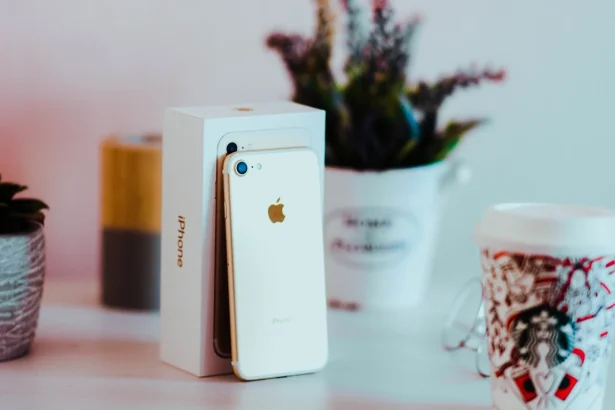
iPhone 7 in Rose Gold
Photo by Aleksander Vlad on Unsplash
FacebookTweetPinLinkedInPrint

There are a lot of iPhone users who are unaware of some of what an iPhone can do. These iPhone tips and tricks could make their lives easy and allow them to use their phones in more productive ways.

Here are seven useful iPhone hacks and tricks that iOS users will indeed find helpful.

1. Charge battery faster
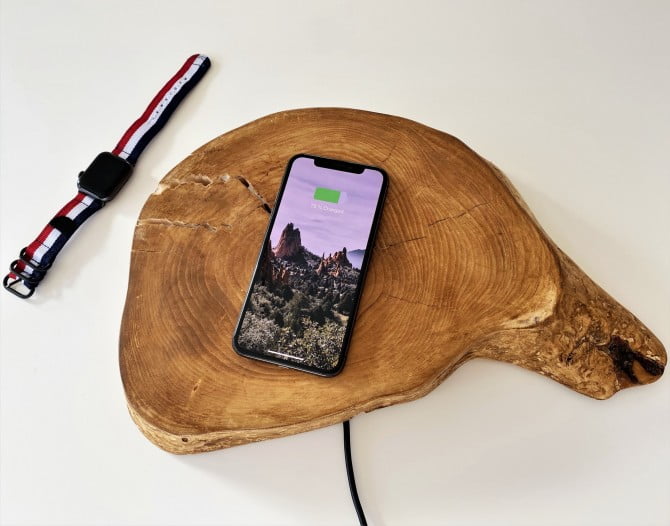
Charging An Iphone X On A Wireless Charger
Photo by UNIBOA on Unsplash

Everybody is addicted to smartphones, and since this generation is addicted to smartphones, the battery is consumed faster. People want to charge their phones faster to get back to games or their favorite social network. The best way to charge an iPhone’s battery quickly is by putting it on ‘Airplane Mode.’

The airplane mode causes the phone to turn off most of the phone’s features such as Wi-Fi, mobile data, incoming and outgoing calls, and all the features involving signals, hence dramatically lowering power consumption. Once your phone is charged, disable the airplane mode and enjoy the internet.

Another way to charge your phone faster is by turning off and charging it. Just like Airplane mode turns off all the radio signals and transmission, turning your iPhone off will disable everything, and the phone can be charged at great speed. I usually use this trick when my phone is totally out of juice.

To enable airplane mode, navigate to Settings ->Airplane Mode, or hit the ‘Airplane Mode’ icon in the control center.

2. Get notified through Light Blink

Iphone Flashlights On
Photo by Kipras Štreimikis on Unsplash

Are you the person who misses calls and messages of people? Then enabling light blink on your phone might help. The majority of the people are in the habit of putting their phones on silent, due to which they mostly miss out on important calls and messages. iPhone makes it possible to receive notifications by enabling the camera flash to blink even when your phone is silent.

To enable LED flash for notifications, go to Settings -> General -> Accessibility -> LED flash for alerts -> Turn the button green for LED flash for alerts and flash on silent.

3. Dark Mode on iPhone
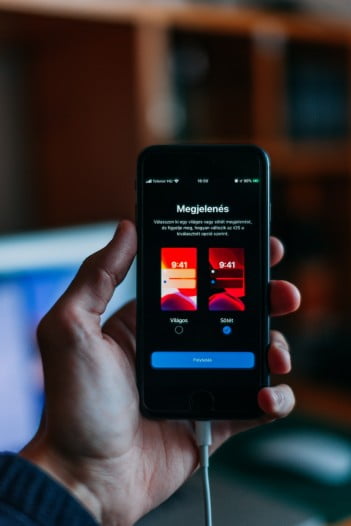
Dark Mode On Ios 13
Photo by Szabo Viktor on Unsplash

People who use their phones at night are more comfortable using the dark mode as it is easy on the eyes. iOS 13 brings the ‘Dark Mode’ feature to the iPhone and supports many apps. You can enable it in Settings -> Display & Brightness -> Dark.

If you don’t have a dark mode feature, you can also enable a dark mode(sort of). This dark mode is close to the actual dark mode but not exactly how it should be; however, it is helpful. This is also helpful for people who are color blind.

To enable ‘Dark Mode’ on your iPhones, go to Settings -> General -> Accessibility ->Display Accommodation -> Invert Colors

4. Add a virtual home button
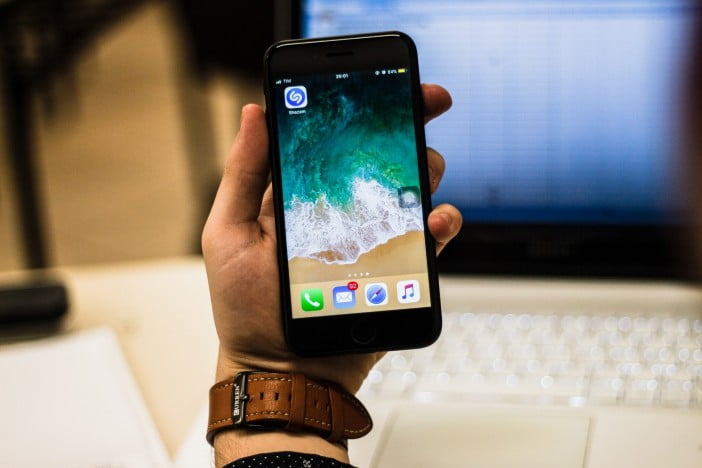
Assistive Touch Iphone
Photo by William Marques on Unsplash

To make the iPhone easier, you can use this feature to add a virtual home button on your screen. People who have iPhone X, XS Max, or iPhone 11 series can use this button to make the features of the phone more accessible since the home button got removed from iPhone X. This hack is not only for the iPhone X/XS Max users but also for the people who have other models of iPhone. You can also use this if your iPhone’s home button is damaged or not working for some reason.

To enable the virtual home button on the screen, go to Settings – General – Accessibility – Tap AssistiveTouch.

5. Undo typing by shaking your phone

This is an iPhone trick that is not widely known by people. While writing something in notes, you do not have to use the delete button to erase if something goes wrong. Enable the ‘Shake to Undo’ feature on your iPhone.

To enable the feature, go to Settings -> Accessibility -> Touch -> Shake to Undo. Now you can shake your phone to undo your typing instead of using the delete button.

6. Closing recent applications won’t save battery

It is not true that closing all the applications in the recent would save your iPhone’s battery. This has nothing to do with the iPhone’s battery. Therefore, closing the background applications would not help you save your iPhone’s battery; instead, it would cause more battery consumption because the iPhone has to load the app again to start it next time. Follow this to save your phone from getting recharged again and again.

7. Swipe to erase numbers on the calculator
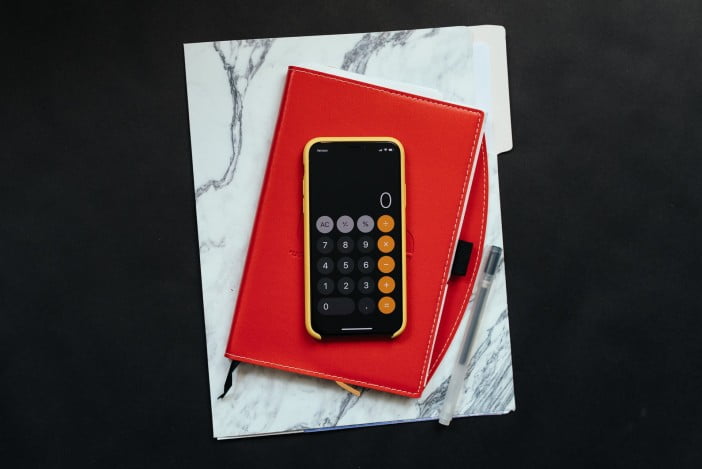
Iphone Calculator App
Photo by Kelly Sikkema on Unsplash

Instead of having a backspace or delete button, Apple, for some reason, added this gesture in iPhone’s default calculator app. You can easily swipe back on the calculator screen to erase the written number. Just swipe right on the numbers, and it works as a delete button. Thank me in the comments if you want to.

So these were the tips and tricks for an iPhone user. If you’ve any, please share in the comments below. 

Filed Under: Mobile Tagged With: Buying Guide, How-To, iOS, iPhone, Tips and Tricks

Related Stories

  • Best Power Banks For Travel: 8 Tsa-Friendly Picks For 2026

    Best Power Banks for Travel: 8 TSA-Friendly Picks for 2026

    Reviews & Buying GuidesSep 16, 2026

  • Best Mechanical Keyboards Under $100: 8 Picks For 2026

    Best Mechanical Keyboards Under $100: 8 Picks for 2026

    Reviews & Buying GuidesSep 15, 2026

  • Best Usb-C Hubs In 2026: 8 Picks For Macbook, Dual Monitors And Travel

    Best USB-C Hubs in 2026: 8 Picks for MacBook, Dual Monitors and Travel

    Reviews & Buying GuidesSep 14, 2026

Stay on top of technology

Get TechEngage reviews, buying guides and news in your feed.

Follow on Google News
FacebookTweetPinLinkedInPrint
Avatar for Muhammad Abdullah

Muhammad Abdullah

Senior Tech Correspondent

Muhammad Abdullah is a Senior Tech Correspondent at TechEngage and its most prolific author, with more than 320 published articles. A computer scientist by training and a certified Growth Hacker, he covers mobile devices, apps, operating systems, social media, and gaming, turning complex digital trends into practical insights.

Joined October 2018

Reader Interactions

Share Your Thoughts Cancel reply

Please read our comment policy before submitting your comment. Your email address will not be used or published anywhere. You will only receive comment notifications if you opt to subscribe below.

Primary Sidebar

Follow us on Google News

Recent Stories

  • Microsoft Windows Surface Event Oct 7 2026 |
    Tech News & AnalysisMicrosoft Confirms October 7 Windows and Surface Event for Local AI PCsSep 16, 2026
  • Best Power Banks For Travel 2026 |
    Reviews & Buying GuidesBest Power Banks for Travel: 8 TSA-Friendly Picks for 2026Sep 16, 2026
  • Best Mechanical Keyboards Under 100 Featured |
    Reviews & Buying GuidesBest Mechanical Keyboards Under $100: 8 Picks for 2026Sep 15, 2026
  • Apple Ios 27 Siri Ai Featured |
    Tech News & AnalysisApple Releases iOS 27 and macOS Golden Gate With Siri AISep 15, 2026
  • Featured |
    Reviews & Buying GuidesBest Wireless CarPlay Adapters in 2026: 6 Picks for Wired-CarPlay CarsSep 14, 2026

More in Mobile

  • Apple Ios 27 Siri Ai Featured |
    Tech News & AnalysisApple Releases iOS 27 and macOS Golden Gate With Siri AISep 15, 2026
  • Battery Draining Apps Jpg |
    MobileTop 10 Battery Draining Apps to Avoid in 2026Oct 5, 2024
  • Gunnar Sigurdarson Pnogpcpc9No Unsplash Jpg |
    MobileThings to Do After Buying a New Smartphone: The Complete Setup GuideSep 24, 2023
  • Free Up Space On Android Jpeg |
    MobileHow to Free Up Space on Your Android Phone in 2026 (10 Practical Tips)Sep 24, 2023
More Mobile stories →

Footer

Discover

  • About TechEngage
  • Company News & Updates
  • Our Team
  • Advertise
  • Send us a tip
  • Startup Submissions
  • TechEngage Brand Kit
  • Contact us
  • Tools

Legal pages

  • Editorial Standards
  • Reviews Policy
  • Our Ethics
  • Corrections Policy
  • Affiliate Disclosure
  • Privacy Policy
  • Cookies Policy
  • Terms & Conditions
  • GDPR Compliance
  • Copyright & DMCA

Must reads

  • Best Mechanical Keyboards Under $100
  • Best USB-C Hubs
  • Best Portable SSDs
  • Best Gaming Graphics Cards (GPUs)
  • Best Long-Range Outdoor WiFi Extenders
  • Best Wireless CarPlay Adapters
  • Best Slack Alternatives
  • Best Long-Range Walkie-Talkies

About TechEngage

TechEngage® is an independent technology publication covering tech news, reviews and buying guides since 2003.

Founded
2003
Publisher
TechAbout LLC
ISSN
2690-3776
Google NewsRSS feed

© 2026 TechEngage®. All Rights Reserved. TechEngage® is a project of TechAbout LLC.

TechEngage® is a registered trademark in the United States under Trademark Number 6823709 and in the United Kingdom under Trademark Number UK00003417167. It is also ISSN protected under ISSN 2690-3776 and has OCLC Number 1139335774.