

For years, enthusiasts rooted their phones to unlock features that stock Android left out — editing screenshots, uninstalling bloatware, locking individual apps, or tweaking the interface. But rooting is risky: it can void your warranty, break banking apps and Google Wallet, block system updates, and even brick your device. The good news in 2026 is that you rarely need it anymore. With rooting an Android phone falling out of fashion, Google and phone makers have baked most of those once-exclusive tricks right into Android itself.
Here are 12 genuinely useful things you can do on your Android phone today — no root, no custom ROM, and in most cases no risk at all.
1. Capture, edit, and stitch screenshots
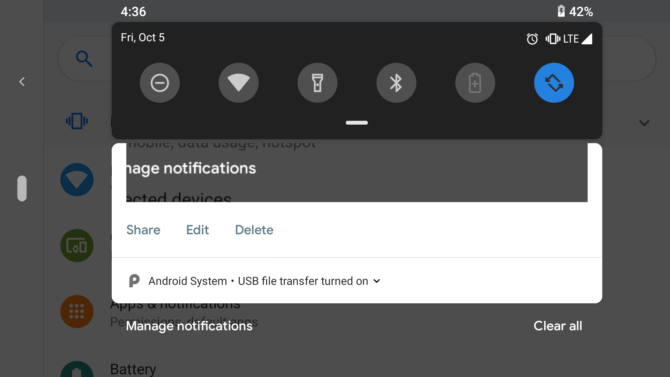
Taking a screenshot was once a root-only privilege, and editing one required a custom ROM. Today, after you capture a screenshot (Power + Volume Down, or a palm swipe on Samsung), a preview pops up with instant options to crop, annotate, and share. Android also supports scrolling screenshots — tap “Capture more” to grab a whole web page or chat thread in one long image.
2. Change screen density (DPI) and display size
If icons look too big or too small, you no longer need root to fix it. Open Settings → Display → Display size and text to scale everything, or adjust font size independently. For finer control, power users can enable Developer Options and use an ADB command from a computer:
adb shell wm density DPI && adb reboot
Note your original DPI first so you can revert. The official ADB tool is a free download from Google’s developer site — no root required.
3. Get a smarter home screen and feed
Google Now cards are long gone, but you get more today without touching root. The At a Glance widget surfaces your next event, weather, travel time, and package deliveries, while a swipe to the leftmost home screen opens the Google Discover feed. Prefer full control? Install one of the best Android launchers such as Nova Launcher to remap gestures, hide apps, and completely redesign your home screen — all without rooting.
4. Take full control of app permissions
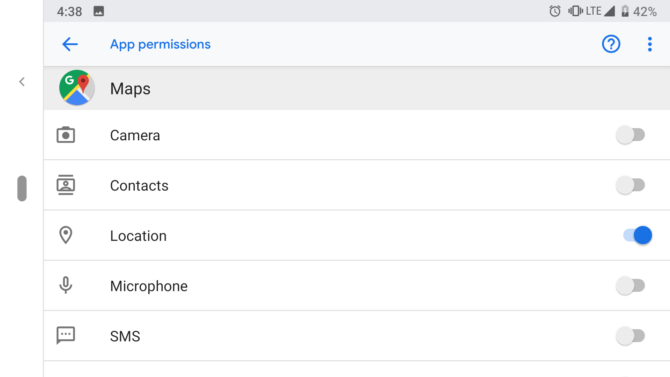
Revoking sneaky app permissions used to be a big reason people rooted. Now Android has one of the strongest privacy toolkits of any OS — all built in:
- Permission Manager shows every app that can access your camera, mic, location, and files, grouped by permission.
- One-time permissions let you grant access “only this time.”
- Auto-reset strips permissions from apps you haven’t opened in months.
- The Privacy Dashboard logs exactly which apps used sensitive permissions in the last 24 hours, and indicator dots warn you the moment the camera or mic switches on.
5. Restrict background data and save your allowance
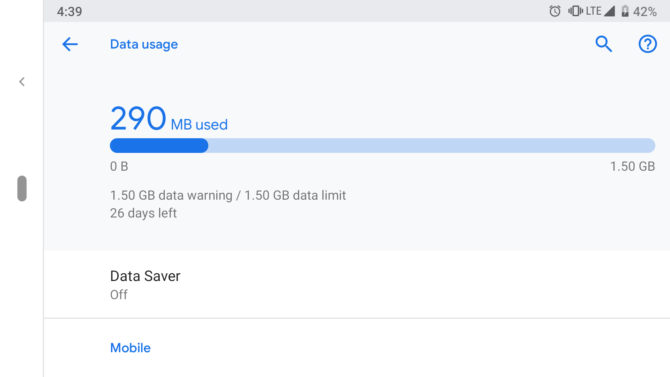
Android’s built-in Data Saver stops background apps from using mobile data, and you can restrict data on a per-app basis under each app’s Mobile data & Wi-Fi settings. It isn’t a full firewall, but for keeping a data-hungry app in check it does the job without a rooted phone.
6. Remove bloatware
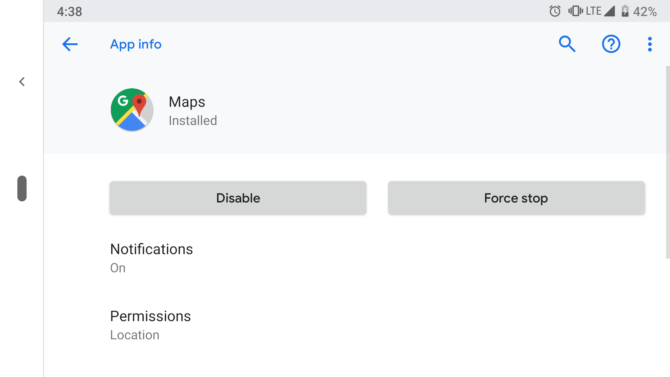
Nobody likes pre-installed junk that eats storage and battery. You can disable most pre-installed apps directly in Settings → Apps, which hides them and stops them running. To go further and fully uninstall stubborn system apps without root, connect your phone to a computer and use ADB:
adb shell pm uninstall --user 0 the app package name
This removes the app for your user profile only, so it’s reversible with a factory reset and doesn’t touch the core OS. Pairing this with our tips to free up space on Android and save battery can noticeably speed up an older phone.
7. Improve sound quality
Root users once ported Dolby profiles with Xposed modules. Today, many flagships ship with Dolby Atmos or an equivalent audio engine built in, and streaming apps like Spotify include their own equalizer. If yours doesn’t, a free app such as Equalizer & Bass Booster lets you build presets for different headphones and speakers. Explore the best free music apps to get the most from whichever equalizer you choose.
8. Restart, lock down, and stop theft in one tap
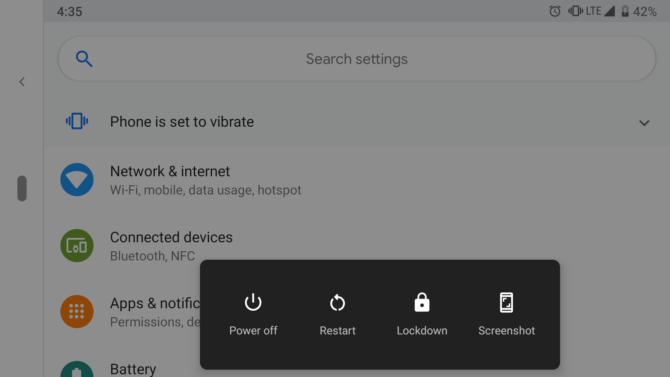
Early Androids didn’t even have a restart button — you had to power off and on manually. Now the power menu includes Restart, plus a Lockdown option that instantly disables biometric unlock so no one can force your fingerprint or face. Newer Android releases add anti-theft tools: Theft Detection Lock senses when a phone is snatched and locks the screen, while Remote Lock and Find My Device let you secure a lost handset from any browser — no root needed.
9. Clone apps and run two accounts
Need two WhatsApp or Instagram logins on one phone? Most manufacturers now include App Cloning (Samsung calls it Dual Messenger, others call it Dual Apps or Parallel Apps) that creates a second copy of an app with its own account. If your phone lacks the feature, apps like Parallel Space do the same. See our guide to running dual WhatsApp accounts for a walkthrough — no root anywhere in sight.
10. Hide and lock sensitive apps
This is where Android has leapt furthest. The newest big feature is Private Space — a separate, PIN-protected area of your phone where you can install sensitive apps that stay hidden and paused until you unlock it, invisible even in the app list and settings. Samsung’s Secure Folder does something similar. Most phones also have a built-in App Lock that gates individual apps behind your fingerprint. For everyday privacy, follow the basics in our secure Android phone guide.
11. Customize navigation and gestures
Custom navigation bars were once a rooted-only mod. Now Android ships with full gesture navigation — swipe up for home, swipe from the edge to go back — that you can switch on or off under Settings → System → Navigation mode. Third-party launchers add even more custom gestures and hotkeys, so you can tailor how you move around your phone without unlocking the bootloader.
12. Free up space and use your phone as a webcam
Two handy modern extras round out the list. App Archive lets you “soft-uninstall” apps you rarely use — it frees most of their storage while keeping your data and the icon, so a single tap reinstalls them. And thanks to the built-in webcam mode, you can plug your Android phone into a computer over USB and use its excellent camera as a high-quality webcam for video calls. Both work out of the box, no root required.
Should you still root your Android phone in 2026?
For the vast majority of people, no. Nearly everything that once justified rooting — screenshots, permission control, debloating, app cloning, hiding apps, custom navigation — is now a standard setting. Rooting still has niche uses (deep system theming, ad-blocking at the OS level, or full backups), but it comes with real downsides: broken banking and payment apps, failed security checks, no more updates, and a voided warranty. Unless you have a very specific need, you get 95% of the benefit with none of the risk by simply digging into the settings above.
Frequently asked questions
Is rooting an Android phone still worth it?
For most users, no. Modern Android already includes the features people used to root for, such as permission control, debloating, app cloning, and hidden app spaces. Rooting can break banking apps, block updates, void your warranty, and create security risks, so it is only worth it for niche power-user needs.
Can I remove bloatware without rooting?
Yes. You can disable most pre-installed apps in Settings, Apps. To fully uninstall stubborn system apps without root, use the ADB command ‘adb shell pm uninstall –user 0 the app package name’ from a computer. It removes the app for your user profile and is reversible with a factory reset.
What is Private Space on Android?
Private Space is a separate, PIN- or biometric-protected area of your phone where you can keep sensitive apps. Those apps stay hidden and paused until you unlock the space, and they do not appear in your regular app list or settings. It replaces the need for root-based app-hiding tricks.
Do I need a computer to use these tricks?
Most of them are toggles inside Settings and need nothing extra. Only the advanced tweaks that use ADB, such as changing DPI or fully uninstalling system apps, require connecting your phone to a computer once. None of them require rooting the device.
Know another handy trick that works without root? Share it in the comments below.




Share Your Thoughts