

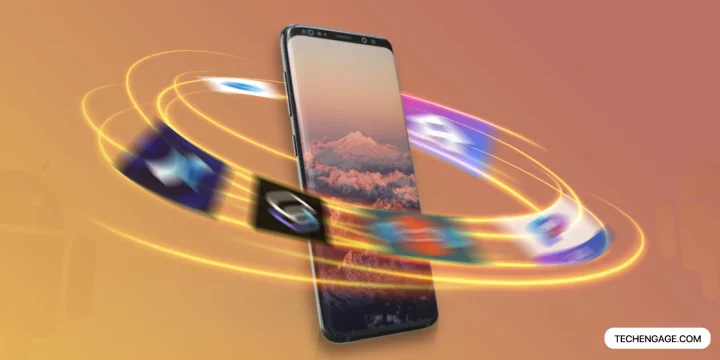
Choose Niagara for a simpler one-handed home screen, Smart Launcher for automatic organization, or Lawnchair for a familiar Pixel-style layout. If you mostly want fewer distractions, Olauncher deserves a look before you spend time designing another page of widgets.
A launcher changes how you find and open apps. It does not replace Android, upgrade your security patch level or turn your phone into a different manufacturer’s device. The useful question is which layout makes your daily tasks easier—not which app advertises the most customization switches.
Availability checked September 27, 2026. Every recommendation below has a current Google Play listing or an official developer download route. This is a source-checked comparison, not a new battery, speed or hands-on device test. Installation eligibility can still vary by Android version, country and handset; check the store on your own phone.
In this guide
The shortlist: choose by the home screen you want
| Launcher | Best fit | Cost model | Verified install route | Main trade-off |
|---|---|---|---|---|
| Niagara | One-handed list navigation | Free core; paid Pro features | Google Play | Different from a conventional icon grid |
| Smart Launcher 6 | Automatically organized apps | Free download; in-app purchases | Google Play | Check which customization features require payment |
| Microsoft Launcher | Calendar/feed-oriented organization | Free download | Google Play | Extra feed and account features may be unnecessary |
| Lawnchair | Pixel-style layout with customization | Free/open source | Official site and store link | Check release channel and compatibility |
| Olauncher | A deliberately minimal text home screen | Free; developer describes it as ad-free | Google Play | Less visual customization than a widget-heavy layout |
| Kvaesitso | Finding apps and content through search | Free/open source | Official installation guide | Outside-Play installation and updates need attention |
| Total Launcher | Building a highly customized layout | Free download; paid unlock options | Google Play | More setup effort |
| Nova Launcher | Traditional grids and existing Nova setups | Ads and in-app purchases disclosed | Google Play | Reassess its current terms; do not rely on old reviews |
1. Niagara Launcher — for a one-handed app list
Niagara replaces rows of icons with a compact list and an alphabet-based way to reach your apps. That is a useful choice if your current home screen has become several pages of things you rarely open. Its current listing also describes integrated notifications, gestures and personalization.
Choose it if: You want quick access to a small set of favorites and are willing to learn a different layout. Check first: The free version and Pro tier do not include the same features. Try your preferred widget arrangement before paying; the developer identifies widget stacks as a Pro feature. Its listing describes the free experience as ad-free, which is separate from whether all features are free.
2. Smart Launcher 6 — for people who do not want to sort everything
Smart Launcher 6 automatically groups apps into categories and offers home-screen personalization. That makes it a sensible starting point when the problem is an overflowing app drawer rather than a desire to redesign every icon position.
Choose it if: Automatic organization sounds more useful than manually maintaining folders. Check first: Browse the in-app purchase options and test the categories with your own apps. Automatic sorting is a convenience, not proof that every app will land where you expect. Adjust the organization before judging whether it fits your routine.
3. Microsoft Launcher — for a feed and productivity-oriented layout
Microsoft Launcher combines a customizable home screen with a feed for items such as calendars and to-do information. It supports icon customization, gestures, and layout backup and restore. It is an option for people who like information beside their app shortcuts rather than a completely stripped-down screen.
Choose it if: You will actually use the feed and Microsoft-related features. Check first: Permissions such as calendar, contacts and location serve specific optional features. Start with the features you need. Microsoft explicitly says the launcher does not reproduce your PC’s desktop on the phone; it also does not replace Phone Link or remote-control tools.
4. Lawnchair — for a customizable Pixel-style home screen
Lawnchair offers a familiar Pixel-inspired layout with extra customization. Its official site links to the current Google Play package and developer releases. Basic launcher use does not require root. Do not confuse optional system-level integrations with the requirements for changing your home screen.
Choose it if: You prefer a conventional launcher that looks close to Google’s design. Check first: Read the release notes for the exact build. The official release page includes beta and nightly channels; those labels matter. Do not install a nightly merely because its version number is larger. Back up your layout before switching builds or importing another launcher’s configuration.
5. Olauncher — for a text-first, low-distraction screen
Olauncher deliberately uses a minimal text-based home screen rather than a dense collection of icons. The developer describes it as free and open source, with no advertising. Its controls include text adjustments, app renaming and gestures.
Choose it if: You want fewer visual prompts to open apps out of habit. Check first: Minimalism involves giving up some of the visual organization you may currently rely on. Put your essential communication, navigation and accessibility tools within easy reach. No launcher can guarantee reduced screen time; judge whether this layout changes your own behavior.
6. Kvaesitso — for people who search instead of paging through icons
Kvaesitso is a free, open-source launcher built around search. It is worth considering if you usually know the name of the app or item you want and find repeated swiping through pages inefficient. Its documentation covers favorites, tags, widgets and optional integrations.
Choose it if: Search fits your habits better than a carefully arranged grid. Check first: Follow the developer’s installation guide, which links to official GitHub releases and the developer’s F-Droid repository. It specifies Android 8 or later and recommends Android 11 or later. Use those official routes, read the update instructions and review permissions for any integrations you enable.
7. Total Launcher — for building a layout rather than choosing a preset
Total Launcher suits people who enjoy editing the home screen itself. Its design emphasizes direct customization of screen elements. It is a more appropriate candidate for a planned custom layout than for somebody who wants to install an app and immediately forget the settings exist.
Choose it if: You want the setup process to be part of the appeal. Check first: Start with one usable screen and keep a backup before making larger changes. Check paid unlocks before committing to a design that depends on them. Device-admin or accessibility requests relate to optional actions described by the developer; only enable those actions when you need them.
8. Nova Launcher — still available, but reassess the current version
Nova remains available through its current Play listing. The listing names Instabridge Sweden AB and discloses ads and in-app purchases. Advice based on an older publisher, an older free version or an assumption that the current app is ad-free should not drive a new installation.
Choose it if: You want its traditional grid, icon and folder controls, or have an existing Nova setup you value. Check first: Review the current privacy disclosures and paid-feature terms, back up your layout, and try the installed version before making it your permanent default. Familiarity is a reason to assess Nova, not a reason to ignore changes to its current offering.
Download sources and compatibility
For a Pixel-style home screen, consider the identified Lawnchair listing above. Avoid assuming that a Pixel Launcher package is compatible with every Android phone, and check the source and support status before sideloading any launcher.
How to change your default launcher and switch back
- Install one candidate from the verified store or official developer link. Keep your existing launcher installed.
- Open the new launcher, complete its setup and choose it as the default Home app when Android prompts you. Alternatively, search Settings for Default apps or Home app; manufacturers use different menu paths.
- Recreate a small home screen first: your phone, messages, camera, maps and any accessibility tools you rely on.
- Test Home, Back and Recent apps; open the camera from your usual shortcut; check widgets, notification badges and work-profile access if you use them.
- To switch back, open the Home app setting and choose your original launcher. Restore your earlier layout if needed, then uninstall the replacement only after you have switched.
Changing the default Home app does not normally uninstall the apps it displays. Hiding an app icon is also different from disabling or uninstalling the app. Keep those actions separate when tidying your phone.
A practical test before paying for a launcher
| Try this | What it tells you |
|---|---|
| Find a rarely used app without changing its name | Whether search and app-drawer organization fit your habits |
| Return Home from the camera and a full-screen app | Whether navigation feels reliable on your handset |
| Add the two widgets you actually use | Whether the free tier and layout support your routine |
| Use it for an ordinary day with your usual settings | Whether the layout helps; avoid claims about battery life from a few minutes of use |
| Review permissions and the current store disclosures | Which optional integrations you are granting access to |
| Back up the layout and try switching Home apps | Whether you have a comfortable way to undo the change |
Gesture animations and Recent apps behavior depend partly on Android and the manufacturer’s software. A launcher listing cannot guarantee the same experience on a Pixel, Galaxy, Xiaomi phone and foldable. If gestures behave poorly, test the phone’s three-button navigation option and consult the developer’s compatibility notes before buying extra features.
For a coherent look, change the layout first, then choose an icon pack and wallpaper. Our Android wallpaper guide is a separate starting point; installing several personalization apps at once makes it harder to identify which change caused a problem.
Frequently asked questions
Which Android launcher should I try first?
Try Niagara for a compact list, Smart Launcher for automatic categories, or Lawnchair for a familiar Pixel-style layout. Choose a specific benefit rather than installing the highest-ranked app without a reason.
Which launcher is completely free?
Olauncher and the open-source Lawnchair and Kvaesitso projects are useful starting points. Other recommendations offer a free download with paid features, and Nova’s current listing discloses advertising. Check the exact listing and build before installing.
Will a launcher make my phone faster or improve battery life?
There is no universal improvement. Widgets, animations, feeds, the phone’s software and your use all affect the result. This guide does not publish measured speed or battery rankings because we did not perform a controlled device comparison.
Is Nova Launcher unavailable?
No. Its Google Play listing was available when checked on September 27, 2026. The recommendation now reflects its current publisher and advertising disclosure rather than relying on its older reputation.
Do launchers require root?
Ordinary home-screen replacement does not require root for the options here. Advanced integrations can have separate requirements. Do not root a phone simply to test a launcher.
Why does Google Play say a launcher is incompatible?
Availability depends on the app’s requirements, your Android version, device and region. An active public listing does not guarantee installation eligibility for every phone. Use a compatible option instead of an unofficial modified APK.


Bah!
The best android launcher is Total Launcher full!
Much more than Nova or Evie
But these launcher are most famous…
Hey Alex, I will try out Total Launcher and will surely add in the list if it is as good as you say it is.
Niagara launcher seems to be the best one for me. Very minimalistic, yet many customising features available.
All other launchers seem to be very similar.
Hasta ahora, lo mejor viene siendo Microsoft Launcher, es gratuito, se integra con Windows 10, tiene toda la tecnología, ni se compara con los otros pobres lanzadores que han nombrado. Nada se le acerca a Microsoft Launcher, igualmente con Edge, el mejor navegador, tanto en androi, linux y windows. Microsoft viene pegando fuerte, invierte muchísimo dinero en aplicaciones gratis y otras de código abierto, como Microsoft Coder. Sabe que ni no le pone ficha a esto, se quedan, y han demostrado no ser tan quedados. Si quieren lo mejor, Microsoft viene siendo la mejor opción.