

“Storage space running out” is the most stubborn notification in Android. Once it shows up, the phone gets noticeably slower: animations stutter, the camera fights you, apps start force-closing in the background. The fix is rarely “buy more storage” and almost always “clean up the storage you already have.” This guide walks through ten tips that actually move the needle in 2026, in roughly the order I run through them on my own phone whenever the warning shows up.
None of these need root access, paid apps, or anything beyond settings that ship with stock Android, Samsung One UI, OnePlus OxygenOS, or Xiaomi HyperOS. The names of menu options shift slightly between manufacturers; I’ll flag the differences where it matters.
How to free up space on Android in 2026:
1. Uninstall apps you don’t use
The first sweep is the most effective one. Open Settings → Apps → See all apps, sort by size or by last-used date, and start deleting anything you have not opened in three months. Most people find at least 2 to 4 GB locked up in apps they installed once, used twice, and forgot about. The Play Store also keeps a “Manage apps and device” view (open Play Store → tap your avatar → Manage apps and device → Manage) where you can sort installed apps by “Least used” and bulk-uninstall in a single screen.
Do not skip pre-installed bloatware just because the system labels it as a “system” app. On Samsung, OnePlus, and Xiaomi devices, you can usually disable manufacturer apps even when full uninstall is blocked, which stops them from updating in the background and freeing data they were caching. Inactive apps are also a battery drain; our roundup of the worst battery-draining apps to avoid covers the apps to look at first.
2. Clear app cache (carefully)
Cache is the temporary files an app keeps to load faster the second time you open it. Useful in normal use, but apps like Spotify, YouTube, Instagram, and TikTok routinely hold 1 to 4 GB of cached video, thumbnails, and ad assets. Clearing cache does not log you out, does not delete your account, and does not remove your downloaded content. It just resets the temp store.
To clear cache for a single app: Settings → Apps → [the app] → Storage and cache → Clear cache. Hit it on the heaviest offenders first. The biggest wins are streaming and social apps; system apps like Phone or Messages have negligible cache and are not worth the time. Avoid the “Clear storage” button on the same screen unless you actually want to log out and reset the app.
One thing that has changed in Android 14 and 15: Google removed the system-wide “Clear cache for all apps” toggle. You now have to clear apps one at a time, which is mildly annoying. Files by Google (covered below) is the closest thing to a system-wide cleaner that still works.
3. Empty the Downloads folder
The Downloads folder is where forgotten APKs, PDF receipts, screenshots from Telegram, and “I’ll deal with this later” media goes to die. On most phones it lives at /Internal storage/Download, accessible from any file manager or from the Files by Google app. Open it, sort by size, and delete what you do not need.
Pay particular attention to APK installer files (large and useless once an app is installed) and any video downloads from messaging apps. The same Files by Google app flags these explicitly under its “Junk files” category, which is the fastest way to clear them in bulk.
4. Offload backed-up photos and videos
Google Photos ended its unlimited free backup in June, and a paid Google One plan is now the realistic option for keeping a phone’s full photo library in the cloud. The 200 GB tier covers most users in 2026 at a few dollars per month. Once your photos are confirmed backed up (the cloud icon shows next to each one), use the “Free up space” option inside Google Photos to delete the local copies. The thumbnails and the ability to view them stay; the full-resolution files leave the device.
For people who do not want to pay Google, the alternatives have matured. iCloud (for cross-device with an iPhone in the household), OneDrive (free 5 GB, decent paid tiers), Amazon Photos (unlimited full-resolution storage for Prime members on photos only), and self-hosted options like Immich or PhotoPrism are all viable. We’ve covered the trade-offs in our guide to Google Photos alternatives and the broader context of the end of unlimited Google Photos backup. For physical backups beyond cloud, an external SSD plugged in via USB-C handles the rest.
5. Trim offline map data
Google Maps and Waze both download substantial data when you use them, and Google Maps in particular caches map tiles for areas you’ve spent time in even without an explicit offline-map download. A heavy-traveling user can easily accumulate 1 to 3 GB inside the Maps app over a year.
To clean it: Open Google Maps → tap your profile picture → Settings → Maps history for activity logs, then Settings → Personal content → Delete location history for accumulated trips. For offline maps specifically: profile → Offline maps shows what you’ve explicitly downloaded; delete the regions you no longer need. If you genuinely use offline maps for travel or hiking, leave those in place. Otherwise they are paying for storage they no longer earn.
6. Turn on Storage Manager / Smart Storage
Android has had an automatic storage cleaner since Oreo (2017), but the feature has been significantly improved in recent versions and is still off by default on most devices. The exact name varies by manufacturer:
- Pixel / stock Android: Settings → Storage → Storage manager → toggle on. Removes backed-up photos older than 30, 60, or 90 days.
- Samsung One UI: Settings → Battery and device care → Storage. The “Auto Optimize” feature handles caches and uploads recommendations periodically.
- OnePlus OxygenOS: Settings → Storage → Storage manager. Same general behavior as Pixel.
- Xiaomi HyperOS: Settings → About phone → Storage → Storage cleaner. Slightly more aggressive than the others; review what it suggests before confirming.
Once on, you generally don’t need to think about it again. The phone runs the cleanup quietly in the background.
7. Move what you can to cloud storage
Documents, scanned receipts, work files, and anything else that does not need to be available in airplane mode is a candidate for cloud-only storage. Google Drive, OneDrive, Dropbox, and pCloud all have Android apps that can mark folders as “online only”, so they appear in your file manager but the actual file is fetched on demand instead of taking local space.
The realistic 2026 picks: Google Drive if you already use Google services, OneDrive if you live in Microsoft 365, pCloud if you want a one-time-purchase lifetime plan, and Proton Drive if privacy is the priority. Whatever you pick, set a recurring monthly reminder to actually use it; the cleanup only works if you offload regularly.
8. Run Files by Google
Files by Google is the single most useful free app for storage cleanup on Android. The app started life in 2017 as Files Go and has been steadily expanded since. It scans the device, identifies junk (cached ads, residual install files, temp data from uninstalled apps), surfaces duplicate photos and videos, and shows the largest files on the device sorted by size. Most users will free up at least 1 to 3 GB the first time they run it.
Newer versions also include a “Smart Storage” feature that automatically clears images backed up to Google Photos that are older than a chosen threshold. The app is free, made by Google, runs entirely on-device, and does not push aggressive notifications or ads. It is the closest Android has to a one-tap cleaner that actually works.
What I’d avoid: third-party “cleaner” apps from the Play Store that promise to “speed up your phone.” Most are scams that show animation theatre and either do nothing or actively harm performance. Stick with Files by Google or your manufacturer’s built-in storage tool.
9. Clear WhatsApp media
WhatsApp is the silent disk-killer for most heavy users. Group chats with auto-download enabled hoover up gigabytes of memes, voice notes, status videos, and forwarded clips that you genuinely never want to see again. WhatsApp’s own storage management documentation covers the same flow with screenshots if you prefer the official walk-through. The current cleanup flow:
- Open WhatsApp → tap the three-dot menu → Settings.
- Go to Storage and data → Manage storage.
- Use the “Larger than 5 MB” filter and the per-chat breakdown to surface the worst offenders. You can multi-select and delete in bulk.
- While you’re here, check the “Forwarded many times” category. That folder alone is usually 200 to 800 MB of recycled content nobody actually wants.
To stop the problem at the source, change auto-download settings: Settings → Storage and data → When using mobile data / When connected on Wi-Fi / When roaming. Turn off automatic download of videos and documents at minimum. Photos auto-download is fine for most people. Disappearing messages are also worth enabling per chat for groups where the content has no long-term value.
10. Archive rarely-used apps
Android 12 introduced “Auto-archive” through the Play Store, and by 2026 most flagship Android devices have it enabled by default. Archiving keeps the app icon and your saved data on the device but removes the bulk of the install, typically a 60 to 80 percent space reduction per archived app. Tapping the icon re-downloads the app on demand.
To turn it on: Play Store → tap your avatar → Settings → General → Automatically archive apps. Once on, Android automatically archives rarely-opened apps when storage gets low. You can also archive specific apps manually from Settings → Apps → [app] → Archive on Android 14 and newer.
This is the cleanest “have your cake and eat it” tip on this list. You don’t lose anything, the app reappears the moment you tap it, and on a 128 GB phone with 50 installed apps the savings can hit 5 to 10 GB. For the rest of the Android setup tweaks worth knowing, our roundup of best security apps for Android and our walkthrough of USB debugging cover the next layer beyond storage cleanup.
Frequently Asked Questions
Why do I keep getting the ‘Storage space running out’ warning even after deleting things?
Two common causes. First, cached data in apps like Instagram, TikTok, Spotify, and YouTube rebuilds quickly even after you delete it; clear it on the heaviest offenders first. Second, photos and videos in Google Photos are deleted from local storage only after you confirm a backup, which means the local copies still take space until you explicitly use the ‘Free up space’ option in the Photos app. Run that, plus Files by Google, and the warning typically clears within a day.
What’s the difference between ‘Clear cache’ and ‘Clear storage’?
Clear cache removes only temporary files and is safe; you stay logged in and your data stays. Clear storage (also called Clear data) wipes everything for that app, including login state, settings, and saved progress. Always start with Clear cache. Only use Clear storage if you specifically want to reset an app to its just-installed state.
Are third-party cleaner apps safe to use?
Most are not worth installing. Many third-party cleaners run aggressive ad networks, request excessive permissions, and provide little real benefit beyond what Files by Google or your phone’s built-in storage manager already does. CCleaner had a malware incident years ago and remains a low-trust pick. Stick with Files by Google or your manufacturer’s tool. Both are free, made by reputable parties, and don’t push paid upgrades.
Should I uninstall apps or archive them?
If you’re never going to use an app again, uninstall. It’s permanent and frees more space. If you might use the app once a year (a tax tool, an airline app, a parking app for one specific city), archive it. Archive keeps your saved data and account state and gets most of the storage benefit. Auto-archive is enabled by default on Android 14 and newer for most flagship devices.
Does adding an SD card help in 2026?
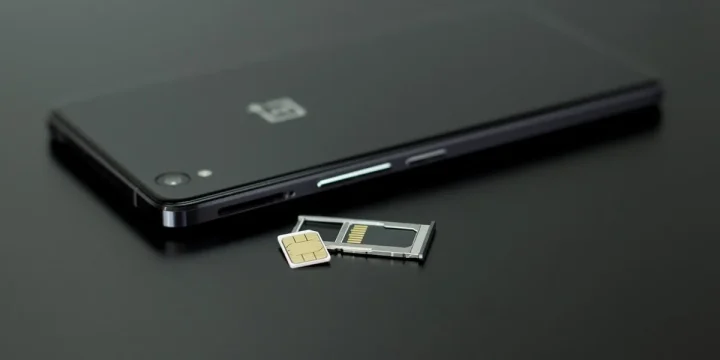
For phones that still support them (mostly Samsung, Motorola, and budget OEMs), yes; but the gap has narrowed. Most flagship phones since 2022 dropped microSD support entirely, and apps installed to internal storage cannot be moved to SD on modern Android the way they could a decade ago. SD cards are still useful for offloaded photos, videos, and music if your phone supports them, but they are no longer a general-purpose space solution.
Will a factory reset free up space?
Yes, but it’s the nuclear option. A factory reset returns the phone to as-shipped storage usage, which on a typical 128 GB device with no SD card means about 110 to 115 GB free out of the box. The trade-off is restoring your apps, settings, and account state, which usually takes an evening. Consider it only if the phone is genuinely at the limit and the other tips above haven’t recovered enough space.




Share Your Thoughts