

If Chrome reloads a page every time you return to it, add that website to Always keep these sites active in Chrome’s Performance settings. This is usually a better first step than switching Memory Saver off for every tab: you can protect the page you need while leaving other tabs eligible to release memory.
This guide is for desktop Chrome. The screenshots show Chrome 154 on macOS; the appearance can differ on Windows. Start with a saved copy of any unfinished work. A setting that keeps a tab active is not a substitute for saving a document, and it cannot prevent a website from signing you out or refreshing itself.
First, identify the kind of reload
Notice when the problem happens before changing several settings at once.
| What you see | What to try first |
|---|---|
| An old background tab reloads when you return | Add the website to the active-sites list |
| Many background tabs reload too quickly | Try a less aggressive Memory Saver level |
| A page refreshes while you are actively using it | Check that website and your extensions; Memory Saver may not be the cause |
| A page crashes or Chrome closes | Treat it as a stability problem, not just a tab setting |
| You are signed out when you return | Check the service’s session behavior; a memory exception does not extend a login |
1. Open Chrome’s Performance settings
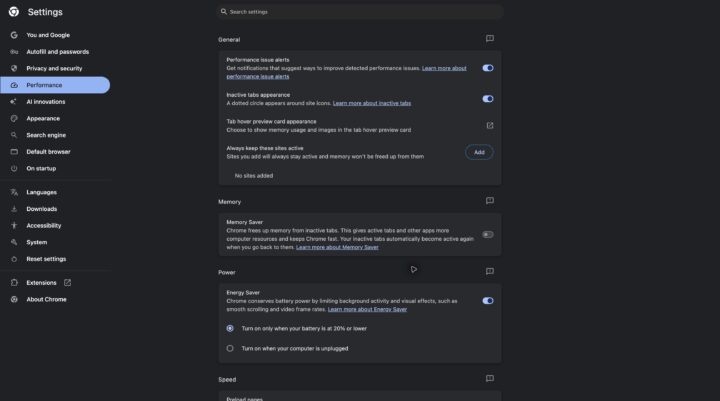
Select the three-dot menu, choose Settings, then select Performance in the sidebar. You can also type chrome://settings/performance into Chrome’s address bar and press Enter.
Use the address bar rather than a search box on a web page. The chrome:// address opens a browser setting, not a website.
2. Keep the important website active
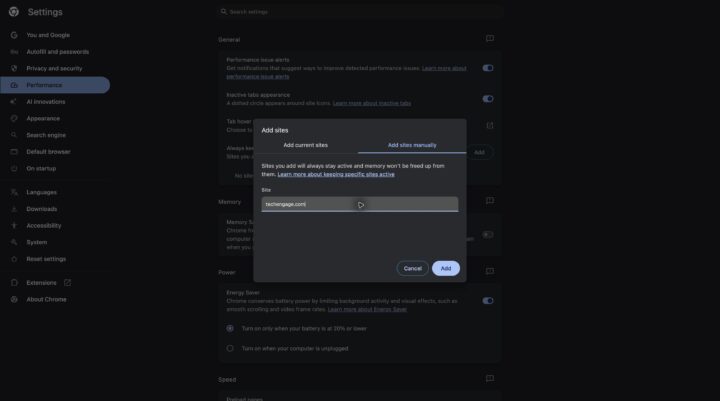
Find Always keep these sites active and select Add. Choose Add sites manually, enter the website’s address and confirm with Add.
For example, use techengage.com if that is the site you want to keep available. Choose the domain you actually need rather than a broad pattern that covers all websites. Once it appears in the list, return to the page and continue using Chrome normally.
Keep the list short. A document editor you return to throughout the day is a sensible candidate; every shopping tab you opened last week probably is not. Protecting everything works against the reason for using Memory Saver.
You can remove an exception later from its menu. Removing it makes the website eligible for Chrome’s normal memory-saving behavior again.
3. Choose how aggressively Chrome saves memory
These choices appear when Memory Saver is on. If it is already off, leave it off while investigating another cause in the next section.
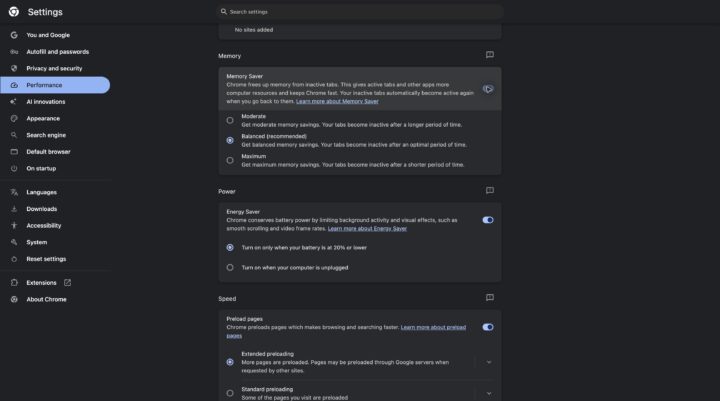
The Memory Saver section offers Moderate, Balanced and Maximum. If Maximum feels disruptive, try Balanced first. Use Moderate if you prefer background tabs to remain available longer.
Change one setting, then use your usual set of tabs before deciding whether it helped. A single quick tab switch does not demonstrate how Chrome will handle a page that has been idle for a long time. There is no useful universal promise such as “this setting saves 50% of your RAM.” Your open sites and available memory matter.
Google explains the distinction between these options in its Chrome performance settings documentation. These desktop controls are not available in the same form in Chrome for Android or iPhone.
4. If the problem continues, check extensions and heavy tabs
Save your work before closing a tab or ending a process. Chrome’s Task Manager can help you identify demanding tabs and extensions, but ending a task can discard unsaved work.
Open the three-dot menu and look under More tools for Task Manager. Inspect memory use before closing anything. A high number by itself does not prove that a tab is faulty: a video call and a plain text page have different workloads.
For extensions, open Extensions → Manage Extensions. Temporarily turn off an extension you suspect, test the same page, then restore it if nothing changes. Work through them individually so you know which change made a difference. Google’s Chrome troubleshooting advice covers unused tabs and extensions.
If you installed several image downloader extensions, keep only the ones you need. Avoid installing another “RAM cleaner” merely to troubleshoot a browser setting.
What this setting will not fix
An active-site exception does not stop a website’s own refresh timer, repair a broken internet connection or recover a crashed browser. If only one service misbehaves, try another page on the same service and look for its own status or help information.
Do not clear every cookie as your first experiment. That can sign you out of websites and make the original problem harder to compare. If you have a separate caching problem, follow the narrower steps in the Mac cache guide.
If Chrome still does not suit your workflow after troubleshooting, compare the trade-offs in these Chrome alternatives. Switching browsers is a bigger change than adding one site exception, so start with the smaller fix.
Common questions
Should I turn Memory Saver off completely?
Try an exception for the affected website first. Turning the feature off is broader than necessary when only one page is troublesome, and it will not fix reloads caused by that website.
Will keeping a site active prevent me from losing work?
No. Save regularly and use the app’s own autosave or recovery features. Browser crashes, connection problems and session expiry are separate from memory-saving behavior.
Why does the page still refresh while I am using it?
That points to a different cause worth checking, such as the website’s own behavior or an extension. Test one change at a time rather than assuming every refresh is caused by Memory Saver.





Share Your Thoughts