

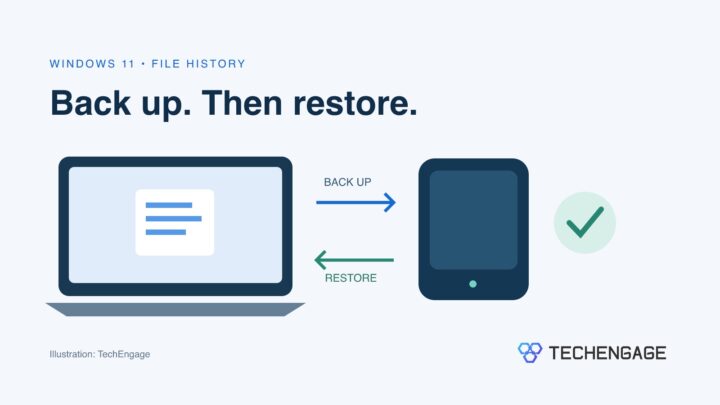
To back up personal files from a Windows 11 PC to an external drive, use File History in Control Panel. Turn it on for your backup drive, check that your important folders are included, and restore a sample file before relying on it.
This is a file backup, not a complete copy of Windows and every installed program. It suits documents, photos and other working files you want to recover after an accidental deletion or an unwanted edit.
Before you start
- A separate external drive: use a USB hard drive or SSD with enough free space for your files and older versions. Leave room to grow rather than choosing a drive that only just fits today’s files. Our portable SSD guide explains the options if you need one.
- A working connection: connect the drive and confirm that you can open it in File Explorer. A drive that repeatedly disappears needs attention before you trust it with a backup.
- A short folder checklist: write down where your important files actually live. Include work folders outside Documents, Downloads you intend to keep, and files stored on another internal drive.
If Windows asks to format a drive that already contains files, stop. Do not format it to get through this guide. Check that you selected the intended device and preserve its existing contents first.
1. Turn on File History
These instructions use the Windows 11 Control Panel interface in Microsoft’s File History documentation. They do not use the Windows Backup app.
- Connect your backup drive. Open Control Panel and choose System and Security.
- Select Save backup copies of your files with File History.
- Choose Select drive, select the intended external drive and confirm with OK. Check its name and capacity carefully.
- Select Turn on if File History is not already enabled.
2. Check folders, frequency and retention
Do not assume every folder on the PC is covered. For an extra folder, right-click it in File Explorer and choose Show more options → Include in library → Create new library. Check Exclude folders in File History for anything you expected to keep.
In Advanced settings, use Save copies of files to choose the interval and Keep saved versions to choose retention, then select Save changes. ASUS’s Windows 11 walkthrough shows these controls and the folder settings.
Choose an interval that reflects how much work you can afford to redo. For example, someone editing documents throughout the day needs more frequent copies than someone who imports photos once a week. Keeping more versions uses more space, so revisit the choice when your drive starts filling up.
3. Run a backup and check the result
Select Run now in File History to start a backup without waiting for its schedule. Keep the drive connected until the operation finishes; Microsoft’s reconnect guidance also uses this command after a disconnected drive returns.
Before the first run, save a small, disposable document called Backup test in a folder you intend to protect. Put a sentence inside that you will recognize later. After the backup, check the displayed backup status and time, but use the restore test below as the real check that the file is there.
4. Restore a test copy without replacing your original
Restoring over an existing file replaces it. Use a different destination for this test so you can compare the recovered copy with your original.
- In File Explorer, right-click the folder containing your test document and select Restore previous versions.
- Choose a saved version. Expand Open and select Open in File History to inspect it.
- For a separate recovery destination, expand Restore and choose Restore to… rather than restoring over the current folder.
- Open the recovered test document. Confirm that the expected sentence is present.
Repeat that check with one representative photo or document from each important folder. You do not need to delete real files to prove that a restore works. If a folder is missing, correct its coverage and run another backup before treating the setup as finished.
If the backup does not work
The drive is connected, but File History says to reconnect it
First check the cable and whether File Explorer can open the drive. Reconnect it, return to File History and try Run now. For a network backup, reselect the network location in File History.
There is also a documented Windows update issue worth checking before replacing hardware. Microsoft says the September 2026 update KB5124008 could cause false reconnect messages or stalled backups on affected Windows 11 systems. Its resolution notes identify updates released on or after September 22, including KB5124010, as the fix for those affected versions. Install the applicable current update for your PC, restart if required, then run and verify a new backup. Do not install a package intended for a different Windows version.
A file has no previous versions
Check whether the file existed when the backup ran and whether its folder was included. A newly enabled backup cannot supply a copy from last month. For OneDrive content, the ASUS guidance specifies files available offline on the device; do not assume cloud-only files have been copied to the external drive.
The backup drive is full or unreliable
Avoid deleting backup folders at random. First decide which older copies you still need and whether a larger destination would be simpler. If the drive disconnects, reports errors or behaves inconsistently, keep the original files and make another verified copy on a working drive before attempting cleanup.
What this backup does not replace
Microsoft distinguishes file backup from system recovery: File History protects personal files, while Windows recovery tools serve different purposes. A Recovery Drive does not include your personal files. The Windows Backup app uses your Microsoft account and OneDrive for selected folders, rather than directing this File History backup to a USB drive.
Keep at least one additional copy of irreplaceable files somewhere separate from the PC and its everyday backup drive. A drive sitting beside a laptop can be lost in the same theft or accident. Disconnecting a backup also means it cannot receive new copies until you reconnect it, so choose a routine you will actually keep.
If a file is already gone and no backup contains it, setting up File History now will not bring that earlier copy back. Our EaseUS Data Recovery Wizard review explains recovery software’s capabilities and limits. Avoid saving new files to the affected drive while deciding how to recover the missing data.
Frequently asked questions
Does File History back up my installed apps?
No. Treat it as a personal-file backup, not a system image. Keep a separate plan for reinstalling Windows and applications.
Do I need to leave the external drive plugged in?
It needs to be connected for new backups to reach it. Reconnect it regularly and verify a successful backup rather than assuming missed copies were saved.
Should I delete the originals after backing them up?
No. If the external drive holds the only remaining copy, you have moved your files rather than kept a backup. Retain another independent copy.


Share Your Thoughts