

“When my laptop or computer was brand new, it was fast and used to perform well, however as time passed, it has now become sluggish and opens apps slow.” You might have heard a lot of people saying this, and possibly you are one of them.
Well, don’t fret. It happens. Below, I’m going to mention few ways that might help you in sorting this problem out.
Here are some useful tips to speed up your Windows laptop:
1. Disable startup programs
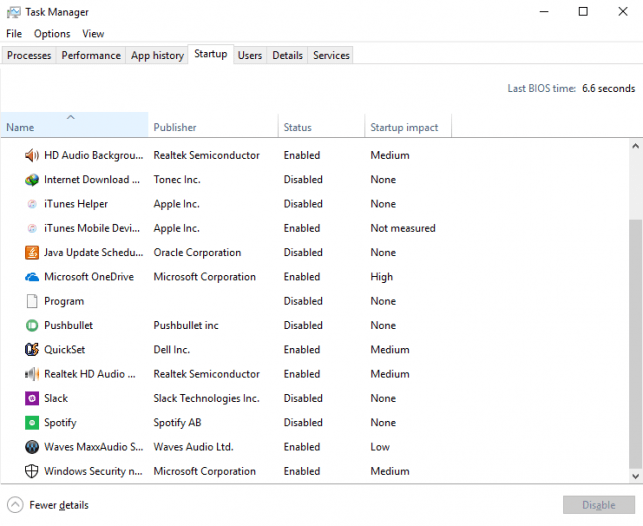
This is one of the most useful tips to speed up a Windows laptop or computer. Often, after installing programs, they are set to launch after boot. Hence, every time you restart your computer, the PC will take time to load because of these apps running in the background, even though you didn’t want them to. This makes a computer slow, resulting in lag and slow performance.
To get rid of this problem, you have to disable the programs that run at startup. Follow these simple steps to disable startup programs:
- Press the Windows key and search for Task Manager. Or press a combination of the CTRL + SHIFT + ESC keys at the same time. This will open the Task Manager.
- Now, navigate to the Startup tab and look for the programs that are enabled.
- Disable the programs with high startup impact or all the programs you don’t need to launch at startup.
- To disable startup status, right-click on the program and click Disable.
2. Remove bloatware
Bloatware is a common culprit for slow performance. Companies ship their devices with plenty of preinstalled software like Antivirus programs and default assist programs. These apps take up space and also use resources; hence it is recommended to remove them.
Removing bloatware will increase your Windows 10 laptop’s speed. To remove these apps, you can use software such as CCleaner. It will not only uninstall unwanted programs from your laptop but also clean up the remains of these applications on your computer as well.
3. Change power settings

Maybe your laptop is running slow because the power-saving mode is turned on? Before ranting about slow performance, check if your laptop is in power-saving mode. When the devices are in the low-performance mode, aka power-saving mode, they limit processes and use fewer resources as much as possible. That’s why we experience slow performance. It also helps save battery.
To change this, you can do the following:
- Press the Windows key and search for Windows Mobility settings.
- Find your battery status settings and change it to high-performance mode.
- You will see a change in speed after switching it to high-performance mode.
Remember, if you are running on battery, the high-performance mode will drain it faster, so it is recommended to enable this mode when you are connected to a charging station. You can read our battery-saving guide for laptops here.
4. Disk cleanup
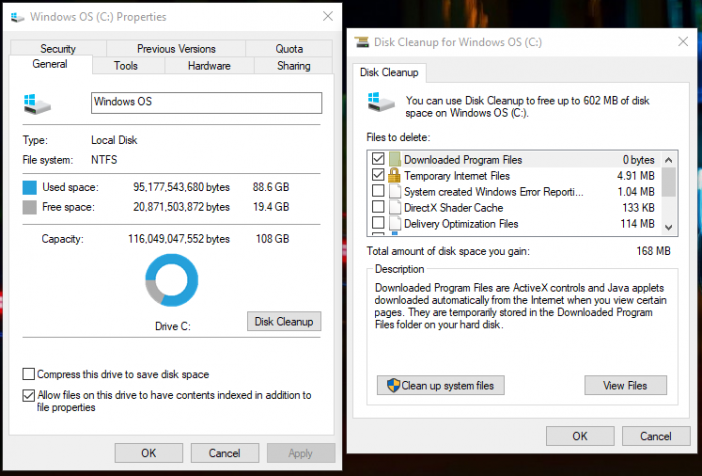
Just like bloatware, junk files on your computer will make any device slow. It is essential to clean junk files and make room for other programs on your computer. It will not only make space but also improves PC’s performance. With disk cleanup, you can remove temporary files, thumbnails, and recycle bin items.
Disk cleanup is an easy way to deal with junk files. To start disk cleanup, follow these steps:
- Go to the disk that you want to clean.
- Right-click the disk and go to Properties.
- Find and click the Disk Cleanup button.
- Select the temporary files and junk that you want to delete.
- Press Ok and wait for it to finish.
Now your Windows 10 laptop or PC is free of junk files.
5. System scan for viruses
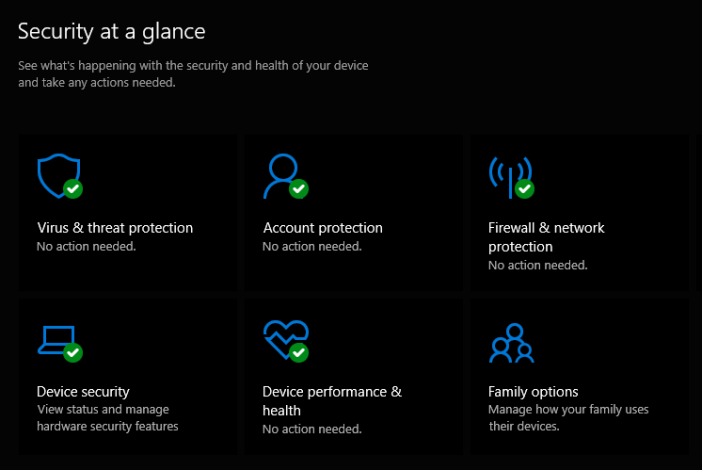
Viruses, malware, spyware, and adware can also cause your computer to get slow. A virus can mess with your computer and corrupt your precious data. Adwares constantly open browser windows to show annoying ads that affect performance. Spywares keep running in the background to track your activity, including typing history and other sensitive information, which is alarming as well as depreciates a laptop’s speed.
If your laptop or PC is infected with any of these, then slow performance is inevitable unless you take immediate action. To keep yourself safe from these kinds of harmful programs, make sure you have a trusted anti-virus program installed on your computer. With Windows Defender built-in, you can save yourself from harmful programs. The new version of Windows Defender is aggressive. It detects many harmful programs before they get into your computer, but using a trusted third-party anti-virus program is recommended to protect your laptop from malware and viruses.
6. Turn off animation and effects
Shiny effects and animations might look great visually, but they do affect performance. If you want snappy performance, you can always turn them off to make your computer work faster.
Follow the steps below to turn off animations and effects for snappy performance:
- Press the Windows key and search for System.
- Open System and navigate to Advanced system settings in the control panel.
- Click the Settings button under Performance in advanced settings.
- Select Adjust for best performance and press Ok.
Turning off transparency in Windows also helps in kicking performance up a notch! Turn off transparency effects in Windows 10 and go with the flat look. You can also change your wallpaper to solid colors to see if that helps.
Follow the steps below to turn off transparency effects in Windows 10:
- Open Settings in Windows 10 and search for Personalization.
- Open personalization and navigate to the ‘Colors’ tab.
- From the colors tab, find Transparency effects and turn them off.
7. Restart your PC
This is a classic solution to all your Windows-related problems. Restarting your PC often helps in fixing slow computer issues. Sometimes the operating system needs a reboot to work better. If you find your computer lagging or something is not working properly, a quick reboot might fix this problem. Reboot your computer and see if things improve when you boot it again.
8. Add more RAM
Adding more RAM to your computer means that you have more space for your programs to run simultaneously without losing the ability to multitask. Adding more RAM to your computer or laptop will surely boost the performance.
9. Add SSD
Installing SSD on your laptop or computer will surely boost the performance. Install an SSD and then install Windows and programs on the SSD. You will see a clear difference.
10. Uninstall Windows updates
Sometimes, Windows updates can mess up things. That’s what happened to my PC recently. An update made computers slow, and uninstalling it fixed the problem. So, before you start thinking of selling your machine, try uninstalling recent updates (only after trying all the above-mentioned tips). You can uninstall Windows updates from Settings > Updates and Security > View Update History > Uninstall Updates.
11. Clean Windows 10 installation
If all the above-mentioned tips are not working, then you should try a clean Windows 10 installation. After installing Windows 10 from scratch, your computer will feel like a new one, and you can install only the programs you need. But make sure that you take care of junk in the future instead of letting it get out of hand all over again. Clean it regularly or at least weekly, and your laptop will remain healthy and fast.
These are the tips that can drastically improve your Windows 10 performance. Following these tips will help in speeding up Windows 10 on your laptop or computer. If these are not working, there might be a hardware or software-related problem that can be resolved by taking your machine to a service center.
If we missed something that helped resolve your Windows 10 related problem, share it with us in the comments below.




Pegasun System Utilities does all of these in 1 click.
Wow its just a great article and very essential for us. So thank you for the tips.
Wonderful Blog. Really informative and helpful.
Surely gonna try these tips. 🙂 Thanks for sharing this!
Seeing the depth of user base Windows is having, articles like this are gem of its kind!