

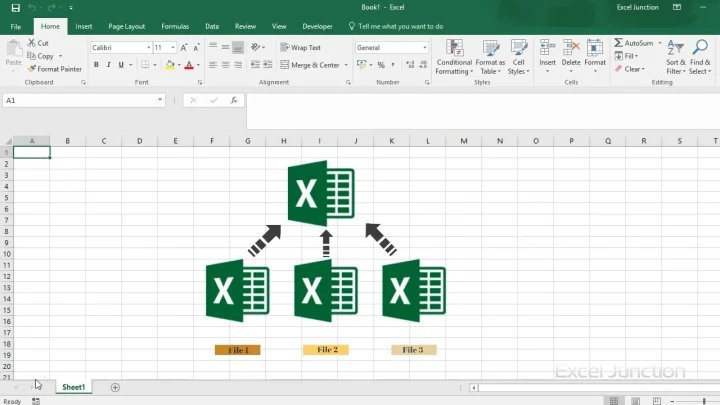
To combine rows from many Excel files into one refreshable table, use Power Query. To keep each worksheet as a separate tab, use Move or Copy. If the data is already in one workbook, VSTACK can build a combined list without repeatedly copying rows.
Choose the result you need before choosing a tool: one table, separate tabs, summary totals or a comparison of two edited versions. The methods below do different jobs, and confusing them is how formulas, formatting or individual records get lost.
Which method should you use to merge Excel files?
Match the method to what the finished file should look like. One long table, a workbook with many tabs, or a summary of totals each need a different approach.
| Your situation | Best method | Where it works |
|---|---|---|
| Many files with the same columns, updated regularly | Power Query From Folder | Excel 2016 or later on Windows |
| Two to five workbooks, tabs kept separate | Move or Copy sheets | Desktop Excel, Windows and Mac |
| Sheets already in one workbook, one live list wanted | VSTACK formula | Microsoft 365, Excel 2024; supported Excel web sessions |
| Totals or averages across identical sheets | Consolidate or a 3D reference | Desktop Excel |
| A folder of workbooks into one file, no shared headers | VBA macro | Windows desktop Excel |
| Two versions of the same file with edits in both | Synkronizer for selected changes; Spreadsheet Compare for a differences report | Windows |
Working in a browser does not mean you must do everything manually. Excel for the web can use supported formulas such as VSTACK, but it cannot run VBA. The desktop folder-import workflow below is for Windows; Mac and web connectors differ. See how to install Microsoft 365 on Windows and Mac if you need the desktop app.
Combine multiple Excel files into one with Power Query (recommended)
Power Query reads every file in a folder, uses one file as a sample to work out the columns, and appends the rest underneath. Microsoft’s instructions for importing from a folder apply to Excel for Microsoft 365 and Excel 2016 through 2024 on Windows. The merge is only as clean as the folder you point it at, so set that up first:
- Put only the files you want to merge in a dedicated folder. Power Query also includes files sitting in subfolders.
- Use the same column headers in every file. Order doesn’t matter, since columns are matched by name, but “Qty” in one file and “Quantity” in another become two separate columns.
- Keep the sheet or table name identical across workbooks (every file has a sheet called Sales, for example). Power Query looks for the sample file’s sheet name in all the others.
Steps in Excel for Windows
- Open a new, blank workbook.
- Select Data > Get Data > From File > From Folder.
- Browse to the folder that holds your workbooks and select Open.
- Check the file list that appears. If a stray file is in there, cancel, move it out of the folder and start again.
- Select Combine > Combine & Transform Data. Pick Combine & Load instead if the data needs no cleanup.
- In the Combine Files dialog, choose the Sample File, select the sheet or table that holds the data, leave Skip files with errors off while troubleshooting so a failed file does not silently disappear, and select OK.
- In the Power Query Editor, look at the Source.Name column, which records the file each row came from. Keep the source filename until you have checked the result, then select Home > Close & Load.
The combined table lands on a new sheet. When next month’s files arrive, save them into the same folder and select Data > Refresh All. Power Query also creates helper queries (Sample File, Transform File and Parameter1) in the Queries pane. Leave them alone, because the main query depends on them.
On a Mac: import each workbook, then append
Excel for Microsoft 365 for Mac has Power Query, and the editor requires version 16.69 or later. The catch is folders. Microsoft’s Mac Power Query documentation lists folders among the sources you can refresh but not among those you can import, so a From Folder query built on Windows refreshes on a Mac, while creating one there isn’t documented. For a handful of files, this route works:
- Select Data > Get Data (Power Query), choose Excel workbook and pick the first file.
- Select the sheet or table you want and load it.
- Repeat for each workbook.
- Open the editor with Data > Get Data (Power Query) > Launch Power Query Editor.
- Select the arrow next to Append Queries on the Home tab, choose Append Queries as New, pick Three or more tables, add every query and select OK.
- Select Home > Close & Load.
Append lines columns up by header name, not position, and fills any column missing from one file with null values, according to Microsoft’s guide to appending queries. If your Mac build does show a From Folder option, the Windows steps above apply.
Merge Excel sheets into one workbook with Move or Copy
When you want each source tab kept intact, with its formatting, formulas and charts, copy whole sheets rather than merging rows. For two to five workbooks this is the quickest route.
- Open the destination workbook and every workbook you want to copy from.
- In a source workbook, select the sheet tab. Hold Ctrl to pick several tabs, or Shift to pick a run of adjacent ones.
- Right-click a selected tab and choose Move or Copy.
- In the To book list, choose the destination workbook, or (new book) to start a fresh file.
- Under Before sheet, choose where the copies go, or (move to end).
- Tick Create a copy so the original stays where it is, then select OK.
On a Mac, the same dialog sits under Edit > Sheet > Move or Copy Sheet. Excel for the web has no Move or Copy option on the sheet tab, according to Microsoft’s guide to moving and copying worksheets. In the browser you select all the data, copy it, add a blank sheet in the other workbook and paste, accepting that conditional formatting is lost on the way.
Check formulas after any copy. Microsoft warns that moving sheets between workbooks can break formulas and charts that refer to them, and a formula that pointed at another sheet in the old file may now point back at the old workbook.
Check a small example before merging the whole folder
Make two sample tables with Order ID, Month and Amount. Put two orders in January and two in February. Appending them should produce four data rows, with one header row. It should not collapse four orders into a monthly total.
| Order ID | Month | Amount |
|---|---|---|
| J-001 | January | 120 |
| J-002 | January | 80 |
| F-001 | February | 150 |
| F-002 | February | 50 |
Check both the row count and the total. A total of 400 alone would not reveal a missing order offset by a duplicate. Keep order IDs as text when leading zeros matter, and confirm that dates and decimal separators were interpreted correctly.
Stack sheets into a single list with VSTACK
If the sheets already sit in one workbook (after Move or Copy, for instance) and have the same columns in the same order, VSTACK builds one live list from a single formula. It appends ranges top to bottom, and the result updates whenever a source sheet changes. Microsoft’s VSTACK reference lists it for Excel for Microsoft 365 on Windows and Mac and for Excel 2024 on both platforms. Excel 2021 and older don’t have it.
- Turn each sheet’s data into a table: click inside the data and choose Insert > Table. Tables grow as rows are added, so the formula won’t miss new entries or pick up blank rows.
- Note each table’s name, shown on the table’s ribbon tab when a cell inside it is selected (Table1, Table2 and so on, unless you rename them).
- On a new sheet, type the column headers once in row 1.
- In cell A2, enter a formula such as =VSTACK(Table1, Table2, Table3) and press Enter. The results spill down as far as needed.
Plain ranges work too, as in =VSTACK(Jan!A2:D200, Feb!A2:D200, Mar!A2:D200), but empty cells in an oversized range show up as zeros in the result. If one range has fewer columns, VSTACK adds #N/A in the missing positions. Align the columns first. Do not hide every error with IFERROR before checking whether it signals missing or invalid source data.
Its sibling HSTACK works sideways, placing ranges next to each other. That suits adding a block of columns from one sheet beside another, provided the rows correspond in both. HSTACK is not a lookup by customer ID; use a key-based merge or lookup when row orders differ.
Consolidate or 3D references: when you only need totals
Consolidate doesn’t stack rows. It summarizes them, producing sums, averages or counts across sheets that hold the same kind of data, such as regional budgets. Microsoft’s guide to combining data from multiple sheets describes two modes. Consolidating by position needs every sheet laid out identically. Consolidating by category matches rows and columns by their labels, so layouts can differ, but the labels must be spelled exactly the same: “Avg” and “Average” won’t match.
- On the destination sheet, select the upper-left cell where the summary should start, leaving room below and to the right.
- Select Data > Consolidate.
- Choose a Function, such as Sum or Average.
- Go to the first source sheet, select its data (including the labels if you are consolidating by category) and select Add. Repeat for every source sheet.
- To consolidate by category, tick Top row, Left column or both under Use labels in.
- Select OK.
Microsoft’s troubleshooting notes say the Consolidate command may be missing in Excel for the web; there, VSTACK or Power Query are the suggested alternatives.
3D references for a single running total
For one total across many identically arranged sheets, a 3D reference is quicker than Consolidate. The formula =SUM(Sales:Marketing!B3) adds cell B3 on every sheet from the Sales tab through the Marketing tab, and any sheet you drag between those two tabs joins the calculation automatically, as Microsoft’s 3D reference guide shows. To build one, type =SUM( then click the first sheet tab, Shift-click the last, select the cell or range and press Enter. 3D references only work with aggregate functions such as SUM, AVERAGE, COUNT, MAX and MIN, not with lookup functions.
VBA macro to merge every workbook in a folder (Windows)
A macro is the fallback when files don’t share headers, or when you want every tab from dozens of workbooks gathered into one file without opening each by hand. The sample below copies each worksheet from every .xlsx file in a folder into the workbook you run it from. Each source sheet becomes its own tab; it does not stack rows into one table.
Sample macro, Windows desktop Excel only. It uses standard VBA calls (Dir, Workbooks.Open and Worksheet.Copy). Try it on copies of your files first.
Sub CombineWorkbooksFromFolder()
    Dim folderPath As String, fileName As String, problem As String
    Dim sourceBook As Workbook, sourceSheet As Worksheet
    Dim oldScreen As Boolean, oldEvents As Boolean, oldSecurity As Long
    folderPath = "C:\Reports\"  ' Use a folder of trusted .xlsx copies
    oldScreen = Application.ScreenUpdating
    oldEvents = Application.EnableEvents
    oldSecurity = Application.AutomationSecurity
    On Error GoTo Failed
    Application.ScreenUpdating = False
    Application.EnableEvents = False
    Application.AutomationSecurity = 3 ' Disable macros in opened workbooks
    fileName = Dir(folderPath & "*.xlsx")
    Do While fileName <> ""
        If Left(fileName, 2) <> "~$" And _
           StrComp(folderPath & fileName, ThisWorkbook.FullName, vbTextCompare) <> 0 Then
            Set sourceBook = Workbooks.Open(folderPath & fileName, _
                UpdateLinks:=0, ReadOnly:=True, AddToMru:=False)
            For Each sourceSheet In sourceBook.Worksheets
                sourceSheet.Copy After:=ThisWorkbook.Sheets(ThisWorkbook.Sheets.Count)
            Next sourceSheet
            sourceBook.Close SaveChanges:=False
            Set sourceBook = Nothing
        End If
        fileName = Dir()
    Loop
    GoTo CleanUp
Failed:
    problem = "Stopped at " & fileName & ": " & Err.Description
CleanUp:
    On Error Resume Next
    If Not sourceBook Is Nothing Then sourceBook.Close SaveChanges:=False
    Application.AutomationSecurity = oldSecurity
    Application.EnableEvents = oldEvents
    Application.ScreenUpdating = oldScreen
    On Error GoTo 0
    If problem <> "" Then
        MsgBox problem & vbCrLf & "Some tabs may already have been copied."
    Else
        MsgBox "Finished. Check the copied tabs, formulas and links before saving."
    End If
End Sub- Put the .xlsx files in one folder and copy the folder path.
- Open a new blank workbook and press Alt+F11 to open the Visual Basic Editor.
- Select Insert > Module and paste the code.
- Replace C:\Reports\ with your folder path, keeping the backslash at the end.
- Press F5 to run the macro, then close the editor.
- Save the result as a normal .xlsx workbook, which drops the macro, or as .xlsm if you want to keep it.
The macro opens sources read-only, avoids automatic link updates and restores its application settings if an error occurs. Keep it limited to trusted .xlsx copies. It copies tabs, not a consolidated table, and copied formulas can still refer to other files. If it stops halfway, inspect the already-copied tabs before rerunning so you do not create duplicates.
Pasting code you understand is one thing; opening a macro-enabled workbook someone sends you is another. Office blocks macros in files from the internet by default because VBA is a common way to deliver malware, so only unblock files from a source you trust.
Third-party Excel merge tools in 2026: what’s still safe to use
Excel’s built-in features handle most merges. Paid add-ins make sense for two jobs: combining lots of workbooks through a point-and-click wizard, and reconciling two versions of the same file cell by cell. Both add-ins below are Windows-only. Download them from the developer’s own site rather than third-party download portals.
Ablebits Ultimate Suite (Copy Sheets)
Ablebits’ Copy Sheets tool offers a wizard for combining worksheets. Check the supported Excel version, trial conditions and current license options before buying. Use a copy of your real layout during the trial to check whether it preserves the formulas and formatting you need.
Synkronizer 11
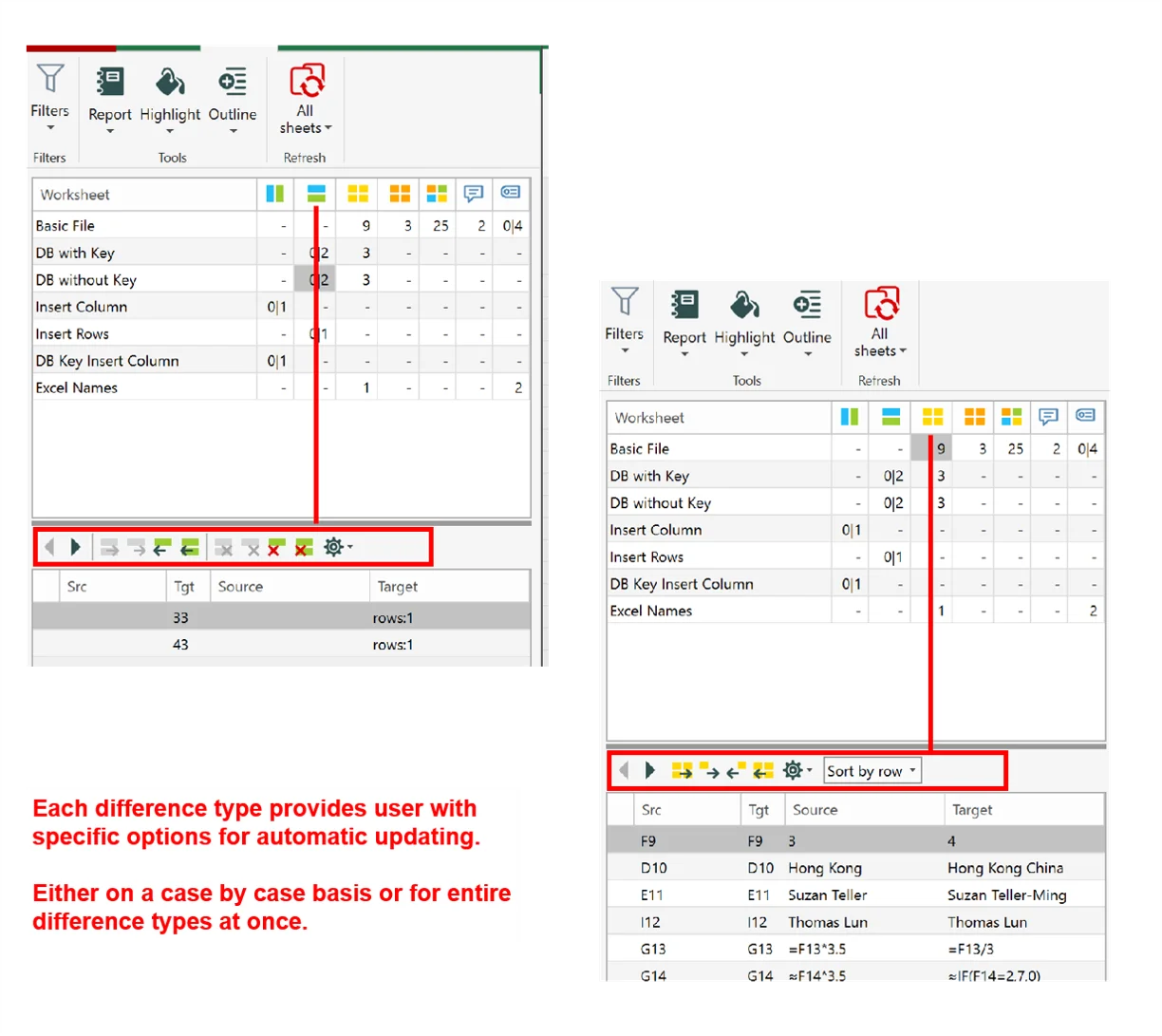
Synkronizer, from XL Consulting GmbH, is built for a different problem: two versions of the same workbook, such as a master customer list and a copy someone else edited. It finds added or deleted rows and columns, duplicate records, and changed values, formulas, comments and formats, then lets you push chosen changes from one file to the other.

After the comparison, the results pane counts differences by type for each worksheet. You can transfer changes one at a time or apply a whole category, such as every changed value on a sheet, in a single step.
Check Synkronizer’s edition and trial limits before evaluating a large workbook, and confirm current pricing for the required license. A comparison tool is useful for reviewing edits, but it is not the same task as appending monthly transaction files.
Microsoft Spreadsheet Compare
If your organization licenses Microsoft 365 Apps for enterprise or Office Professional Plus, you may already have Spreadsheet Compare. It produces a side-by-side, color-coded report of changed values, formulas and macros between two workbooks. It doesn’t merge anything, so you still apply the changes yourself, but it may be included in your organization’s existing license for checking differences. Consumer plans such as Microsoft 365 Personal and Family don’t include it.
Avoid unsafe download and conversion sites
Download add-ins from the publisher’s official site. Avoid an old download link if it now leads to an unrelated service, asks you to disable security protection or bundles software you do not need.
Before using a browser-based merge service, find out whether it processes locally or uploads the files. Do not upload payroll, customer records or confidential spreadsheets without authorization. For approved transfers, follow the basics of securing data transfer.
After the merge: remove duplicates and check headers
Merged lists often contain repeats, such as the same customer entered by two departments. Select a cell in the combined data, choose Data > Remove Duplicates (in the Data Tools group), and tick only the columns that define a duplicate, such as an email address, rather than every column. Removing duplicates deletes rows permanently, so Microsoft’s duplicate values guide suggests filtering for unique values first or copying the original range to another sheet.
Remove Duplicates only catches exact matches. “St.” and “Street”, or a stray trailing space, count as different values, so tidy text columns with TRIM and standardize obvious variants before you run it. In the Power Query Editor, Home > Remove Rows > Remove Duplicates does the same job and repeats automatically on every refresh.
Two practical notes to finish. If the source files are scattered across cloud accounts, gather them into one synced folder before pointing Power Query at it; syncing Google Drive with OneDrive is one way to get there. For other Office file jobs, the steps to convert a PowerPoint presentation into an editable Word document follow the same built-in-first approach.
Merge Excel files FAQs
How do I combine files into one table?
Use Power Query From Folder in Excel for Windows when the workbooks have a consistent structure. Confirm the source list, column names, data types and output row count before relying on the result.
Does VSTACK remove duplicates?
No. It appends the supplied rows. Use an appropriate duplicate-checking step afterward, based on the fields that actually identify a unique record.
Can I use Excel for the web?
Supported formulas can combine data already in the workbook. VBA does not run in Excel for the web, and desktop import commands and connectors may differ.
How can I preserve each sheet’s formatting?
Copy whole worksheets with Move or Copy in desktop Excel, and select Create a copy. Check formulas and chart references afterward.
Do I need a paid add-in?
Usually not for appending rows or copying tabs. Start with the tools available in your Excel edition; consider an add-in when its specific workflow saves you time.





This article was really helpful! I always struggled with merging Excel files, but now I have a better understanding of the process. Thank you!
Appreciate that, Sahil. Once the merge clicks, save the steps as a query or template so you are not reinventing it every time. If you hit a weird CSV encoding issue, say which Excel version you are on and we can narrow it down.
I’m so glad I found this article. I’ve been wasting so much time manually merging Excel files. These tools mentioned here will definitely save me a lot of time and effort!
Totally fair, Tony. Manual copy-paste across workbooks eats a day fast. The free path for many people is Power Query (Get Data) to append or merge, then keep the query so you can refresh next month. Happy to point you at a specific method if you say whether the files share the same columns.
I never knew there were Excel comparison tools available. This article opened my eyes to a whole new way of merging files. Can’t wait to try them out!
Glad it helped, Christina. If you are comparing two sheets, start with Excel’s built-in Inquire/Compare or Power Query merge before paying for a third-party tool. Drop a note if you get stuck on a specific file type.