


Windows ships with a full set of built-in apps — Edge for the web, Photos for images, Media Player for music and video, Mail for email — and it quietly assigns them as the handler for every matching file you double-click. You are not stuck with any of them. Changing your defaults takes a couple of minutes, and it is the single fastest way to make a new PC feel like yours.
The catch is that Microsoft moved the goalposts. Windows 10 handled defaults in broad categories; Windows 11 initially broke them into dozens of individual file types, then walked much of that back. This guide covers both operating systems as they work now, plus the shortcuts and the fixes for when a default refuses to stick.
One piece of context before you start: Windows 10 reached end of support on 14 October 2025. Consumer PCs on version 22H2 that enrolled in the Extended Security Updates programme keep receiving critical security patches through 13 October 2026, but there are no new features coming. If you are still on Windows 10, the steps below all work — just know the platform is on a clock.
How to change default apps in Windows 11
Everything lives in one place: Settings → Apps → Default apps. Press Windows key + I to open Settings, click Apps in the left sidebar, then Default apps on the right. From there you have two ways in.
Method 1: set defaults by app
- In Default apps, use the search box at the top — “Set a default for an application” — and type the app’s name, for example Chrome, VLC or Adobe Acrobat.
- Click the app in the results. Windows shows every file type and link type it can handle.
- Click the Set default button at the top to hand the app everything it claims, or scroll the list and reassign types one at a time.
This is the approach to use when you have just installed something and want it to take over its whole territory in one go.
Method 2: set defaults by file type or link type
- On the same Default apps page, scroll to Set defaults for file types or link types.
- Type the extension or protocol you care about —
.pdf,.mp4,.jpg,http,mailto. - Click the current handler, choose the app you want from the list (or Choose an app on your PC to point at an executable directly), and confirm with Set default.
Use this when you want surgical control — say, PDFs in Acrobat but every other web link in Firefox.
Setting the default browser
The browser used to be the most painful default in Windows 11, because you had to reassign http, https, .htm, .html and more individually. Microsoft has since restored a proper one-click experience: open Settings → Apps → Default apps, click your browser, and press Set default at the top. In current builds that single button covers the great majority of web-related file and link types at once.
If your PC is in the European Economic Area, Microsoft goes further under its Digital Markets Act obligations: setting a third-party browser as default also assigns it a wider set of link and file types, pins it to the taskbar and Start menu unless you decline, and stops Windows nagging you to switch back to Edge.
How to change default apps in Windows 10
Windows 10 is simpler, because it groups defaults into six categories — email, maps, music player, photo viewer, video player and web browser — rather than hundreds of file extensions.
Step 1: open Settings
Click Start and then the gear icon, or just press Windows key + I.

Step 2: open the Apps category
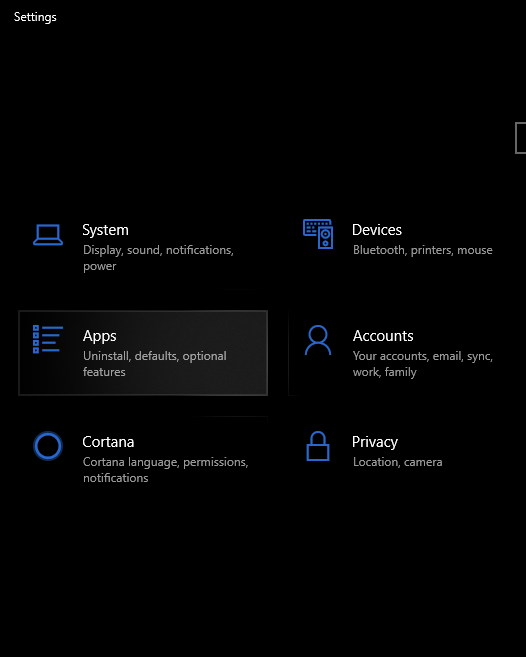
Step 3: click Default apps
Select Default apps in the left-hand list. Every category and its current handler appears on the right.
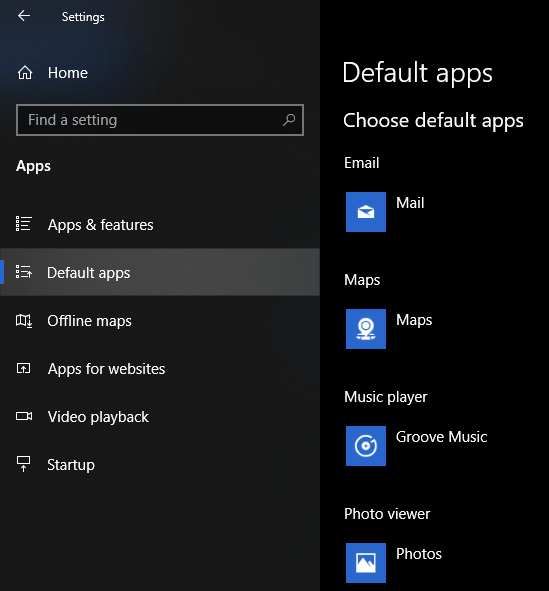
Step 4: pick your replacement
Click the app under any category and choose a new one from the pop-up list. For finer control, scroll to the bottom of the same page and use Choose default apps by file type, by protocol, or Set defaults by app.
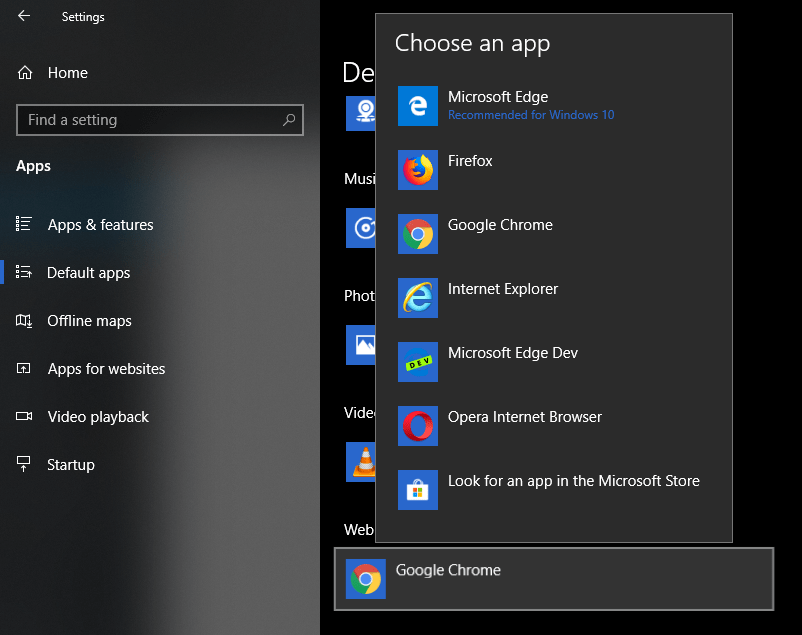
The fastest shortcut: right-click any file
You rarely need the Settings app at all if you only care about one file type. In File Explorer:
- Right-click a file of the type you want to reassign.
- Choose Open with → Choose another app. On Windows 11 you may need Show more options first.
- Select your app and tick Always use this app to open .xxx files (Windows 11 labels this Always).
That writes the association immediately, no Settings trip required.
How to reset defaults back to Microsoft’s
If you have made a mess of your associations, both systems have an escape hatch. On Windows 11, go to Settings → Apps → Default apps and scroll to the bottom for Reset all default apps. On Windows 10 the equivalent button sits under the six categories and is labelled Reset to the Microsoft recommended defaults. Either one returns everything to the out-of-the-box handlers, so expect Edge and Photos to reclaim their territory.
When a default refuses to stick
- The app isn’t registered. Windows only offers apps that declare support for that file type. Portable apps and unpacked executables often don’t — use Choose an app on your PC and browse to the .exe.
- You changed one type, not all of them. A browser needs
http,https,.htmand.html. Reassigning only.htmlleaves links opening in Edge. Use the app-level Set default button instead. - An update reset it. Major feature updates and some app reinstalls re-register handlers. Recheck after a big update.
- Reinstall the app. A fresh install re-registers file associations cleanly and usually fixes an app that never appears in the list.
- You’re on a managed PC. On work or school devices, IT can lock defaults with Group Policy. If the setting greys out or reverts on every login, that’s the cause and you’ll need your administrator.
Which defaults are actually worth changing
- Browser. The one that matters most — it controls where every link from every app lands.
- PDF. Edge is a competent PDF reader, but if you annotate or fill forms, point
.pdfat a dedicated reader. - Video. VLC handles codecs the built-in player quietly refuses, which saves a lot of “this file can’t be played” moments.
- Images. The stock Photos app is heavier than most people need for a quick look at a screenshot.
- Email. Setting
mailtoto your real client stops “Email this” links opening an app you never use.
FAQs
Why does Windows 11 make me change so many file types individually?
That was the original Windows 11 design and it drew heavy criticism. Microsoft has since restored an app-level Set default button that assigns most associated types in one click, so the per-extension grind is now optional rather than mandatory.
Does changing the default browser move my bookmarks and passwords?
No. It only changes which browser opens links. Bookmarks, history and saved passwords have to be imported separately from inside the new browser.
Can I set different defaults for different user accounts?
Yes. File associations are stored per user, so each account on the PC keeps its own choices.
Is it safe to change default apps in Windows 10 now that support has ended?
Perfectly safe — end of support means no new patches or features, not broken settings. The bigger question is whether to stay on Windows 10 at all once Extended Security Updates run out in October 2026.
How do I stop Windows prompting me to switch back to Edge?
Set your browser as default properly using the app-level button, and decline the prompt when it appears rather than closing it. In the European Economic Area, Microsoft has removed those prompts entirely as part of its DMA compliance changes.
Wrapping up
Whether you are on Windows 11 or still running Windows 10, defaults live in the same place — Settings → Apps → Default apps — and the app-level Set default button does most of the heavy lifting. Remember the right-click shortcut for one-off changes, and the reset button for when you want a clean slate.
Next, take a look at our guides on speeding up a sluggish Windows PC, getting the “This PC” icon back on your desktop, and enabling dark mode in Google Chrome.




You can go to the windows 10 settings to change the default app from the Windows 10 which will surely help you to get as per your need apps.