• Skip to primary navigation
  • Skip to main content
  • Skip to primary sidebar
  • Skip to footer
TechEngage

TechEngage®

Hands-on reviews, research-backed buying guides and technology news.

  • News
    • Internet & Social
    • Gadgets
    • Car Tech
    • Business
    • Science & Health
  • Reviews
  • Buying Guides
  • How-to
  • AI
  • Computing
    • Apps
    • Security
    • Gaming
  • More
    • Tools
    • Puzzles
    • Mobile
  • Launchpad
  • Sign in
TechEngage » Computing & Hardware

Microsoft: “You don’t need to safely remove USB drives anymore”

Avatar for Rizwan Anwar Rizwan Anwar Published: Apr 9, 2019 · 9:56 AM ET Updated: Jan 13, 2020 · 6:26 PM ET

NewsNews report. Not a buying guide or hands-on product test.
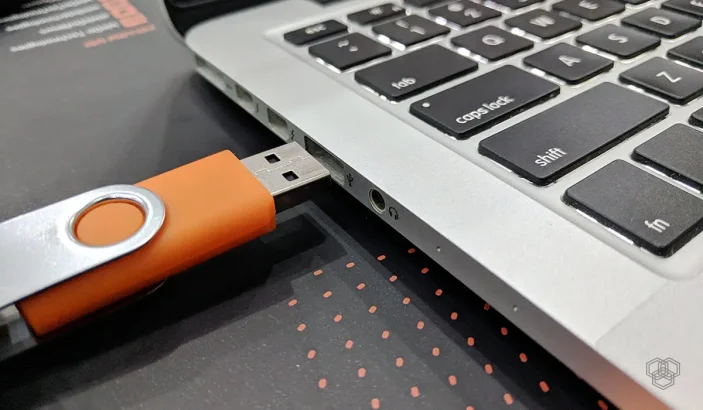
A photo of a USB about to plug in the laptop
Photo Credits: @abdugeek / TechEngage
FacebookTweetPinLinkedInPrint
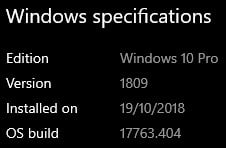
A feature that was first introduced in Windows XP and has since then been practiced as a precaution might be at its end. In Windows 10 version 1809, Microsoft added the policy that allows you to quickly remove a USB device without needing to safely remove it first. According to their new support page, all you have to do is navigate to a series of steps and enable Quick removal. You will have to do this manually the first time as the current policy favors high-performance. Keep in mind that this can only be done on systems that are on Windows 1809 and above. You can check this by right-clicking on the start button and clicking on System. Scroll down in the system until you see Windows specifications and look at the Version. Windows Specifications Setting Showing About Information Of Windows Version, Edition, And Os Build All you have to do is right-click on your start button and choose Disk Management. Choose the letter that your USB device is assigned. In this case, the USB device has been given the letter (D:). Right-click on (D:) in the lower section of Disk Management window and choose Properties.
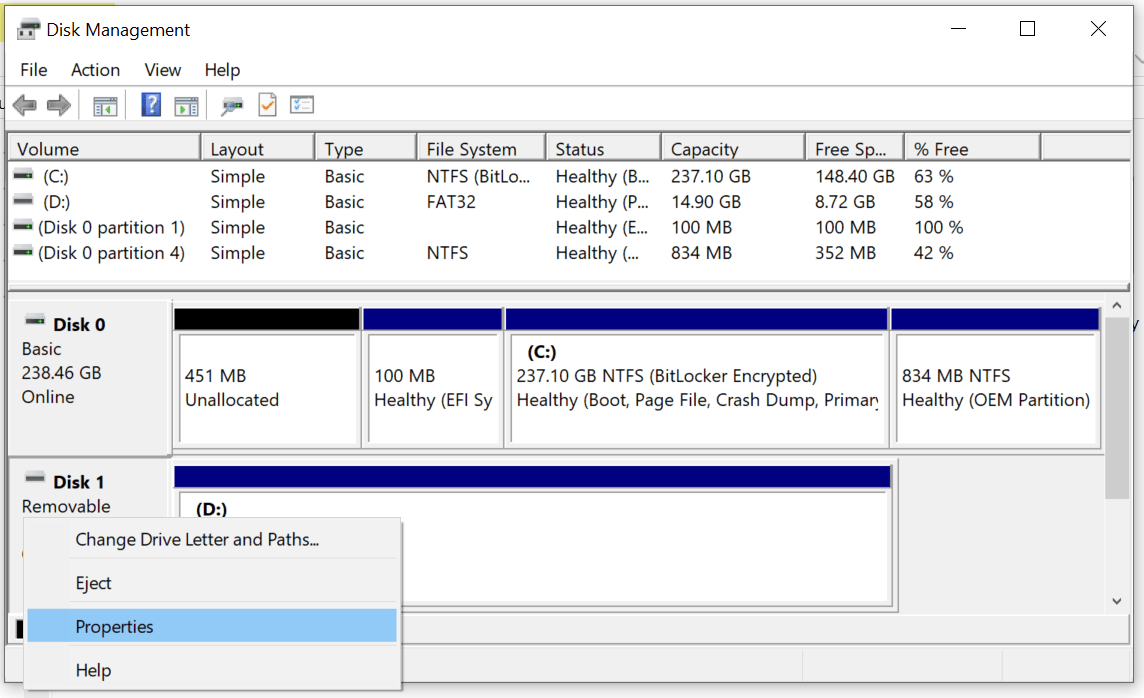
A Screenshot Of Disk Management Showing Properties Of Different Storage Devices
Image Courtesy of Microsoft Support
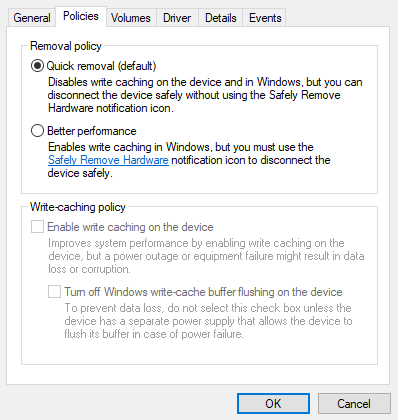
From here, click on the Policies tab, and choose Quick Removal.
A Screenshot Of Quick Usb Removal Option In New Windows Version
Image Courtesy of Microsoft Support
Windows keeps it to Quick removal by default. You can select the policy that you want to use. You can either change to Better performance or keep the default option. While Microsoft still has to roll out 1809 after having minor issues with the update in late 2018, the feature is definitely going to be very useful for people who are tech savvy and want to save time in copying data. Albeit the difference between both policies is insignificant, it is always handy to save an extra step in ejecting an external medium, especially if you are in a hurry. Safely removing a storage medium is a time-honored practice that dates back to the days of Windows XP, this stemmed with how horrendously slow Windows XP handled copying operations, but considering the modern state of fast data transmission, that is no longer a worry.

Related reading

  • Microsoft releases Windows 10 May update to Insiders
  • Microsoft has Unveiled New 3D Emojis for Teams, Office, and Windows
  • Microsoft announces Windows 11 SE and Surface Laptop SE for students
Something incorrect? Report an error in this article. Include a source if you have one; your name and email are optional.

Filed Under: Computing & Hardware, Tech News & Analysis Tagged With: Microsoft, Microsoft Windows, News, Windows 10

Related Stories

  • Windows 11 Leaked Ui Shows Visual Overhaul, Redesigned Icons, And Other Changes

    Windows 11 leaked UI shows visual overhaul, redesigned icons, and other changes

    Apps & SoftwareJun 16, 2021

  • New File Explorer Icons Are Coming To Windows 10

    New File Explorer icons are coming to Windows 10

    Apps & SoftwareMar 25, 2021

  • Microsoft Releases Windows 10 May Update To Insiders

    Microsoft releases Windows 10 May update to Insiders

    Apps & SoftwareApr 17, 2020

Stay on top of technology

Get TechEngage reviews, buying guides and news in your feed.

Follow on Google News
FacebookTweetPinLinkedInPrint
Avatar for Rizwan Anwar

Rizwan Anwar

Mobile & Gaming Reviewer

Rizwan Anwar is a Mobile and Gaming Reviewer at TechEngage who covers apps, smartphones, operating system updates, browsers, and gaming. He compares devices and software to help readers choose what fits their needs.

Reader Interactions

Share Your Thoughts Cancel reply

Please read our comment policy before submitting your comment. Your email address will not be used or published anywhere. You will only receive comment notifications if you opt to subscribe below.

Primary Sidebar

Google News

Get TechEngage in your feed

Reviews, news, and buying guides as they publish.

Follow on Google News

Recent Stories

  • Eu Digital Fairness Act Illustration |
    Tech News & AnalysisEU Proposes New Controls for Autoplay and SubscriptionsNov 11, 2026
  • Nordvpn Black Friday 2026 Campaign |
    DealsNordVPN Black Friday 2026 Deal Offers Up to 78% Off and 3 Extra MonthsNov 11, 2026
  • Anthropic Ipo Illustration |
    Tech News & AnalysisAnthropic Starts IPO Roadshow With a Proposed $70 to $78 Share PriceNov 10, 2026
  • Australia Ai Safety Illustration |
    Tech News & AnalysisAustralia Plans AI Safety Regulator and Fast Incident ReportingNov 10, 2026
  • Instagram Teen Accounts Illustration |
    Tech News & AnalysisInstagram Expands AI Age Checks for Teen Accounts WorldwideNov 10, 2026

More in Computing & Hardware

  • Windows App Packaging Appx Msix Evolution Featured |
    The Evolution of Windows App Packaging: From AppX to MSIXOct 11, 2026
  • Techengage Ssd Enclosures |
    3 Best SSD Enclosures for USB-C and USB4Oct 10, 2026
  • Techengage Windows 11 File Backup |
    How to Back Up Windows 11 Files to an External DriveOct 10, 2026
  • Techengage Usb C Sd Card Readers |
    4 Best USB-C SD Card Readers for Photos and VideoOct 10, 2026
More Computing & Hardware stories →

Footer

Discover

  • About TechEngage
  • Company News & Updates
  • Our Team
  • Advertise
  • Send us a tip
  • Submit your company to TechEngage Launchpad Hot
  • TechEngage Brand Kit
  • Contact us
  • Tools & Calculators

Legal pages

  • Editorial Standards
  • Reviews Policy
  • Our Ethics
  • Corrections Policy
  • Affiliate Disclosure
  • Privacy Policy
  • Cookies Policy
  • Terms & Conditions
  • GDPR Compliance
  • Copyright & DMCA

Must reads

  • Best Mechanical Keyboards Under $100
  • Best USB-C Hubs
  • Best Portable SSDs
  • Best Gaming Graphics Cards (GPUs)
  • Best Long-Range Outdoor WiFi Extenders
  • Best Wireless CarPlay Adapters
  • Best Slack Alternatives
  • Best Long-Range Walkie-Talkies

Download our apps

TechEngage app coming soon on the App Store Available onChrome

© 2026 TechEngage®. All Rights Reserved. TechEngage® is a project of TechAbout LLC.

TechEngage® is a registered trademark in the United States under Trademark Number 6823709 and in the United Kingdom under Trademark Number UK00003417167. The publication is identified by ISSN 2690-3776 and OCLC Number 1139335774.

Contact team@techengage.com · WhatsApp +1 307 463 4505

Your analytics choice
Allow Google Analytics to help us understand readership? You can use the site without it and change this choice anytime.

Privacy details