• Skip to primary navigation
  • Skip to main content
  • Skip to primary sidebar
  • Skip to footer

TechEngage®

Connecting mankind with technology

  • News
  • Reviews
  • Cryptocurrency
  • How-to
  • Roundups
  • Science
    • Energy
    • Environment
    • Health
    • Space
  • Apps
  • More
    • Opinion
    • Noteworthy
    • Culture
    • Events
    • Deals
    • Startups
      • Startup Submissions
  • Videos
  • Tools
TechEngage » How-to » Components

How to Find the Graphics Card in Your PC: Methods for Identifying Your GPU

Sheharyar Ahmad Saeed Updated: July 6, 2023

FacebookTweetPinLinkedInPrintEmail

Not all computers are built for the best games. To play a particular PC game, you’ll need to know what graphics card you have installed and compare that against the minimum requirements for the game. If you are into gaming, it is necessary to grasp the details of the best graphics cards available on the market.

GPU manufacturers offer various options, but determining the suitable one requires some exploration. Understanding the fundamentals of GPU operation and the differences between various types will streamline the selection process.

Here’s how to figure out which graphics card your PC or laptop has in it.

Table of Contents

  • Method 1: How to find the GPU in your PC
    • Open Task Manager
    • Go to the “Performance tab” and click “More Info.”
  • Method 2: How to find the GPU in your PC
  • Conclusion

Method 1: How to find the GPU in your PC

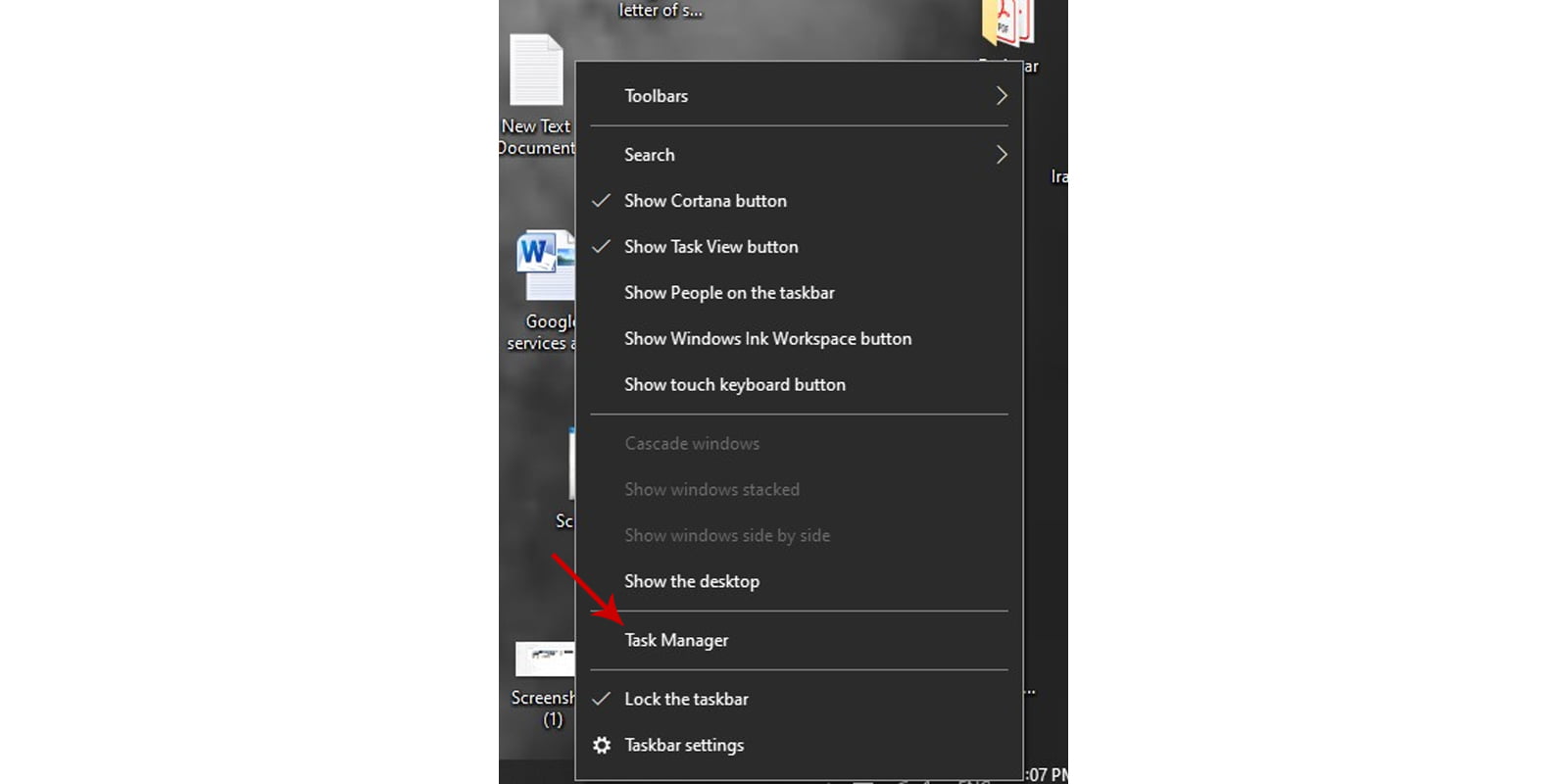
Open Task Manager

Click the taskbar and select “Task Manager” from the context menu.A Screenshot of task manager
Go to the “Performance tab” and click “More Info.”

Go to the “Performance tab”— if you don’t see the tabs, click “More Info.” In the sidebar, select “GPU 0”. In the window’s top right corner is the GPU’s manufacturer and model name.A screenshot of performance tab in task managerA screenshot of performance tab in task manager
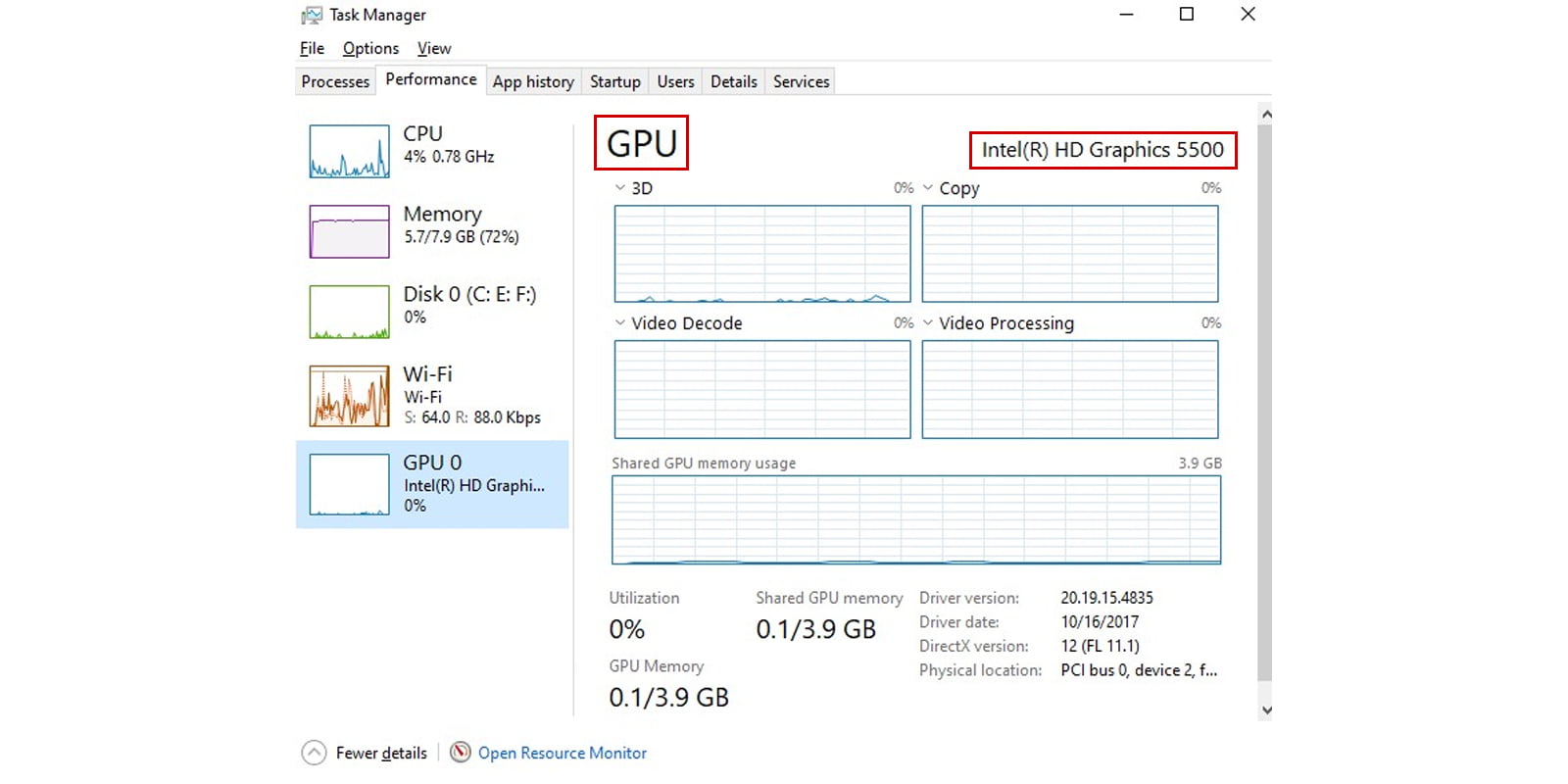
Windows 10 allows you to monitor your GPU information and usage from the Task Manager.

In this window, you will also see additional details, such as the amount of memory dedicated to your GPU. If your system has more than one GPU, you will see the number of GPUs, i.e., GPU 1 and so on. There will be multiple physical GPUs in the model.

Method 2: How to find the GPU in your PC

  1. Navigate to the Start menu on your PC, then type “Device Manager” and hit Enter. A screenshot of the device manager in search bar
  2. Near the top, there should be an option for Display Adapters. Click on the drop-down arrow, and your graphics card’s name should be listed. A screenshot of the window showing display adapter in listA screenshot showing the GPU model and manufacturer

Although certain games require more power than others, not all do. You should read the GPU requirements for a game to ensure you purchase the proper GPU.

Conclusion

In conclusion, identifying the graphics card installed in your PC or laptop is essential for gaming enthusiasts and those looking to optimize their gaming experience. By following the methods outlined in this guide, you can easily determine the GPU in your system.

By understanding the specifications of your GPU, you can ensure that your system meets the minimum requirements for playing specific PC games. Additionally, knowing the details of the best graphics cards available on the market enables informed decision-making when considering an upgrade.

Whether you’re a casual gamer or a hardcore gaming enthusiast, having the right graphics card is crucial for an immersive and seamless gaming experience. So, make sure to check the GPU requirements of the games you wish to play and choose a suitable graphics card accordingly. Happy gaming!

This post was originally published on February 11, 2021 and was updated on July 6, 2023.

Filed Under: Components Tagged With: GPU, GraphicsCard, Guide

Related Stories

  • How to unpublish a Facebook page

    How to unpublish a Facebook page

  • Easy ways to clean earbuds and headphones

    Easy ways to clean earbuds and headphones

  • NVIDIA’s Quadro RTX 4000 GPU to be a $900 graphics beast

    NVIDIA’s Quadro RTX 4000 GPU to be a $900 graphics beast

FacebookTweetPinLinkedInPrintEmail

About Sheharyar Ahmad Saeed

Sheharyar currently resides at the bustling intersection of technology and everyday life. He believes that having Art in the right hand and learning Science through left, this blend will lead you toward the actual decency of the universe.

Reader Interactions

Join the Discussion
  1. TechExplorer says

    July 6, 2023

    This article provides helpful instructions on how to find the graphics card in your PC. It’s important to know this information when considering gaming requirements.

    Reply
  2. InfoSeeker says

    July 6, 2023

    I didn’t know that the Task Manager in Windows 10 can display GPU information. This is a useful tip!

    Reply
  3. GadgetGuru says

    July 6, 2023

    Method 2 seems to be a simpler way to find the GPU in your PC. I appreciate the step-by-step instructions.

    Reply
  4. TechNovice says

    July 6, 2023

    I’m glad this post explains the importance of knowing your GPU when it comes to gaming. It’s something I haven’t thought about before.

    Reply
  5. ComputerWhiz says

    July 6, 2023

    It’s great that the article mentions checking the GPU requirements for specific games. This ensures compatibility and a better gaming experience.

    Reply
  6. DigitalEnthusiast says

    July 6, 2023

    The article does a good job of explaining the basics of GPUs and their differences. It’s a helpful guide for those looking to make an informed decision.

    Reply

Share Your Thoughts Cancel reply

Please read our comment policy before submitting your comment. Your email address will not be used or published anywhere. You will only receive comment notifications if you opt to subscribe below.

Primary Sidebar

Become a contributor

We are accepting contributor applications. All applications will be decided in 3 days after applying. To learn more visit the contributors page.

How Do Popular Apps Vary Across The World?

battery draining apps

Top 10 battery draining apps to avoid 2025

Recent Stories

  • How Do Popular Apps Vary Across The World?
  • Top 10 battery draining apps to avoid 2025
  • 6 Top Alternatives to Textsheet for 2025
  • Six Jobs Using Artificial Intelligence (AI) to Think About in 2025
  • Amazon Selling: How to Overcome Common Challenges

Footer

Discover

  • About us
  • Newsroom
  • Staff
  • Advertise
  • Send us a tip
  • Startup Submission Questionnaire
  • Brand Kit
  • Contact us

Legal pages

  • Reviews Guarantee
  • Community Guidelines
  • Corrections Policy and Practice
  • Cookies Policy
  • Our Ethics
  • Disclaimer
  • GDPR Compliance
  • Privacy Policy
  • Terms and Conditions

Must reads

  • Best AirPods alternatives on Amazon
  • Best PC monitors for gaming on Amazon
  • Best family board games
  • Best video doorbells without subscription
  • Best handheld video game consoles
  • Best all-season tires for snow
  • Best mobile Wi-Fi hotspots
  • Best treadmills on Amazon

Download our apps

TechEngage app coming soon on App Store

© 2024 TechEngage®. All Rights Reserved. TechEngage® is a project of TechAbout LLC.

TechEngage® is a registered trademark in the United States under Trademark Number 6823709 and in the United Kingdom under Trademark Number UK00003417167. It is also ISSN protected under ISSN 2690-3776 and has OCLC Number 1139335774.

  • Terms & Conditions
  • Privacy Policy