
• Skip to primary navigation
  • Skip to main content
  • Skip to primary sidebar
  • Skip to footer
TechEngage

TechEngage®

Hands-on reviews, research-backed buying guides and technology news.

  • News
  • AI
  • Mobile
  • Apps
  • Reviews
  • More
    • Security
    • Internet & Social
    • Computing
    • Gadgets
    • Gaming
    • Car Tech
    • Business
    • Science & Health
TechEngage » Apps & Software

How to disable Ads on your Windows 10 lock screen

Avatar for Sheharyar Ahmad Saeed Sheharyar Ahmad Saeed Connect with Sheharyar Ahmad Saeed on LinkedIn Published: May 27, 2021 · 6:14 PM ET Updated: May 3, 2022 · 5:58 AM ET

How to Disable Ads on Your Windows 10 Lock Screen
Shares4FacebookTweetPinLinkedInPrint

We are in the digital age, where Ads are everywhere. The advertisement model has overtaken every app and digital product. We are now witnessing a surge in advertising that is obnoxious and intrusive. The placement of the ad can be uncoordinated, creating a noisy and cluttered impression. You are more likely to start interacting with ads whenever you open up your laptop.

This rightly starts from the lock screen in Windows 10. This occurs when ‘Windows Spotlight’ is enabled in Personalization settings, and thankfully, it is easy to turn it off.  For example, in the Start menu, you’ll find a section for suggested apps; these are adverts for the apps in the Windows Store. Here is a quick way to get rid of those ads that annoy you daily.

Follow these steps to disable ads on Windows 10 lock screen:

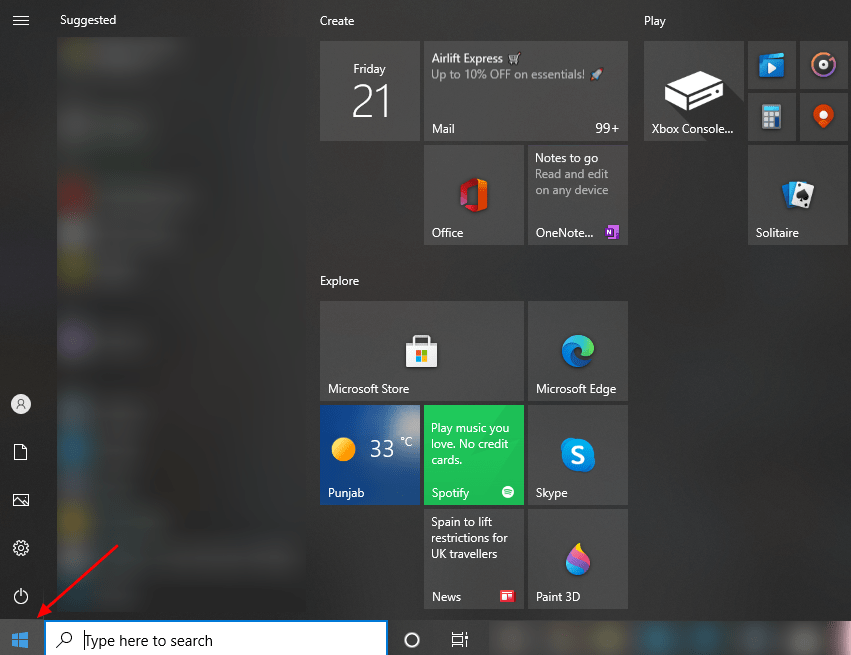
Find Start Menu

Click the Start Menu at the bottom left of the screen.Screenshot Of Start Menu In Windows 10
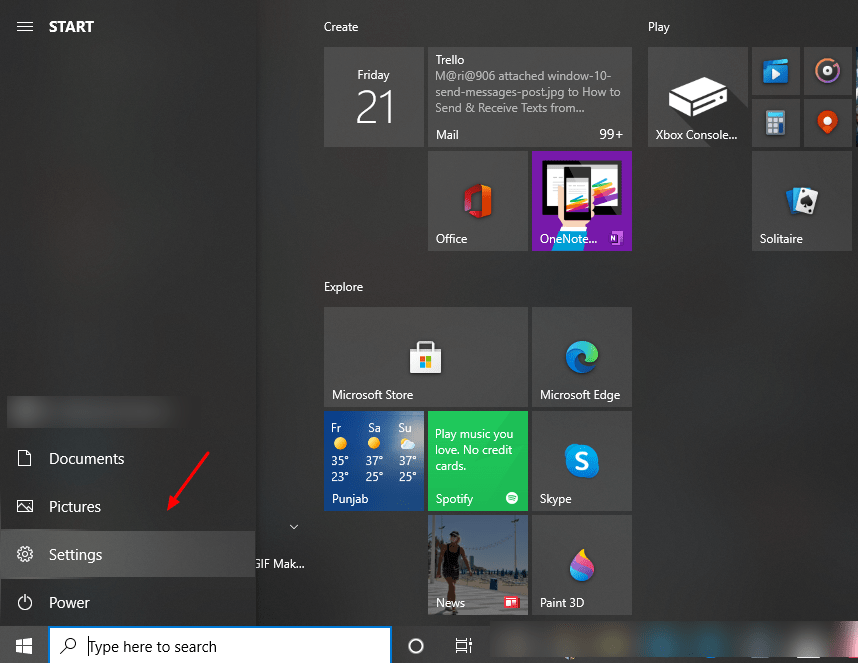
Click “Settings”

Open the icon featuring cog wheel, i.e., Settings.Screenshot Of Settings Tab On Windows 10
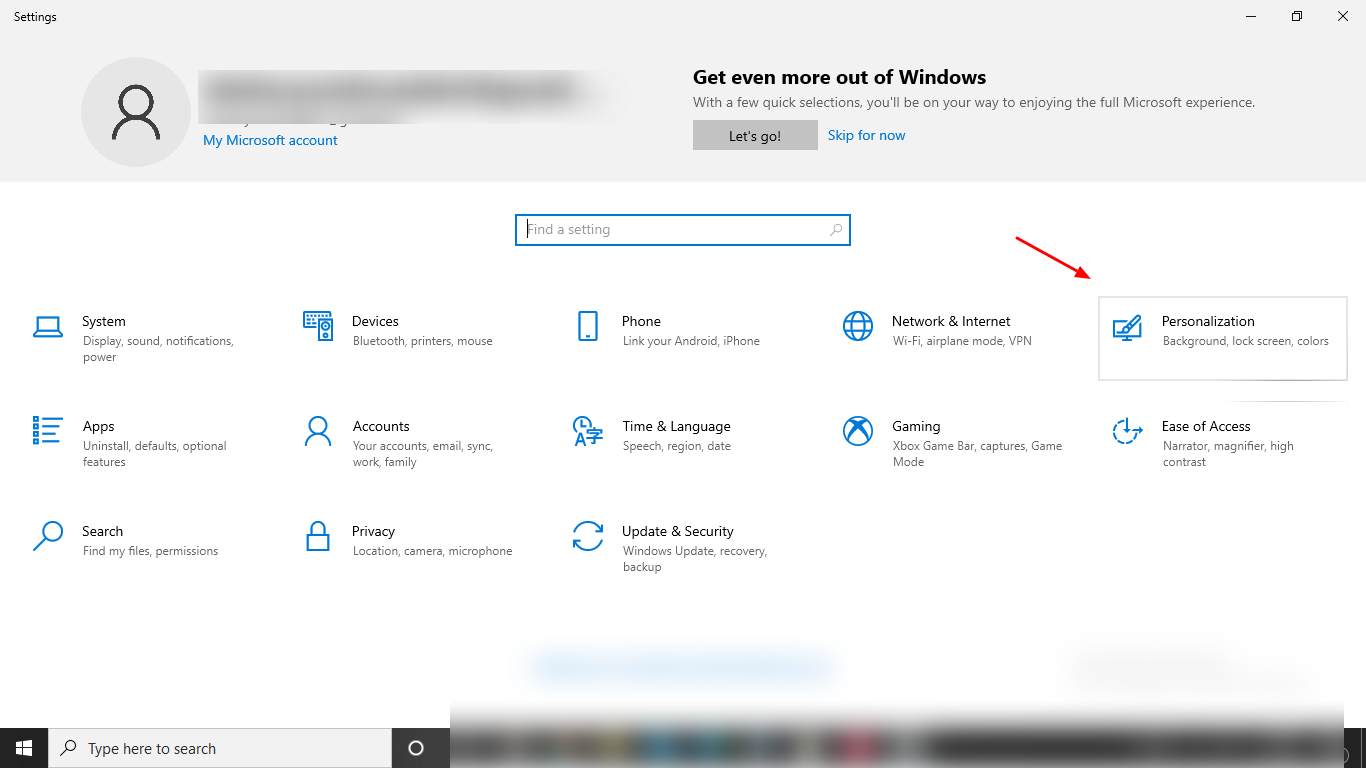
Go to “Personalization”

Choose the Personalization setting after opening the Settings tab on Windows 10.Screenshot Of Personalization Tab On Windows 10 Settings
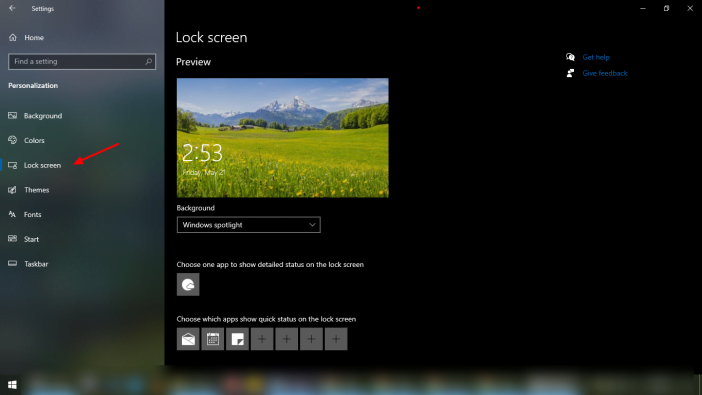
Find “Lock Screen”

Navigate to the Lock Screen tab on the left side of the screen.Screenshot Of Screenshot Of Lockscreen Tab In Windows 10 Settings
Find “Background” menu

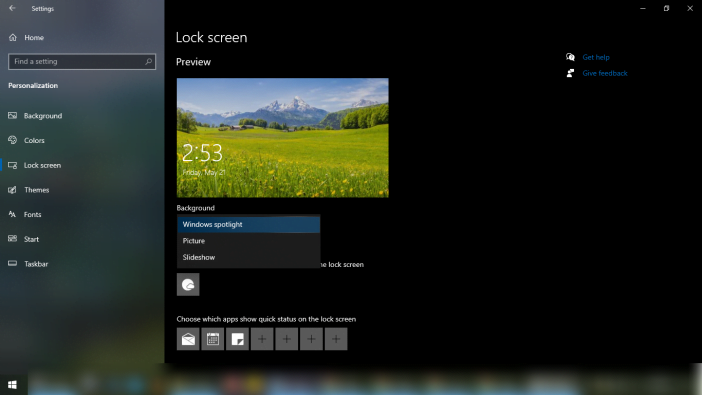
Now you need to find the “Background” dropdown menu and select from either “Picture” or “Slideshow”, not “Windows Spotlight”. Screenshot Of Dropdown Menu In Settings On Windows 10
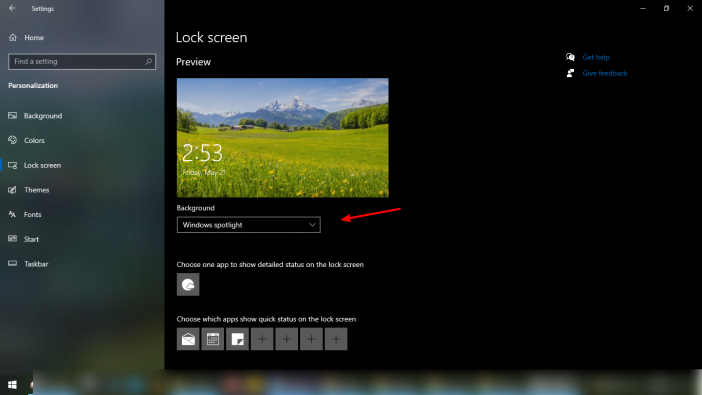
Change “Windows Spotlight”

In this way, Microsoft will no longer automatically display ads on your login screen.Screenshot Of Check Option In Settings Of Windows 10
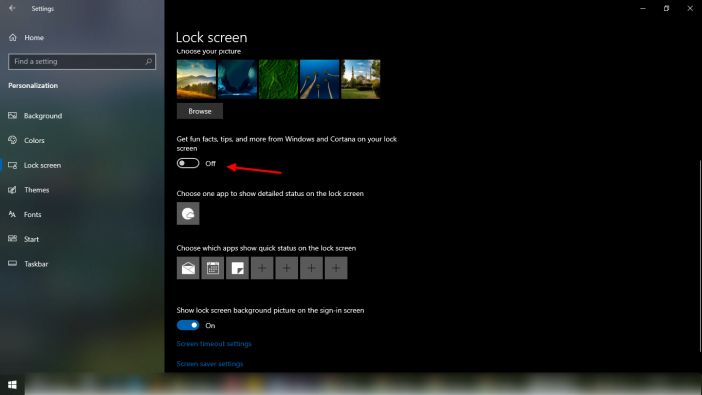
Untick one more thing

Once you’ve chosen a new login screen style, we recommend unticking “Get fun facts, tips, tricks and more on your lock screen”. That way, you won’t be interrupted with unexpected sales pitches the next time you try to log in (or when you try to log into any app).Screenshot Of Mark Off The Fun, Facts Check Button On Windows 10
Finally, here you have bid a farewell to the ads that used to display on your lock screen of Windows 10.

Related reading

  • How to manage Accessibility features in Windows 10
  • How to Play a DVD Movie on Windows 10 Without Windows DVD Player
  • How to Speed Up a Windows 10 Laptop
  • Windows 10 Start Menu Guide: Every Customization Option Explained

Filed Under: Apps & Software Tagged With: How-To, Windows 10

Related Stories

  • Top 10 Battery Draining Apps To Avoid In 2026

    Top 10 Battery Draining Apps to Avoid in 2026

    MobileOct 5, 2024

  • Microsoft Confirms October 7 Windows And Surface Event For Local Ai Pcs

    Microsoft Confirms October 7 Windows and Surface Event for Local AI PCs

    Tech News & AnalysisSep 16, 2026

  • Apple Releases Ios 27 And Macos Golden Gate With Siri Ai

    Apple Releases iOS 27 and macOS Golden Gate With Siri AI

    Tech News & AnalysisSep 15, 2026

Stay on top of technology

Get TechEngage reviews, buying guides and news in your feed.

Follow on Google News
Shares4FacebookTweetPinLinkedInPrint
Avatar for Sheharyar Ahmad Saeed

Sheharyar Ahmad Saeed

Mobile & Events Reporter

Sheharyar Ahmad Saeed is a Mobile and Events Reporter at TechEngage who covers smartphone launches, apps, technology conferences, and social media. He has written more than 170 articles, making complex product announcements easy to follow for everyday readers.

Joined TechEngage October 2020First article on TechEngage October 2020

Reader Interactions

Join the Discussion
  1. Avatar for Víctor ChavesVíctor Chaves says

    August 29, 2022

    Most (All?) of us are looking for a way to disable ads KEEPING the spotlight changing backgrounds feature.

    Reply

Share Your Thoughts Cancel reply

Please read our comment policy before submitting your comment. Your email address will not be used or published anywhere. You will only receive comment notifications if you opt to subscribe below.

Primary Sidebar

Follow us on Google News

Recent Stories

  • Iphone 18 Pro Availability Sept 18 |
    Tech News & AnalysisiPhone 18 Pro and Pro Max Available Today in 65+ CountriesSep 18, 2026
  • Best Portable Monitors 2026 |
    Reviews & Buying GuidesBest Portable Monitors in 2026: 8 Picks for Travel, Work, and PlaySep 18, 2026
  • Samsung One Ui 9 Android 17 Rollout |
    Tech News & AnalysisSamsung Starts One UI 9 (Android 17) Rollout on Galaxy S26 SeriesSep 17, 2026
  • Best Wireless Mice 2026 |
    Reviews & Buying GuidesBest Wireless Mice in 2026: 8 Picks for Work, Travel, and PlaySep 17, 2026
  • Microsoft Windows Surface Event Oct 7 2026 |
    Tech News & AnalysisMicrosoft Confirms October 7 Windows and Surface Event for Local AI PCsSep 16, 2026

More in Apps & Software

  • Microsoft Windows Surface Event Oct 7 2026 |
    Tech News & AnalysisMicrosoft Confirms October 7 Windows and Surface Event for Local AI PCsSep 16, 2026
  • Apple Ios 27 Siri Ai Featured |
    Tech News & AnalysisApple Releases iOS 27 and macOS Golden Gate With Siri AISep 15, 2026
  • Feat |
    Tech News & AnalysisGoogle Launches Gemini Desktop App for Windows With Alt+Space ShortcutSep 11, 2026
  • Ost To Pst Og En |
    Apps & SoftwareStellar Converter for OST Review: Online and Desktop Tools TestedAug 21, 2026
More Apps & Software stories →

Footer

Discover

  • About TechEngage
  • Company News & Updates
  • Our Team
  • Advertise
  • Send us a tip
  • Startup Submissions
  • TechEngage Brand Kit
  • Contact us
  • Tools

Legal pages

  • Editorial Standards
  • Reviews Policy
  • Our Ethics
  • Corrections Policy
  • Affiliate Disclosure
  • Privacy Policy
  • Cookies Policy
  • Terms & Conditions
  • GDPR Compliance
  • Copyright & DMCA

Must reads

  • Best Mechanical Keyboards Under $100
  • Best USB-C Hubs
  • Best Portable SSDs
  • Best Gaming Graphics Cards (GPUs)
  • Best Long-Range Outdoor WiFi Extenders
  • Best Wireless CarPlay Adapters
  • Best Slack Alternatives
  • Best Long-Range Walkie-Talkies

About TechEngage

TechEngage® is an independent technology publication covering tech news, reviews and buying guides since 2003.

Founded
2003
Publisher
TechAbout LLC
ISSN
2690-3776
Google NewsRSS feed

© 2026 TechEngage®. All Rights Reserved. TechEngage® is a project of TechAbout LLC.

TechEngage® is a registered trademark in the United States under Trademark Number 6823709 and in the United Kingdom under Trademark Number UK00003417167. It is also ISSN protected under ISSN 2690-3776 and has OCLC Number 1139335774.

Contact [email protected] · WhatsApp +1-307-381-8801