

• Skip to primary navigation
  • Skip to main content
  • Skip to primary sidebar
  • Skip to footer
TechEngage

TechEngage®

Hands-on reviews, research-backed buying guides and technology news.

  • News
    • Internet & Social
    • Gadgets
    • Car Tech
    • Business
    • Science & Health
  • Reviews
  • Buying Guides
  • How-to
  • AI
  • Computing
    • Apps
    • Security
    • Gaming
  • More
    • Tools
    • Puzzles
    • Mobile
  • Launchpad
  • Sign in
TechEngage » Apps & Software

Wondershare HiPDF: PDF Conversion, OCR and File Limits

See where HiPDF helps with conversion, compression, merging and OCR, what to check in the output, and when a local PDF editor is a better choice.

Avatar for Ali Raza Ali Raza Published: Nov 11, 2020 · 5:40 AM ET Updated: May 1, 2021 · 6:29 PM ET

Hi PDF review
Shares155FacebookTweetPinLinkedInPrint

HiPDF brings PDF conversion, compression, merging and OCR into a browser. It is useful for occasional document tasks, but check file limits and paid features before uploading a large job.
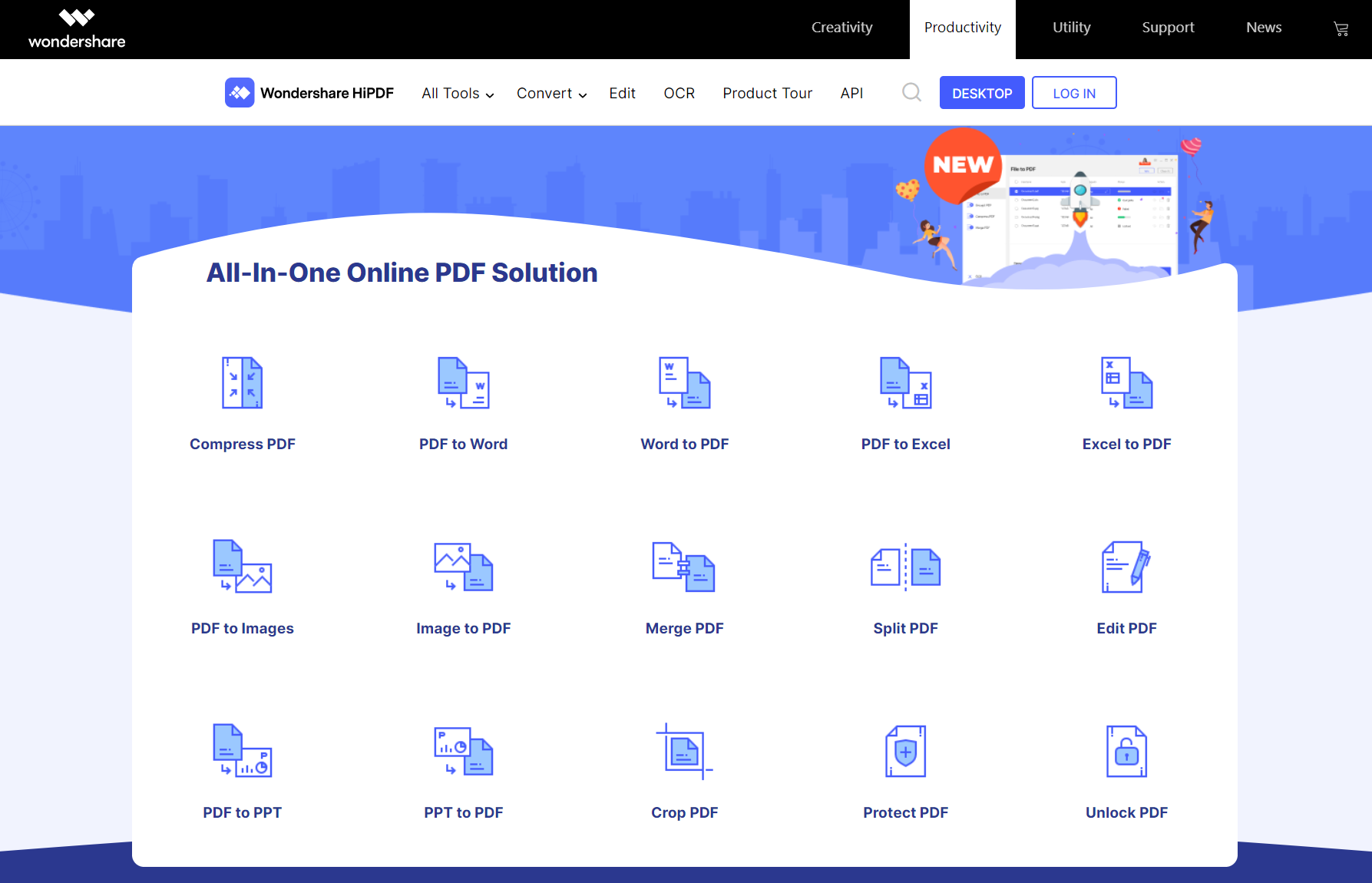
All In One Online Pdf Solution

HiPDF processes uploaded documents online. Before uploading personal or work files, check that you have permission to use an external service. An encrypted connection alone does not guarantee how a document is stored or accessed.
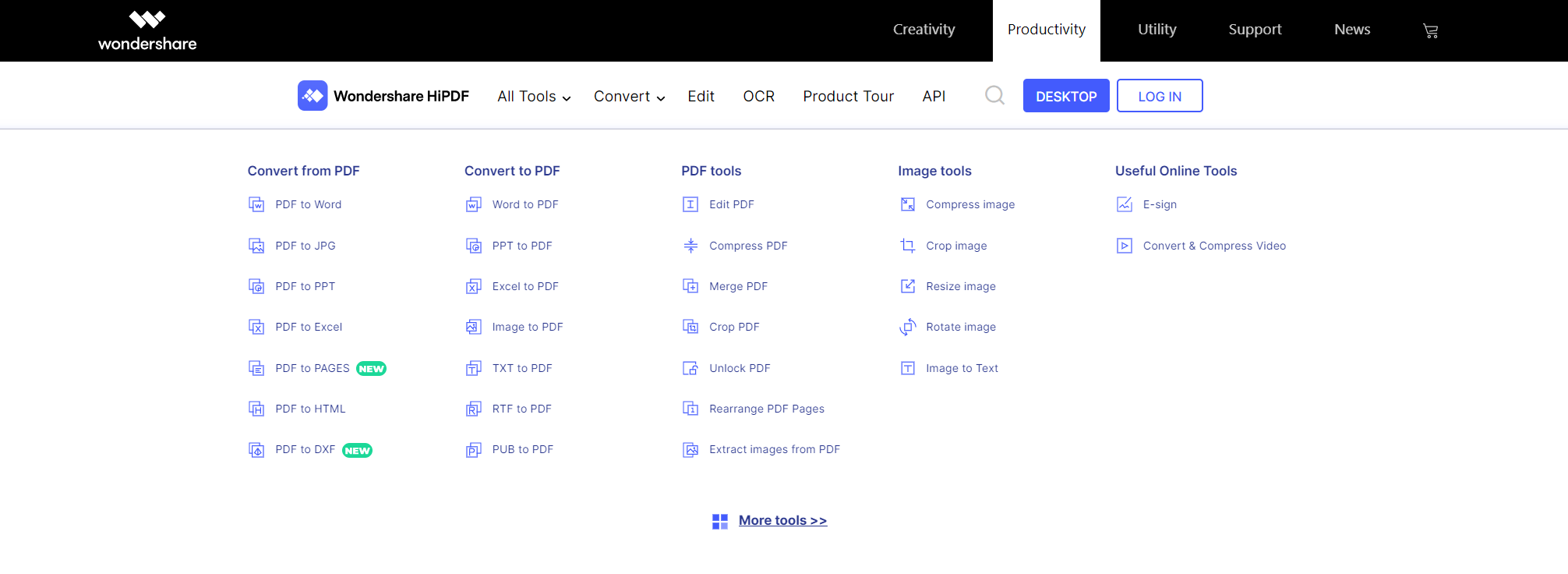
Wondershare Hipdf Converter

Wondershare says uploaded files are deleted within 60 minutes after processing on its PDF-to-Word page. For confidential documents, follow your organization’s policy and use an approved local tool when external uploads are prohibited.

1. Online PDF to Word Converter

Convert a PDF to Word when you need to edit its text or reorganize the document. Keep the original PDF so you can compare the converted file before sharing it.
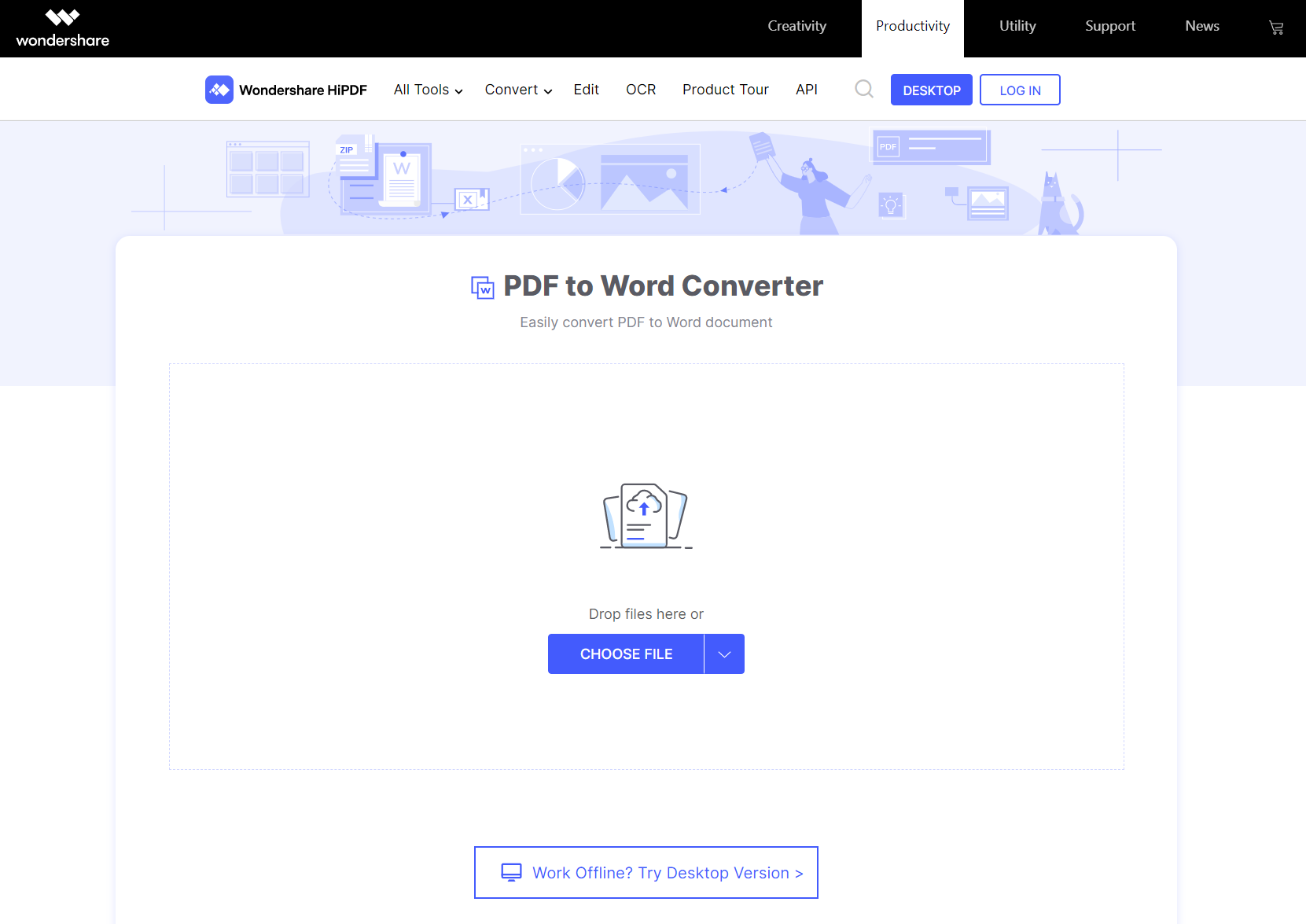
Pdf To Word Converter Choose File Page

Conversion can require cleanup, especially around tables, columns, fonts and scanned pages. OCR recognizes text in scans; check names, numbers and punctuation carefully. OCR and batch features may require a paid plan.

Follow these steps to use pdf to word converter online:

  1. Choose and upload your PDF.
  2. Select OCR for a scanned document, if your plan supports it, and choose the document language.
  3. Select Convert.
  4. Download the Word file and compare it with the original.

2. Compress PDF File

PDFs with large images or scanned pages can be difficult to email or upload. Compression reduces file size, but stronger settings may reduce image clarity. Keep an original copy and inspect the compressed result.
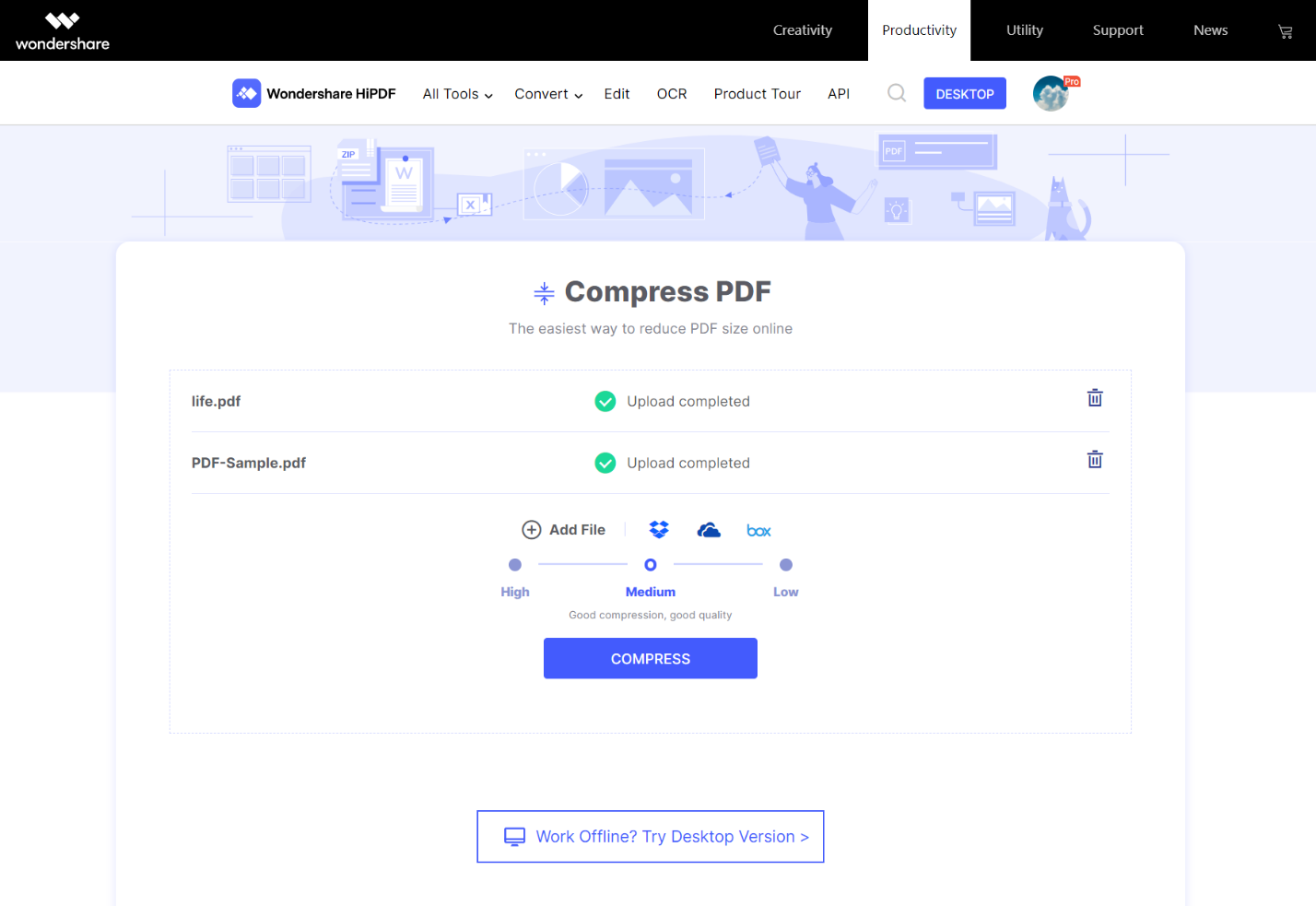
Compress Pdf Page

Use the PDF compressor for a smaller attachment. Check your plan’s file-size and batch limits before starting.

  1. Click on “Choose File” for the pdf document to upload
  2. Wait for HiPDF to upload the file
  3. Choose the compression level and click on “Compress”
  4. Once the compression process completes, download the file 

3. Merge PDF Online 

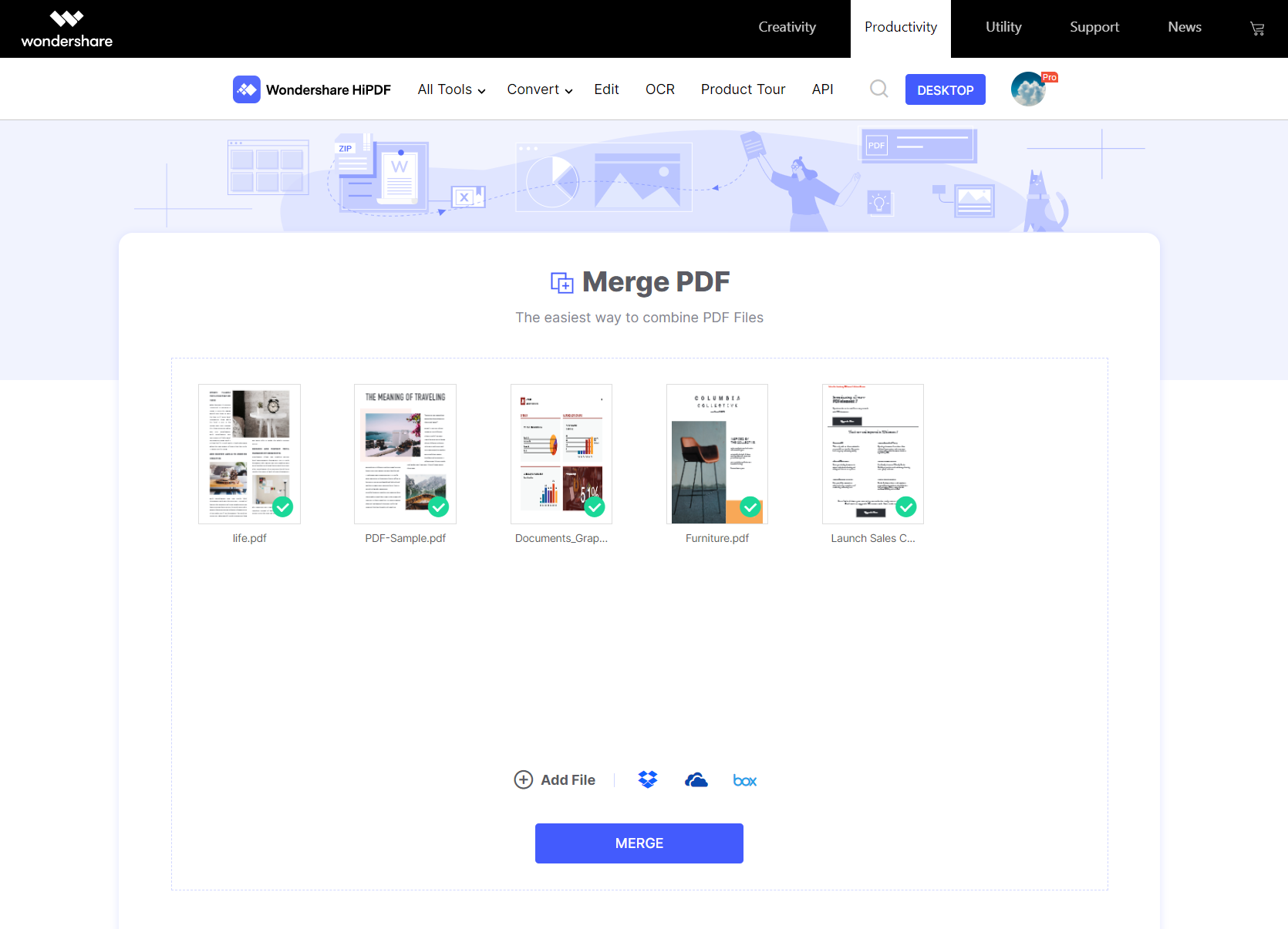
Merge related PDFs when you need a single attachment, such as an application with supporting documents. Arrange the files in the required order before combining them.
Merging Pdf Page

Open HiPDF’s merge tool, select your documents and check the page order before downloading the result.

Follow these simple steps to merge pdf files:

  1. Launch PDF merger online
  2. Upload pdf files by clicking on “Choose File”
  3. Click on “Merge” to begin the process
  4. Click on “Download” once all files are merged

4. Online OCR (Optical Character Recognition)

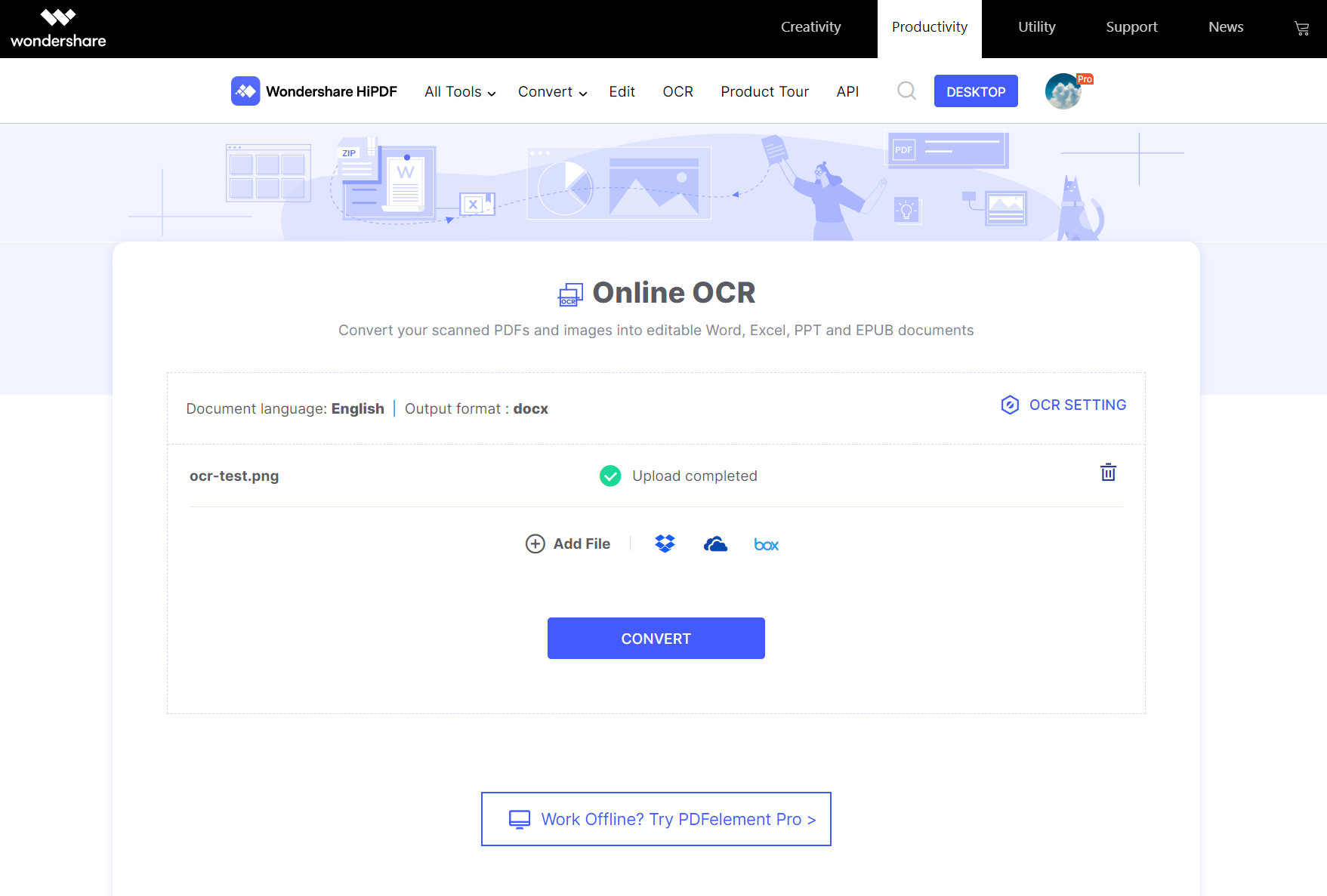
Optical character recognition turns text in a scanned page or image into editable or searchable text. Clear, upright scans are easier to check than blurred or skewed pages; review the result rather than assuming every character is correct.
Online Ocr Page

HiPDF offers OCR technology to convert scanned pdf into an editable file. Without any installation on your computer, you can use OCR online in the paid version of HiPDF.

Follow these steps to use OCR:

  1. Upload a clear scan or image.
  2. Select the recognition language and output format.
  3. Start OCR or conversion.
  4. Download the result and proofread the recognized text.

Browser tools versus desktop software

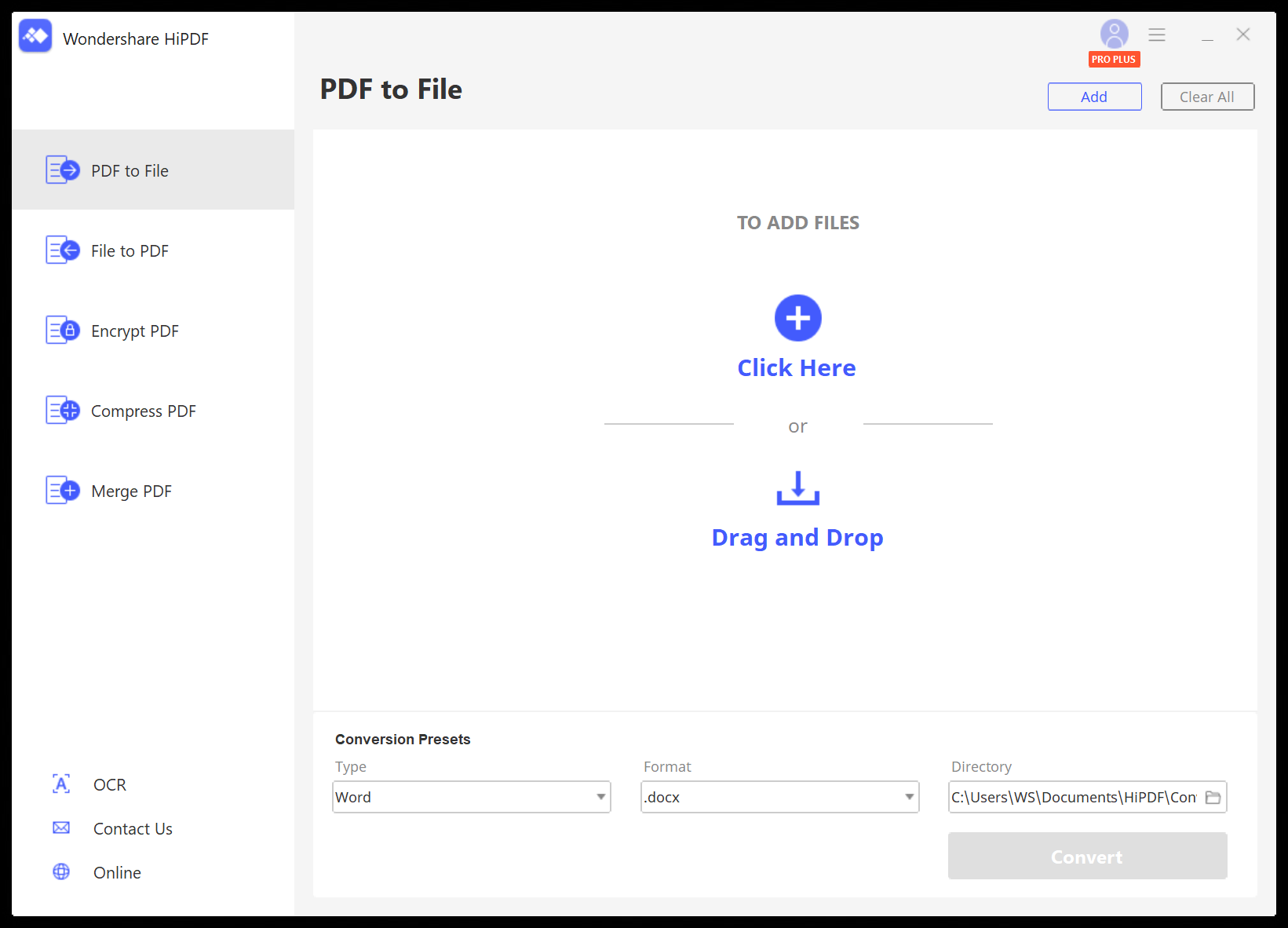
Wondershare also offers PDFelement for desktop. It is a separate product from HiPDF’s browser tools. Check the desktop edition’s features and licensing rather than assuming a HiPDF subscription includes it.

For recurring work, compare the cost and upload requirements of a browser service with an installed editor. Check whether the specific desktop function you need works locally or uses an online service.
Pdf To File Page

Check HiPDF’s plan page for the features and billing terms offered to your account. Confirm OCR access, batch limits, renewal terms and cancellation conditions before paying.

Try a representative document before committing to a plan. Check the output in the app where you will use it, including page breaks, table alignment and selectable text.

Who HiPDF suits

HiPDF is most useful when a browser tool can complete a small document task without installing software. For sensitive files or frequent editing, compare an approved desktop workflow.

Keep the original file until you have checked the downloaded result. A successful conversion does not by itself confirm that every layout detail or OCR character is correct.

Related reading

  • How to edit scanned PDF documents on any mobile device
Something incorrect? Report an error in this article. Include a source if you have one; your name and email are optional.

Filed Under: Apps & Software, Reviews & Buying Guides Tagged With: PDF, Review

Related Stories

  • Macbook Pro M5 Review: Performance, Battery Life, And Everything You Need To Know

    MacBook Pro M5 Review: Performance, Battery Life, and Everything You Need to Know

    Computing & HardwareApr 4, 2026

  • How To Screen Record On Windows 11 With Audio

    How to Screen Record on Windows 11 With Audio

    Apps & SoftwareOct 10, 2026

  • How To Stop Chrome Tabs From Reloading

    How to Stop Chrome Tabs From Reloading

    Apps & SoftwareOct 10, 2026

Stay on top of technology

Get TechEngage reviews, buying guides and news in your feed.

Follow on Google News
Shares155FacebookTweetPinLinkedInPrint
Avatar for Ali Raza

Ali Raza

Business & Cybersecurity Analyst

Ali Raza is a Business and Cybersecurity Analyst at TechEngage with more than 180 published articles covering enterprise technology, business and fintech, cybersecurity, and software tools. His reporting connects business strategy with the technology behind it to help readers make informed decisions.

Joined TechEngage March 2009First article on TechEngage May 2010

Reader Interactions

Share Your Thoughts Cancel reply

Please read our comment policy before submitting your comment. Your email address will not be used or published anywhere. You will only receive comment notifications if you opt to subscribe below.

Primary Sidebar

Google News

Get TechEngage in your feed

Reviews, news, and buying guides as they publish.

Follow on Google News

Recent Stories

  • Google Home Local Matter Hue |
    Consumer Tech & GadgetsGoogle Home update brings local Matter control to Hue lightsOct 15, 2026
  • Windows Screen Recording Guide |
    Apps & SoftwareHow to Screen Record on Windows 11 With AudioOct 10, 2026
  • Chrome Tabs Reloading Techengage |
    Apps & SoftwareHow to Stop Chrome Tabs From ReloadingOct 10, 2026
  • Techengage Windows 11 File Backup |
    Computing & HardwareHow to Back Up Windows 11 Files to an External DriveOct 10, 2026
  • Techengage Ssd Enclosures |
    Computing & Hardware3 Best SSD Enclosures for USB-C and USB4Oct 10, 2026

More in Apps & Software

  • Windows Screen Recording Guide |
    How to Screen Record on Windows 11 With AudioOct 10, 2026
  • Chrome Tabs Reloading Techengage |
    How to Stop Chrome Tabs From ReloadingOct 10, 2026
  • 136181 7Effec8402C5Ea64 |
    What Microsoft Announced on October 7: Surface Laptop Ultra, RTX Spark Dev Box, and Windows AISep 16, 2026
  • TechEngage news graphic: iOS 27 Is Out With Siri AI, with an illustrated laptop and phone showing an AI assistant
    Apple Releases iOS 27 and macOS Golden Gate With Siri AISep 15, 2026
More Apps & Software stories →

Footer

Discover

  • About TechEngage
  • Company News & Updates
  • Our Team
  • Advertise
  • Send us a tip
  • Submit your company to TechEngage Launchpad Hot
  • TechEngage Brand Kit
  • Contact us
  • Tools & Calculators

Legal pages

  • Editorial Standards
  • Reviews Policy
  • Our Ethics
  • Corrections Policy
  • Affiliate Disclosure
  • Privacy Policy
  • Cookies Policy
  • Terms & Conditions
  • GDPR Compliance
  • Copyright & DMCA

Must reads

  • Best Mechanical Keyboards Under $100
  • Best USB-C Hubs
  • Best Portable SSDs
  • Best Gaming Graphics Cards (GPUs)
  • Best Long-Range Outdoor WiFi Extenders
  • Best Wireless CarPlay Adapters
  • Best Slack Alternatives
  • Best Long-Range Walkie-Talkies

Download our apps

TechEngage app coming soon on the App Store Available onChrome

© 2026 TechEngage®. All Rights Reserved. TechEngage® is a project of TechAbout LLC.

TechEngage® is a registered trademark in the United States under Trademark Number 6823709 and in the United Kingdom under Trademark Number UK00003417167. It is also ISSN protected under ISSN 2690-3776 and has OCLC Number 1139335774.

Contact team@techengage.com · WhatsApp +1-307-381-8801

Your analytics choice
Allow Google Analytics to help us understand readership? You can use the site without it and change this choice anytime.

Privacy details
