• Skip to primary navigation
  • Skip to main content
  • Skip to primary sidebar
  • Skip to footer
TechEngage

TechEngage®

Technology Reviews, Guides & Analysis

  • Cryptocurrency
  • Science
    • Energy
    • Environment
    • Health
    • Space
  • Apps
  • More
    • Opinion
    • Noteworthy
    • Culture
    • Events
    • Deals
    • Startups
      • Startup Submissions
  • Videos
  • Tools
TechEngage » OS

How to use parental controls on Windows 10

Avatar for Sheharyar Ahmad Saeed Sheharyar Ahmad Saeed Updated: May 3, 2022

Parental controls on Windows 10
FacebookTweetPinLinkedInPrintEmail

In this digital age, data is easily accessible all over the internet, and the problem is the internet does not know whether one is ready to process it or not. Plenty of sites use Recaptcha or Age metric to scrutinize website visitors. However, they don’t verify age with an ID or anything authentic. It’s haunting for many parents who are worried about their child’s activities on the internet.

The Internet can also be a dangerous place as your kids can come in contact with a random stranger who might harm them emotionally or manipulate them in ways no one would want to imagine. Similarly, children don’t know how much time they should spend on their gadgets. Hence it is important to teach them that there’s a world out there other than this digital mess.

Windows 10 lets you manage your children’s activities and allows you to take control of your child’s online environment. It takes a few steps to monitor your child’s online space, and here is a quick guide on how to use Parental Controls on Windows 10.

Follow these steps to enable Parental Controls on Windows 10:

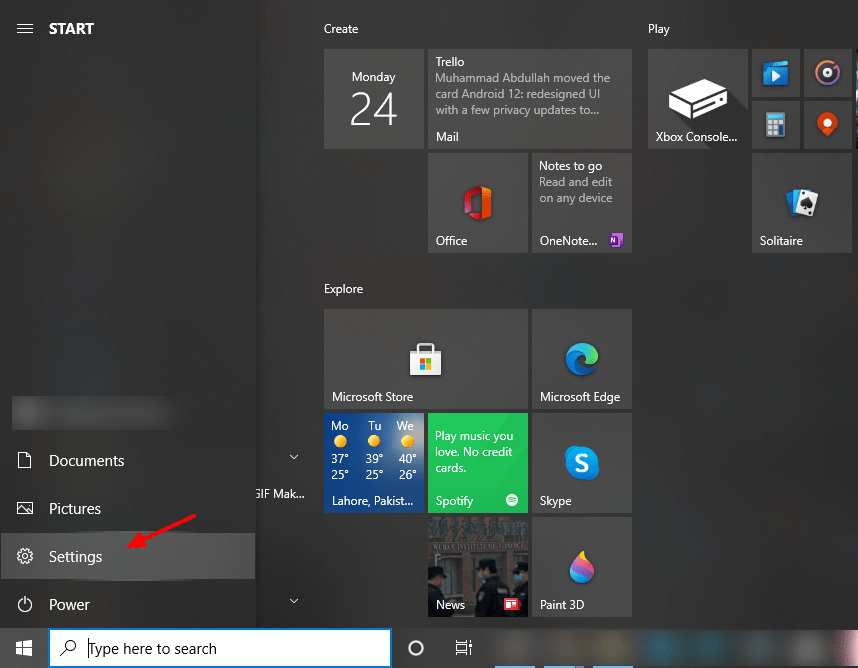
Begin with Start menu

Click on the “Start” menu on the left corner and find “Settings” right there.Screenshot Of Settings Tab In Windows 10
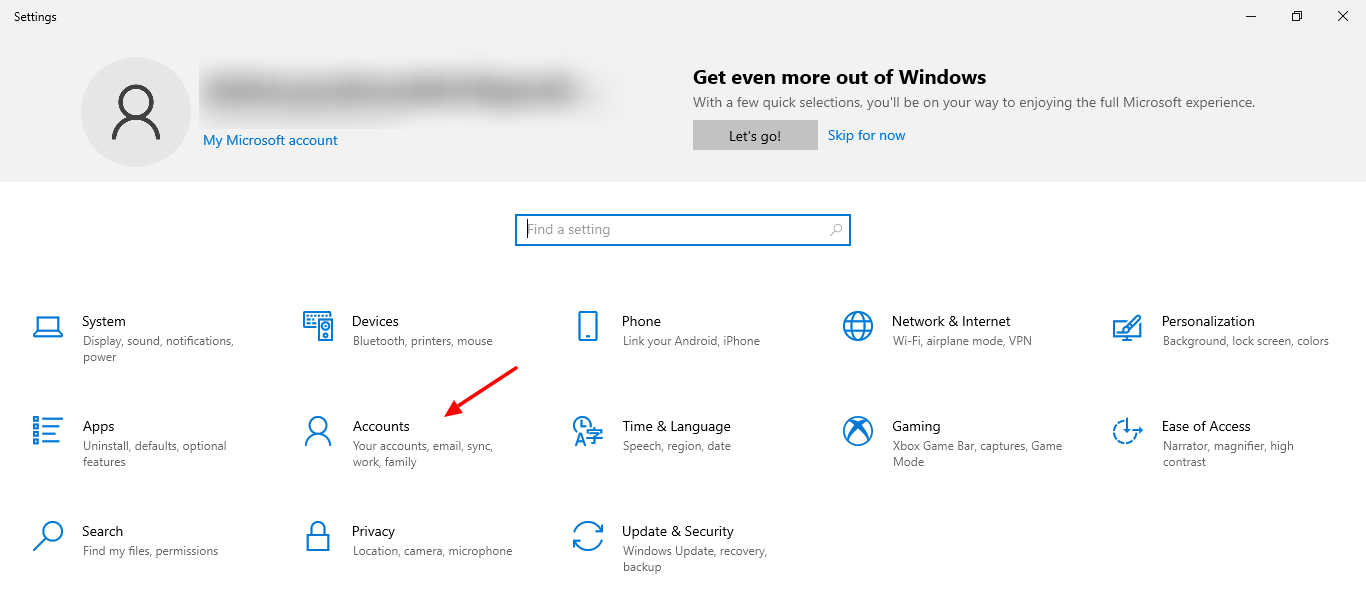
Find Accounts

Now, navigate “Accounts” on the Settings page.Screenshot Of Accounts Tab In Settings Of Windows 10
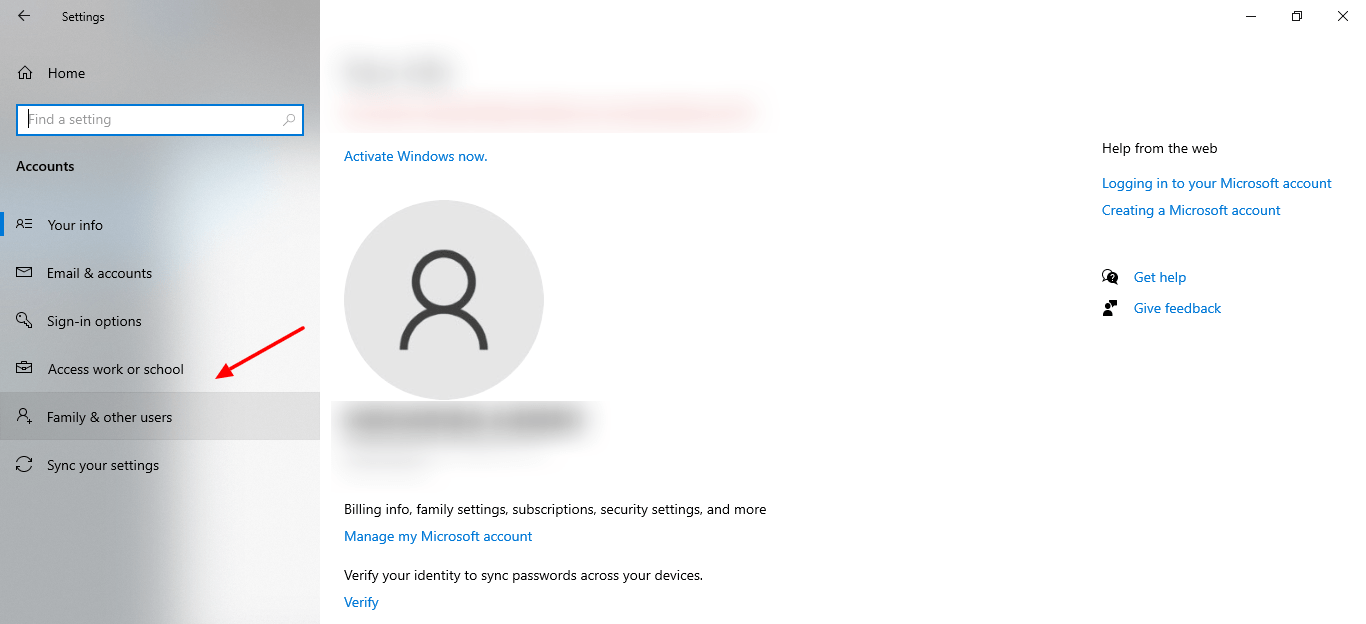
Family & other users

On the left sidebar, click on “Family & other users”.Screenshot Of Family And Other Users Tab In Settings Of Windows 10
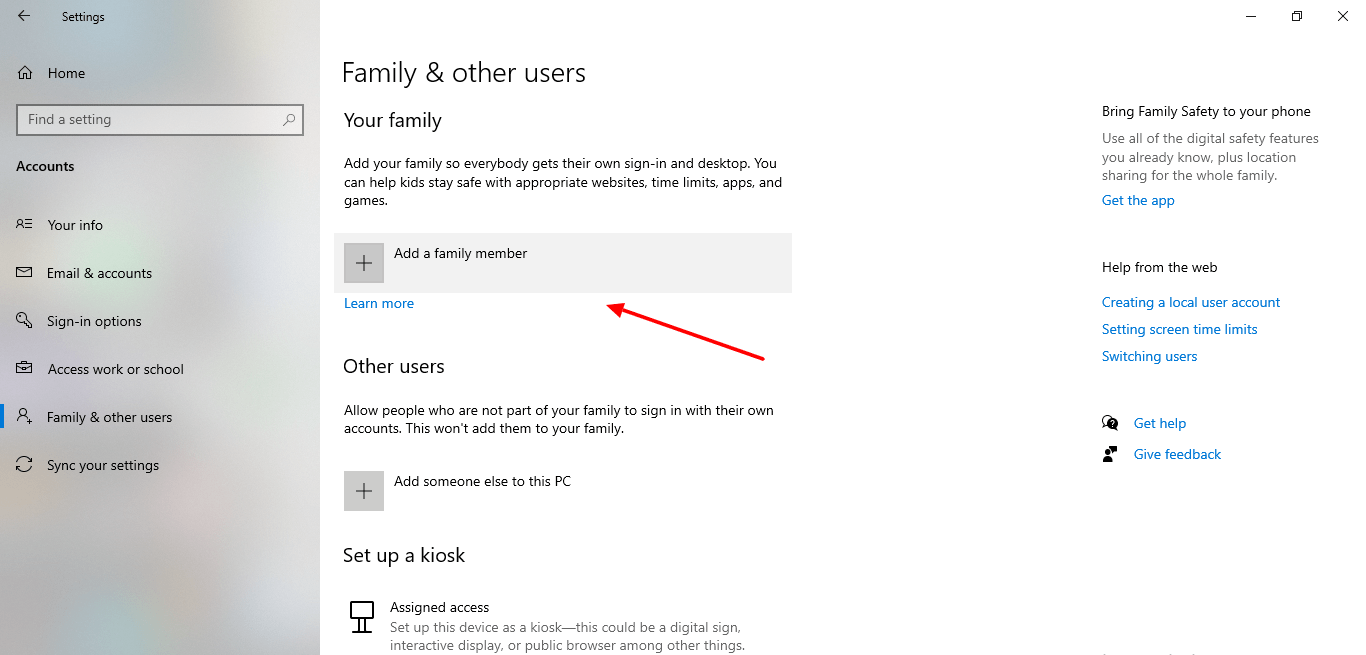
Add a family member

Find “Add a family member”. Now if you already have your child’s outlook account, then sign in, otherwise go for “Create a new account”.Screenshot Of Add A Family Member Account In Settings On Windows 10
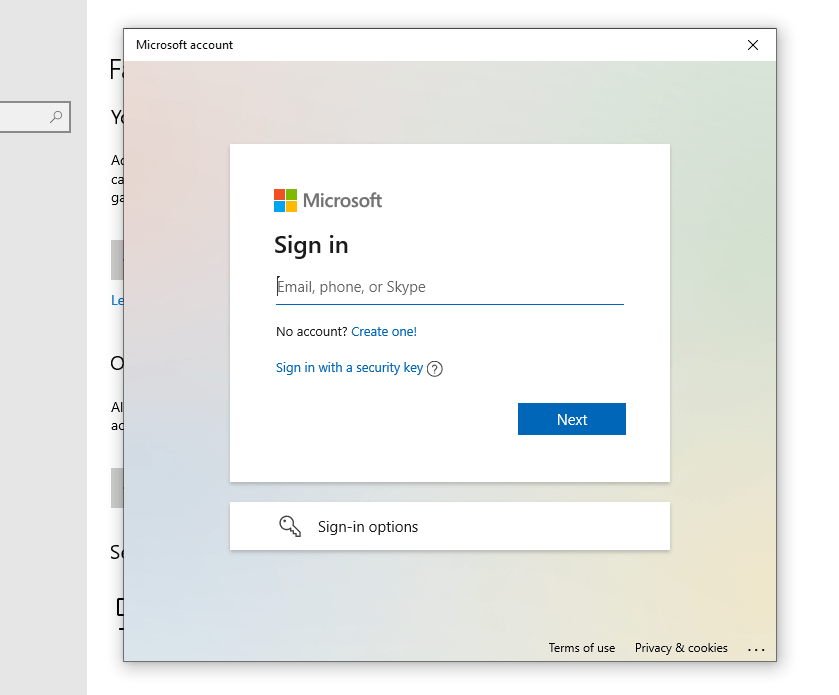
Create an account

Account creation does not take enough time as it’s a straightforward process.Screenshot Of Sign Up With Outlook
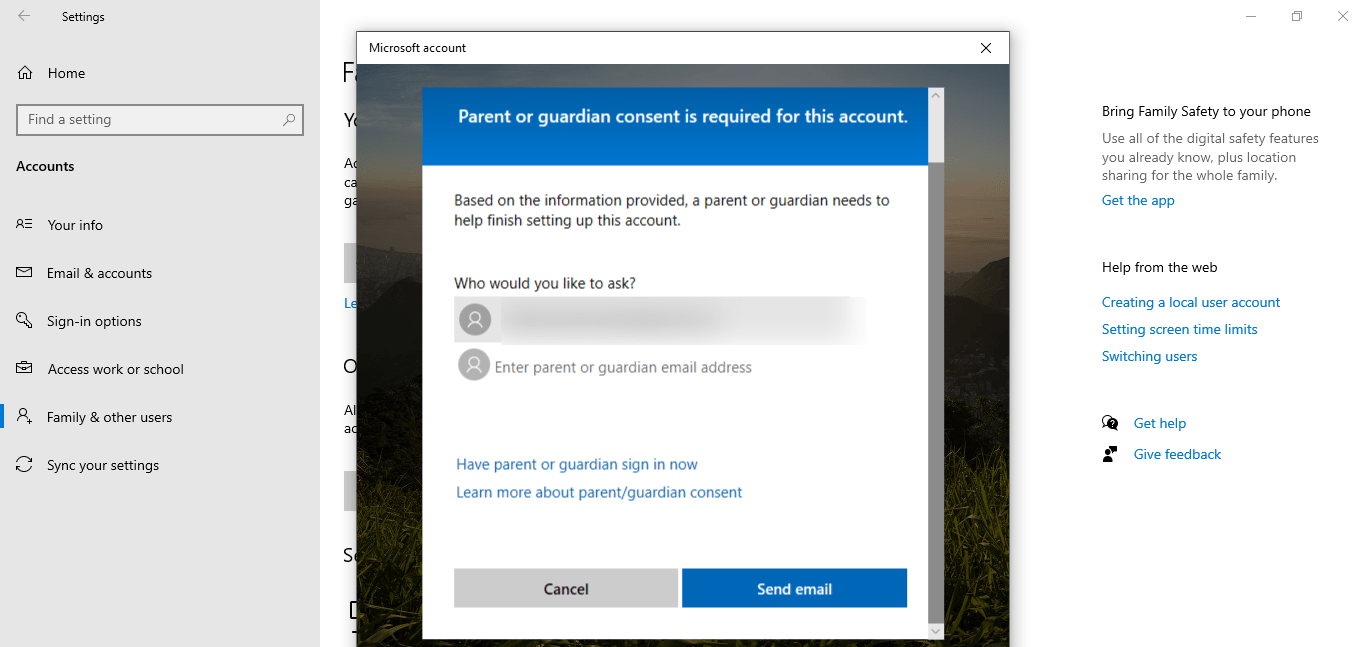
Verify from Guardian’s email address

Now, after the creation of account, the guardian needs to verify the account for futher proceeding.Screenshot Of Guardian Email Address In Windows 10
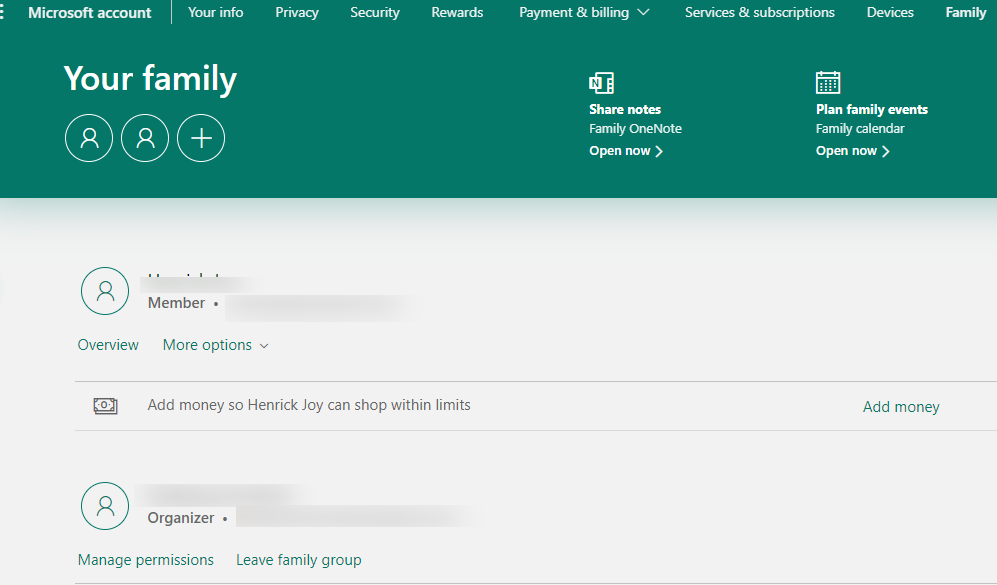
Here’s the family group

In addition to being able to create a child’s account directly in Windows 10, users will also be able to manage and monitor accounts by going to the Microsoft Family website.Screenshot Of Family Group In Parental Controls On Windows 10
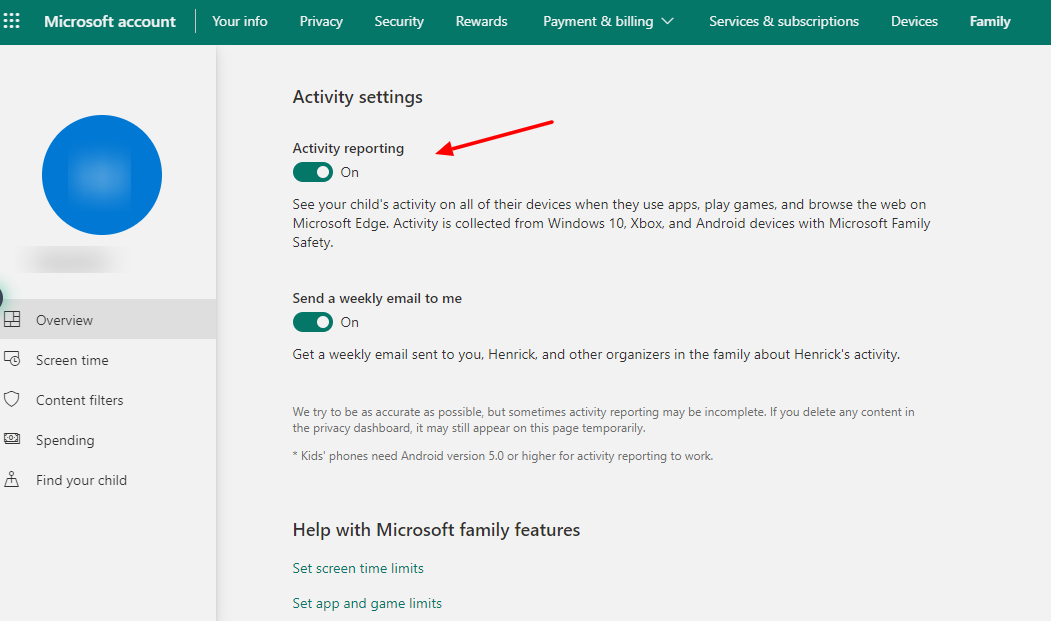
Monitor the activities

Turn on the “Activity Reporting” toggle under “Activity settings.” You can track the account’s activity by either receiving regular email reports or by returning to this menu at any time.Screenshot Of Activity Reporting In Parental Controls Of Windows 10
After setting up parental controls, you should feel content regarding the online activities of your child. You can also add other family members to the group and keep an eye on the activity panel. These Parental Controls on Windows 10 will help you protect your family members from online bullying, cybercrimes, and other unethical activities. However, if your child is in his/her teens, it is wise to talk it out with them before adding parental controls to their Windows computer.


Published: May 25, 2021 Updated: May 3, 2022

Filed Under: OS Tagged With: how-to, Parental Controls, Windows 10, WindowsGuide

Related Stories

  • Exploring The Science Behind How A Washing Machine Cleans Your Clothes

    Exploring the Science Behind How a Washing Machine Cleans Your Clothes

  • Android Rooting Guide In 2026: Tools, Risks, And Whether It Still Makes Sense

    Android Rooting Guide in 2026: Tools, Risks, and Whether It Still Makes Sense

  • How Should You Replace Samsung Galaxy Note 7?

    How Should You Replace Samsung Galaxy Note 7?

FacebookTweetPinLinkedInPrintEmail
Avatar for Sheharyar Ahmad Saeed

Sheharyar Ahmad Saeed

Mobile & Events Reporter

Sheharyar Ahmad Saeed is a Mobile and Events Reporter at TechEngage, tracking smartphone launches, tech conferences, and social media developments across more than 170 articles. He approaches technology with a blend of artistic curiosity and scientific rigor, making complex product announcements easy to follow for everyday readers.

Joined October 2020

Reader Interactions

Share Your Thoughts Cancel reply

Please read our comment policy before submitting your comment. Your email address will not be used or published anywhere. You will only receive comment notifications if you opt to subscribe below.

Primary Sidebar

TechEngage-Apple-News TechEngage-Google-News

Recent Stories

  • The Complete History of the Internet: From ARPANET to AI (Visual Timeline)
  • The 10 Best-Selling Cars of All Time [Infographic]
  • Best Gaming Graphics Cards (GPUs): 8 Picks From Budget to Enthusiast
  • Best Long-Range Outdoor WiFi Extenders: 8 Tested Picks for Reliable Coverage
  • Best AM Radios for Long-Distance Reception: 10 Tested Picks

Footer

Discover

  • About TechEngage
  • Newsroom
  • Our Team
  • Advertise
  • Send us a tip
  • Startup Submission Questionnaire
  • Brand Kit
  • Contact us

Legal pages

  • Reviews Guarantee & Methodology
  • Community Guidelines
  • Corrections Policy and Practice
  • Cookies Policy
  • Our Ethics
  • Disclaimer
  • GDPR Compliance
  • Privacy Policy
  • Terms and Conditions

Must reads

  • Best AirPods alternatives on Amazon
  • Best PC monitors for gaming on Amazon
  • Best family board games
  • Best video doorbells without subscription
  • Best handheld video game consoles
  • Best all-season tires for snow
  • Best mobile Wi-Fi hotspots
  • Best treadmills on Amazon

Download our apps

TechEngage app coming soon on App Store

© 2026 TechEngage®. All Rights Reserved. TechEngage® is a project of TechAbout LLC.

TechEngage® is a registered trademark in the United States under Trademark Number 6823709 and in the United Kingdom under Trademark Number UK00003417167. It is also ISSN protected under ISSN 2690-3776 and has OCLC Number 1139335774.