• Skip to primary navigation
  • Skip to main content
  • Skip to primary sidebar
  • Skip to footer
TechEngage

TechEngage®

Technology Reviews, Guides & Analysis

  • News
  • AI
  • Mobile
  • Apps
  • Security
  • Reviews
  • More
    • Internet & Social
    • Computing
    • Gadgets
    • Gaming
    • Car Tech
    • Business
    • Science & Health
TechEngage » Apps & Software

How to schedule messages on Android and iOS

Avatar for Amnah Fawad Amnah Fawad Updated: July 24, 2026

How to schedule messages on Android and iOS
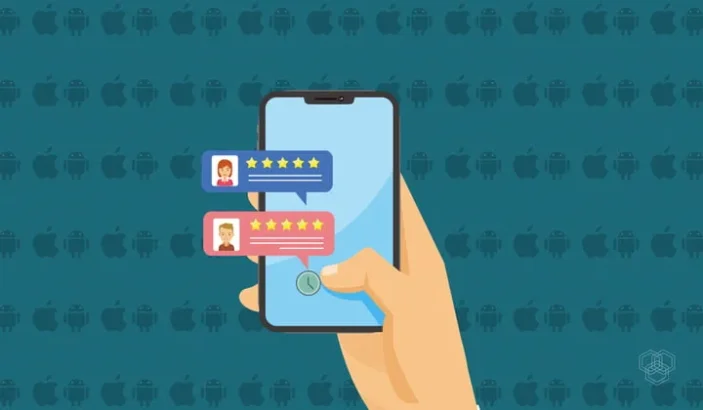
Illustration by Muntaha Hussain l TechEngage
FacebookTweetPinLinkedInPrint

Ever thought of the perfect birthday message at midnight, then worried you’d forget to send it in the morning? Or wanted a “good luck” text to land right before a friend’s interview without setting an alarm for yourself? Scheduling a message solves exactly that. You write it now, pick the moment it should arrive, and your phone does the rest.

The good news in 2026 is that scheduling texts is no longer a job for third-party apps. Both Android and iPhone now have the feature built directly into their default messaging apps. This guide walks you through every method, step by step, so your words always land at the right time.

Why schedule a text message?

Scheduling isn’t just a party trick. It’s genuinely useful when:

  • You want to wish someone a happy birthday or anniversary at exactly midnight without staying up.
  • You’re messaging across time zones and don’t want to wake anyone at 3 a.m.
  • You need to send a reminder, invoice nudge, or follow-up during business hours but you’re thinking about it now.
  • You’ve drafted an emotional or important message and want a cooling-off window before it goes out.
  • You handle work communications and prefer to look present during working hours even when you’re prepping ahead.

Whatever the reason, here’s how to do it on any modern phone.

How to schedule a text on Android (Google Messages)

Google Messages is the default texting app on most Android phones and it now handles scheduled sending natively, no add-ons required. The only requirement is a reasonably current version of the app, which nearly all Android phones already have.

Steps to schedule a message in Google Messages

  1. Open Google Messages and start a new conversation or open an existing one.
  2. Type your message in the text field as you normally would.
  3. Instead of tapping Send, press and hold the Send button (the arrow).
  4. A scheduling panel appears. Pick one of the quick suggestions such as “Later today” or “Tomorrow 8:00 AM,” or tap Pick date and time for a specific slot.
  5. Choose your date and time, then tap Save.
  6. Tap Send to confirm. The message now sits in the conversation with a small clock icon, ready to fire at the scheduled moment.

Editing or cancelling a scheduled message

Scheduled messages stay visible in the thread with a clock icon. To change one, tap and hold the message — you’ll get options to send it now, reschedule, or delete it before it goes out. One caveat: your phone generally needs to be on and connected to the network at the send time for an SMS/RCS message to leave the device.

How to schedule a message on a Samsung Galaxy phone

Samsung phones have long included scheduling in the Samsung Messages app. Open a conversation, type your text, tap the plus (+) or the menu beside the message field, choose Schedule message, set the date and time, and tap Done.

Important 2026 update: Samsung is retiring the Samsung Messages app on Galaxy devices running Android 12 and newer, with the change rolling out from July 2026. Samsung is directing users to Google Messages instead, which also brings full RCS support (high-quality media, typing indicators, and read receipts). If you’re on a Galaxy phone, the most future-proof move is to switch your default to Google Messages and use the press-and-hold method described above.

How to schedule a text on iPhone (iOS 18 and later)

For years, iPhone users needed the Shortcuts app to fake scheduled texting. That changed with iOS 18, which added a native Send Later feature to the Messages app. If your iPhone is running iOS 18 or newer, you can schedule iMessages and texts without any workaround.

Steps to use Send Later on iPhone

  1. Open Messages and go to (or start) a conversation.
  2. Tap the plus (+) button to the left of the text field.
  3. Tap More, then choose Send Later.
  4. Tap the highlighted time to open the scheduler and pick when you want the message delivered.
  5. Type your message and tap the send arrow to lock it in.

According to Apple, you can schedule a message up to 14 days in advance. Because the message is encrypted and stored on Apple’s servers until it’s due, it will still be delivered even if all your devices are offline at the scheduled time — a real advantage over the Android SMS approach. To change a scheduled message, open the conversation, tap Edit beside the scheduled time, and reschedule or send it right away.

Scheduling on older iPhones with the Shortcuts app

If your iPhone can’t update to iOS 18, the Shortcuts app is still the fallback. Open Shortcuts → Automation → create a new Personal Automation, choose Time of Day, then add the Send Message action with your recipient and text. The trade-off is that time-based automations sometimes ask you to confirm before sending and require your phone to be on, so the native Send Later is far more reliable when it’s available.

iMessage vs. SMS: does it matter for scheduling?

On iPhone, Send Later works for both blue-bubble iMessages and green-bubble SMS/RCS texts, and Apple’s server-side delivery means it fires even if your phone is off. On Android, scheduled messages go out through your carrier’s SMS or RCS channel, so the device usually needs to be powered on and connected when the timer hits. If you absolutely need a message delivered at a precise second regardless of your phone’s state, the iPhone method has the edge.

Third-party apps worth knowing

Now that both platforms schedule natively, third-party texting apps are mostly for power users. Apps like Textra (Android) offer scheduling plus deep customization, and business-focused SMS platforms let teams schedule bulk or automated campaigns. For everyday personal texting, though, the built-in tools are all most people need — and they don’t require handing message access to another app.

Tips for scheduling messages the smart way

  • Double-check the time zone before scheduling across regions — apps use your phone’s local time by default.
  • Keep the phone charged. On Android especially, a dead battery means the message won’t send.
  • Review the text once more. Scheduling is a great cooling-off tool; use that window to reread emotional messages.
  • Don’t rely on it for emergencies. Scheduled delivery can slip a few minutes; for time-critical alerts, send live.

Frequently asked questions

Can I schedule a text on any iPhone?

The native Send Later feature requires iOS 18 or later. On older versions you can still schedule using the Shortcuts app, though it’s less reliable.

Do scheduled messages send if my phone is off?

On iPhone, yes — scheduled messages are stored on Apple’s servers and delivered even if your devices are offline. On Android’s Google Messages, your phone generally needs to be on and connected at the scheduled time.

How far in advance can I schedule a message?

On iPhone you can schedule up to 14 days ahead. Google Messages and Samsung Messages let you pick a specific future date and time with similar practical limits.

Is Samsung Messages going away?

Samsung is retiring its Messages app on Galaxy phones running Android 12 and newer starting in July 2026 and pointing users to Google Messages, which supports scheduling and RCS.

Can I cancel a scheduled message?

Yes. On both Android and iPhone, scheduled messages appear in the conversation with a clock icon, and you can edit, send early, or delete them before they go out.

Final thoughts

Scheduling a text used to mean downloading an extra app and trusting it with your messages. In 2026, that’s no longer necessary. Google Messages and Samsung phones handle it on Android, and iPhone’s Send Later makes it effortless on iOS 18 and later. Pick your platform’s method above, set your time, and let your phone deliver the right words at exactly the right moment.

Related reading

  • How to send and receive texts on your laptop or PC
  • How to manage accessibility features in Windows

Filed Under: Apps & Software Tagged With: How-To, Messaging Apps, Text Messages

Related Stories

  • Exploring The Science Behind How A Washing Machine Cleans Your Clothes

    Exploring the Science Behind How a Washing Machine Cleans Your Clothes

  • Android Rooting Guide In 2026: Tools, Risks, And Whether It Still Makes Sense

    Android Rooting Guide in 2026: Tools, Risks, and Whether It Still Makes Sense

  • How Should You Replace Samsung Galaxy Note 7?

    How Should You Replace Samsung Galaxy Note 7?

FacebookTweetPinLinkedInPrint
Avatar for Amnah Fawad

Amnah Fawad

Consumer Tech Writer

Amnah Fawad is a Consumer Tech Writer at TechEngage who covers smartphones, health technology, automotive tech, gaming, and digital security. With close to 150 articles published, she has a talent for evaluating products from the perspective of real-world users and translating spec sheets into advice people can actually use.

Joined July 2018

Reader Interactions

Share Your Thoughts Cancel reply

Please read our comment policy before submitting your comment. Your email address will not be used or published anywhere. You will only receive comment notifications if you opt to subscribe below.

Primary Sidebar

Follow us on Google News

Recent Stories

  • Letter Boxed Hints Today: Clues and Answer for July 27, 2026
  • Spelling Bee Hints Today: Clues and Answer for July 27, 2026
  • Octordle Hints Today: Clues and Answer for July 27, 2026
  • Contexto Hints Today: Clues and Answer for July 27, 2026
  • Waffle Hints Today: Clues and Answer for July 27, 2026

Footer

Discover

  • About TechEngage
  • Newsroom
  • Our Team
  • Advertise
  • Send us a tip
  • Startup Submission Questionnaire
  • Brand Kit
  • Contact us

Legal pages

  • Reviews Guarantee & Methodology
  • Community Guidelines
  • Corrections Policy and Practice
  • Cookies Policy
  • Our Ethics
  • Disclaimer
  • GDPR Compliance
  • Privacy Policy
  • Terms and Conditions

Must reads

  • Best AirPods alternatives on Amazon
  • Best PC monitors for gaming on Amazon
  • Best family board games
  • Best video doorbells without subscription
  • Best handheld video game consoles
  • Best all-season tires for snow
  • Best mobile Wi-Fi hotspots
  • Best treadmills on Amazon

Download our apps

TechEngage app coming soon on App Store

© 2026 TechEngage®. All Rights Reserved. TechEngage® is a project of TechAbout LLC.

TechEngage® is a registered trademark in the United States under Trademark Number 6823709 and in the United Kingdom under Trademark Number UK00003417167. It is also ISSN protected under ISSN 2690-3776 and has OCLC Number 1139335774.