• Skip to primary navigation
  • Skip to main content
  • Skip to primary sidebar
  • Skip to footer
TechEngage

TechEngage®

Hands-on reviews, research-backed buying guides and technology news.

  • News
    • Internet & Social
    • Gadgets
    • Car Tech
    • Business
    • Science & Health
  • Reviews
  • Buying Guides
  • How-to
  • AI
  • Computing
    • Apps
    • Security
    • Gaming
  • More
    • Tools
    • Puzzles
    • Mobile
  • Launchpad
  • Sign in
TechEngage » Apps & Software

How to change the default search engine in browsers

Avatar for Muhammad Abdullah Muhammad Abdullah Follow Muhammad Abdullah on X Published: Jun 2, 2021 · 8:06 AM ET Updated: May 3, 2022 · 5:58 AM ET

Featured image for changing default search in Browser
FacebookTweetPinLinkedInPrint

Search engine plays a vital role in making browsing experience better. Some search engines are just not very accurate; hence, they can either boost your work performance and improve productivity or drastically bring it down, depending on the choice of your search engine. You can set up a different search engine from a few available in the browser. Every browser has set a default search engine that can be changed from settings. There’s Google, Bing, DuckDuckGo, Yahoo, Yandex, Baidu, and more. This guide will assist you in changing the default search engine for your browser.

Here is how to change default search engine in browsers (screenshots from Google Chrome)

Open browser settings

Find three-dots menu and click ‘Settings’Open Browser Settings
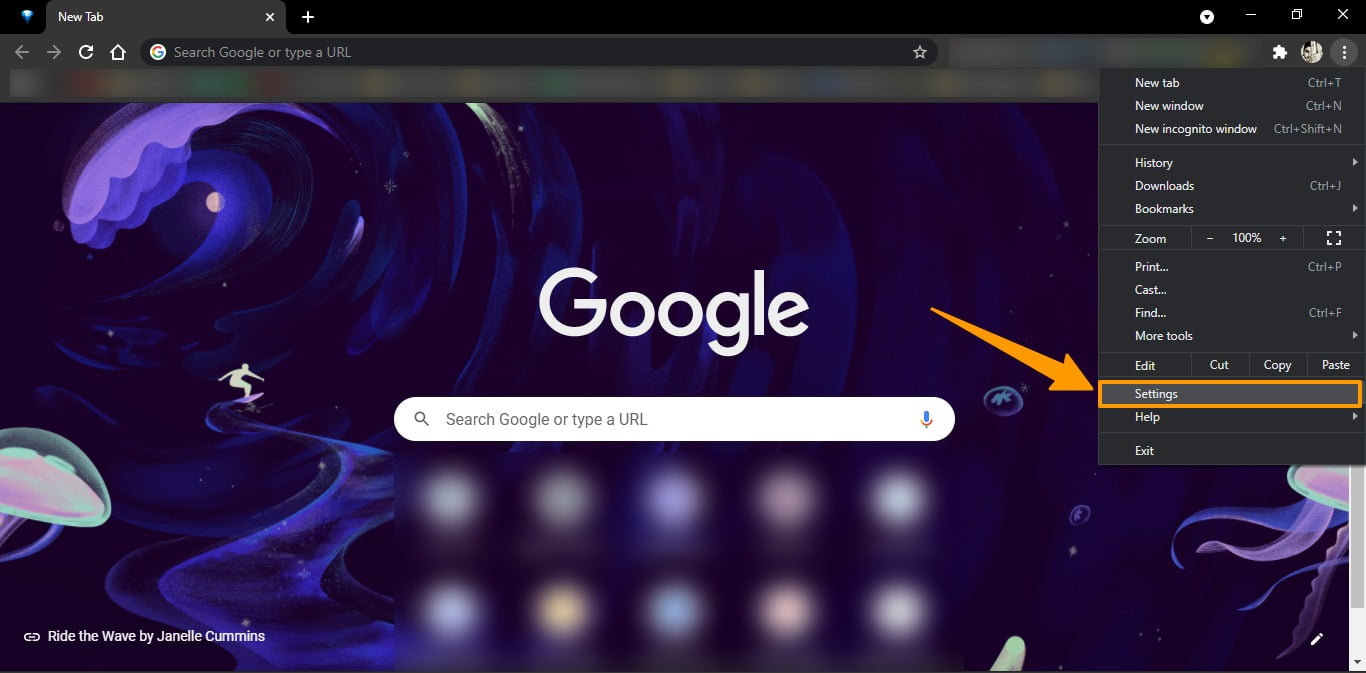
Navigate to ‘Search engine’ in settings

After clicking settings, navigate toDefault Search Engiraallee Change
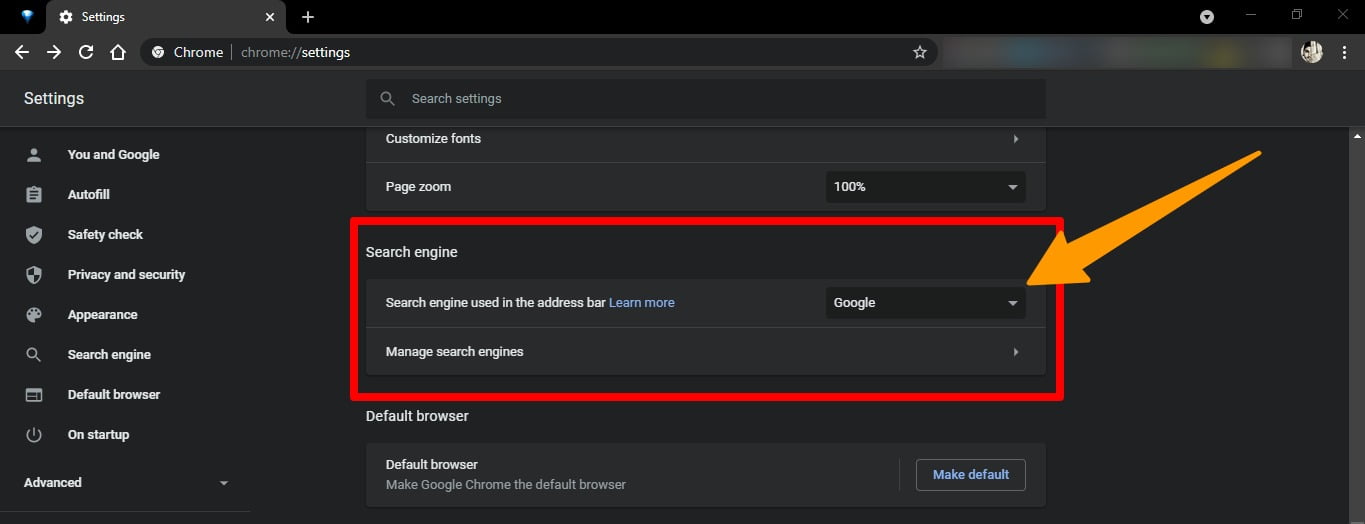
Click the drop-down

You can also add a search engine manually if you can’t see your search engine there. Just click the ‘Manage search engine’ button and proceed to the next page.Select Manage Search Engine |
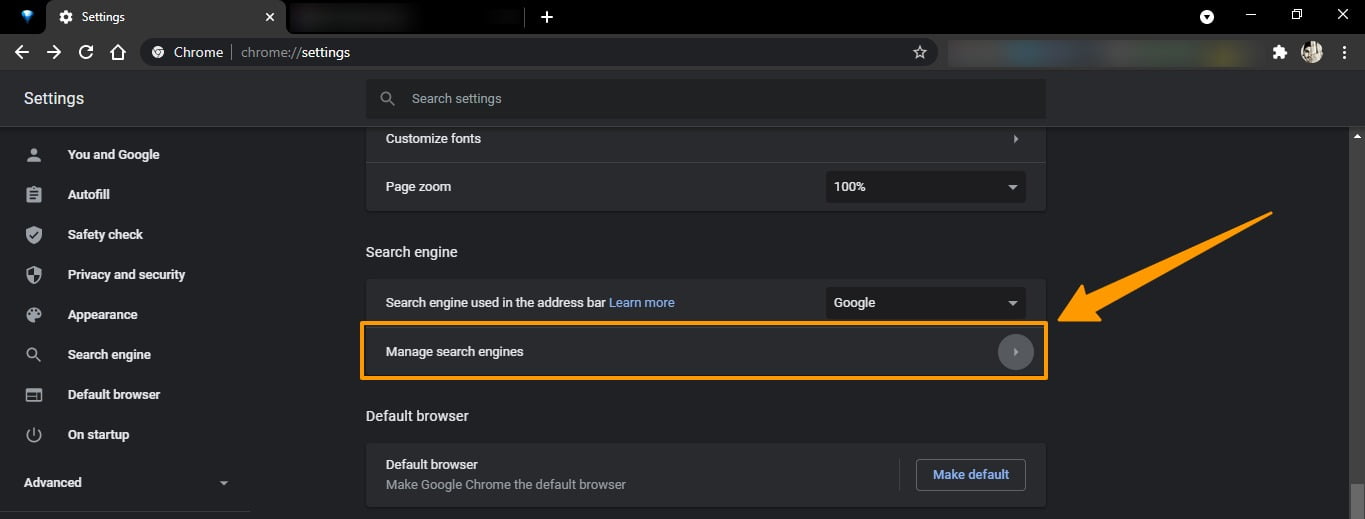
Add search engine manually

From the next screen, select a search engine that you want to add or use ‘Add’ button to manually add a search engine for default searching.Adding Search Engines Manually
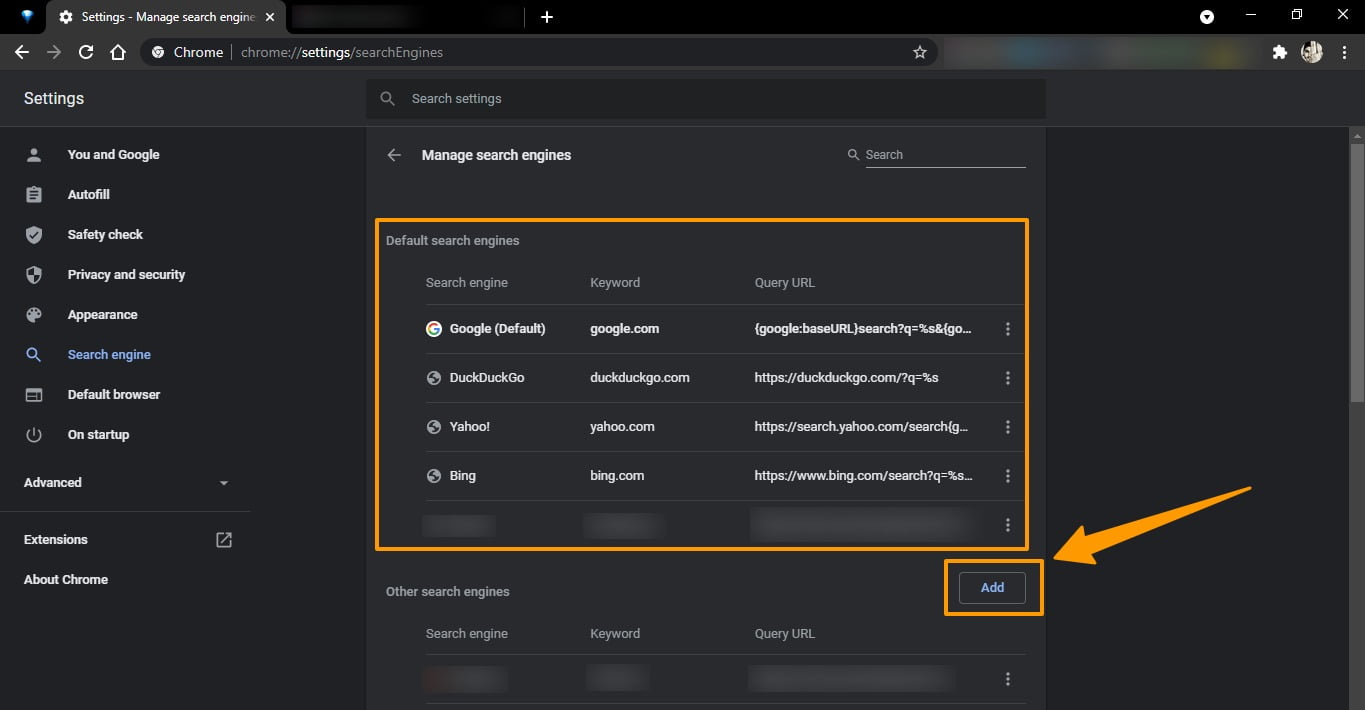
Following the aforementioned steps, you can change the default search engine in your Chromium browser (New Microsoft Edge, Vivaldi, Brave). Similar settings can be found in all Chrome alternatives, which you can search using the search bar of settings.


Related reading

  • How to clean browser history on your Mac and why should you do it
  • How to manage Accessibility features in Windows 10
  • How to Create Eye-Catching Flyer Designs
Something incorrect? Report an error in this article. Include a source if you have one; your name and email are optional.

Filed Under: Apps & Software Tagged With: How-To, Search Engine, web browser

Related Stories

  • How To Clean Browser History On Your Mac And Why Should You Do It

    How to clean browser history on your Mac and why should you do it

    Apps & SoftwareJun 2, 2020

  • Private Search Engines: 9 Alternatives To Google And Their Privacy Limits

    Private Search Engines: 9 Alternatives to Google and Their Privacy Limits

    Security & PrivacyJul 5, 2019

  • Microsoft’S Chromium Browser Is Now Available For Testing

    Microsoft’s Chromium browser is now available for testing

    Apps & SoftwareApr 9, 2019

Stay on top of technology

Get TechEngage reviews, buying guides and news in your feed.

Follow on Google News
FacebookTweetPinLinkedInPrint
Avatar for Muhammad Abdullah

Muhammad Abdullah

Senior Tech Correspondent

Muhammad Abdullah is a Senior Tech Correspondent at TechEngage. A computer scientist by training and a certified Growth Hacker, he covers mobile devices, apps, operating systems, social media, and gaming, turning complex digital trends into practical insights.

Reader Interactions

Share Your Thoughts Cancel reply

Please read our comment policy before submitting your comment. Your email address will not be used or published anywhere. You will only receive comment notifications if you opt to subscribe below.

Primary Sidebar

Google News

Get TechEngage in your feed

Reviews, news, and buying guides as they publish.

Follow on Google News

Recent Stories

  • Eu Digital Fairness Act Illustration |
    Tech News & AnalysisEU Proposes New Controls for Autoplay and SubscriptionsNov 11, 2026
  • Nordvpn Black Friday 2026 Campaign |
    DealsNordVPN Black Friday 2026 Deal Offers Up to 78% Off and 3 Extra MonthsNov 11, 2026
  • Anthropic Ipo Illustration |
    Tech News & AnalysisAnthropic Starts IPO Roadshow With a Proposed $70 to $78 Share PriceNov 10, 2026
  • Australia Ai Safety Illustration |
    Tech News & AnalysisAustralia Plans AI Safety Regulator and Fast Incident ReportingNov 10, 2026
  • Instagram Teen Accounts Illustration |
    Tech News & AnalysisInstagram Expands AI Age Checks for Teen Accounts WorldwideNov 10, 2026

More in Apps & Software

  • Russia Government Transition Open Source Linux Featured |
    Russia’s Linux Transition: Policies, Sanctions and LimitsOct 11, 2026
  • Windows Screen Recording Guide |
    How to Screen Record on Windows 11 With AudioOct 10, 2026
  • Chrome Tabs Reloading Techengage |
    How to Stop Chrome Tabs From ReloadingOct 10, 2026
  • 136181 7Effec8402C5Ea64 |
    Microsoft’s October 7 Surface Launch: Hardware and AISep 16, 2026
More Apps & Software stories →

Footer

Discover

  • About TechEngage
  • Company News & Updates
  • Our Team
  • Advertise
  • Send us a tip
  • Submit your company to TechEngage Launchpad Hot
  • TechEngage Brand Kit
  • Contact us
  • Tools & Calculators

Legal pages

  • Editorial Standards
  • Reviews Policy
  • Our Ethics
  • Corrections Policy
  • Affiliate Disclosure
  • Privacy Policy
  • Cookies Policy
  • Terms & Conditions
  • GDPR Compliance
  • Copyright & DMCA

Must reads

  • Best Mechanical Keyboards Under $100
  • Best USB-C Hubs
  • Best Portable SSDs
  • Best Gaming Graphics Cards (GPUs)
  • Best Long-Range Outdoor WiFi Extenders
  • Best Wireless CarPlay Adapters
  • Best Slack Alternatives
  • Best Long-Range Walkie-Talkies

Download our apps

TechEngage app coming soon on the App Store Available onChrome

© 2026 TechEngage®. All Rights Reserved. TechEngage® is a project of TechAbout LLC.

TechEngage® is a registered trademark in the United States under Trademark Number 6823709 and in the United Kingdom under Trademark Number UK00003417167. The publication is identified by ISSN 2690-3776 and OCLC Number 1139335774.

Contact team@techengage.com · WhatsApp +1 307 463 4505

Your analytics choice
Allow Google Analytics to help us understand readership? You can use the site without it and change this choice anytime.

Privacy details