

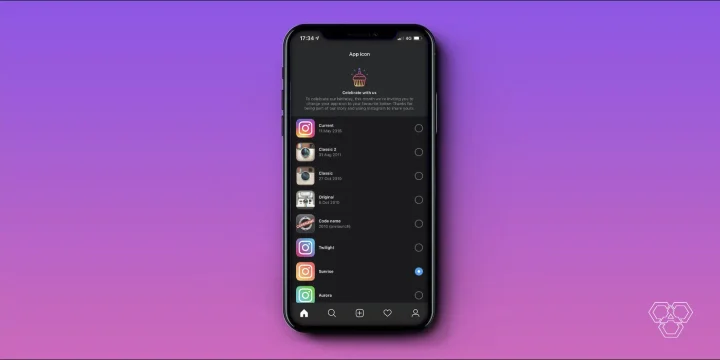
When Instagram turned ten in October 2020, it hid a small gift in the app: pull down hard on the Settings screen, wait for a party-popper emoji and a burst of confetti, and a secret menu appeared offering the retro 2010 icon, the 2011 rainbow camera, and a set of colourful alternatives. It was one of the most-shared easter eggs the app has ever shipped.
That anniversary menu was never permanent, and the built-in icon picker is no longer reliably available to everyone. Instagram now brings alternate icons back in waves — seasonal editions, special campaigns, and a set of six options rolled out to teen accounts — rather than leaving them switched on year-round. If the confetti trick does nothing on your phone, you have not broken anything; the feature simply isn’t live for your account.
The good news is that you can still put any icon you like on your home screen. Here are all four routes, from Instagram’s own picker to the methods that work regardless of what Instagram is offering this week.
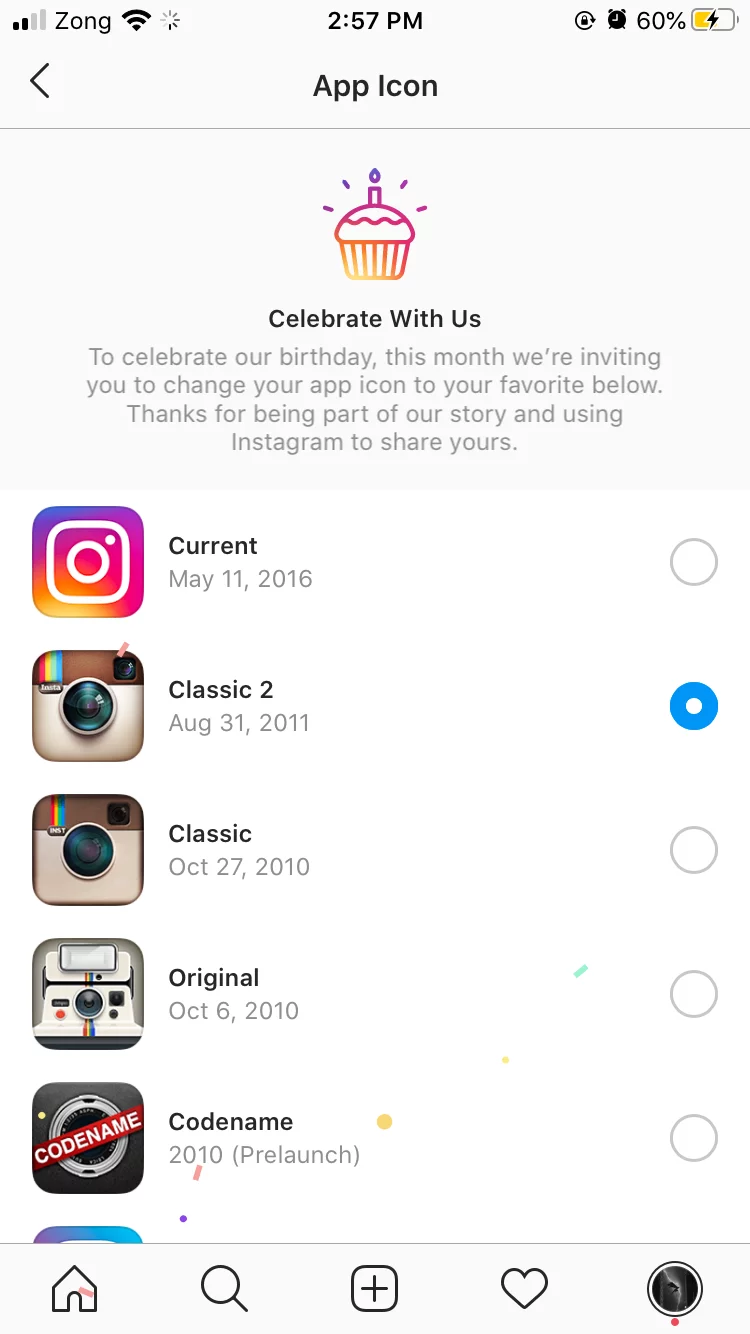
Method 1: Instagram’s own icon picker
Always try this first — it is the only method that changes the real app icon, badges and all, with no side effects.
- Update Instagram from the App Store or Play Store. The picker only appears in recent builds.
- Open the app and tap and hold the Instagram wordmark at the top of your home feed. Where the feature is live, that is the current shortcut into the icon menu.
- If nothing happens, try the classic easter-egg gesture: go to your profile, open the menu, tap Settings, then drag down from the top of the screen and keep pulling past the normal refresh point until a party-popper emoji and confetti appear.
- Pick an icon and tap Done.
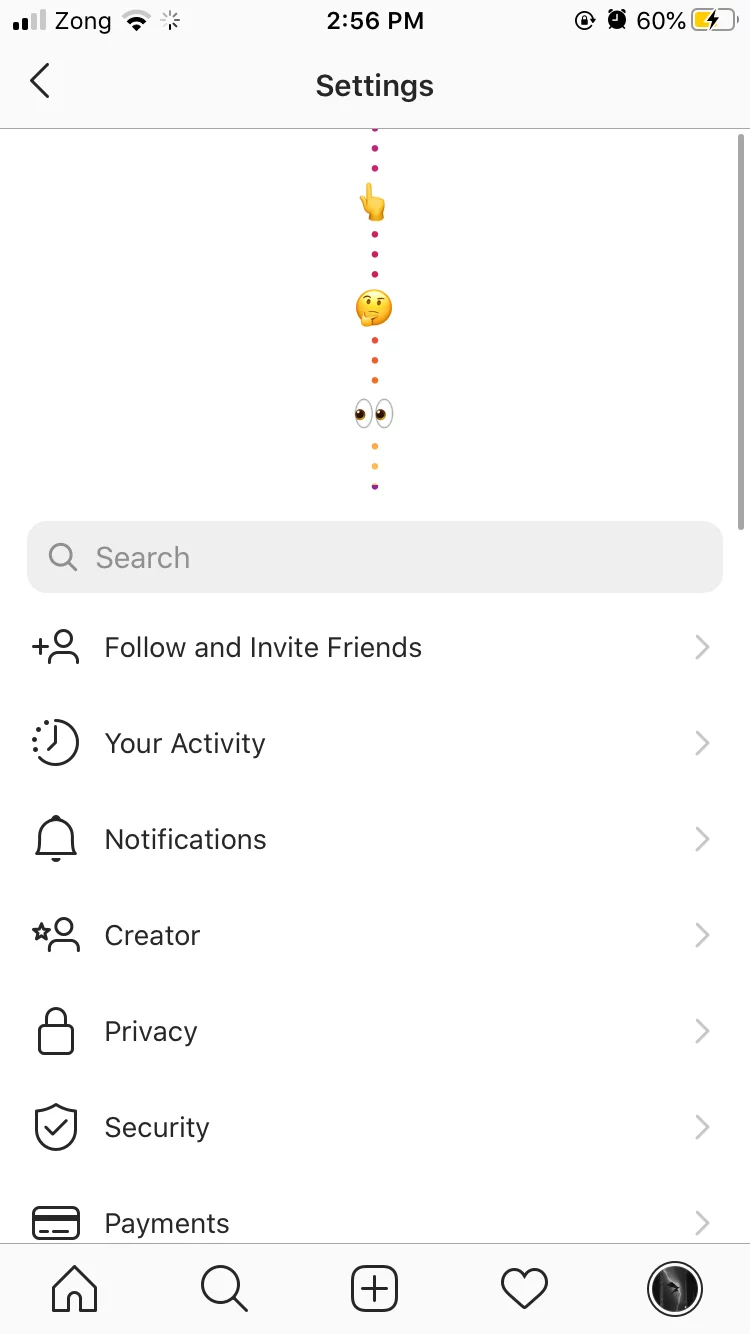
Neither gesture doing anything? Move on to the methods below. Availability depends on your app version, your account type and your region, and no amount of pulling will summon a menu that has not been enabled for you.
Method 2: change the Instagram icon on iPhone using Shortcuts
This is the dependable option on iOS. You are not really changing Instagram’s icon — you are creating a shortcut that opens Instagram, giving it any image you like, and putting that on the home screen instead.
- Save the image you want as your icon to your Photos library. Square images work best; anything else gets cropped.
- Open the built-in Shortcuts app and tap + to create a new shortcut.
- Tap Add Action, search for Open App, and select it.
- Tap App in the action and choose Instagram.
- Tap the arrow or chevron next to the shortcut’s name at the top, then choose Add to Home Screen.
- Tap the small icon thumbnail beside the name field and pick Choose Photo or Choose File, then select your image.
- Type the label you want under the icon — or leave it blank for a clean, text-free look.
- Tap Add.
The exact wording has shifted slightly across recent iOS releases, but the sequence — Open App action, then Add to Home Screen — has stayed the same.
Tidying up afterwards
You now have two Instagram icons. Long-press the original, choose Remove App, then Remove from Home Screen — this keeps the app installed and tucks it into the App Library, so only your custom icon is visible. Do not choose Delete App.
What you give up
- No notification badge. Shortcut icons cannot display the red unread counter. This is the trade-off most people find hardest to live with.
- A brief hand-off. Tapping the shortcut is momentarily slower than tapping the app itself.
- Spotlight still finds the real app. Searching “Instagram” opens the original icon, not your custom one.
- It does not survive everything. Restoring to a new phone can leave the shortcut behind; you may need to rebuild it.
Method 3: use iOS’s built-in icon appearance settings
If you mostly want Instagram’s icon to match the rest of your home screen rather than be a specific picture, iOS does this natively and keeps badges intact. Long-press an empty area of the home screen, tap Edit in the corner, then Customise.
- Dark renders supported icons, Instagram’s included, in a dark variant.
- Tinted pushes every icon into a single colour of your choosing. Recent releases also let you match the tint to your iPhone’s colour or its case colour.
- Clear gives icons a translucent, glassy treatment in the newest design language.
- Large removes the text labels and scales icons up.
The limitation is that these apply system-wide. You cannot tint Instagram purple and leave everything else alone — for per-app control you are back to the Shortcuts method.
Method 4: change the Instagram icon on Android
Android is more flexible here, because third-party launchers can genuinely reskin icons — badges and all — without any shortcut trickery.
With a custom launcher
- Install a launcher that supports icon editing — Nova Launcher, Niagara Launcher and Lawnchair are the popular choices — and set it as your default home app.
- Long-press the Instagram icon on the home screen and choose Edit.
- Tap the icon image in the dialog that appears.
- Pick an icon from an installed icon pack, or choose Gallery / Photos to use your own image.
- Save. The change applies instantly, and unread badges keep working.
Without installing anything
Stock Android on Pixel devices and Samsung’s One UI both support themed icons, which recolour supported app icons to match your wallpaper. Look for Themed icons in the Pixel wallpaper and style settings, or Samsung’s theme picker. Coverage depends on whether an app ships a monochrome icon, so results vary app to app.
Where to get icons worth using
- Make your own. A 1024×1024 square in Canva, Figma or any drawing app is plenty. Keep the design simple — it will be displayed at roughly the size of a fingernail.
- Free icon packs. Android’s Play Store has hundreds; on iOS, aesthetic icon sets are widely shared as image bundles you save to Photos.
- Keep it recognisable. A custom icon you can’t identify at a glance is a fun idea for about two days.
- Personal use only. Instagram’s logo is a trademark. Reskinning your own home screen is fine; redistributing modified brand marks is not.
FAQs
Why can’t I find the secret Instagram icon menu any more?
Because it is not always switched on. The 10th-anniversary menu was a limited-run easter egg, and Instagram has since brought alternate icons back only periodically and to selected groups of users. If yours is not showing it, use the Shortcuts or launcher method instead.
Does changing the icon affect my account or posts?
Not at all. Every method here is purely cosmetic and local to your device. Nobody following you sees any difference.
Will I still get notifications?
Yes — banners, sounds and lock-screen notifications all continue as normal. The only casualty is the little red badge number on the icon, and only when you use the iOS Shortcuts method.
Can I get the original 2010 retro icon back?
Only if Instagram is currently offering it in the in-app picker. Otherwise, save an image of the old icon and apply it through Shortcuts on iPhone or a launcher on Android — the visual result is identical.
How do I revert to the standard icon?
On iOS, delete the shortcut from your home screen and drag Instagram back out of the App Library. On Android, long-press the icon, choose Edit, and reset it to the default. In Instagram’s own picker, simply select the default icon again.
The bottom line
Check Instagram’s in-app picker first — it is the cleanest result when it is available. When it isn’t, iPhone users get complete freedom through the Shortcuts app at the cost of the notification badge, and Android users get the best of both worlds with a custom launcher. Either way, the confetti menu from 2020 is no longer the only way in.



Share Your Thoughts