

Disclosure: TechEngage is a participant in the Amazon Services LLC Associates Program, an affiliate advertising program designed to provide a means for sites to earn fees by linking to Amazon.com and affiliated sites. We may earn a commission when you buy through links on this page, at no extra cost to you. Our editorial picks are made independently of these partnerships.
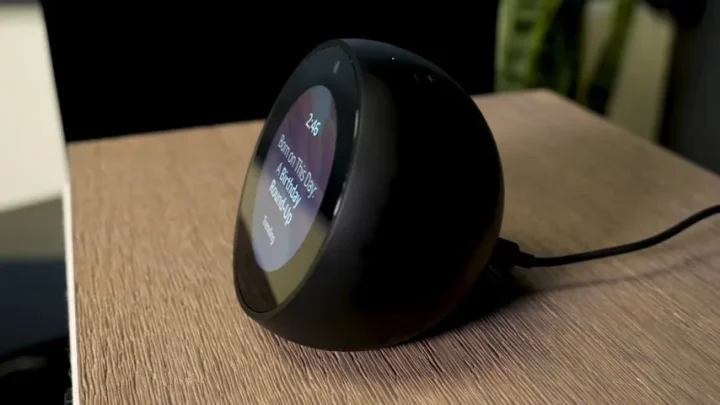
An Echo Show that still shows the factory clock and rotating ads feels like a borrowed device. A few minutes in Settings turns it into a kitchen dashboard, a photo frame, or a calm clock that only speaks when spoken to.
Menus move as Alexa software updates, especially on newer Show models, so treat labels as close cousins if Amazon renames a toggle. The ideas below still map to Clock, Home Content, Background, and Display options on current Echo Show and Echo Spot units.
You can do most of this from the device display. Use the Alexa phone app when you want to manage photo albums or home content for several Shows at once.
Customize Echo Show and Spot
Start in the right place
Change many options on the device itself: swipe down from the top (or use the Quick Settings gear), then open Settings. Deeper home-content controls often live in the Alexa app on your phone under Devices, then Echo and Alexa, then your Show.
Amazon keeps device help for Echo Show display and home content on Amazon Customer Service (search Echo Show home content). Prefer official help over random Alexa hack blogs.
Clock faces and night mode
- Open Settings then Clock (sometimes under Home or Display).
- Pick a clock face that matches the room: big digits for across-the-kitchen, minimal for a bedroom.
- Set Display then Adaptive brightness or a night mode / clock-only schedule so the panel dims after lights out.
- On Spot-class devices, clock face choice is most of the personality; keep animations subtle if the unit sits by a bed.
If the screen stays too bright, lower max brightness and shorten the timeout. A Show that never sleeps becomes a night light you did not ask for. For shared bedrooms, prefer a red-tinted or dim clock face if your software offers one.
Backgrounds, photos, and slideshows
Swap the stock art for something calmer:
- On the Show: Settings then Home or Background (wording varies), then choose a built-in background or your photos.
- In the Alexa app: select the device, then Home Content or Background, then add photos from your phone or an Amazon Photos album.
- Limit slideshows to a curated album so random camera-roll shots do not rotate past guests.
Photo frames look best with landscape shots and faces centered. Very dark wallpapers make some clock faces hard to read from across the room. If relatives gift you photo spam, create a separate shared album just for the Show.
Home content cards and widgets
Home content controls which cards rotate: weather, calendar, traffic, recipes, skills, and promotional tiles. Turn off what you never tap.
- Keep Calendar and Weather if the Show is a family command center.
- Disable shopping suggestions and skill ads if you want a quieter face.
- Add a specific skill card only when you truly use it daily (timers, lists, briefings).
On some models you can rearrange or pin favorites from Settings then Home Content. If a card keeps returning after you dismiss it, check both the device menu and the Alexa app toggles. Reboot the Show after big changes if cards look stuck.
Privacy and shared-home tips
- Use Brief mode or shorter responses if constant chatter annoys the room.
- Review camera settings: shutter closed when you want a hard privacy stop on models with a physical cover.
- Create Household profiles so calendars and lists do not spill across roommates incorrectly.
- Keep microphone mute handy for private calls in the same room.
Customization is not just wallpaper. It is deciding what the device is allowed to surface when anyone in the house glances at it. A calm Show is usually a Show with fewer rotating cards and a readable clock.
FAQs
Can I use my own photos as the Echo Show background?
Yes on most Show models through the device settings or the Alexa app with Amazon Photos. Keep albums curated so sensitive shots do not rotate.
Why did my home cards change after an update?
Amazon periodically refreshes Home Content defaults. Re-open Home Content and turn off anything new you do not want.
Does Echo Spot support the same widgets as Echo Show?
Spot focuses on clock and compact glances. You get fewer full cards than a large Show, but clock and basic home options still matter.
How do I stop rotating ads or suggestions?
Disable promotional home content tiles in Home Content settings and avoid enabling shopping-related cards you never use.
Will customizing break Alexa routines?
No. Routines keep running. You are only changing what the idle screen shows and how the clock looks.




NOT BEING ABLE TO KEEP CALENDAR AND ROTATE THAT WITH PICTURES ONLY….. IS A REAL DISAPPOINTMENT…. THEY ARE THE SINGLE REASON I PURCHASED THE LARGER SCREEN AND THE ECHO SHOW….. EVEN JUST THE CALENDAR WOULD HAVE BEEN ENOUGH BUT NO I CANT GET WHAT SEEMED AN OBVIOUS ABILITY. Color me very disappointed and regret purchase.
Secondly and most annoying
THE WIDGET FOR YOU WIDGET CANT BE REMOVED….. WHY KEEP A WIDGET I DONT WANT NOR REQUESTED ON MY SCREEN. It takes up precious realestate. It annoys me and when someone suggests getting the 21inch screen I say why bother…. Amazon has a prime realestate being used without my consent and quite annoying.
Thanks for sharing this, Paul — that frustration makes sense. Echo Show home screens still force more Amazon widgets than most people want, and a clean calendar-plus-photos rotation is a common request we hear too. I will note your For You widget and calendar points in our Echo coverage so we keep pushing clearer customization steps and workarounds as Amazon changes the UI. Sorry the larger Show did not deliver what you bought it for.