• Skip to primary navigation
  • Skip to main content
  • Skip to primary sidebar
  • Skip to footer
TechEngage

TechEngage®

Technology Reviews, Guides & Analysis

  • News
  • AI
  • Mobile
  • Apps
  • Security
  • Reviews
  • More
    • Internet & Social
    • Computing
    • Gadgets
    • Gaming
    • Car Tech
    • Business
    • Science & Health
TechEngage » Reviews & Buying Guides

How To Customize the Home Screen on Your Echo Show and Echo Spot

Avatar for Nur Nur Updated: July 28, 2026

How To Customize the Home Screen on Your Echo Show and Echo Spot
Shares5FacebookTweetPinLinkedInPrint

Out of the box, every Echo device with a screen shows you roughly the same thing: a clock, a weather tile, and an endlessly rotating carousel of recipe ideas, trending topics, and Amazon suggestions you never asked for. The good news is that almost none of that is fixed. The home screen on an Echo Show or Echo Spot is one of the most configurable surfaces Amazon ships — you can change the clock face, replace the background with your own photos, decide exactly which content cards appear, add widgets, and dim the whole thing down at night.

This guide walks through every customization option available in 2026, including the menu changes that came with Alexa+, Amazon’s AI-powered assistant that now runs on newer Echo hardware.

Customize The Home Screen On Your Echo Show
Every Echo device with a display lets you change what appears on the home screen.

Which Echo devices this applies to

Anything with a display counts. The exact options you see depend on screen size and how old the device is:

  • Echo Show 8 and Echo Show 11 (2025 models) — Amazon’s redesigned displays, launched in November 2025 at $179.99 and $219.99 and built around the AZ3 Pro chip specifically for Alexa+. These get the newest home screen layout and the widest widget selection.
  • Echo Show 5, Echo Show 10, Echo Show 15 and Echo Show 21 — the smaller nightstand model, the swivelling one, and the two wall-mountable panels. The 15 and 21 lean heavily on widgets because there is so much screen to fill.
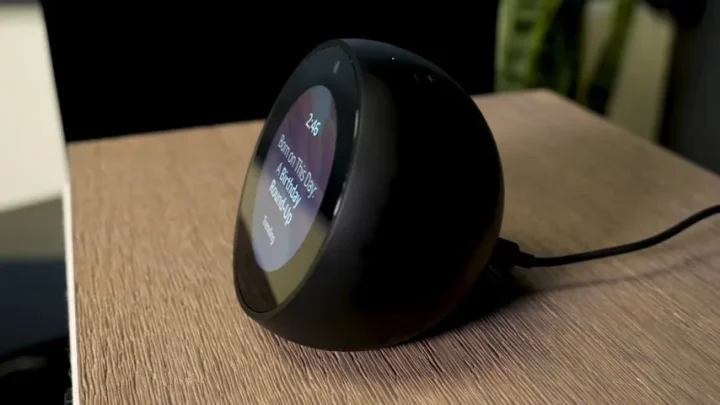
  • Echo Spot (2024) — the revived half-circle alarm clock, $79.99, built for a nightstand. It has a deliberately simpler display with its own set of custom clock faces and six accent colours (orange, violet, magenta, lime, teal and blue).
  • Original Echo Show and Echo Spot (2017–2018) — still perfectly usable, but running much older software. The menus are named differently; there’s a dedicated section for those further down.

First: check whether you’re on Alexa+ or classic Alexa

This matters, because it changes how you open Settings — and it is the single most common reason people can’t find the menus described in older tutorials.

  • Classic Alexa: swipe down from the top edge of the screen, then tap Settings.
  • Alexa+: tap the Menu icon on screen, then select Settings.

Alexa+ costs $19.99 a month standalone and is included at no extra cost with a Prime membership in the US. If you’re not sure which one you have, the giveaway is the interface: Alexa+ replaces the old swipe-down shade with a persistent menu button and a more conversational card layout. Everything below works on both — only the first tap differs.

Change the clock face and background

This is the change most people are after, and it takes about fifteen seconds.

  1. Open Settings using the method for your Alexa version above.
  2. Select Clock & Photo Display.
  3. Pick one of the preloaded backgrounds, or tap Amazon Photos to pull an image from your own gallery.

The preloaded sets are grouped by style — minimal digital clocks, illustrated and playful faces, photographic scenes, and traditional analogue dials. Each style usually has several variations underneath it, so it’s worth tapping into a category rather than judging it by the thumbnail.

Use your own photos as the background

The photo option pulls from Amazon Photos, which every Amazon account already has. Upload the images you want from the Amazon Photos app or website first, then select them on the device under Clock & Photo Display. A few things worth knowing:

  • Landscape shots work far better than portrait ones — the Show crops aggressively to fill a wide display.
  • You can point it at a specific album rather than your whole library, which is the difference between a curated slideshow and a random dump of screenshots.
  • Prime members get unlimited full-resolution photo storage in Amazon Photos, so there’s no reason to upload compressed copies.

Choose what actually appears on the home screen

If the thing that irritates you is the rotating stream of suggestions, recipes and trending topics, this is the setting you want. Amazon calls these home content categories — the old Echo Show software called them “home cards.”

  1. Open Settings.
  2. Select Display & Appearance, then Home Content Categories. On older software, this is simply Home Content.
  3. Toggle each category on or off individually.

The categories vary by device and region, but typically include things like active smart home devices, Drop In, news headlines, sports scores, weather, reminders and upcoming calendar events, shopping and deals, recipe suggestions, and general Amazon content and tips.

Turn everything off and the display falls back to a clean clock-and-background screen. That is the closest thing to a “just be a clock” mode Amazon offers, and on a bedside Echo Show 5 or Echo Spot it’s usually the right answer. On a kitchen-mounted Echo Show 15, the opposite approach makes more sense: leave calendar, reminders and smart home tiles on, and switch off the promotional and trending categories.

Add and rearrange widgets

Widgets are the bigger-screen equivalent of home cards — persistent tiles that stay put instead of rotating through. They’re most useful on the Echo Show 15 and Echo Show 21, where the display is essentially a wall panel.

  1. Swipe down from the top of the screen and select Widget Gallery.
  2. Browse the available widgets and tap Add Widget on the ones you want.
  3. To move things around, long-press anywhere on the home screen to bring up the options menu, then choose Rearrange Widgets.

Sticky notes, shopping lists, calendars, smart home controls and music widgets are the ones people keep. Third-party smart home platforms increasingly publish their own — Aqara users, for example, have built out full camera-and-sensor dashboards on the Echo Show 15 this way.

Night mode, brightness and Do Not Disturb

A bright display on a nightstand is a genuine problem, and Amazon has three separate controls for it that people often confuse:

  • Night mode / night-time clock — found by scrolling down inside Clock & Photo Display. It switches the screen to a dim, high-contrast clock during the hours you set.
  • Adaptive brightness — under display settings; the device uses its ambient light sensor to dim itself as the room darkens. Leave this on unless you specifically want a fixed brightness.
  • Do Not Disturb — suppresses calls, Drop Ins and notifications on a schedule. This one controls interruptions, not the screen, so you generally want both it and night mode enabled overnight.

You can also just say “Alexa, turn on Do Not Disturb” or “Alexa, dim the screen” rather than digging through menus.

Customizing the Echo Spot (2024)

The current Echo Spot is a deliberately narrower product than the Echo Show — it’s an alarm clock first. Its display shows the time, weather, and what’s currently playing, and its customization revolves around clock faces rather than content cards. Amazon ships a set of custom-designed faces and six colourways, so you can match it to a bedroom rather than accepting a default blue-on-black digital readout.

Set it up the same way: Settings → Clock & Photo Display, choose a face, then pick your accent colour. Because the Spot’s screen is a partial circle rather than a full rectangle, photo backgrounds are not the point here — the clock face design is.

If you own an original Echo Show or Echo Spot

The 2017–2018 generation runs much older firmware, and the menu tree is different. On those devices, the path is swipe down → Settings → Home & Clock, and from there:

  • Clock opens the face picker, grouped into Recent Clocks, Modern, Playful, Photography, Classic and Personal Photos. Each has several variants underneath — Zen, School House, Kaleidoscope, Texture and Stellar among them.
  • Orbit remains the most fun of them: a 12-hour dial with three planets circling the face, the smallest as the second hand, the middle one as minutes, and the largest marking the hour.
  • Home Cards is where you toggle Messaging, Weather, Notifications, Upcoming Events, Reminders, Drop In and Trending Topics.
  • The night-time clock toggle lives in the same Home & Clock menu.

These devices no longer receive new features, but the customization they shipped with still works. If you’re comparing what you have against the newer hardware, our Amazon Echo review and the wider roundup of Alexa-powered devices are useful reference points.

When the settings don’t stick

Three problems account for most complaints:

  • A menu described in a guide doesn’t exist on your device. Almost always an Alexa+ versus classic Alexa mismatch, or a smaller screen that simply doesn’t offer widgets. Check which interface you’re running first.
  • Photos won’t appear. The device pulls from the Amazon Photos library tied to the account the Echo is registered to. If you uploaded to a different account — a household member’s, typically — nothing will show up.
  • Content categories switch themselves back on. A firmware update can reintroduce a newly added category with its default on. It’s worth re-checking that menu after a major update.

If none of that helps, a restart from Settings → Device Options clears most display glitches without touching your configuration.


Frequently asked questions

Can I stop the Echo Show from showing ads and suggestions?

Largely, yes. Turning off the promotional, deals, trending and recipe categories under Display & Appearance → Home Content Categories removes the bulk of it. Amazon still surfaces occasional device tips and first-party prompts, and there is no single master switch that eliminates every one of them.

Can I use a custom image instead of Amazon’s backgrounds?

Yes — but it has to go through Amazon Photos. Upload the image to the same Amazon account your Echo is registered to, then select it under Clock & Photo Display. There’s no way to sideload an image directly onto the device.

Do I need Alexa+ to customize the home screen?

No. Every customization here — clock faces, backgrounds, home content, night mode — works on classic Alexa too. Alexa+ changes where the Settings menu lives and adds a more conversational layout, not the underlying options.

Why can’t I find the Widget Gallery?

Widgets are a large-screen feature. The Echo Show 15 and 21 support them fully, the Echo Show 8 and 11 support a subset, and the Echo Show 5 and Echo Spot largely don’t — there isn’t enough screen for them to be useful.

Can each person in the household have their own home screen?

Not as separate profiles. The home screen configuration is per device, not per person. What is personalized is the content itself — with voice profiles set up, Alexa will surface the right calendar, reminders and music for whoever is speaking, even though the layout stays the same for everyone.

Can I change the home screen from the Alexa app instead of the device?

Some options — Do Not Disturb schedules, device settings, Amazon Photos album selection — are available in the app under that device’s settings. The clock face and background pickers are best handled on the device itself, where you can see the result as you tap.

The short version

Two menus do almost all the work. Clock & Photo Display controls how the screen looks — the clock face, the background, your own photos, and night mode. Display & Appearance → Home Content Categories controls what the screen says, and it’s where you go to silence the rotating suggestions. Add widgets on the larger models, set a night schedule, and an Echo Show stops feeling like a storefront and starts feeling like a device you configured deliberately.


Related reading

  • Amazon Alexa-powered devices: the full lineup
  • Amazon Echo review
  • Best Mobile WiFi Hotspots: 10 Devices for Every Budget and Use Case

Filed Under: Reviews & Buying Guides Tagged With: Alexa, Amazon, How-To

Related Stories

  • Exploring The Science Behind How A Washing Machine Cleans Your Clothes

    Exploring the Science Behind How a Washing Machine Cleans Your Clothes

  • Sony Xperia Xz Hands On Review

    Sony Xperia XZ Hands On Review

  • Most Popular Tvs On Amazon In 2026: 5 Top Picks

    Most Popular TVs on Amazon in 2026: 5 Top Picks

Shares5FacebookTweetPinLinkedInPrint
Avatar for Nur

Nur

Smart Devices Reviewer

Nur ul ain Chaudhry is a Smart Devices Reviewer at TechEngage, covering smartphones, smart home gadgets, and wearables across more than 45 articles. A graduate of LUMS with a degree in Economics and Politics, Nur has a knack for interbrand comparisons and startup stories, evaluating products through both a technical and economic lens.

Joined May 2018

Reader Interactions

Share Your Thoughts Cancel reply

Please read our comment policy before submitting your comment. Your email address will not be used or published anywhere. You will only receive comment notifications if you opt to subscribe below.

Primary Sidebar

Follow us on Google News

Recent Stories

  • Letter Boxed Hints Today: Clues and Answer for August 15, 2026
  • Spelling Bee Hints Today: Clues and Answer for August 15, 2026
  • Octordle Hints Today: Clues and Answer for August 15, 2026
  • Contexto Hints Today: Clues and Answer for August 15, 2026
  • Waffle Hints Today: Clues and Answer for August 15, 2026

Footer

Discover

  • About TechEngage
  • Newsroom
  • Our Team
  • Advertise
  • Send us a tip
  • Startup Submission Questionnaire
  • Brand Kit
  • Contact us

Legal pages

  • Reviews Guarantee & Methodology
  • Community Guidelines
  • Corrections Policy and Practice
  • Cookies Policy
  • Our Ethics
  • Disclaimer
  • GDPR Compliance
  • Privacy Policy
  • Terms and Conditions

Must reads

  • Best AirPods alternatives on Amazon
  • Best PC monitors for gaming on Amazon
  • Best family board games
  • Best video doorbells without subscription
  • Best handheld video game consoles
  • Best all-season tires for snow
  • Best mobile Wi-Fi hotspots
  • Best treadmills on Amazon

Download our apps

TechEngage app coming soon on App Store

© 2026 TechEngage®. All Rights Reserved. TechEngage® is a project of TechAbout LLC.

TechEngage® is a registered trademark in the United States under Trademark Number 6823709 and in the United Kingdom under Trademark Number UK00003417167. It is also ISSN protected under ISSN 2690-3776 and has OCLC Number 1139335774.