

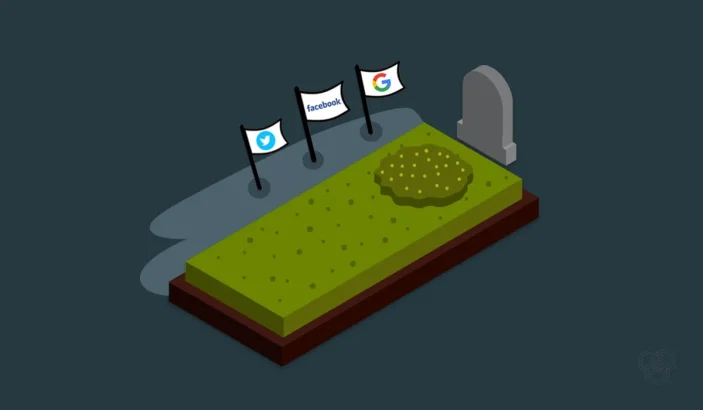
Most of us now live a large part of our lives online — photos in the cloud, years of email, social profiles, a password manager, maybe a bit of crypto or a monetised YouTube channel. Yet almost nobody makes a plan for what happens to all of it when they die. The result is painfully common: grieving families locked out of a parent’s photo library, memorial accounts nobody can manage, subscriptions that keep billing a closed estate, and old profiles left exposed to hackers who target the deceased precisely because no one is watching.
The reassuring news is that the biggest platforms — Apple, Google, and Meta — now offer free, built-in tools to hand your digital life to someone you trust. They only work if you set them up while you are alive. This guide walks through each one, then shows how to tie them together into a simple digital estate plan.
What counts as a “digital asset”?
A digital asset is anything you own or control online. It helps to split them into two groups, because they need different handling:
- Sentimental and personal: photos and videos, email, messages, cloud documents, and social media profiles.
- Financial and valuable: online banking, PayPal, cryptocurrency wallets, domain names, loyalty points, and any account that earns money — a monetised channel, an online shop, or ad revenue.
Financial assets are usually governed by the account provider’s terms and your will. The sentimental accounts are where the platform legacy tools below do the heavy lifting.
Google: set up Inactive Account Manager
Google’s tool is called Inactive Account Manager, and it covers everything tied to your Google account — Gmail, Google Photos, Drive, and YouTube. You decide how long the account must be inactive before Google acts, then choose what happens next.
- Go to your Google Account settings and search for Inactive Account Manager.
- Set the waiting period — how long Google should wait after your last sign-in before treating the account as inactive (options range from 3 months up to 18 months).
- Add up to 10 trusted people to be notified, and choose exactly which data each can download (Photos, Drive, Gmail, and so on).
- Optionally, tell Google to delete the account automatically once the waiting period passes.
Google warns your contacts before the period expires and only shares the data you specifically approved. It is the single most useful setting to configure, because a Google account is often the key that unlocks everything else.
Apple: add a Legacy Contact
Apple introduced Legacy Contact with iOS 15, and it is now standard across iPhone, iPad, and Mac. It lets you name people who can access the data in your Apple Account — iCloud photos, messages, notes, and device backups — after you die. This matters because, without it, Apple will not grant access to your iCloud data even to immediate family.
- On your iPhone or iPad, open Settings and tap your name at the top.
- Tap Sign-In & Security, then Legacy Contact.
- Add up to five people. Each receives a unique access key — share it now, or let Apple store it in the contact’s own Apple account.
When the time comes, your Legacy Contact uses their access key plus a copy of the death certificate to request the data. Save the access key somewhere your family can find it — a printed copy with your will works well, since a key locked inside the phone nobody can open is no help.
Facebook: choose a Legacy Contact or auto-delete
Facebook gives you two choices, set in advance under Settings & privacy → Settings → Memorialization settings.
- Legacy Contact: a person who can manage your memorialised profile. They can pin a tribute post, update your profile and cover photo, and accept friend requests. They cannot read your private messages, remove friends, or log in as you.
- Permanent deletion: tell Facebook to erase the account entirely once it learns of your passing. Every post, photo, and message is removed for good.
Once a valid request is filed, a profile is memorialised — the word “Remembering” appears next to your name, and the profile is frozen so it cannot be hacked into or altered by anyone but the legacy contact. You can also grant your legacy contact permission to download a copy of what you shared, though that is optional.
Instagram and X: what your family can (and cannot) do
Instagram (also owned by Meta) will memorialise an account when someone submits proof — a link to an obituary or news article. Memorialised posts stay visible to the people who could already see them, but Instagram does not offer a legacy contact, so no one can manage or update the profile afterward. An immediate family member can instead request full removal with proof of death and proof they are next of kin.
X (formerly Twitter) has no legacy tool either. An immediate family member or authorised representative can only request that the account be deactivated, by submitting a request with the deceased’s details, the requester’s ID, and a copy of the death certificate. No one is given access to the account’s content or messages.
Because these two platforms give survivors so little control, the practical move is to leave clear instructions — and, where you are comfortable, secure login details in a password manager (see below) — so your wishes can actually be carried out.
Build a simple digital estate plan
Platform tools are only half the job. Tie them together with a short plan your family can actually follow:
- Make an inventory. List your important accounts — email, banking, cloud storage, social media, subscriptions, and any crypto or income-earning accounts. You do not need to write passwords here.
- Use a password manager. Tools like 1Password, Bitwarden, and Dashlane offer emergency-access or account-recovery features that let a trusted person unlock your vault after a waiting period. This is the safest way to pass on the credentials themselves.
- Name the legacy contacts. Turn on Google Inactive Account Manager, Apple Legacy Contact, and Facebook Legacy Contact today — they take about ten minutes combined.
- Write your wishes down. For each account, note whether you want it deleted, memorialised, or preserved for family. Store this with your will, not in an email folder that gets locked with the account.
- Mention digital assets in your will. A lawyer can add a clause naming a “digital executor,” but never put actual passwords in a will — wills can become public documents.
- Review it yearly. Accounts, laws, and platform features change. A quick annual check keeps the plan current.
FAQs
Can my family just log in with my password after I die?
Technically they might, but accessing an account with someone else’s credentials can breach the provider’s terms of service and, in some places, the law. The legacy tools above exist so your family can gain proper, authorised access instead of relying on a shared password.
What happens to my accounts if I do nothing?
They stay open and inactive, which is a security risk, and your family faces a slow, evidence-heavy process to memorialise or close each one — if they can at all. Apple, for instance, will not release iCloud data without a Legacy Contact set up in advance.
Should I write my passwords in my will?
No. A will can become a public record, and passwords change over time. Use a password manager’s emergency-access feature to share credentials securely, and keep the will focused on naming a digital executor and stating your wishes.
What about cryptocurrency and other financial accounts?
Crypto is especially risky: if the private keys or seed phrase are lost, the funds are gone forever. Store recovery phrases securely — a password manager or a sealed document with your estate paperwork — and make sure your executor knows they exist and how to use them.
The bottom line
Planning for your digital assets is not morbid — it is a kindness that spares your family a frustrating, painful search at the worst possible time. Spend twenty minutes today: switch on Google’s Inactive Account Manager, add an Apple Legacy Contact, choose a Facebook Legacy Contact, and jot down your wishes beside your will. Your photos, memories, and accounts will end up in the right hands, exactly as you intended.




Share Your Thoughts