

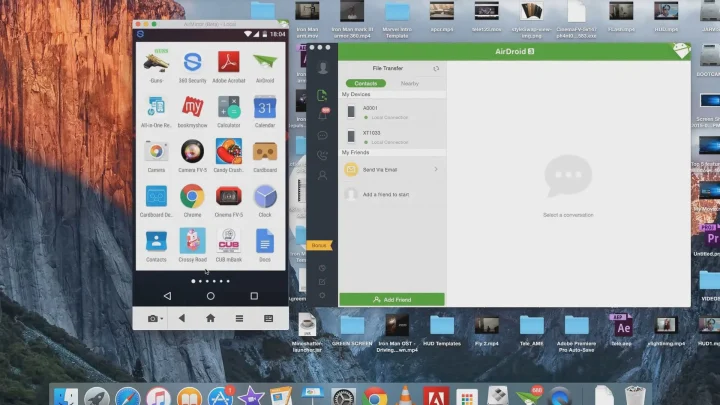
For free keyboard-and-mouse control of an Android phone beside your computer, start with scrcpy over USB. If you use Windows and have a supported handset, Phone Link offers a simpler integrated route. For access over the internet, use a deliberately configured remote-access service such as AirDroid Personal.
Screen mirroring, phone notifications and remote control are different features. Seeing a phone’s display does not necessarily let you click it, and being able to read messages in Phone Link does not prove that your handset supports its Phone screen feature. This guide separates those cases before the setup steps.
Documentation checked September 27, 2026: scrcpy 4.1 project documentation, Google’s Android Debug Bridge guidance, Microsoft Phone Link support and AirDroid’s control instructions. The procedures below are documentation-verified; we did not perform a new physical-device test of these steps. Menu names vary by phone manufacturer.
In this guide
Choose the right method first
| Method | Computer | Connection | Requirements | Choose it when |
|---|---|---|---|---|
| scrcpy | Windows, macOS or Linux | USB; local Wi-Fi optional | Android 5+ for screen/control; authorized debugging | You want free local control without a service account |
| Phone Link | Windows; this guide uses Windows 11 | Same Wi-Fi for Phone screen | Android 10+ and a specifically supported handset | You want Windows integration without configuring ADB |
| AirDroid Personal | Desktop client or supported browser | Local or internet connection | Account, device setup, control permissions; plan limits may apply | You need access when the phone is elsewhere |
Root access is not required for the normal routes described here. You do need access to the phone during setup to unlock it and approve permissions. None of these methods is a way to bypass a screen lock or silently take control of somebody else’s device.
Method 1: Control Android from a PC with scrcpy over USB
scrcpy mirrors the phone and sends mouse and keyboard input through Android Debug Bridge (ADB). It runs locally, is free and open source, and does not require an account. Use a USB connection first: it removes network discovery and Wi-Fi isolation from the initial troubleshooting.
Step 1: Install scrcpy from the official project
On Windows, follow the official Windows instructions. With WinGet available, open Terminal and run:
winget install --exact Genymobile.scrcpyThe documented WinGet installation includes ADB dependencies. Alternatively, download the Windows ZIP from the project’s GitHub release page, extract it, and use its open_a_terminal_here.bat file. Avoid similarly named download sites. Reopen Terminal after installation if the command is not found.
On a Mac, use the official macOS installation options; Linux users should follow the Linux instructions for their distribution. The connection steps below are the same once scrcpy and adb are available in the terminal.
Step 2: Enable debugging and authorize your computer
- Unlock the phone. Find Build number under About phone or its software-information submenu; tap it repeatedly until Developer options is enabled and confirm your device PIN if requested.
- Open Developer options and enable USB debugging. See Google’s device setup guidance if your manufacturer places the option elsewhere.
- Connect the phone using a data-capable USB cable. A charging-only cable can power the phone without making it visible to the computer.
- On the phone, approve the USB-debugging prompt for your own trusted computer. Do not authorize a shared or unknown machine.
Step 3: Confirm the connection, then launch the screen
adb devices
scrcpy
Run those commands in order. The first should list the phone with the state device. If it says unauthorized, return to the phone and approve the prompt. If the list is empty, fix the cable, USB port, debugging setting or Windows device driver before expecting scrcpy to connect.
The second command opens the phone’s screen. Click to tap and type with the computer keyboard. The phone still runs its Android apps; this is not an Android emulator running those apps on Windows. Close the scrcpy window to end the viewing session.
If several devices or emulators are connected, select the phone explicitly using its identifier from adb devices:
scrcpy --serial=YOUR_DEVICE_SERIALOptional: Use local Wi-Fi after USB works
For Android 11 or later, Google’s wireless-debugging instructions support pairing without an initial USB cable. Put the phone and computer on the same trusted network, enable Wireless debugging in Developer options, and choose Pair device with pairing code.
Use the pairing address and port shown in that dialog. These are placeholders; replace them with the values on your phone:
adb pair PHONE_IP:PAIRING_PORTEnter the pairing code when prompted. If the phone does not then appear in adb devices, use the connection address and port on the main Wireless debugging screen. The connection port can differ from the pairing port:
adb connect PHONE_IP:CONNECTION_PORT
adb devices
scrcpy --serial=PHONE_IP:CONNECTION_PORT
As an alternative after authorizing a USB connection, scrcpy’s connection documentation describes scrcpy --tcpip for switching to a local network connection. Do not forward an ADB port through your router or treat local wireless debugging as an internet remote-access service.
When finished with wireless debugging, close scrcpy, run adb disconnect, and turn Wireless debugging off on the phone. If you enabled legacy ADB TCP/IP mode through the USB-assisted route, reconnect by USB and run adb usb to return ADB to USB mode. Remove remembered debugging authorizations when you no longer trust or use that computer.
Method 2: Use Phone Link on a supported Windows/Android pair
Phone Link is convenient if your handset supports the particular feature you need. Microsoft’s supported-device list separates Phone screen from Apps and other experiences. Android 10 or later by itself is not enough to guarantee full phone control.
- On Windows 11, open Phone Link and select Android. Keep the PC and phone on the same Wi-Fi network.
- Open or install Link to Windows on the phone, then follow the account and QR-code pairing prompts shown by Phone Link.
- Review the permissions on the phone. Enable only the features you intend to use.
- If your device supports it, open Phone screen in Phone Link and complete its additional permission prompt. Test a simple app before assuming a game or gesture-heavy app will accept mouse input.
See Microsoft’s pairing requirements and Phone screen setup. If Phone screen is absent, check compatibility first. Reinstalling the mobile app does not add a feature that your model or market does not support. Try the USB scrcpy method instead.
Method 3: Use AirDroid Personal when the phone is elsewhere
AirDroid Personal supports remote control through its desktop client and web interface. Unlike the local scrcpy workflow, it involves an account and configured remote permissions. Review the service’s current plan limits before relying on it for regular internet access. Free access may have limits.
- Install AirDroid Personal from its official distribution channel on your phone and sign in to your own account.
- Enable the needed remote-control features on the phone. Follow the official Control Add-on instructions where required; approve accessibility only for the trusted app you intentionally installed.
- Open the AirDroid desktop client or AirDroid Web and sign in to the same account. Select the configured device and its control option.
- Test the connection while you still have the phone with you. Confirm the permissions and account settings before expecting access from another location.
Use AirDroid’s current computer-control instructions. Its older USB non-root activation flow is version-dependent; the manufacturer directs newer Android versions to the accessibility method.
Troubleshooting: match the symptom to the next check
| Symptom | What to check |
|---|---|
| Phone charges but does not appear in adb devices | Try a known data cable and another direct USB port; check debugging and the manufacturer’s Windows driver. |
| ADB says unauthorized | Unlock the phone and approve its debugging prompt. Reconnect if needed. |
| Multiple devices error | Use scrcpy –serial with the identifier shown by adb devices. |
| Phone screen appears but clicks do nothing | Some manufacturers require an additional USB debugging security/input setting; consult the device-specific guidance. |
| Wireless pairing succeeds but connection fails | Use the connection port, not the pairing port; check that the network allows device-to-device traffic. Guest Wi-Fi may isolate clients. |
| Screen works but audio does not | scrcpy audio forwarding requires Android 11+; capture restrictions and app behavior can differ. |
| An app shows a black area | Protected content can restrict capture. Test the Android home screen to distinguish an app restriction from a connection failure. |
| Phone Link has messages but no Phone screen | Check the exact supported-device list; the features have different compatibility requirements. |
The scrcpy troubleshooting FAQ covers detection, authorization, drivers and input issues. For sound, use the audio documentation. Record the error message and your phone model, Android version and scrcpy version when asking for help; “it does not connect” leaves several different failure points unresolved.
Disconnect cleanly and keep control permissions limited
Remote input can expose messages, notifications and anything you type. Use your own computer, close sensitive apps before sharing the PC screen, and revoke debugging or accessibility permissions you no longer need. For a one-time task, local USB control avoids leaving an internet-access service configured. Do not approve remote-control requests from someone who unexpectedly contacts you.
Changing a home screen is a separate task from controlling the phone: our Android launcher guide explains that distinction. A launcher cannot make an unsupported Phone Link feature appear or bypass Android’s control permissions.
Frequently asked questions
Can I control Android from a PC for free?
Yes. scrcpy provides local USB or network control without a service subscription. Phone Link is another option for supported Windows/Android combinations. A remote-access service may impose feature or usage limits.
Do I need to root the phone?
No. scrcpy uses authorized Android debugging, Phone Link uses its supported integration, and AirDroid offers a non-root accessibility route. Each still requires appropriate setup and permissions.
Can I use a phone with a broken screen?
Only if you can meet the method’s authorization requirements. A previously authorized debugging connection may help, but a new computer normally needs approval on the phone. These tools do not bypass the lock screen or guarantee recovery from a broken display.
Can scrcpy control a phone over the internet?
The local workflow in this guide uses USB or a trusted shared network. Do not expose ADB to the public internet. If the phone is elsewhere, use a properly configured remote-access service rather than router port forwarding.
Can I control Android from a Mac?
scrcpy supports macOS as well as Windows and Linux. Microsoft Phone Link is the Windows-specific option in this guide. Follow the scrcpy project’s macOS installation instructions, then authorize the phone.




Share Your Thoughts