
• Skip to primary navigation
  • Skip to main content
  • Skip to primary sidebar
  • Skip to footer
TechEngage

TechEngage®

Hands-on reviews, research-backed buying guides and technology news.

  • News
    • Internet & Social
    • Gadgets
    • Car Tech
    • Business
    • Science & Health
  • Reviews
  • Buying Guides
  • How-to
  • AI
  • Computing
    • Apps
    • Security
    • Gaming
  • More
    • Tools
    • Puzzles
    • Mobile
  • Launchpad
  • Sign in
TechEngage » Consumer Tech & Gadgets

How to automate your routine using Google Assistant

Avatar for Amnah Asghar Amnah Asghar Connect with Amnah Asghar on LinkedIn Published: Aug 6, 2018 · 1:38 PM ET Updated: Dec 28, 2023 · 5:10 AM ET

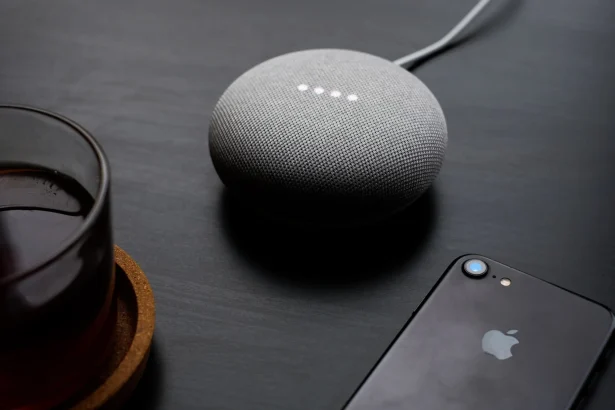
google home mini on a table with iPhone 7
Photo by Dan Farrell on Unsplash
Shares7FacebookTweetPinLinkedInPrint

Smartphones, smart TV, and now smart homes, technology never fail to amaze us. The immense popularity of Google Assistant paved the way for smart homes, and now every other high-tech millennial has it.

Smart homes integrated with Google Assistant lets you set routines for waking up, going to work, and bedtime where a single said phrase can initiate multiple actions all taking place simultaneously. Waking up and going to work can be a bit a lot less of a grind with Google routine automation.

Let’s tell you how it works, one step at a time!

Table of Contents

  • Google Assistant Mobile App
  • How to customize a routine
    • When I say
    • My assistant should
    • And then play

Google Assistant Mobile App

First and foremost, download the Google Assistant app on your phone so that we could proceed forward.

On the app, you will find the following routines by default:

  • Good morning
  • Leaving home
  • Commuting to work
  • Commuting home
  • I’m home
  • Bedtime

You can neither add another routine nor remove any from the above. These are fixed routines; however, what you can do is customize each as you like.

How to customize a routine

Customizing a routine is as easy as setting up a social media account. Moreover, it will not take a lot of your time.

  • Go to the app and click ‘Settings.’
  • In settings, you will see ‘Routines’ in the services section.
Google Assistant
  • All the routines will appear.
  • Click on the routine you want to customize.
  • In our tutorial, we are going to customize the morning routine.

When I say

In the ‘When I say’ field, type the phrase that you want to use to initiate your morning routine.

Setting Up Google Assistant

My assistant should

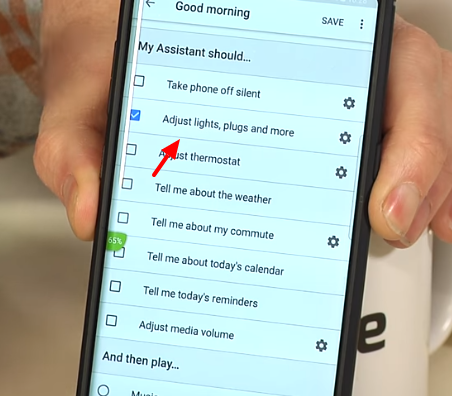
This section contains a list of tasks by default which the majority of the people as soon as they wake up.

Tick the box in front of the task that you would want the assistant to do for you. Choose as many tasks as you like.
Setting Up Google Assistant

You can customize specific tasks as well.

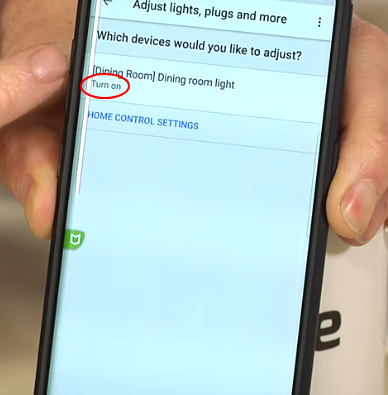
For example, clicking on ‘Adjust lights, plugs, and more’ will open up another field. You decide how you want whichever room’s light.
Setting Up Google Assistant

Likewise, adjust other tasks at your discretion.

And then play

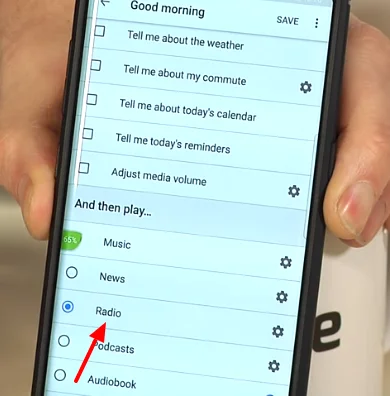
In this section, choose what you would want to listen to first thing in the morning. You can listen to music, news or radio.
Setting Up Google Assistant

Customize what you want to listen. For example, click ‘Radio.’ Type the name of the radio station in the empty field, and you are good.

Setting Up Google Assistant

You can edit and customize your other routine settings just like the morning one.

Setting Up Google Assistant

How satisfying will it feel to see the lights turning off to your command ‘Ok Google, goodnight.’

As the world becomes more competitive, time is of the essence. Google smart home can be your savior, handling all your small tasks effortlessly. Whether it’s getting ready in the morning, rushing to the office, or recovering from a long day, your assistant will promptly carry out your commands.

Integrate your smart home devices to Google Mini and convert your home into a smart home in a few minutes! You can buy Google Home devices from the official Google store.


Related reading

  • Google plans to roll out on-demand audio NEWS on Google Home
  • Chromecast Hacks and Tips (Plus What Comes Next)
Something incorrect? Report an error in this article. Include a source if you have one; your name and email are optional.

Filed Under: Consumer Tech & Gadgets Tagged With: Google, Google Assistant, Google Home, Google Home Mini, How-To

Related Stories

  • Googlebook Shows How Android 17 And Gemini Intelligence Could Reshape Google’S Ecosystem

    Googlebook Shows How Android 17 and Gemini Intelligence Could Reshape Google’s Ecosystem

    AIMay 16, 2026

  • Diagram showing a clip-on microphone, receiver and phone or camera recording setup.

    Best Wireless Lavalier Microphones for Phones and Cameras

    Consumer Tech & GadgetsOct 10, 2026

  • Travel Power Banks: Six Options For Phones And Laptops

    Travel Power Banks: Six Options for Phones and Laptops

    Consumer Tech & GadgetsSep 16, 2026

Stay on top of technology

Get TechEngage reviews, buying guides and news in your feed.

Follow on Google News
Shares7FacebookTweetPinLinkedInPrint
Avatar for Amnah Asghar

Amnah Asghar

Consumer Tech Writer

Amnah Asghar is a Consumer Tech Writer at TechEngage who covers smartphones, consumer gadgets, health technology, gaming, and digital security. Across nearly 150 articles, she focuses on turning product specifications and tech news into practical guidance for everyday readers.

Joined TechEngage July 2018First article on TechEngage July 2018

Reader Interactions

Share Your Thoughts Cancel reply

Please read our comment policy before submitting your comment. Your email address will not be used or published anywhere. You will only receive comment notifications if you opt to subscribe below.

Primary Sidebar

Google News

Get TechEngage in your feed

Reviews, news, and buying guides as they publish.

Follow on Google News

Recent Stories

  • Windows Screen Recording Guide |
    Apps & SoftwareHow to Screen Record on Windows 11 With AudioOct 10, 2026
  • Chrome Tabs Reloading Techengage |
    Apps & SoftwareHow to Stop Chrome Tabs From ReloadingOct 10, 2026
  • Techengage Windows 11 File Backup |
    Computing & HardwareHow to Back Up Windows 11 Files to an External DriveOct 10, 2026
  • Techengage Ssd Enclosures |
    Computing & Hardware3 Best SSD Enclosures for USB-C and USB4Oct 10, 2026
  • Techengage Office Copilot Frontier |
    AIMicrosoft brings Office editing to Copilot, Frontier firstOct 10, 2026

More in Consumer Tech & Gadgets

  • Diagram showing a clip-on microphone, receiver and phone or camera recording setup.
    Best Wireless Lavalier Microphones for Phones and CamerasOct 10, 2026
  • 136179 678176Dbb12A3E14 |
    Travel Power Banks: Six Options for Phones and LaptopsSep 16, 2026
  • Best Long Range Walkie Talkies Jpg |
    Best Long-Range Walkie-Talkies: 10 Radios for Different NeedsSep 24, 2023
  • Pexels Alex Qian 2343467 Jpeg |
    How to Replace Your Refrigerator Water Filter: Complete Guide With TroubleshootingJun 21, 2023
More Consumer Tech & Gadgets stories →

Footer

Discover

  • About TechEngage
  • Company News & Updates
  • Our Team
  • Advertise
  • Send us a tip
  • Submit your company to TechEngage Launchpad Hot
  • TechEngage Brand Kit
  • Contact us
  • Tools & Calculators

Legal pages

  • Editorial Standards
  • Reviews Policy
  • Our Ethics
  • Corrections Policy
  • Affiliate Disclosure
  • Privacy Policy
  • Cookies Policy
  • Terms & Conditions
  • GDPR Compliance
  • Copyright & DMCA

Must reads

  • Best Mechanical Keyboards Under $100
  • Best USB-C Hubs
  • Best Portable SSDs
  • Best Gaming Graphics Cards (GPUs)
  • Best Long-Range Outdoor WiFi Extenders
  • Best Wireless CarPlay Adapters
  • Best Slack Alternatives
  • Best Long-Range Walkie-Talkies

Download our apps

TechEngage app coming soon on the App Store Available onChrome

© 2026 TechEngage®. All Rights Reserved. TechEngage® is a project of TechAbout LLC.

TechEngage® is a registered trademark in the United States under Trademark Number 6823709 and in the United Kingdom under Trademark Number UK00003417167. It is also ISSN protected under ISSN 2690-3776 and has OCLC Number 1139335774.

Contact team@techengage.com · WhatsApp +1-307-381-8801

Your analytics choice
Allow Google Analytics to help us understand readership? You can use the site without it and change this choice anytime.

Privacy details
