• Skip to primary navigation
  • Skip to main content
  • Skip to primary sidebar
  • Skip to footer
TechEngage

TechEngage®

Technology Reviews, Guides & Analysis

  • News
  • AI
  • Mobile
  • Apps
  • Security
  • Reviews
  • More
    • Internet & Social
    • Computing
    • Gadgets
    • Gaming
    • Car Tech
    • Business
    • Science & Health
TechEngage » Apps & Software

How to use and configure the Action Center in Windows 10

Avatar for Sheharyar Ahmad Saeed Sheharyar Ahmad Saeed Updated: May 3, 2022

How to use and configure the Action Center in Windows 10
FacebookTweetPinLinkedInPrint

Ever since Windows 10 has launched its notification panel, named Action Center, the notifications have improved greatly with time from Windows 7’s balloon notifications. Notifications carry significant pieces of information and also deal with the aspect of user interaction. Hence, their configuration, usage, and management should also be the subject of utmost attention. Therefore, we have brought the guide for using and configuring the new Action Center in Windows 10.

Following are the quick steps to manage your Action Center on Windows 10.

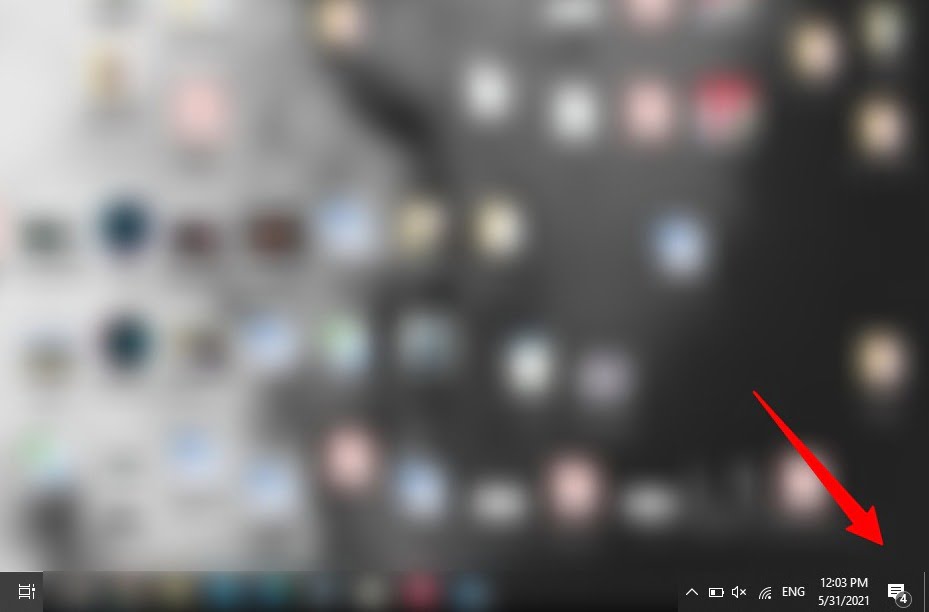
Find the icon of Action Center

At the bottom left corner of the screen, there will be a message-shaped icon. Screenshot Of The Icon Of Notification Center In Windows 10
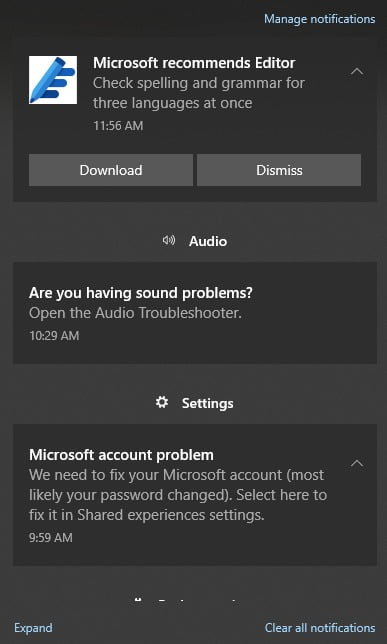
The notifications

The messages from the applications appear on the panel.Notifications On Notification Center In Windows 10
Quick actions

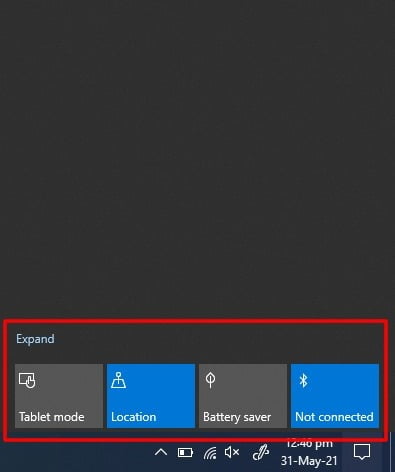
At the bottom of the panel, there will be Quick actions in their collapsed form. You can change the notification sender app through Settings which is discussed later.Screenshot Of Collapsed Quick Action Panel On Notification Center In Windows 10
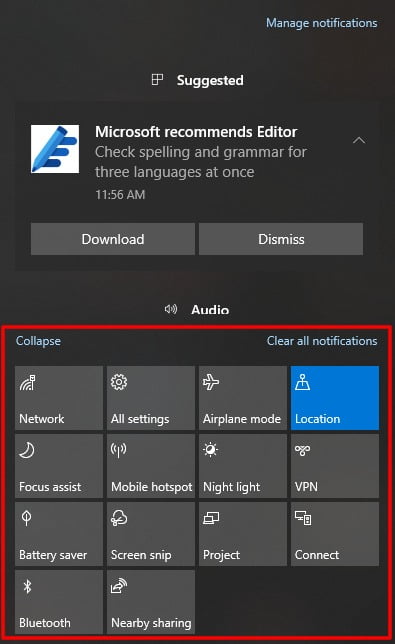
Expanded Quick actions

You can expand the Quick action panel and also explore other apps as well.Screenshot Of Expanded Quick Actions In Notification Center Of Windows 10
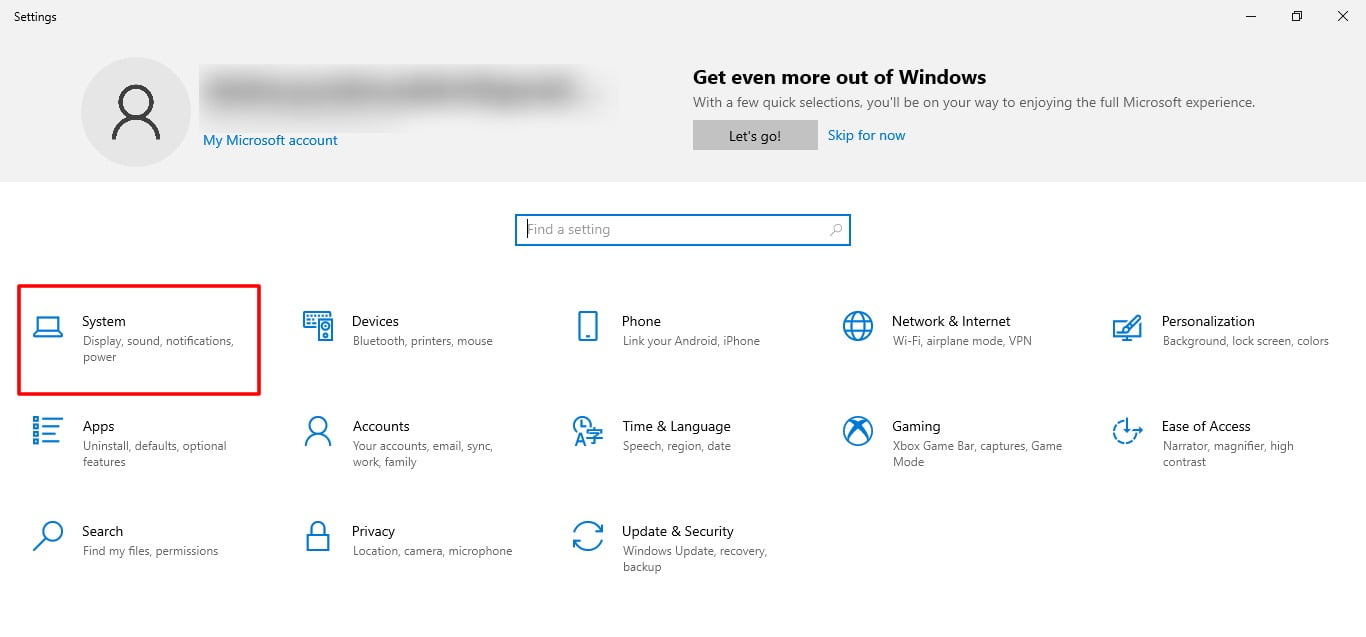
Enter Settings

Open “Settings” from the Start menu and click “System.”Screenshot Of System Tab In Settings Of Windows 10
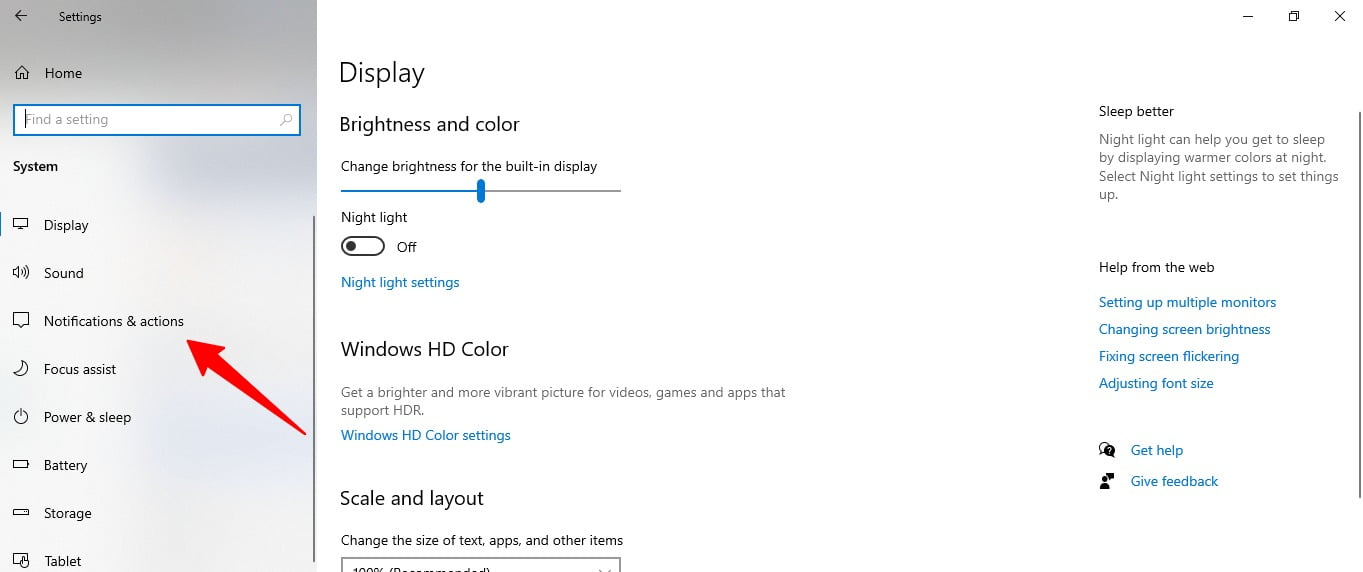
Notifications and actions tab

Open the “Notifications & actions tab” to customize the Notification Center and Quick action panels.Screenshot Of Notifications And Actions Tab In Settings Of Windows 10
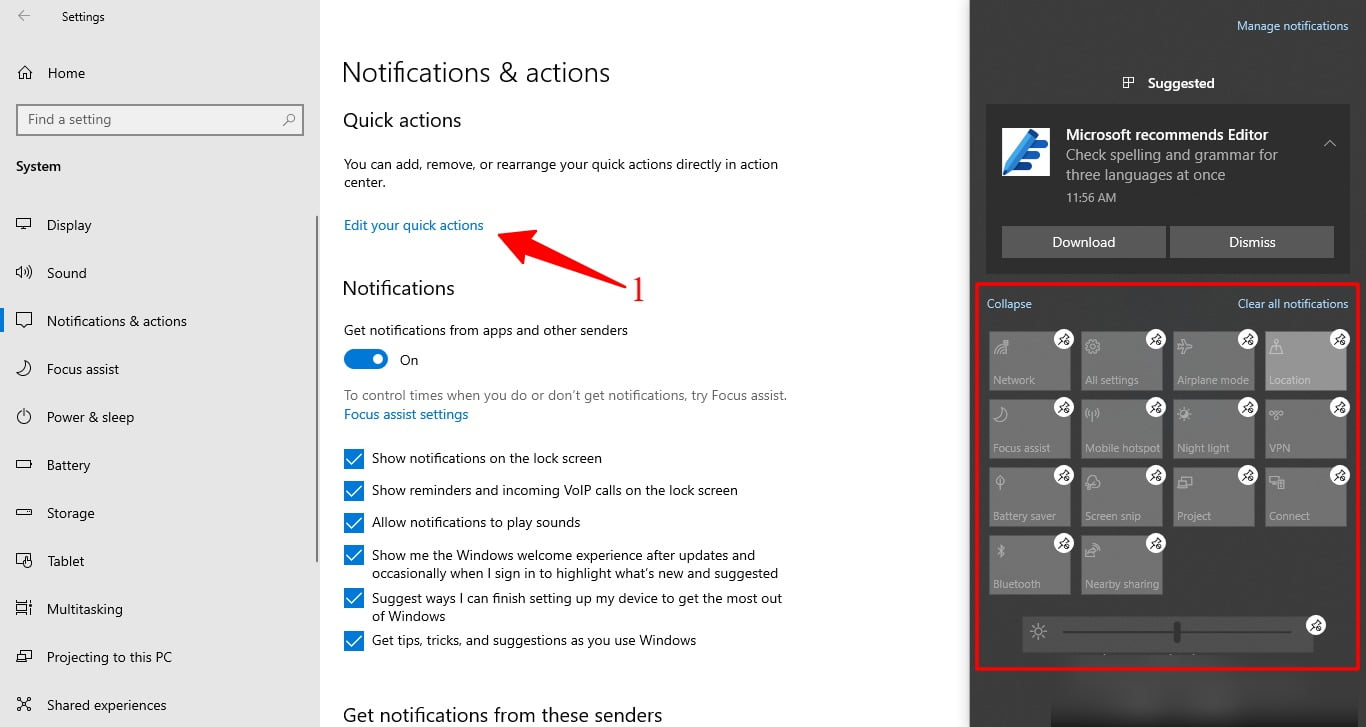
Edit Quick action panel

If you need to customize the Quick action panel, then find “Edit your quick actions” and click on it. The expanded Quick actions panel will suddenly pop up where you can pin and unpin features there. Screenshot Of Edit Quick Action Panel
Manage the apps

By scrolling down merely on the same page, you will find “Get notifications from these senders.” Just enable the desired apps and turn off the undesired app. Manage The Sender Apps In Setting Of Windows 10
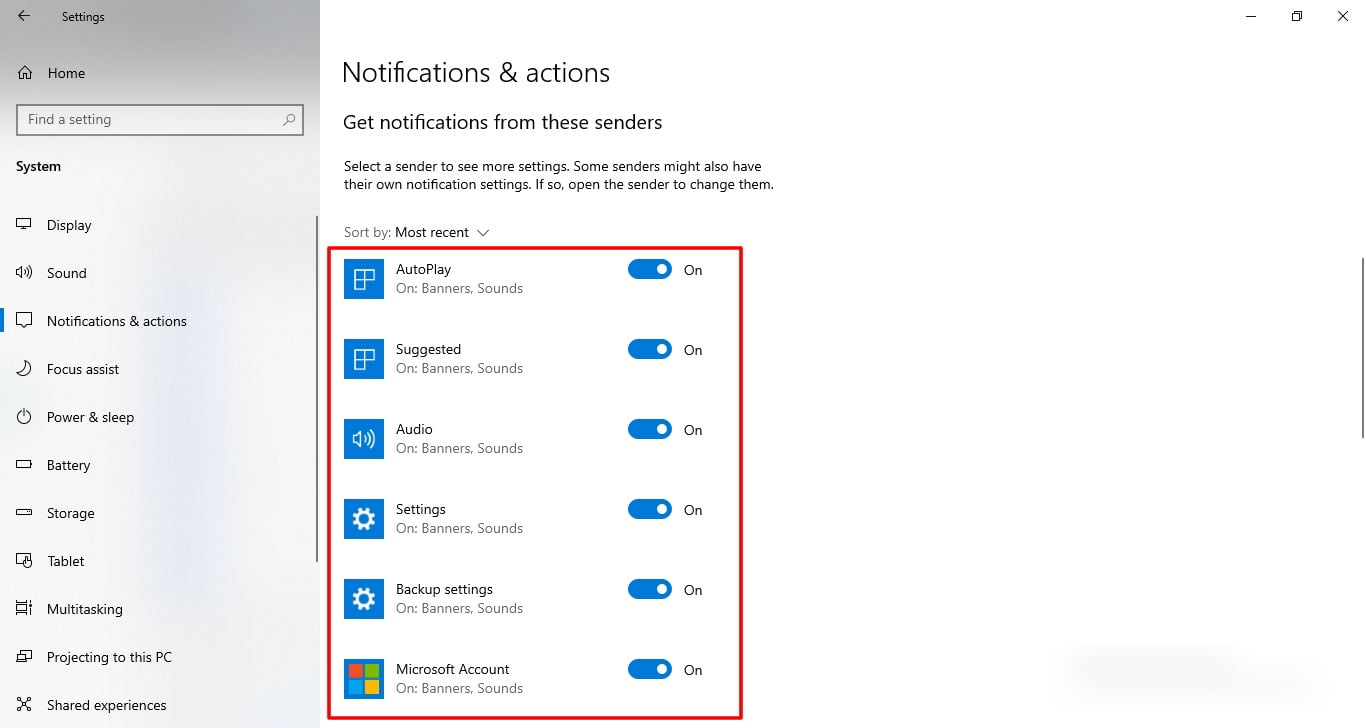
Following these steps, you can manage and configure the Notifications Center on your PC easily.


Related reading

  • How to manage Accessibility features in Windows 10
  • How to Play a DVD Movie on Windows 10 Without Windows DVD Player
  • How to Speed Up a Windows 10 Laptop
  • Windows 10 Start Menu Guide: Every Customization Option Explained

Filed Under: Apps & Software Tagged With: How-To, Windows 10

Related Stories

  • Exploring The Science Behind How A Washing Machine Cleans Your Clothes

    Exploring the Science Behind How a Washing Machine Cleans Your Clothes

  • Android Rooting Guide In 2026: Tools, Risks, And Whether It Still Makes Sense

    Android Rooting Guide in 2026: Tools, Risks, and Whether It Still Makes Sense

  • How Should You Replace Samsung Galaxy Note 7?

    How Should You Replace Samsung Galaxy Note 7?

FacebookTweetPinLinkedInPrint
Avatar for Sheharyar Ahmad Saeed

Sheharyar Ahmad Saeed

Mobile & Events Reporter

Sheharyar Ahmad Saeed is a Mobile and Events Reporter at TechEngage, tracking smartphone launches, tech conferences, and social media developments across more than 170 articles. He approaches technology with a blend of artistic curiosity and scientific rigor, making complex product announcements easy to follow for everyday readers.

Joined October 2020

Reader Interactions

Share Your Thoughts Cancel reply

Please read our comment policy before submitting your comment. Your email address will not be used or published anywhere. You will only receive comment notifications if you opt to subscribe below.

Primary Sidebar

Follow us on Google News

Recent Stories

  • Letter Boxed Hints Today: Clues and Answer for July 29, 2026
  • Spelling Bee Hints Today: Clues and Answer for July 29, 2026
  • Octordle Hints Today: Clues and Answer for July 29, 2026
  • Contexto Hints Today: Clues and Answer for July 29, 2026
  • Waffle Hints Today: Clues and Answer for July 29, 2026

Footer

Discover

  • About TechEngage
  • Newsroom
  • Our Team
  • Advertise
  • Send us a tip
  • Startup Submission Questionnaire
  • Brand Kit
  • Contact us

Legal pages

  • Reviews Guarantee & Methodology
  • Community Guidelines
  • Corrections Policy and Practice
  • Cookies Policy
  • Our Ethics
  • Disclaimer
  • GDPR Compliance
  • Privacy Policy
  • Terms and Conditions

Must reads

  • Best AirPods alternatives on Amazon
  • Best PC monitors for gaming on Amazon
  • Best family board games
  • Best video doorbells without subscription
  • Best handheld video game consoles
  • Best all-season tires for snow
  • Best mobile Wi-Fi hotspots
  • Best treadmills on Amazon

Download our apps

TechEngage app coming soon on App Store

© 2026 TechEngage®. All Rights Reserved. TechEngage® is a project of TechAbout LLC.

TechEngage® is a registered trademark in the United States under Trademark Number 6823709 and in the United Kingdom under Trademark Number UK00003417167. It is also ISSN protected under ISSN 2690-3776 and has OCLC Number 1139335774.