

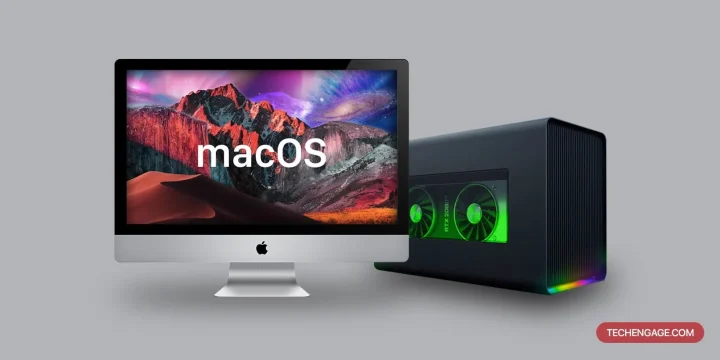
External GPUs can still boost gaming on Intel-based Macs. But Apple Silicon changed the equation entirely.
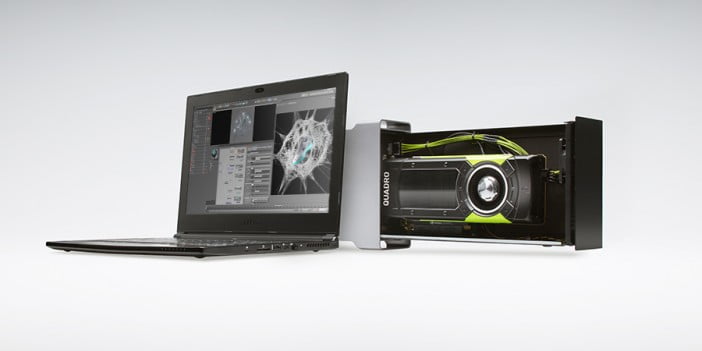
The idea behind an external GPU is simple: take a desktop graphics card, put it in an enclosure with its own power supply, and connect it to a laptop via Thunderbolt. The laptop gets desktop-class graphics without cracking open the case. For Mac users who wanted to game on hardware that Apple never designed for gaming, eGPUs were the only real option for years.
Then Apple Silicon arrived and killed eGPU support entirely. If the Mac in question has an M1, M2, M3, or M4 chip, an external GPU will not work. Apple removed the functionality at the driver level. No workaround exists. This article covers what eGPUs can do for Intel-based Macs that still support them, and what alternatives exist for Apple Silicon users who want to game.
Which Macs Support External GPUs?
Only Intel-based Macs with Thunderbolt 3 ports running macOS 10.13.4 (High Sierra) or later support eGPUs. That narrows the field to machines from roughly 2016 through 2020:
- MacBook Pro (Late 2016 through 2020 Intel models)
- MacBook Air (2018 and 2019 Intel models)
- Mac mini (2018 Intel model)
- iMac (2017 and later Intel models with Thunderbolt 3)
- iMac Pro (2017)
- Mac Pro (2019 Intel model)
Any Mac with an M1, M2, M3, or M4 chip does not support external GPUs. Apple has not indicated any plans to restore this functionality. The integrated GPU in Apple Silicon handles graphics processing directly, and Apple chose not to build eGPU passthrough into the architecture.
What an eGPU Actually Does
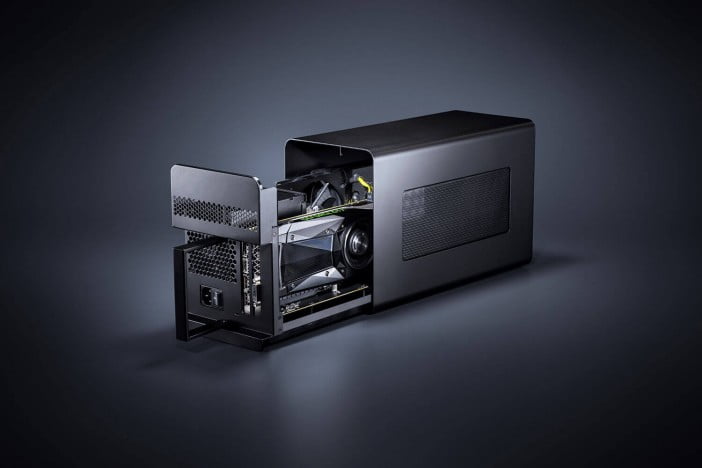
An eGPU enclosure is essentially a box with a PCIe expansion slot, a power supply, and a Thunderbolt 3 connection. A standard desktop graphics card slots into the enclosure the same way it would slot into a desktop PC motherboard. The enclosure provides power to the card and connects to the Mac over Thunderbolt 3, which provides up to 40 Gbps of bandwidth.
That bandwidth number matters. Thunderbolt 3 is fast for an external connection, but it is slower than a direct PCIe x16 slot inside a desktop. This means an eGPU will not deliver 100% of a graphics card’s performance. Expect roughly 60-85% of what the same card would achieve in a desktop PC, depending on the game, resolution, and whether the output goes to an external monitor or the laptop’s built-in display.
Routing graphics to an external monitor connected directly to the eGPU gives better performance than pushing frames back through the Thunderbolt cable to the laptop screen. For gaming, an external monitor is strongly recommended.
How to Set Up an eGPU on a Mac
The process is straightforward on supported Macs:
- Install the graphics card into the eGPU enclosure’s PCIe slot. Secure it with the retention bracket and connect any required power cables from the enclosure’s built-in power supply.
- Connect the enclosure to the Mac’s Thunderbolt 3 port using the included cable. Use a direct connection, not through a hub or dock.
- Wait for macOS to detect the eGPU. An icon appears in the menu bar showing a chip symbol. If nothing appears, restart the Mac with the eGPU connected.
- Connect an external monitor to the eGPU’s video output (HDMI or DisplayPort on the graphics card). This routes the display signal directly from the GPU and avoids the Thunderbolt bottleneck for output.
- Set per-app GPU preference (optional): Right-click an app in Finder, choose Get Info, and check “Prefer External GPU.” This forces that app to use the eGPU even when the built-in display is active.
Disconnect safely by clicking the eGPU icon in the menu bar and selecting “Disconnect” before unplugging the cable. Hot-unplugging without ejecting can cause application crashes.
Which Graphics Cards Work with macOS?
This is where things get restrictive. Apple dropped NVIDIA driver support in macOS Mojave (2018). No current version of macOS supports NVIDIA GPUs in any capacity. That rules out the entire GeForce RTX lineup. The only graphics cards that work natively with macOS in an eGPU configuration are AMD Radeon cards:
- AMD Radeon RX 5700 XT — strong 1080p/1440p gaming performance, widely available used
- AMD Radeon RX 6800 / 6800 XT — the best options for 1440p and entry-level 4K gaming on macOS
- AMD Radeon RX 6900 XT — top-tier performance for Mac eGPU setups
- AMD Radeon RX 580 / 590 — budget options, adequate for older titles and lighter games at 1080p
- AMD Radeon Pro W-series — workstation cards, overkill for gaming but supported
AMD’s RX 7000 series (RDNA 3) has limited and inconsistent macOS support. Check community compatibility reports before buying a newer AMD card. The RX 6000 series remains the safest choice for a reliable plug-and-play experience with macOS.
eGPU Enclosures Still Worth Buying
The eGPU enclosure market has shrunk since Apple Silicon removed the largest buyer segment. Several popular models like the Blackmagic eGPU and ASUS XG Station Pro have been discontinued. The options that remain are still solid:
Razer Core X is the most commonly recommended enclosure. It fits full-length, triple-slot graphics cards, includes a 650W power supply, and works with both macOS and Windows via Thunderbolt 3. The build quality is excellent, and it is widely available. The Core X Chroma variant adds USB ports and Ethernet but costs significantly more.
Sonnet eGFX Breakaway Box comes in multiple configurations (350W, 550W, 650W, and 750W models). The 550W and higher models support power-hungry cards like the RX 6800 XT without issues. Sonnet has been in the Thunderbolt peripheral business for years and their macOS compatibility is consistently reliable.
Buying used is a viable strategy. Many eGPU enclosures hit the secondhand market when users upgraded to Apple Silicon Macs. A used Razer Core X or Sonnet Breakaway Box at half the retail price is a reasonable investment for an Intel Mac that still has years of useful life.
Limitations and Honest Trade-offs
An eGPU is not a magic solution. The Thunderbolt 3 bandwidth ceiling means roughly 15-40% of the GPU’s potential performance is lost compared to a native desktop installation. Games that are CPU-bound will not benefit from a faster GPU at all — the Intel processors in older MacBooks become the bottleneck in many modern titles.
macOS gaming itself remains limited. The library of native macOS games is small compared to Windows. Boot Camp (running Windows on an Intel Mac) solves this, and an eGPU works in Boot Camp with the correct drivers installed. Many Mac gamers use their eGPU exclusively in Boot Camp for access to the full Windows game library, which somewhat defeats the purpose of buying a Mac for gaming in the first place.
The total cost adds up quickly. A decent eGPU enclosure runs $250-400. A compatible AMD graphics card costs another $200-600 depending on the tier. An external monitor is strongly recommended. The combined investment can approach or exceed the cost of a dedicated gaming PC, which would outperform the eGPU setup. For anyone considering this path purely for gaming, a separate Windows gaming PC or console may be the more cost-effective choice.
Gaming on Apple Silicon Without an eGPU
Apple Silicon Macs cannot use external GPUs, but the integrated GPUs in M-series chips are significantly more capable than what Intel Macs offered. The M3 Pro and M3 Max in particular deliver genuine gaming performance on native titles. Apple’s Game Porting Toolkit has accelerated the process of bringing Windows games to macOS, and the number of AAA titles available on Mac has grown noticeably since 2023.
Titles like Resident Evil Village, Death Stranding, Lies of P, and Cyberpunk 2077 now run on Apple Silicon Macs. The performance is not equivalent to a high-end Windows gaming PC, but it is playable at medium-to-high settings on M3 Pro and above. For casual and mid-tier gaming, Apple Silicon Macs no longer need external help. For competitive gaming at high frame rates or 4K ultra settings, a dedicated gaming machine is still necessary.
Frequently Asked Questions
Do Apple Silicon Macs support external GPUs?
No. Apple removed eGPU support entirely with the transition to Apple Silicon. Macs with M1, M2, M3, and M4 chips cannot use external graphics cards. Apple has not announced any plans to restore this feature. The integrated GPU in Apple Silicon handles all graphics processing, and macOS on these chips does not include drivers for external GPU passthrough.
Can NVIDIA GPUs be used in a Mac eGPU setup?
Not on any current version of macOS. Apple dropped NVIDIA driver support starting with macOS Mojave in 2018. Only AMD Radeon graphics cards are compatible with macOS eGPU configurations. This includes the RX 500 series, RX 5000 series, RX 6000 series, and some Radeon Pro workstation cards. NVIDIA GPUs can work if the Mac is running Windows through Boot Camp, but not in macOS itself.
Is an eGPU worth it for an older Intel Mac?
It depends on the intended use and budget. For someone who already owns an Intel MacBook Pro and wants better graphics for video editing, 3D rendering, or gaming without buying an entirely new machine, an eGPU extends the useful life of that hardware. However, the total cost of an enclosure plus graphics card can approach $500-800, which is a significant investment in aging hardware. If gaming is the primary goal, a used gaming PC or console may deliver better value.
Does an eGPU work with Boot Camp on Intel Macs?
Yes, and many Mac gamers prefer this approach. Running Windows through Boot Camp gives access to the full Windows game library and NVIDIA driver support (unlike macOS). The eGPU functions in Boot Camp with the correct GPU drivers installed. Performance is generally better in Boot Camp than in macOS for gaming because Windows game optimization and driver support are more mature.
How much performance is lost through a Thunderbolt 3 eGPU compared to a desktop?
Expect roughly 15-40% lower performance compared to the same GPU installed in a desktop PC’s PCIe x16 slot. The exact loss depends on the game, resolution, and whether the display is connected to the eGPU directly or routed back to the laptop screen. Higher resolutions (1440p, 4K) reduce the bottleneck impact because the GPU does more work per frame. Connecting an external monitor directly to the eGPU’s video output minimizes the performance penalty.


Share Your Thoughts