
iOS 13 comes with changes, several changes were made in the update, and people are confused. For example, re-arranging home screen icons is a bit different in iOS 13 and might confuse many users. Many other iOS features that users need to understand to take full advantage are explained in this guide.
This is an essential guide to iOS 13.
1. Re-arrange apps in iOS 13
Apple removed 3D touch support in iPhone 11 and replaced it with long press in iOS 13, which means there are different ways to re-arrange apps in iOS 13.
Follow the steps below to re-arrange apps in iOS 13:
- Long press (longer than usual) and hold an app
- Move the app when they start to jiggle
- Or you can long-press an app icon and select ‘Edit Home Screen’ to start re-arranging app icons.
Here’s our video guide:
2. Updating apps in iOS 13
With Apple Arcade, the App Store has an additional tab on the bottom bar. The update apps tab is no longer at the bottom of the app; instead, you can find it by following the steps given below or our guide to update apps in iOS 13:
- Click your profile picture on the upper right-hand side of the phone
- Pull down the page, and it will refresh the apps
- Update the apps that are available
Our video guide:
3. Enabling dark mode
Dark mode was one of the significant features marketed for iOS 13. It comes with system-wide dark mode support. Almost all default Apple apps got dark mode remake. To enable dark mode in iOS 13, go to Settings>Display & Brightness>Appearance>Dark.
4. Live iOS wallpaper
You can add Live wallpaper in iOS. 3D-touch enabled iPhone enables you to add live wallpapers and make it interesting. Follow our guide to create and set videos as a live wallpaper in iOS.
5. Change font and display view size
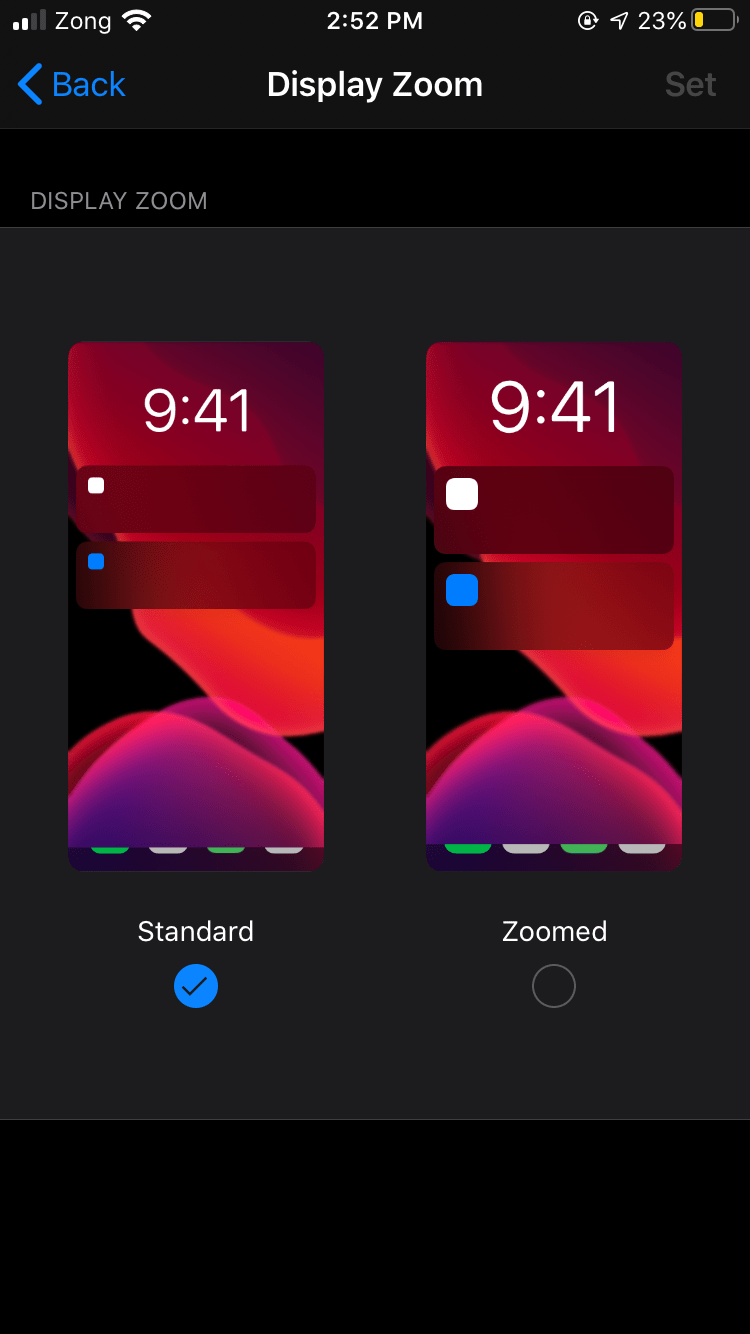
You can change the font and display size in iOS. You can either add a shortcut in Control Center or navigate to Settings>Display & Brightness>Text Size for font size. Or to Settings>Display & Brightness>Display Zoom for changing display view size.
6. Assistive Touch
As the name suggests, Assistive touch helps when your iPhone home button doesn’t work, or you don’t want to use the physical button. You can enable it in settings. Navigate to Settings>Accessibility>Touch>AssistiveTouch>ON. You can also customize it by adding custom actions and other customizations.
To enable AssistiveTouch quickly, you can navigate to Settings>Accessibility>Accessibility Shortcut>Enable AssistiveTouch. Now, when you triple-click the home button on your iPhone, you can toggle AssistiveTouch.
7. Guided Access
Sometimes we give our phones to our friends or family members to watch photos or for something particular. If you don’t want them to use anything else, and restrict their use to one specific app or feature, then Guided Access is the right feature for you.
Guided Access keeps the iPhone in a single app, and allows you to control which features are available. You can turn it ON by navigating to Settings>Accessibility>Guided Access> Turn ON.



Share Your Thoughts