• Skip to primary navigation
  • Skip to main content
  • Skip to primary sidebar

TechEngage®

Connecting mankind with technology

  • News
  • Reviews
  • Cryptocurrency
  • How-to
  • Roundups
  • Science
    • Energy
    • Environment
    • Health
    • Space
  • Apps
  • More
    • Opinion
    • Noteworthy
    • Culture
    • Events
    • Deals
    • Startups
      • Startup Submissions
  • Videos
  • Tools

You can now use your PC to send and receive SMS messages

Moazam Ijaz Moazam Ijaz Follow Moazam Ijaz on Twitter Updated: November 30, 2018

QR code reader cover
FacebookTweetPinLinkedInPrintEmail

You may have missed this but Google has recently made our lives a lot easier by introducing a web app for Android messages. That’s why it seems to researchers that Android users are more loyal than iPhone users.

So, let’s explore below how to setup Android web view for messages on your PC in simple steps.

The Setup

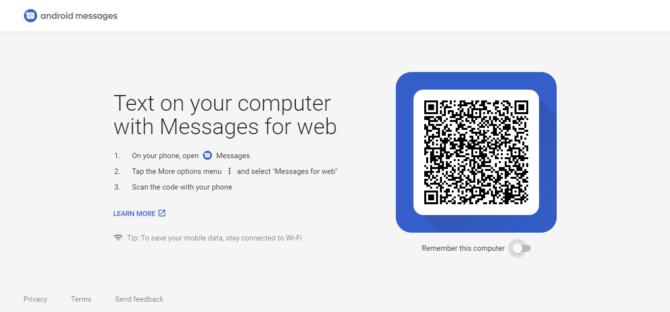
If you have been using the web application for WhatsApp, this is a very similar web portal that lets you send and receive text messages from your android device without picking your phone up. Anyone who has the latest version of Android Messages on your phone can use the web app using the following steps:

  1. Make sure your PC and phone are both connected to the internet.
  2. Open messages.android.com on your web browser.
  3. Open the Messages app on your Android phone.
  4. Tap the More options menu and select “Messages for Web”
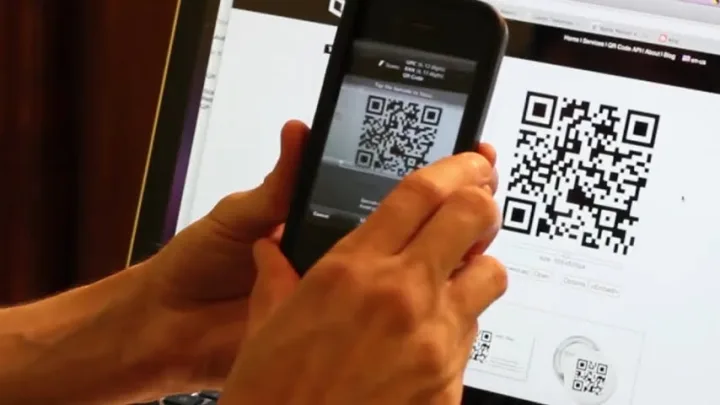
  5. Scan the QR code displayed on your PC screen using your phone.
Android Messages Web review
Messages for Web home screen.

Also Read: What is a QR code? Mechanism and Pros

While logging in, you can also choose to toggle the “Remember this computer” option to keep your account logged in. One thing is important to mention here that you can also use dual WhatsApp on your android phones.

Features

The web service for Android has brought me great relief. It brings all the functionalities of the Android messages app to the PC without having to worry about checking your phone time by time.

Using the application you can, in essence, do whatever you could do of your text messages on your phone. Send a new message, view messages, delete or archive your messages right from your screen.

The app provides you with a beautiful UI to work with.
Android Messages Web review
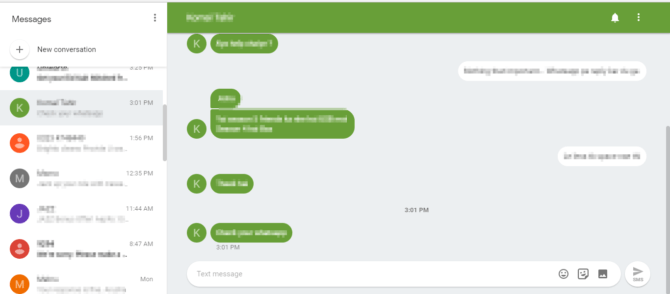
Android Messages Web Application

The left panel on the screen views all your text conversations while you can read your text messages on the right side of the screen. You can open any conversation to read or send messages.

The interface not only allows you to not only send simple text messages but you can also send stickers and images! The overall design of the interface is very similar to the Android app.

Moreover, by meddling with the interface you will find out a lot more options to manage your text messages.
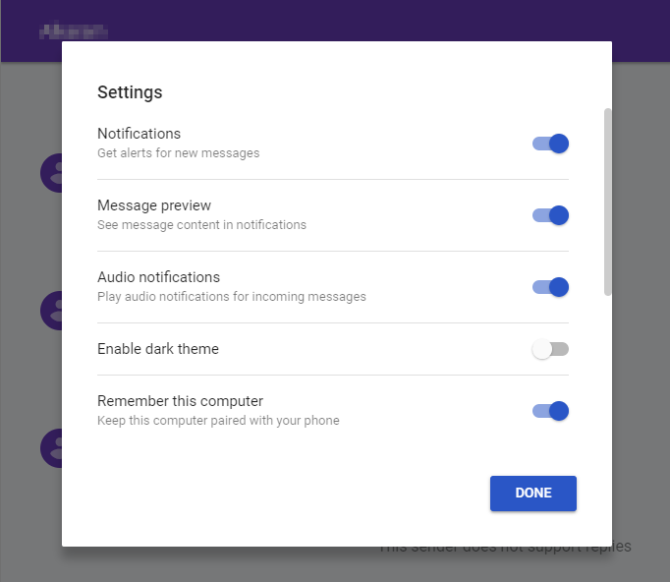
Android Messages Web review

If we dive deeper into the settings you will be able to see many options. You can choose to enable or disable notifications, audio notifications, and message preview. The can also allow the app to keep you logged in, on your PC. Wait, we even have the option to enable or disable dark theme for the app!

With Android Messages set up on your laptop, you can easily keep your phone away at work without being disconnected from your friends and family.
Suggested Reads:

  1. Adding iPhone Gestures to your Android – How To?
  2. AnTuTu – The ultimate solution to benchmark your devices
  3. 5 Best WiFi Speakers of 2018
  4. 7 Reasons to choose an Android phone instead of Apple
This post was originally published on July 27, 2018 and was updated on November 30, 2018.

Filed Under: Devices Tagged With: Android, how-to, Messages, Web Application

Related Stories

  • How to control your android phone directly from your PC

    How to control your android phone directly from your PC

  • Google released the first Android 11 public beta, here are the features

    Google released the first Android 11 public beta, here are the features

  • How to monitor calls on an Android phone secretly

    How to monitor calls on an Android phone secretly

FacebookTweetPinLinkedInPrintEmail

About Moazam Ijaz

Reader Interactions

Share Your Thoughts Cancel reply

Please read our comment policy before submitting your comment. Your email address will not be used or published anywhere. You will only receive comment notifications if you opt to subscribe below.

Primary Sidebar

Become a contributor

We are accepting contributor applications. All applications will be decided in 3 days after applying. To learn more visit the contributors page.
TextSheet Alternative

6 Top Alternatives to Textsheet for 2025

Muhammad Zeshan Sarwar October 5, 2024

battery draining apps

Top 10 battery draining apps to avoid 2025

Muhammad Abdullah October 5, 2024

Recent Stories

  • 6 Top Alternatives to Textsheet for 2025
  • Top 10 battery draining apps to avoid 2025
  • The Benefits of Having a Small Air Compressor for Flat Tires
  • 4 Best Free VPNs for 2025
  • 9 Best Calendar Apps in 2025

Discover

  • About us
  • Newsroom
  • Staff
  • Advertise
  • Send us a tip
  • Startup Submission Questionnaire
  • Brand Kit
  • Contact us

© 2025 TechEngage®. All Rights Reserved. TechEngage® is a project of TechAbout LLC.

TechEngage® is a registered trademark in the United States under Trademark Number 6823709 and in the United Kingdom under Trademark Number UK00003417167. It is also ISSN protected under ISSN 2690-3776 and has OCLC Number 1139335774.

  • Terms & Conditions
  • Privacy Policy