

After removing the classic start menu from Windows 8, Microsoft brought back the Start menu in Windows 10 when users protested against their move. The Start menu is the soul of Windows and has been there since the inception of the OS. It’s still present in the latest Windows 11 version, which will be released in October 2021. Here are the options that are available to customize the Start menu in Windows 10:
What can we do with Windows 10 Start menu?
1. Make Start menu bigger:
Did you know that you can make the Start menu on Windows 10 bigger? Well, yes, you can. There are two ways you can do it. One is by resizing the Start menu, and the other is by just enabling more tiles. Follow the simple steps below to do both:
- By enabling more tiles:
- Open Settings app by pressing Windows key + I simultaneously
- Click and open Personalization
- Now, navigate to “Start” option located at the left sidebar
- Find and click “Show more tiles on Start” button to enable more tiles on Start menu
This way, you can fit more apps to your Start menu in the larger space.
- By resizing the Start menu:
- Open Start menu by either clicking the Start button or pressing Windows key
- Select the top or side border, depending on where you want to resize and drag it
- Keep dragging till you get your desired size of the Start menu
This way, you can make your start menu bigger in Windows 10.
- By using full screen Start:
If you don’t want the classic Start menu and instead want to try the good old Windows 8 styled Start menu, which was basically the whole screen, then follow the simple steps below to get your a full-screen Start menu:
- Open Settings and click Personalization
- Find and Click Start on the left sidebar and turn on “Use Start full screen”
Press the Windows key or click the Start menu button in Windows 10 and enjoy a full-screen Start screen.
2. Change Start menu color:
You can make your Start menu look dark, or you can turn it light. However, colors in the Start menu will only show in Dark mode.
- Open Settings > Personalization > Colors
- Scroll down and select “Start accent color on the following surfaces”
- Select “Start, taskbar, and action center”
- You can also select “Title bars and window borders”
3. Show app list in Start menu:
You can show the app list in the Start menu. When enabled, the app list appears on the left side of the Start menu. Follow the steps below to enable “app list” in the start menu:
- Open Settings > Personalization > Start
- Find and click “Show app list in Start menu”
4. Show recently added apps:
Enable this option to show recently installed apps in the start menu.
- Open Settings > Personalization > Start
- Enable “Show recently added apps”
5. Show most used apps:
You can also enable the “Show most used apps” option under the Start menu options in Settings.
6. Show suggestions occasionally in Start:
Suggestions in Start Menu show different apps that you haven’t installed, but Microsoft considers them useful for you. So just keep it disabled if you don’t like random apps in your start menu.
7. Show recently opened Items:
Enabling this option will show recently opened items in your Start menu or File Explorer Quick Access.
8. Choose folders to appear on Start:
With this option, you can select which folders you want to show in the Start menu.
Here’s a quick look at all the Start menu-related options that can be found in Settings > Personalization > Start.
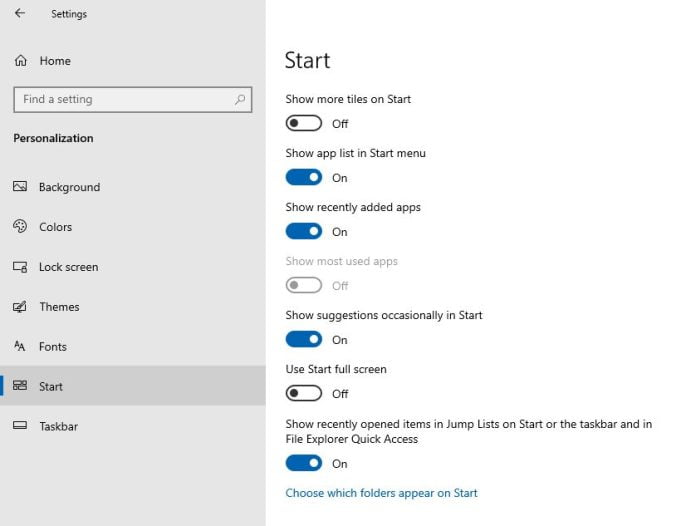
So, these are the features you can try to customize your Windows 10 Start menu.



Share Your Thoughts