


Since Windows 8, Microsoft has been revamping and tweaking Windows’ UI. Recently, Microsoft has unveiled Windows 11, its “Next Generation of Windows,” on June 24. In the October 2020 update (20H2), Microsoft removed the classic Control Panel’s system info from Windows 10. In their effort to shift settings to the main Settings app, Microsoft moved the classic “System” control panel to the main app under Settings>System>About on Windows 10. However, it was not completely wiped out though users can access it via a workaround.
There are two methods for getting that classic system info screen back. Both are mentioned below. Follow the simple steps to make it work.
Method 1:
Here are the steps to open hidden classic Control Panel’s System info screen on Windows 10.
Press Windows + R to open Run Dialog Box
At first, you need to open the Run dialog by pressing “Windows + R.”
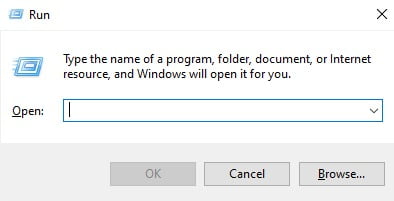
Copy the command given below and paste in Run dialogue
Copy the line given below and paste it in the text field:
explorer.exe shell:::{BB06C0E4-D293-4f75-8A90-CB05B6477EEE}
Press Ok and proceed
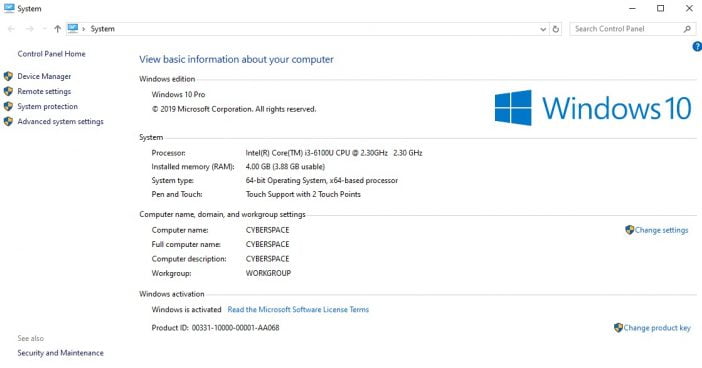
That’s it. Now right-click This PC desktop icon, and open Properties to see the page of the System Control Panel where you can find the specs of your PC, the old way. Now the properties will always take you to the old System screen in Control Panel.
Method 2:
Here’s another way of doing it. Follow the step to create a shortcut on the desktop that will help you open the System Control Panel right away with just a click.
- Create a new shortcut on your desktop screen.

- In “Type Location,” copy and insert the following command,
explorer.exe shell:::{BB06C0E4-D293-4f75-8A90-CB05B6477EEE}
- Now, you need to name the shortcut, whatever you desire. Let it be “About System” for namesake.

- Every time, you would open this shortcut, it will bring you the System Control Panel page with every possible ease.
These were the two methods to get the classic System Control Panel info screen back after new Windows 10 updates.
On Windows 10, no matter the version (1903, 2004, 20H2, 21H1), one can simply right-click the “System” category in Control Panel and select the options: “Open” or “Open in new window”