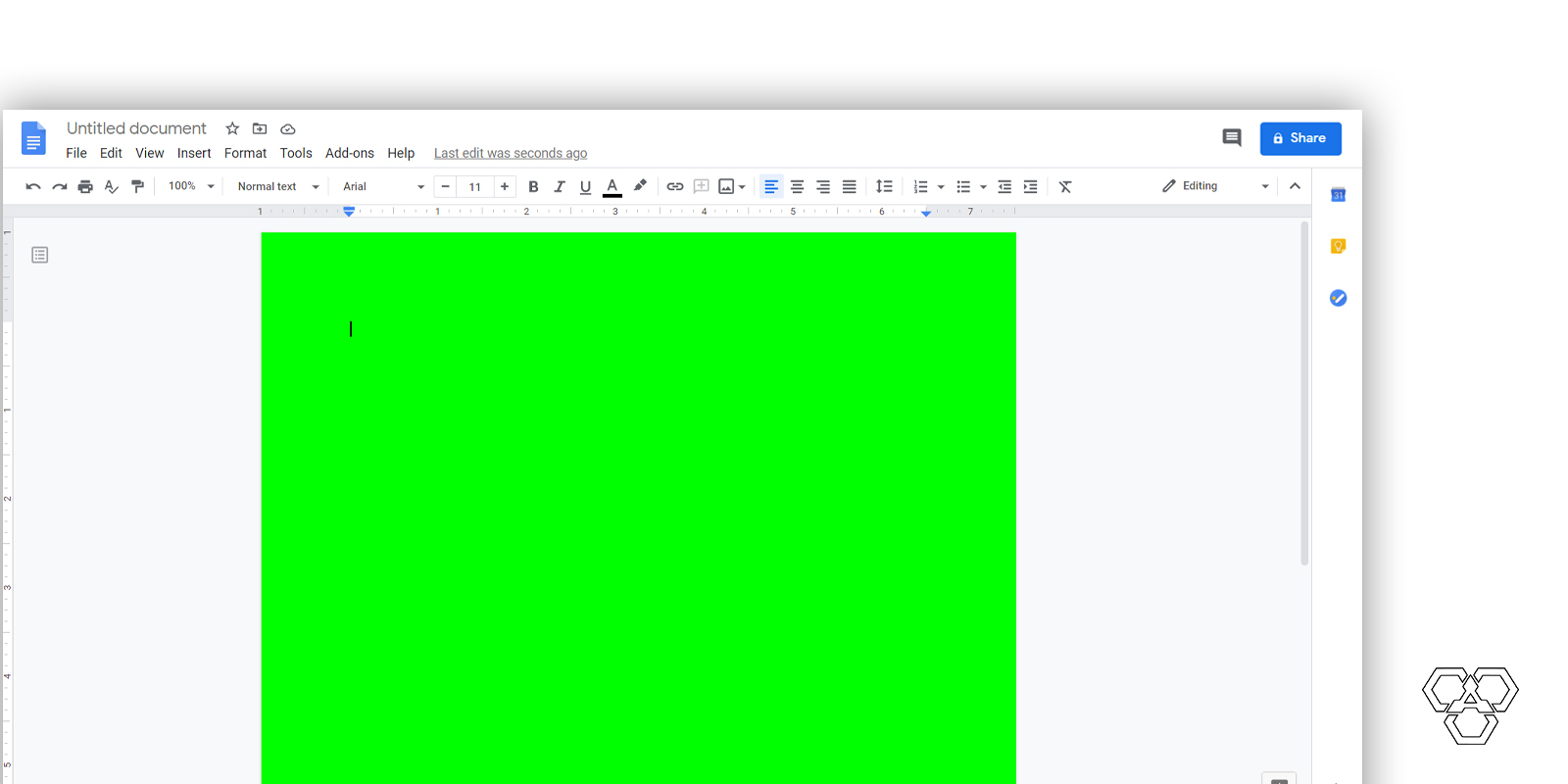

Google Docs is a widely used online word processor. It allows you to create, edit, and share documents with others in no time. Moreover, it also relaxes your local device memory by saving all created files online in your Google account.
Despite the fact, Google Docs provides plenty of utilities to users, but watching the same default bland screen daily can be monotonous. Repetition of the same task can cause boredom and leads you toward dragging, which you cannot afford while doing office chores. You need to bring change on your screen and if you’re looking for a changing of background color in your Google Docs, below is the step-by-step guide to make this possible.
Follow the steps below to change background color of a page in Google Docs
Total Time: 2 minutes
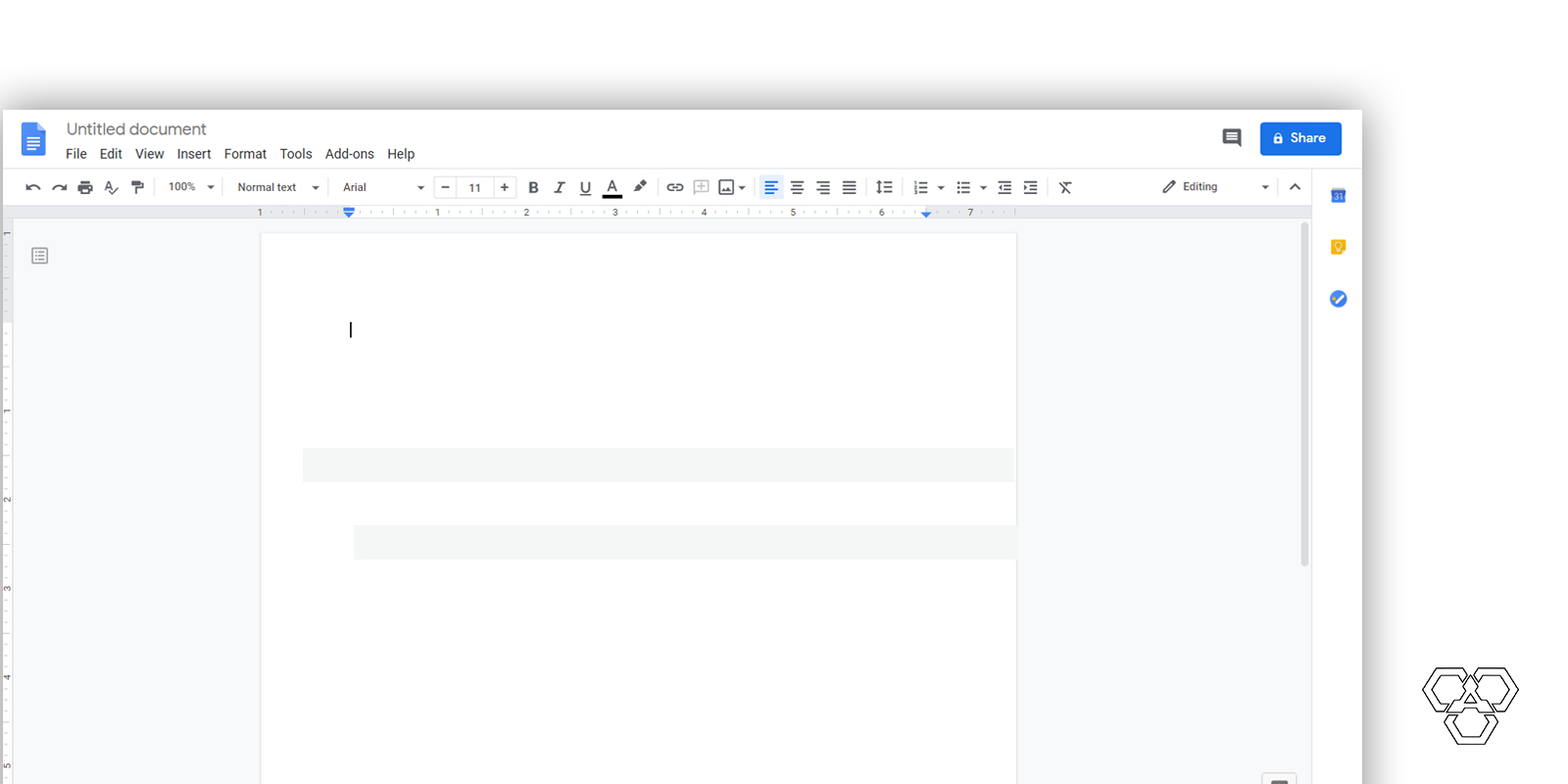
To start, create a Google Docs document or select an existing file to edit.
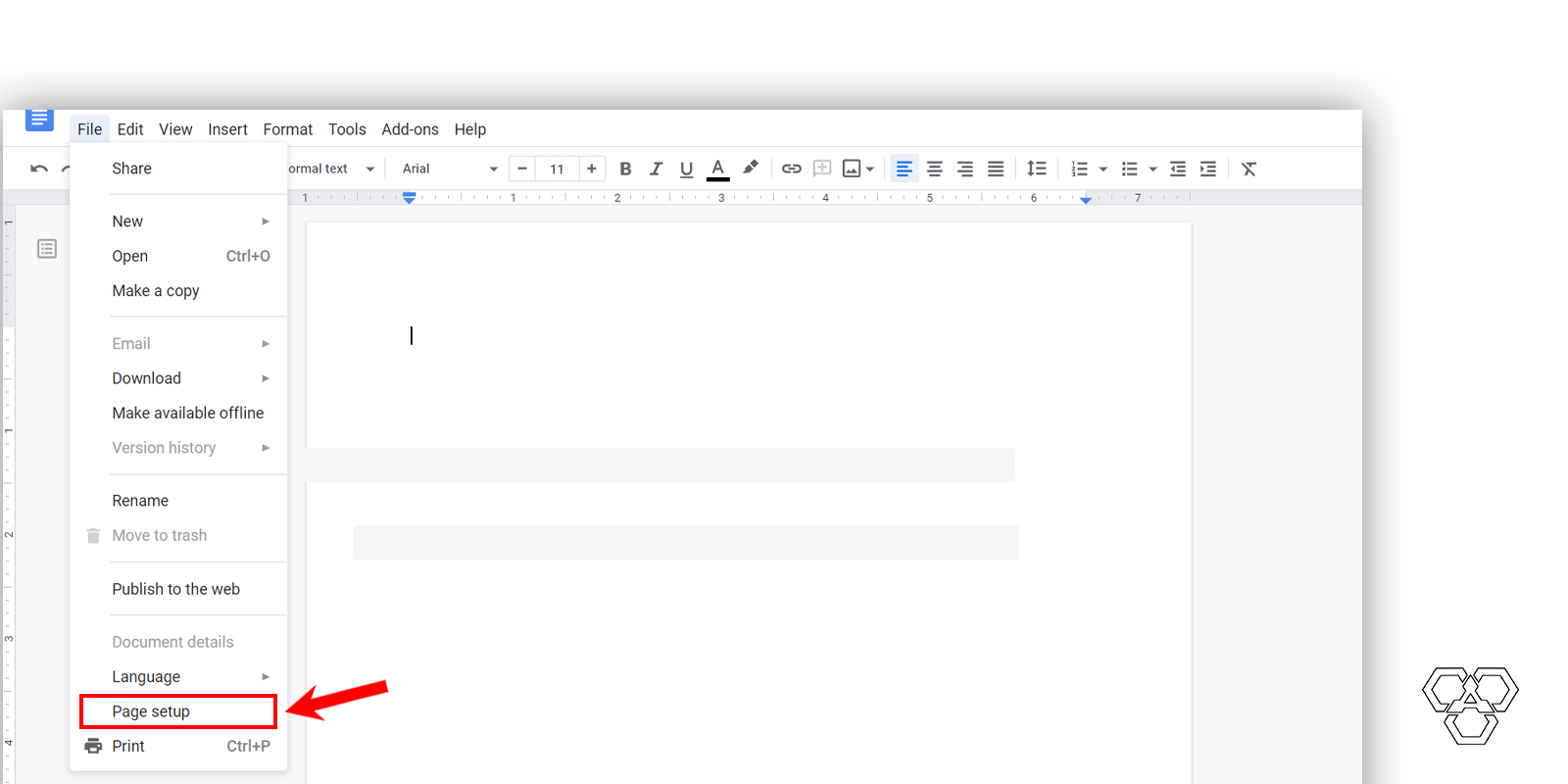
After opening a document, move the cursor to the top left side of the document where you can easily find the option of File.
By clicking the File, the long list of options will appear on your screen. After little scrolling, you will find Page Setup there.
After clicking the Page Setup, there will be a box appear on your screen. It includes the orientation, size, and color options on it.
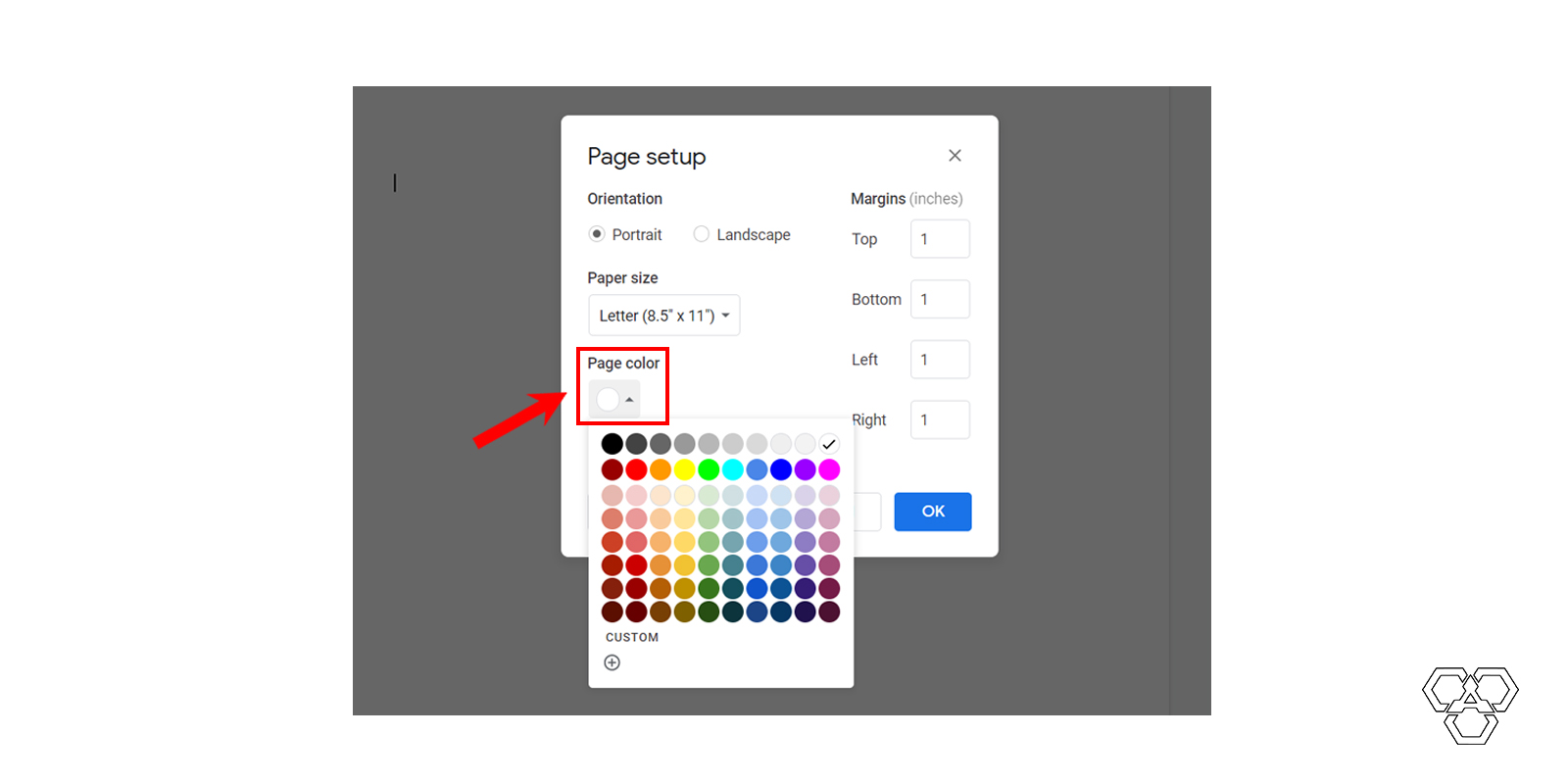
Click the circle-shaped option of color. The drop-down menu consisting of a wide range of colors will pop up on your screen. This is your way to go — choose a color you want on your background and click the Ok button.
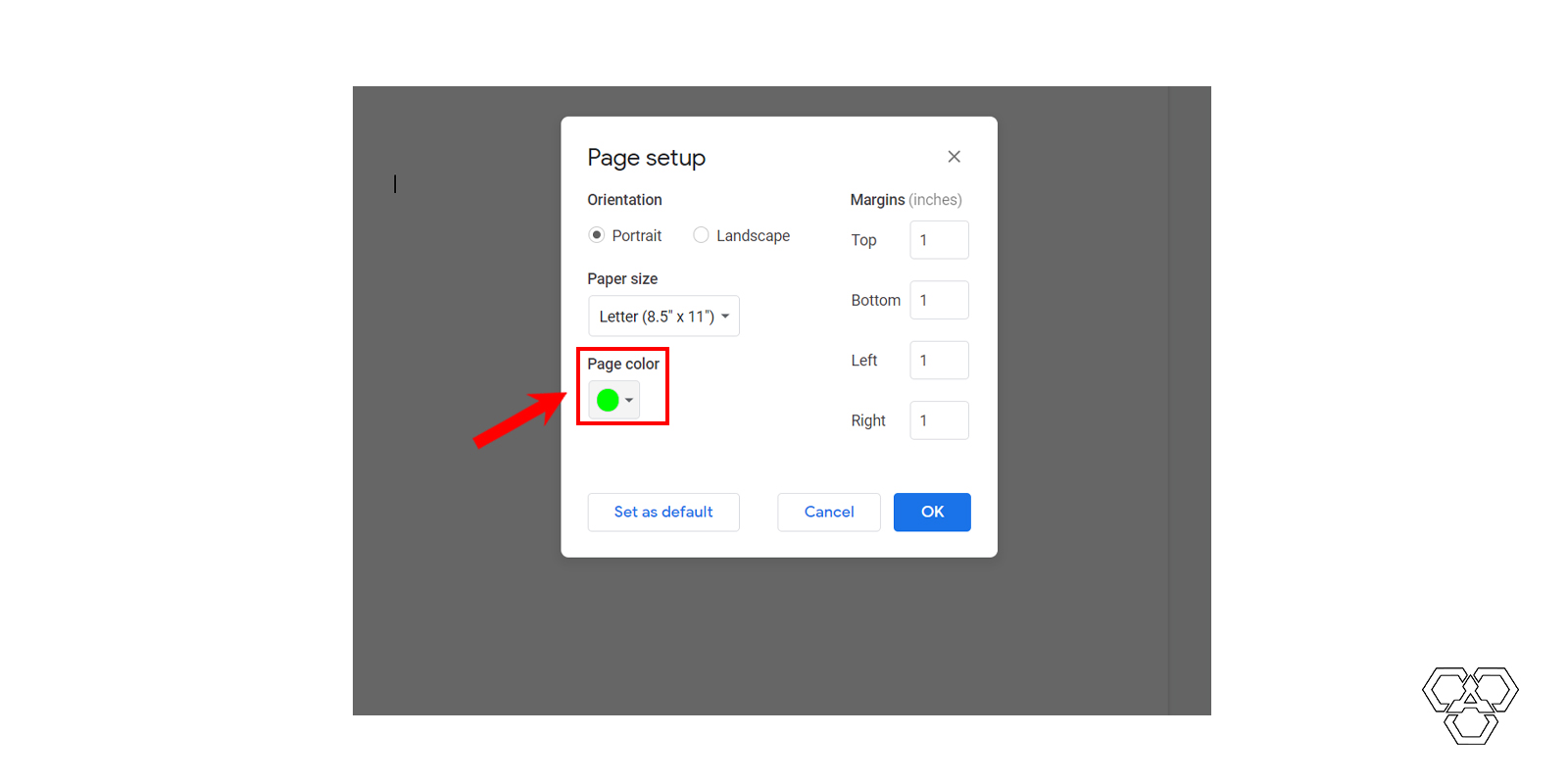
Here you go! This way, you can select any color you want as your Google Docs file background.